Statutory Holiday Pay
Learn how to add statutory holiday pay calculations to your payroll system.
Also known as: Adding Statutory Holiday Pay Calculations to Your Payroll.
Applies to: Administrators, Payroll Manager, Canada (en-CA)
Video loading, just a moment.
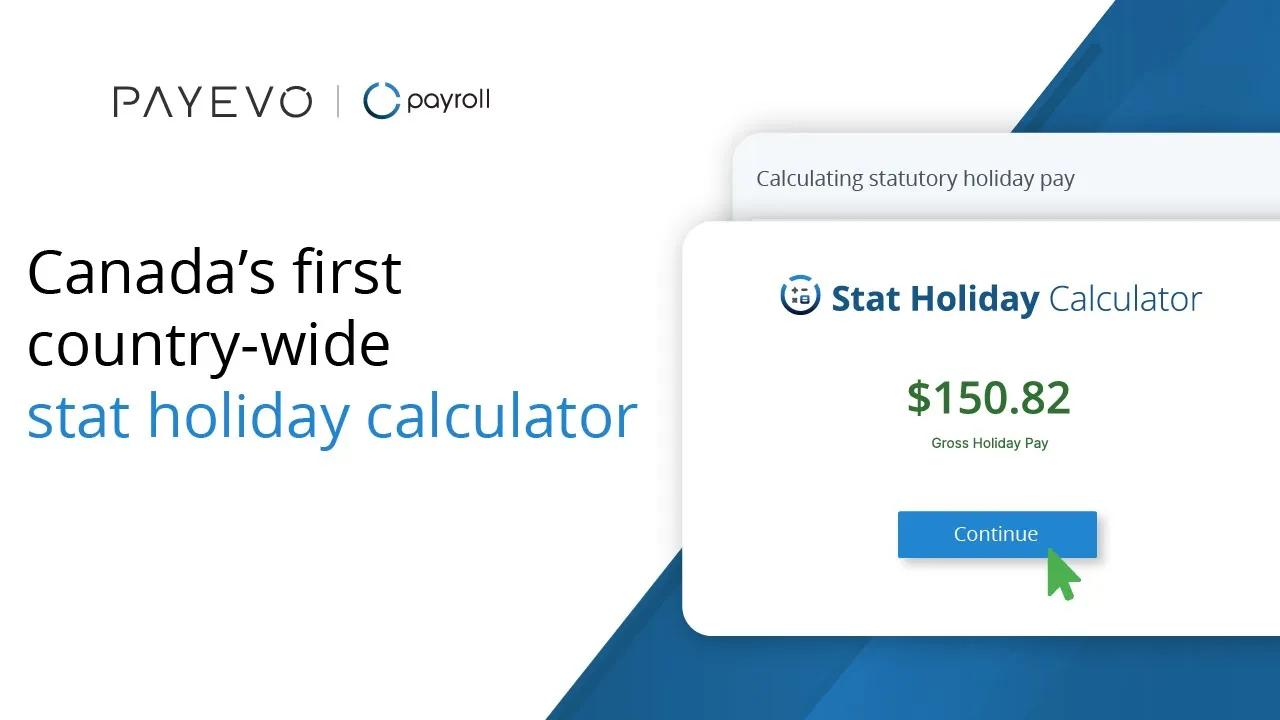
If you haven’t already, try our Statutory Holiday pay calculator for free.
And here's a quick walkthrough:
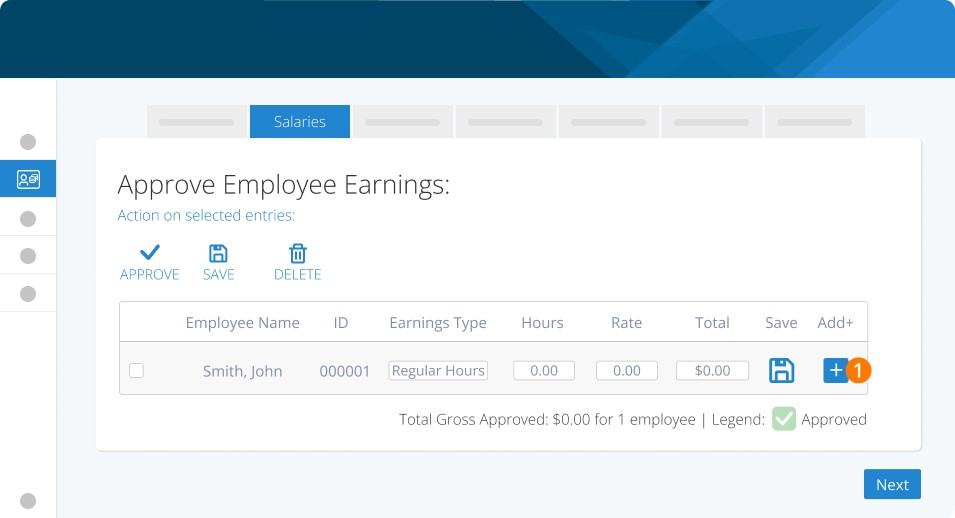
To add Statutory Holiday Pay to your payroll, start your pay run as usual. On the Salaries or Timesheets tabs, approve the employees' regular hours.
Step 1. To add statutory holiday pay, click the + icon to the far right of the desired employee.
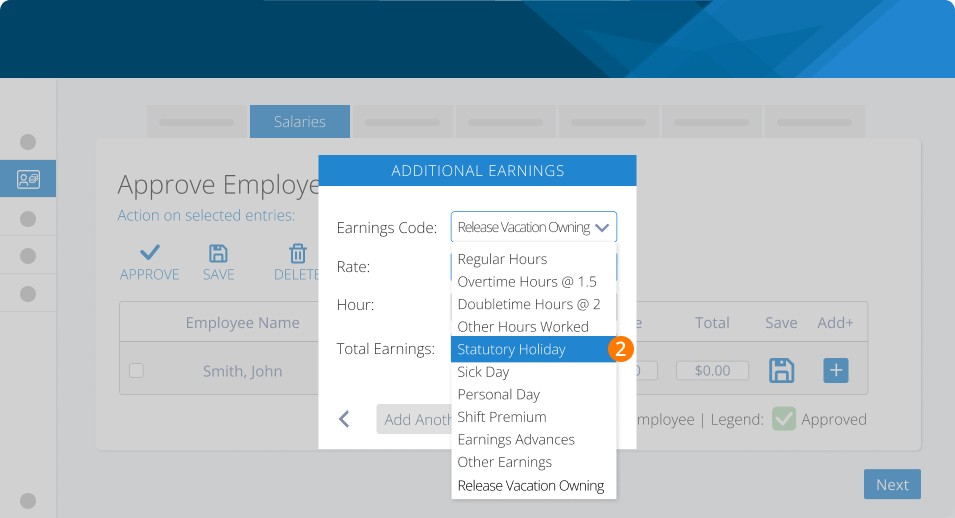
Step 2. Select statutory holiday from the list of earning types.
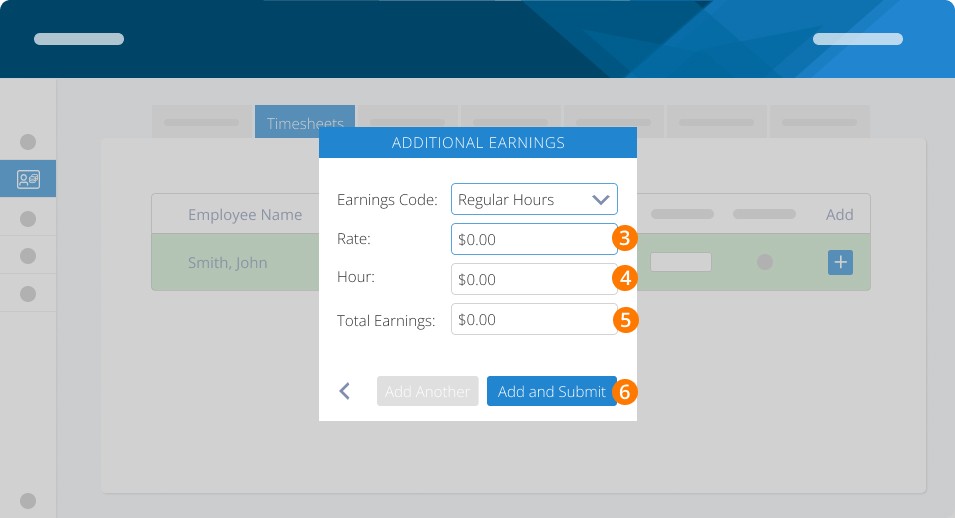
Step 3. Set the rate to 0.
Step 4a. Enter the hours worked on the holiday if applicable.
Step 4b. Or, if the employee didn't work on the stat holiday, enter the hours the employee would have typically worked. If you're unsure what that figure is, take the total from the stat holiday calculator provided and divide it by the employee's hourly rate.
Step 5. Enter the amount calculated using our stat holiday calculator.
Step 6. Click Add and Submit, and it will be added to your payroll. Repeat this step for the rest of your employees and continue with your pay run per your normal process.
Keywords: Stat Holiday, Statutory Holiday Pay, Stat Holiday Pay, Statutory Holiday, Holiday Pay, Holiday
396
Can't find what you are looking for? We can take a more direct look to help resolve your matter — Create Case or Contact Us