How to provide a bonus payment to your staff
One-time or occasional bonus payments are easy to add as part of your payroll runs.
Bonus as part of a regular pay run
To pay a bonus to a staff member as part of your regular pay runs, follow these steps:
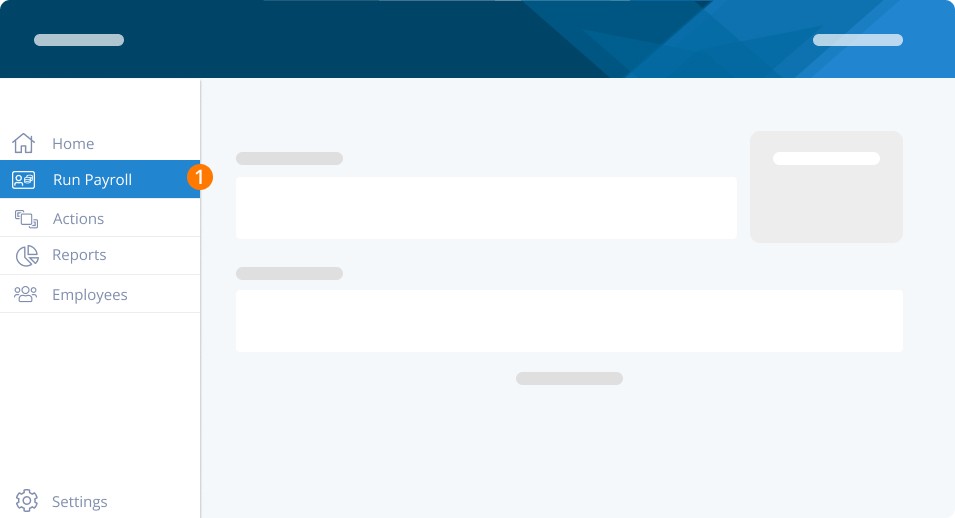
Step 1. Login to your account and click on Run Payroll to start your pay run
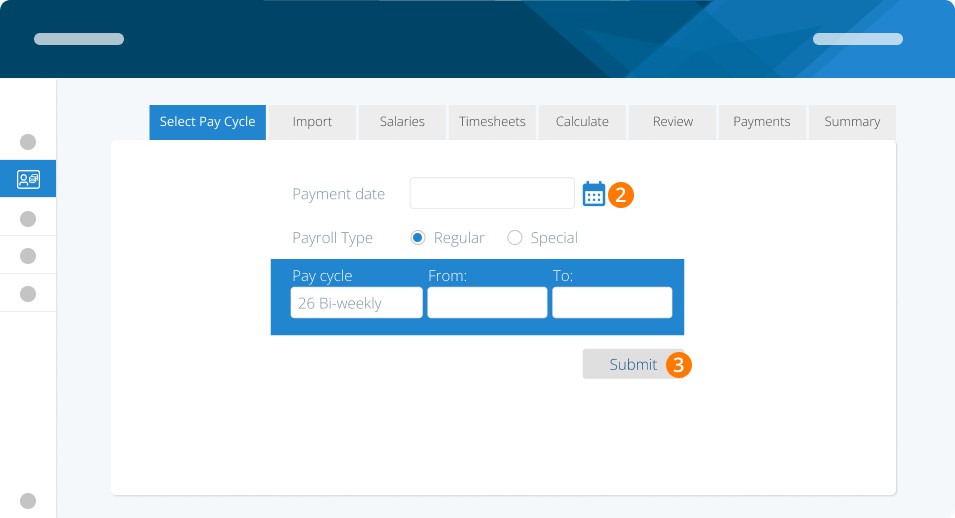
Step 2. Choose the payment date, payroll type, and pay cycle types
Step 3. Click on Submit
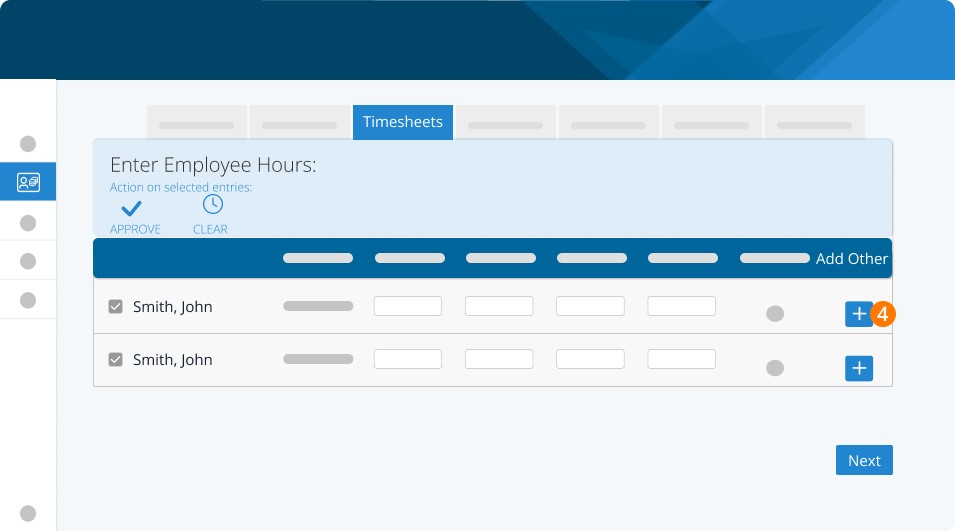
Step 4. Click on “+” to add additional earnings
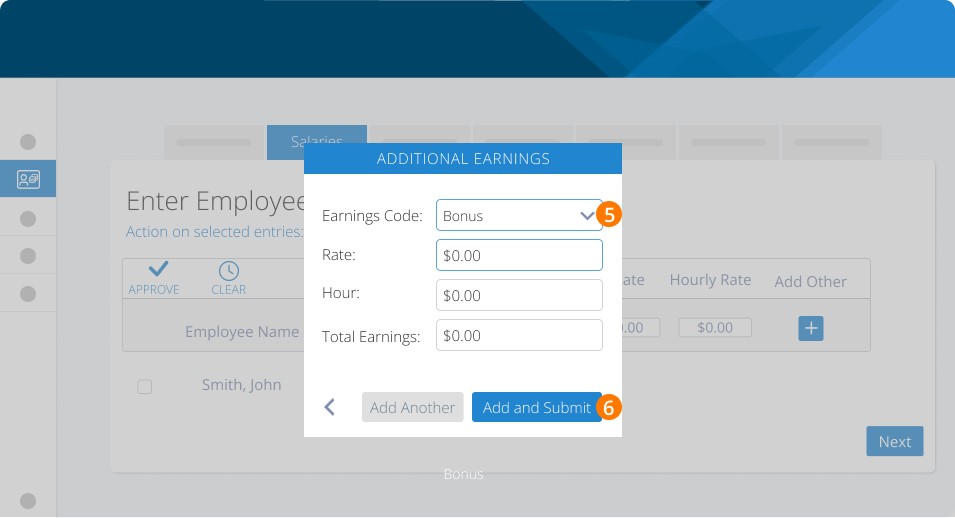
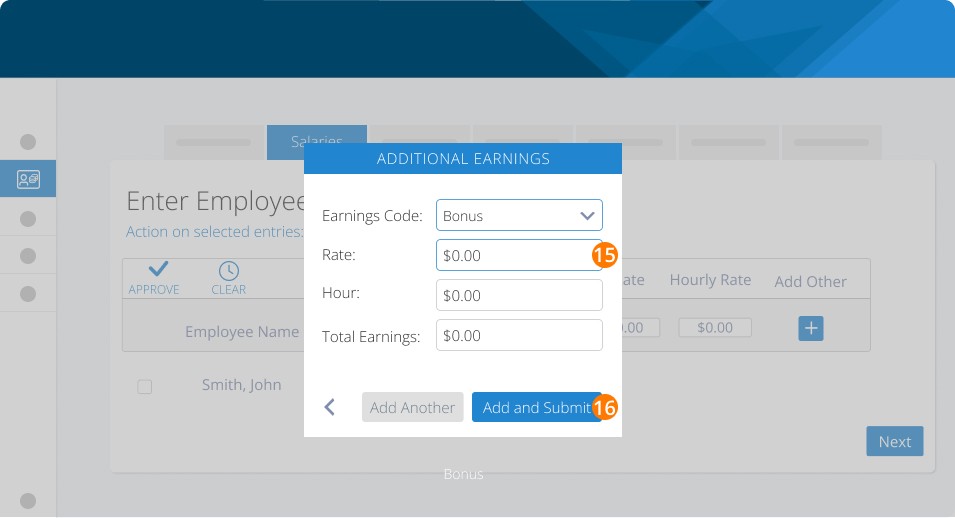
Step 5. Choose Bonus as earnings code. Then enter the rate, hour, and total earnings amount
Step 6. Click on Add and Submit
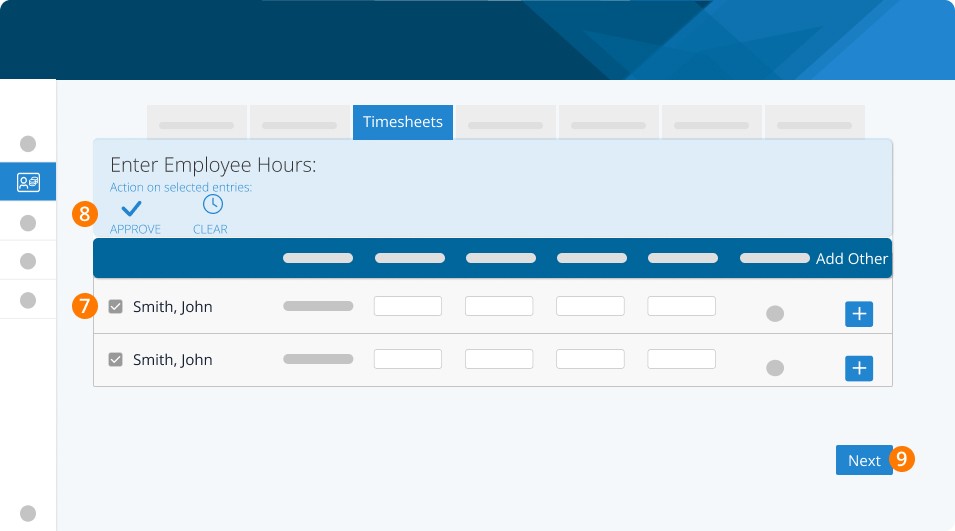
Step 7. Select the checkbox to choose specific employees whose work hours you want to approve.
Step 8. Click on Approve.
Step 9. Click Next to continue the payrun.
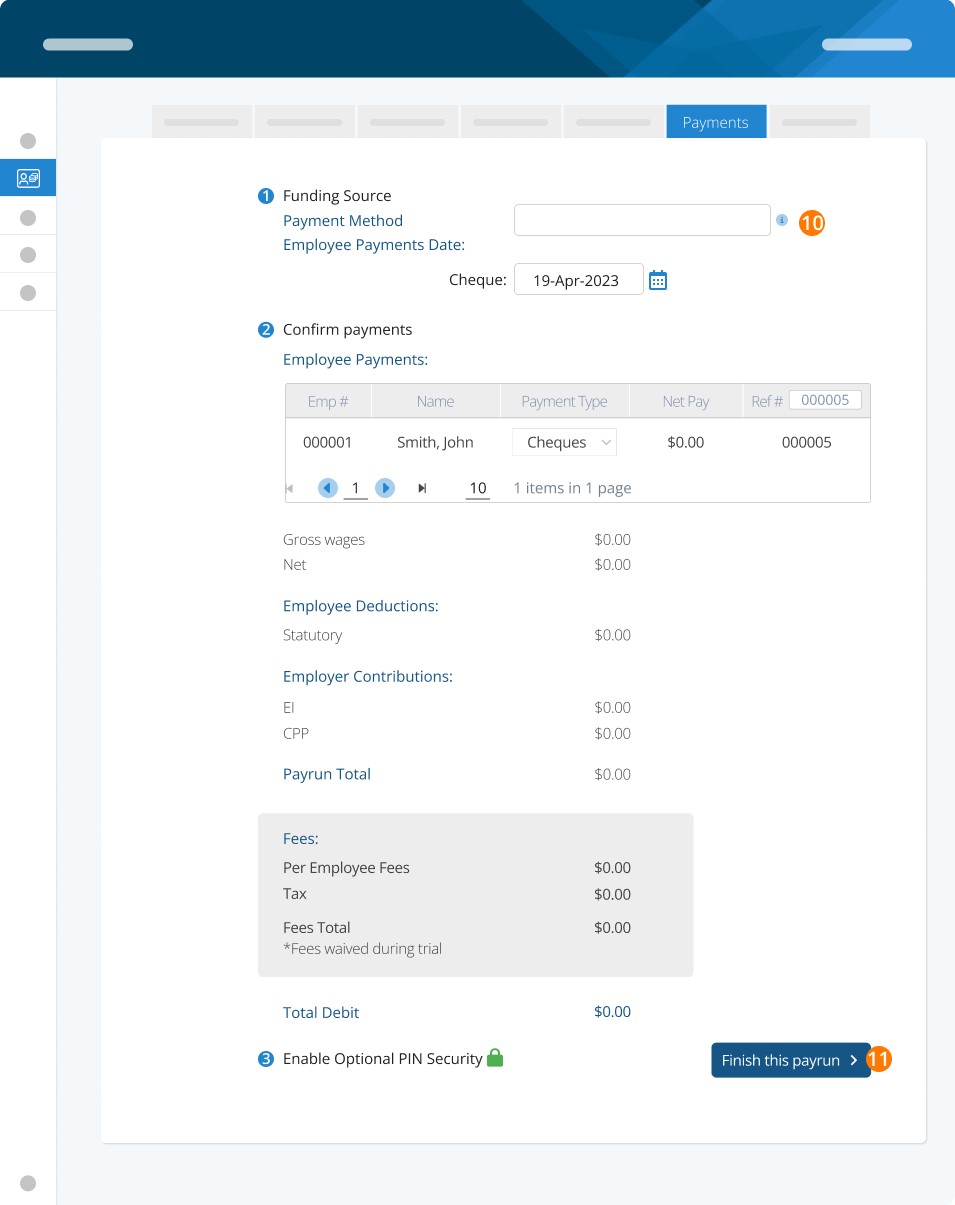
Step 10. Choose the payment method, employee payments date, payment type, and confirm the payment information.
Step 11. Click on Finish this payrun.
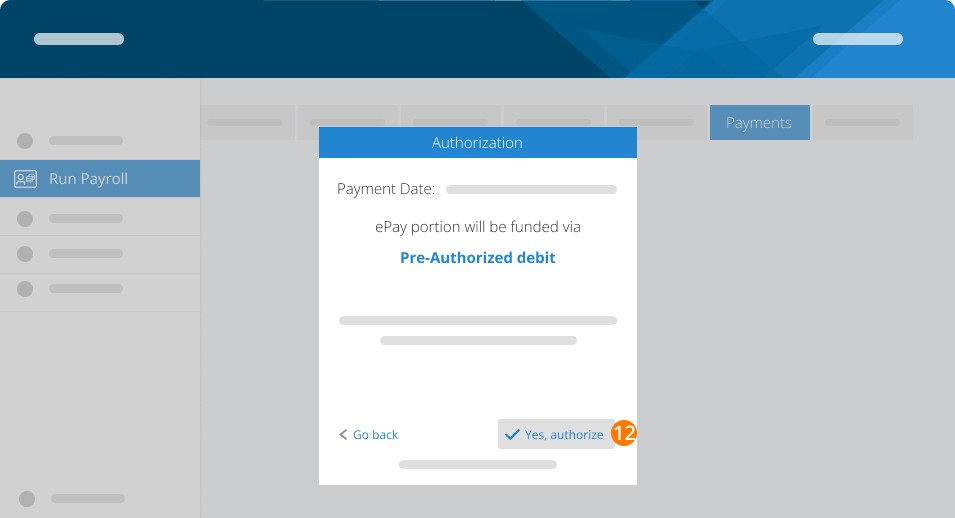
Step 12. Confirm the payment details and click Yes, authorize.
Step 13. Review the payment summary and finish running the payroll.
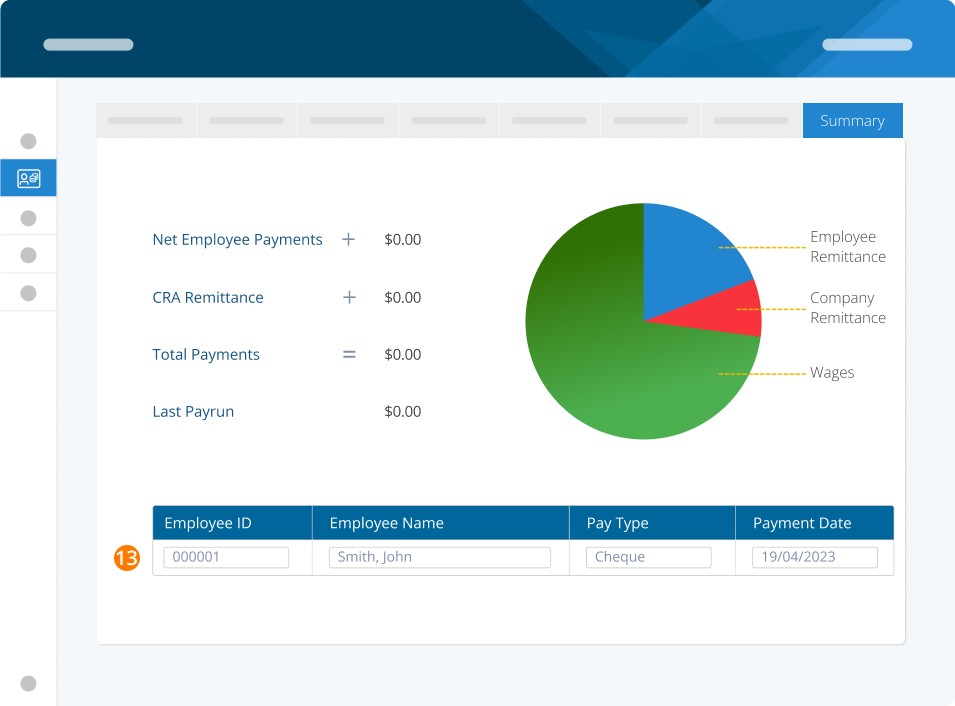
The bonus amount will show as part of the employee's regular pay run and will be listed as a separate line item.
Bonus as a separate (special) pay run
Submitting a "bonus-only" run is NOT recommended. Consider paying this as part of a regular pay run to ensure your tax calculations are in accordance with CRA tax law. If you must pay out a bonus as a separate pay run, the employee's vacation calculations must be set to accrue or off. If they are set to release each pay, your tax calculations will be incorrect.
To change employee setting follow these steps:
Step 1. Click on Employees
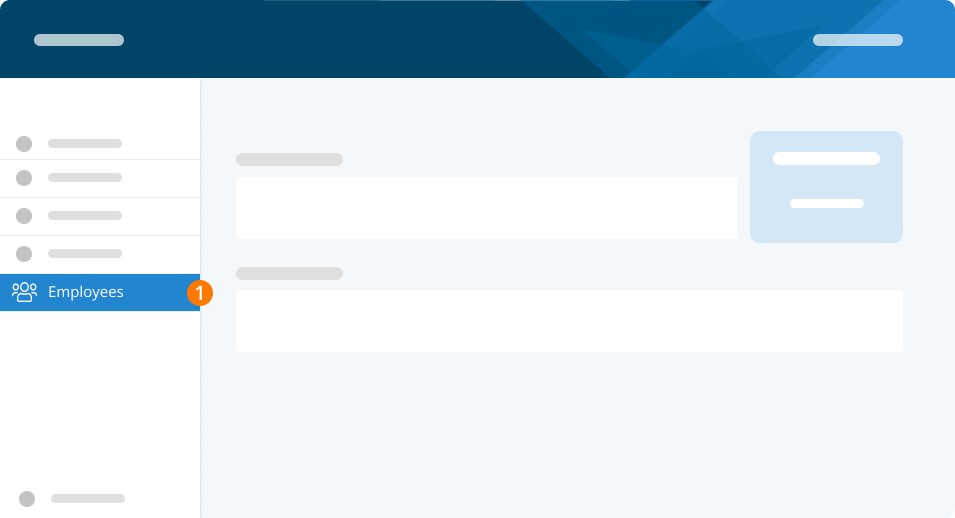
Step 2. Click the three dots
Step 3. Select Profile
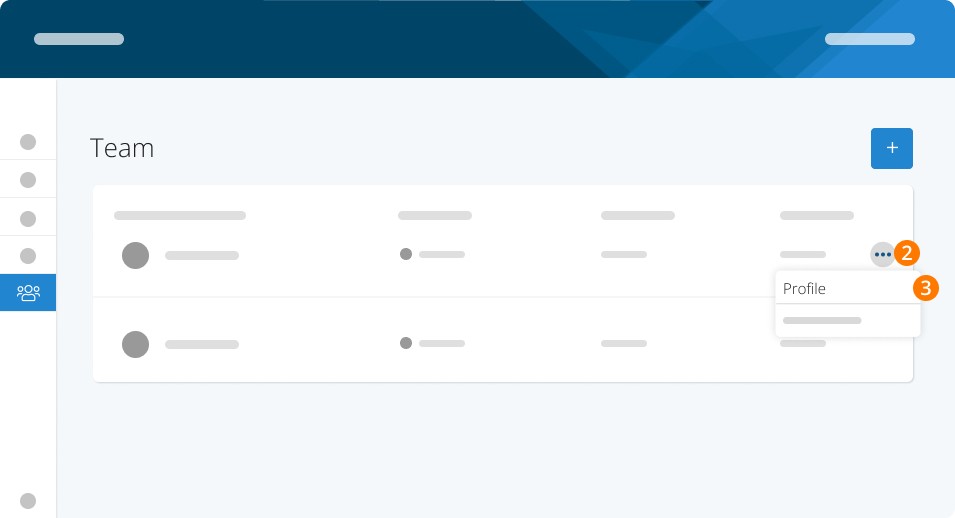
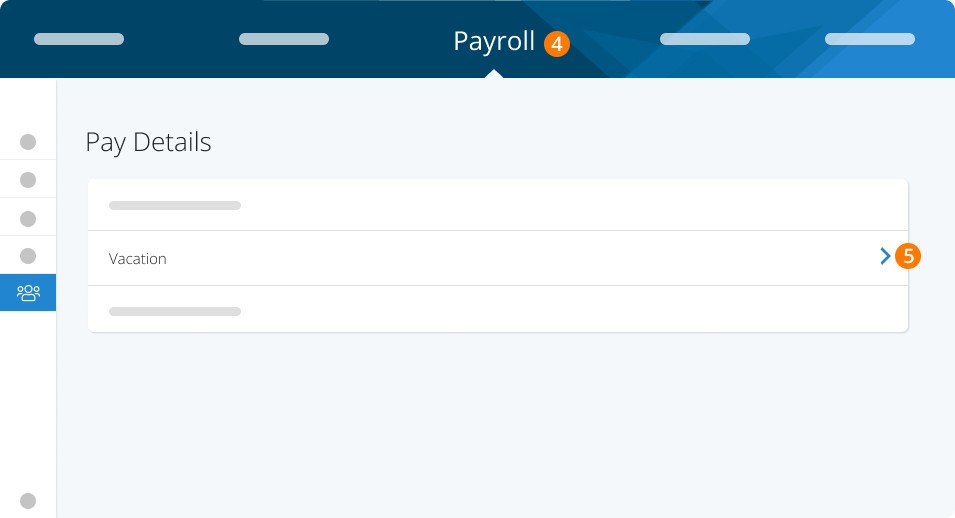
Step 4. Click on Payroll
Step 5. Select Vacation
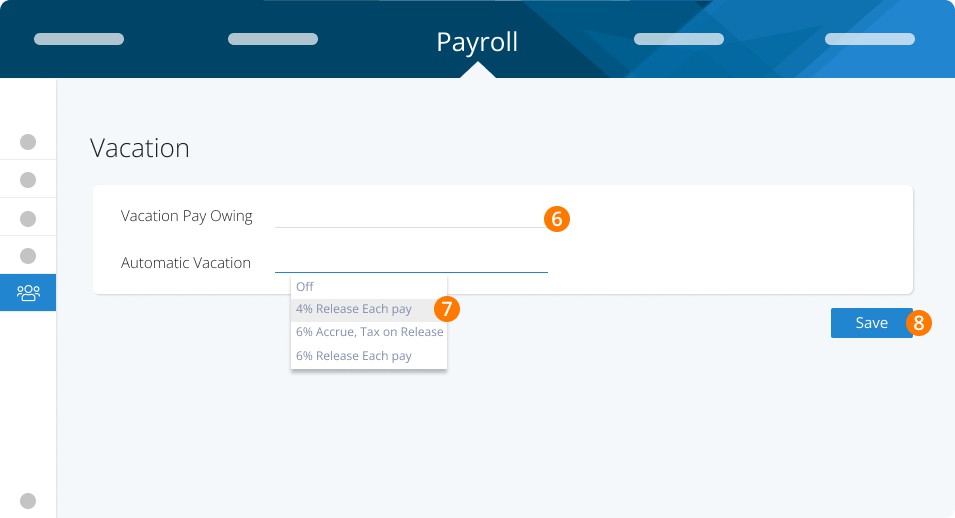
Step 6. Enter the Vacation Pay Owing amount
Step 7. Select Off or Accrue.
Step 8. Click on Save
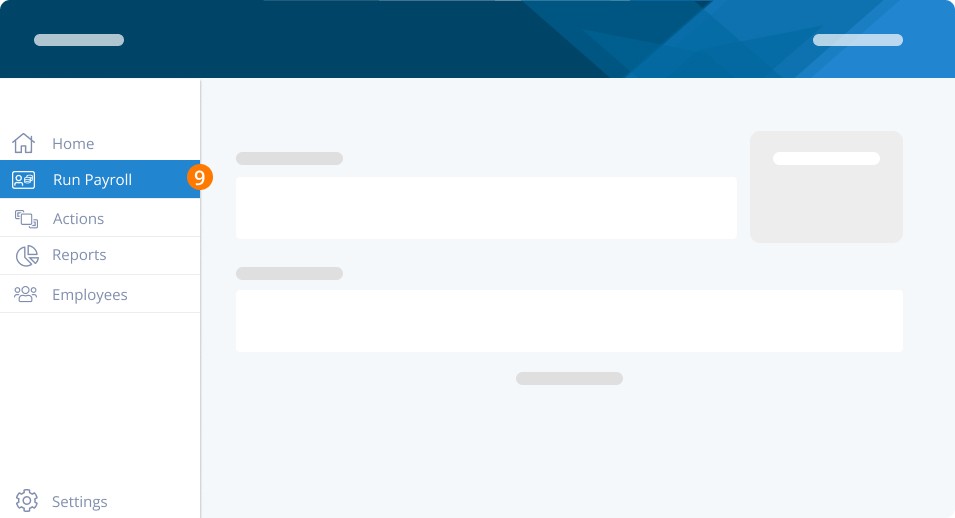
Step 9. Click on Run Payroll
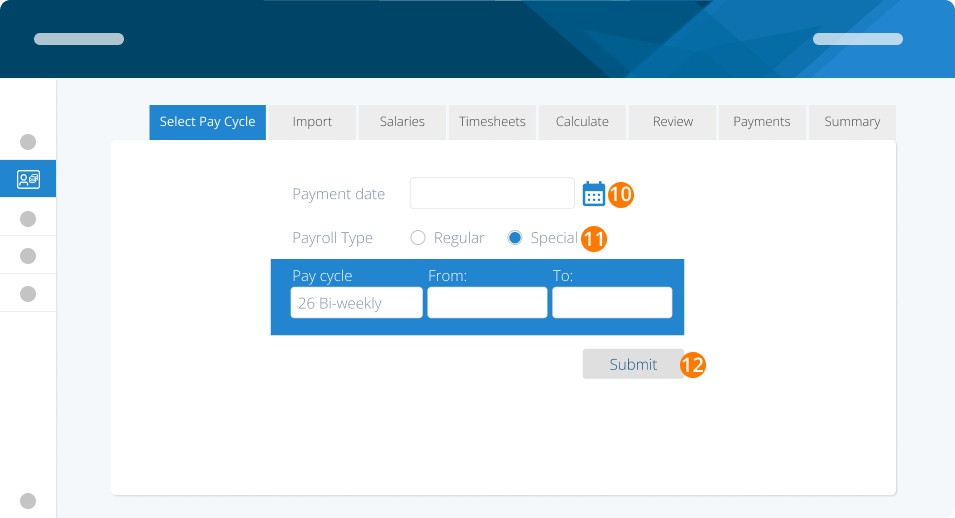
Step 10. Select the Payment date
Step 11. Choose the Payroll Type, Pay Cycle, and Dates
Step 12. Click on Submit
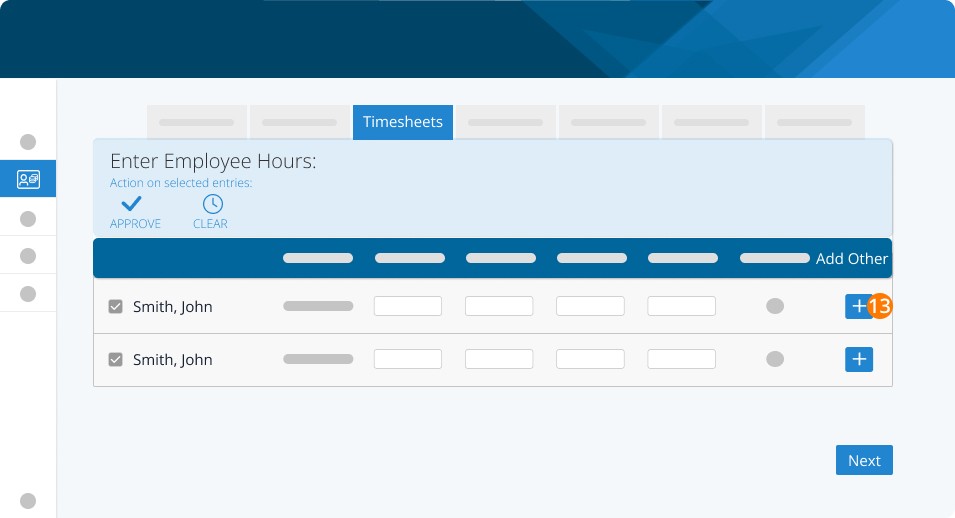
Step 13. Click ‘+’ to add additional earnings
Step 14. Choose Bonus
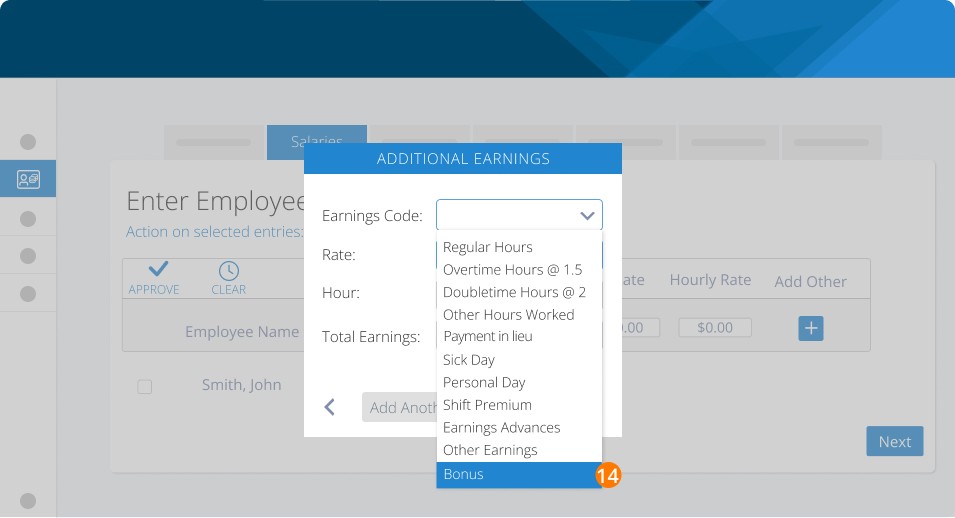
Step 15. Enter the Rate, Hour, and Total Earnings
Step 16. Click on Add and Submit to complete your payroll as normal
Creating a custom pay rule for bonuses
If you'd like to use your own custom pay rule for bonus payments, you'll need to make sure your rule uses the occasional earnings tax method. You'll want to use your own custom code if you want to customize the term "bonus" on employee pay slips.
Here's how:
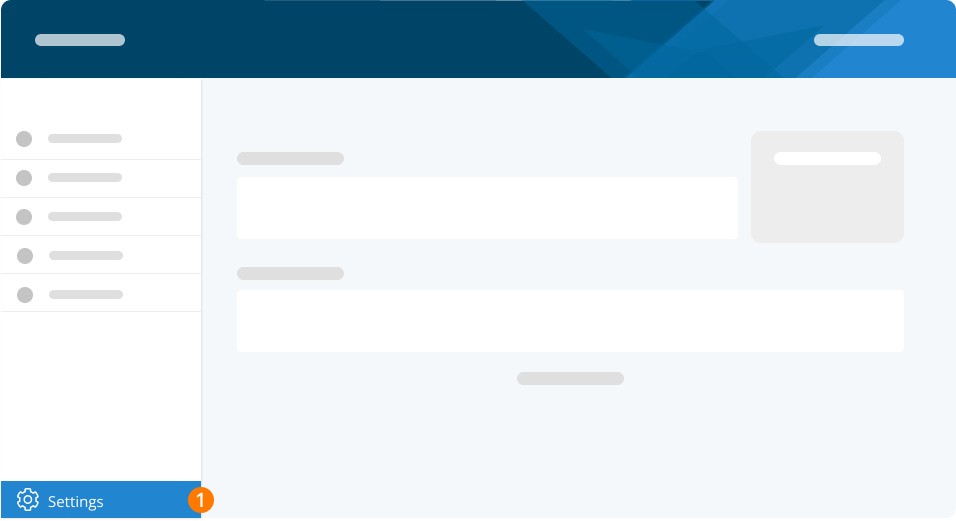
Step 1. Click on Settings
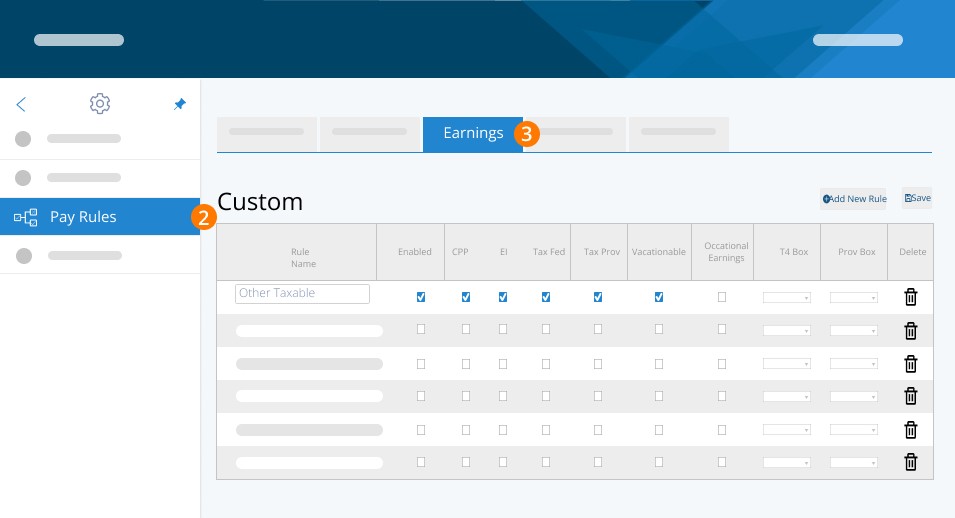
Step 2. Click on Pay Rules
Step 3. Click on Earnings
Step 4. Click on Add New Rule
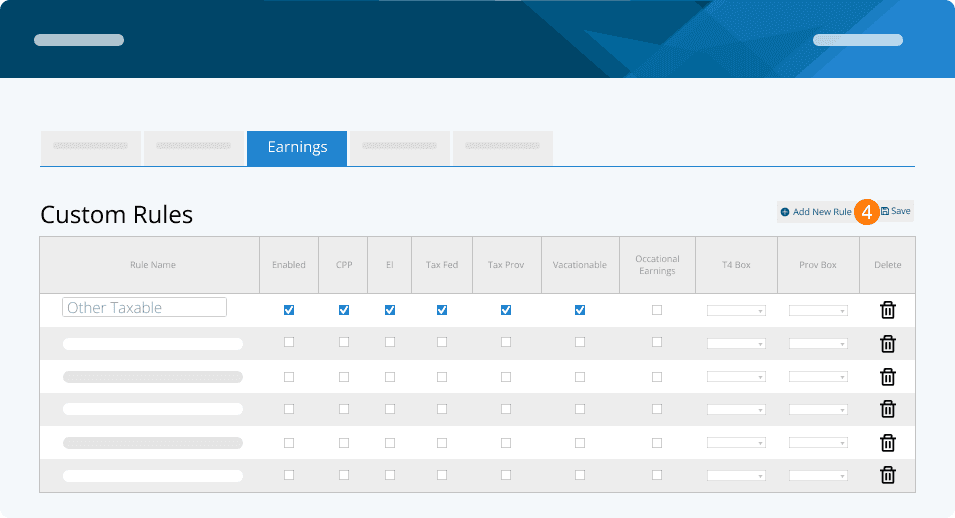
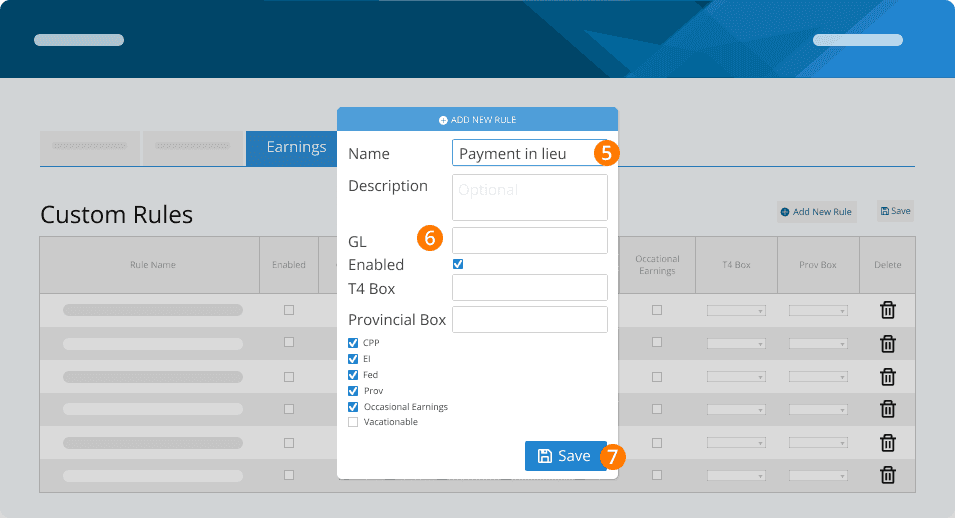
Step 5. Set up the rule by entering the employee’s name. You can leave GL code blank.
Step 6. Continue set up the rule as follows:
Enabled is checked
T4 Box: enter any special T4 box numbers (do not include box 14)
Provincial Box: enter any special RL-1 box letters (do not include box A)
CPP is checked
EI is checked
Federal Tax is checked
Provincial Tax is checked
Vacationable is checked (depending on your province, most will set this as ON)
Occasional Earnings is checked
Step 7. Perform your pay runs as indicated in the sections for Bonus as part of regular run or special run but use your new earnings code when adding the bonus. Click on Save
Note: The CRA and your local provincial employment standards will dictate how certain bonuses will be taxed. You should check and verify your pay rules against these guidelines before performing your pay run.
Keywords: Bonus, Paying A Bonus, Pay Rules, Bonuses
396
Can't find what you are looking for? We can take a more direct look to help resolve your matter — Create Case or Contact Us