Deducting Additional / Extra Tax
If you need to deduct extra or additional tax for an employee, you can easily add these amounts to your pay run. First determine if you need to do a one-time extra deduction or if you will need to deduct an amount over multiple pay runs.
One time deduction
Step 1. Login to your payroll account and start your pay run as normal.
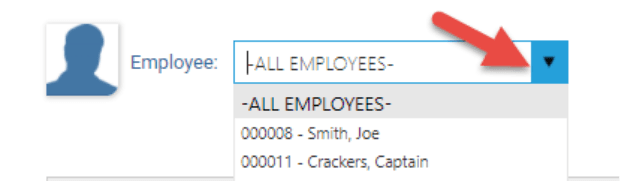
Step 2. On the REVIEW step select the name of the employee from the drop down list that you wish to deduct additional tax for
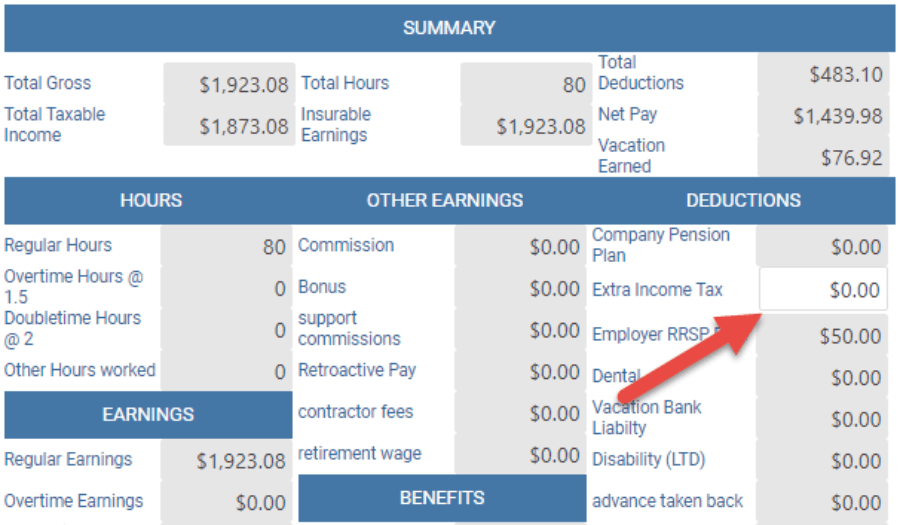
Step 3. Modify the EXTRA INCOME TAX field.
Step 4. Click SAVE and complete your pay run
Your remittance report, employee payslips and T4s will reflect the additional tax amount you've entered.
Additional tax as a rule -Federal Tax (multiple pay runs)
If you have previously set up your own rule for Additional Tax go to COMPANY SETTINGS>PAYROLL OPTIONS>GL and write down the GL code for Federal Tax. Then go to COMPANY SETTINGS>PAY RULES>DEDUCTIONS and make sure the GL code is the same as for Federal Tax.
For all new setups follow instructions below:
Step 1. Login to your Payroll Account
Step 2. Go to Employees and click on the line for the employee you want to add the deduction to.
Step 3. Select Payroll and scroll down to deductions and click to open
Step 4. Selection Add Deduction +
Step 5. Select Extra Income Tax from the drop-down
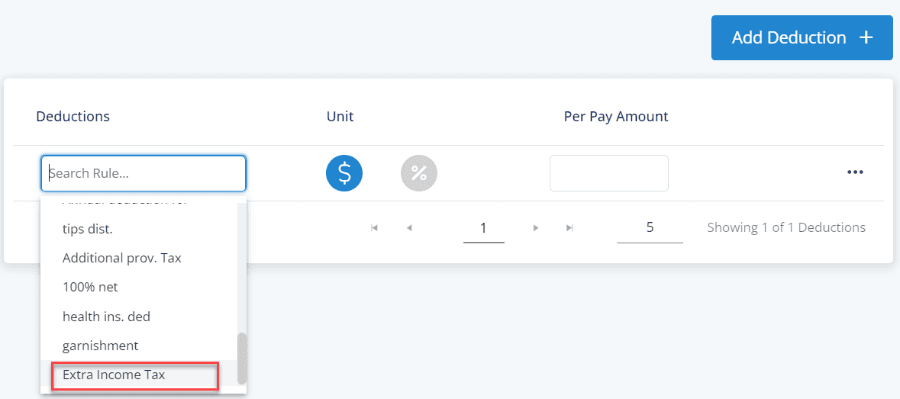
Step 6. Select dollar ($) amount or percentage (%) of gross
Step 7. Enter Value and click Save
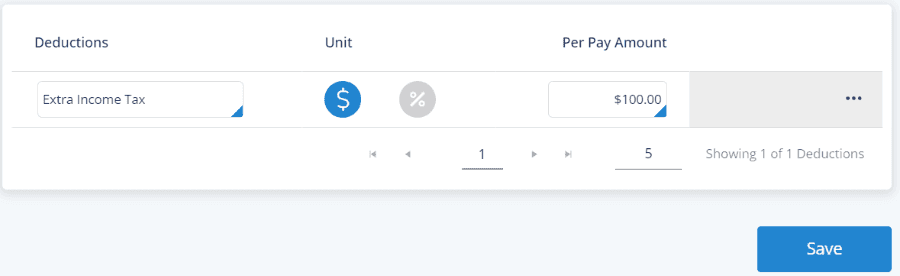
When you perform your pay runs, the additional tax will be deducted for the employee and will be reflected in your reports.
Additional tax as a rule -QC Provincial Tax (multiple pay runs)
Step 1. Go to SETTINGS>PAYROLL OPTIONS>GL and look at your GL code for Provincial Tax.
If it is the same as Federal Tax, change it to a different number and click SAVE.
If it is different simply write it down

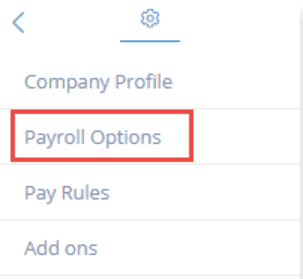
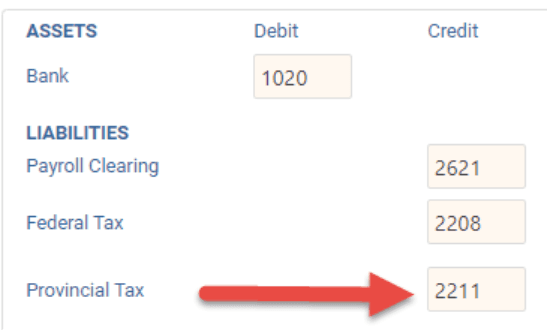
Hint: If you are changing the GL code and you get a warning that this GL is being used for another rule, click Go Back and select a NEW number
Step 2. Go to SETTINGS>PAY RULES>DEDUCTIONS and Add a New Rule
Rule Name: Additional/Extra Prov Tax.
GL Code: Enter the SAME number as Step 1
SAVE
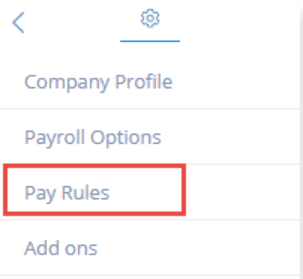


Step 3. Go to EMPLOYEES click on the line for the team member you want to add the deduction to
Step 4. Select the Payroll tab and then scroll down to Deductions
Step 5. Selection Add Deduction +
Step 6. Select Additional Prov Tax (or whatever name you gave your rule) from the drop-down
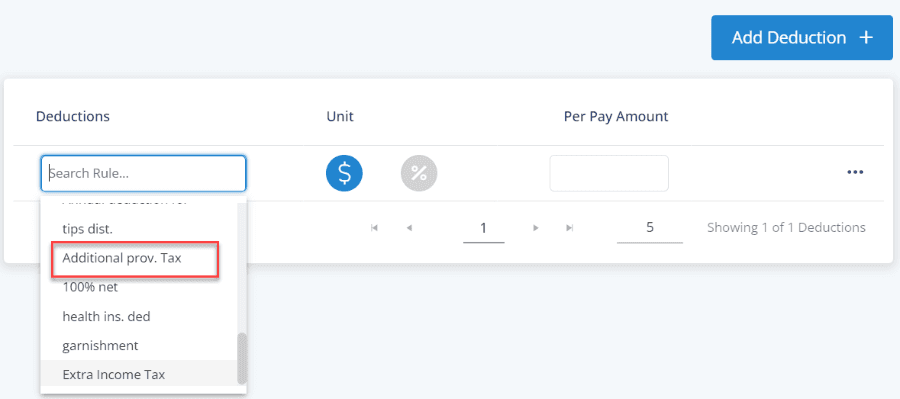
Step 7. Select dollar ($) amount or percentage (%) of gross
Step 8. Enter Value and click Save
Now when you perform your next pay run, the additional tax will be deducted for the employee and will be reflected in your remittance reports.
Keywords: Tax, Tax Deductions, Tax Deduction, Deduction
396
Can't find what you are looking for? We can take a more direct look to help resolve your matter — Create Case or Contact Us