Vacation Definitions
Vacation Dollars: This is a percentage of earnings and benefits in a given pay run that are subject to a vacation calculation. The employee earns vacation dollars in each pay run that you perform if the earnings/benefits used are subject to vacation.
Vacation Hours: This is the time the employee earns in addition to the dollars for vacation. You can track this in your HR system
Accrue: These vacation funds will sit in the employee’s vacation bank until they are paid out. They are taxed at the time of the payout.
Release Each Pay: These vacation funds will be calculated and added to each payroll and taxed at that time.
If your province considers vacation time as an earned benefit subject to accrual, it will be calculated each time you draw from your vacation bank.
Creating New Vacation Rules
By default, PayEvo provides 4%/6%/8% as the default vacation rules with accrue and release each pay options available. If you wish to provide a different percentage, follow the steps below to create the rule.
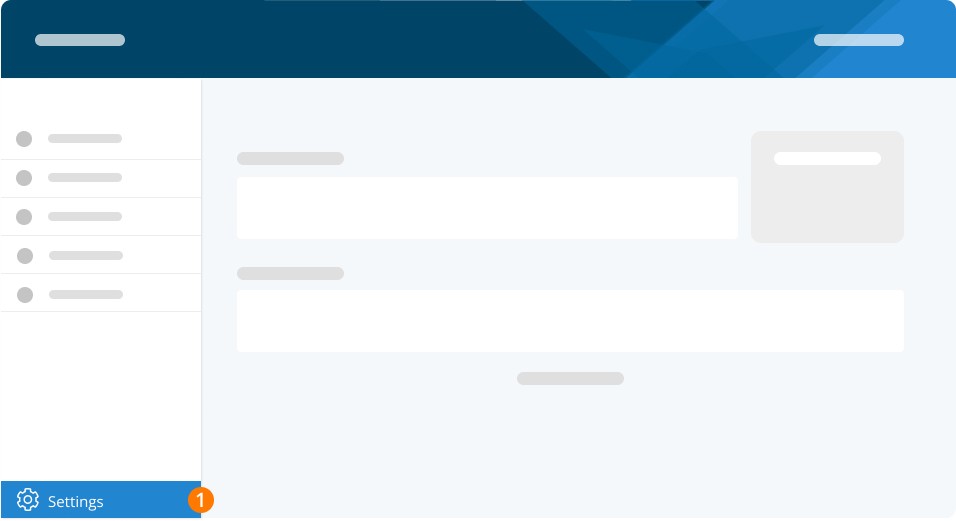
Step 1. Go to Settings.
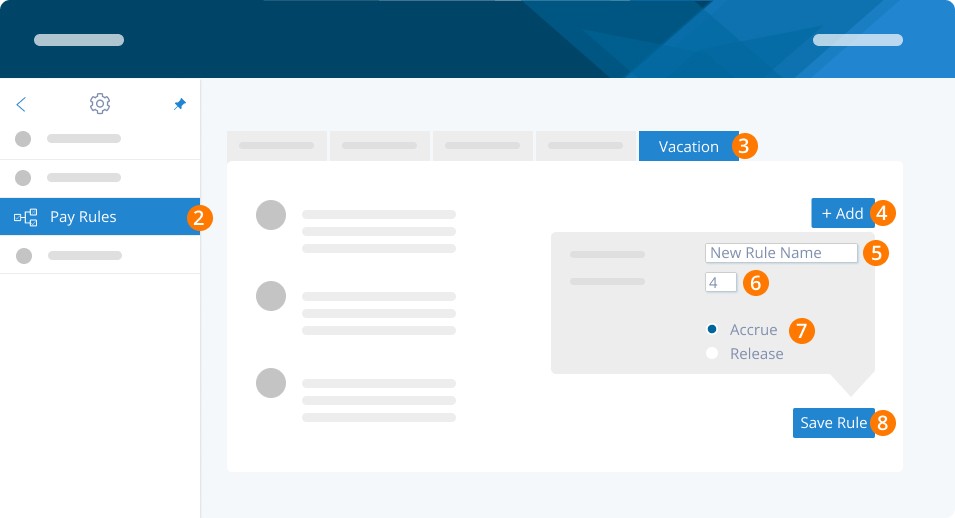
Step 2. Click Pay Rules.
Step 3. Click Vacation.
Step 4. Click Add.
Step 5. Set New Rule Name.
Step 6. Set Vacation Percentage. If you would like to provide your staff with a fixed amount of vacation per year (i.e. you do not use percentages to calculate vacation), you can set up a manual vacation bank and have the service draw down the amounts as your staff uses vacation. For example, you can set up a fixed vacation amount ($2000) per employee and have your employee use a portion of this banked amount when they take a vacation.
Step 7. Select Accrue or Release Each Pay.
Step 8. Click Save Rule.
Enabling Vacation for your Employees
To now enable vacation accrual or release for your employees (with either a default or custom rule you created), follow the steps below:
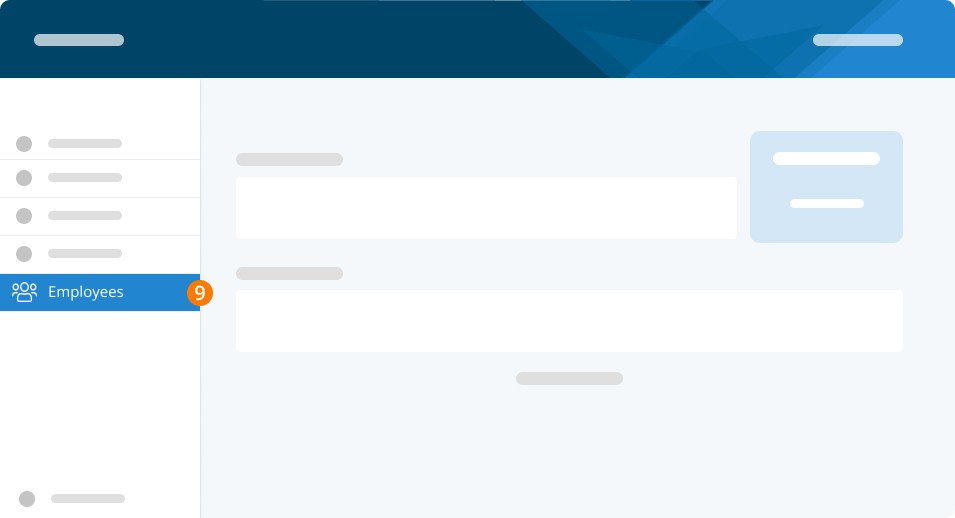
Step 9. Go to the Employees.
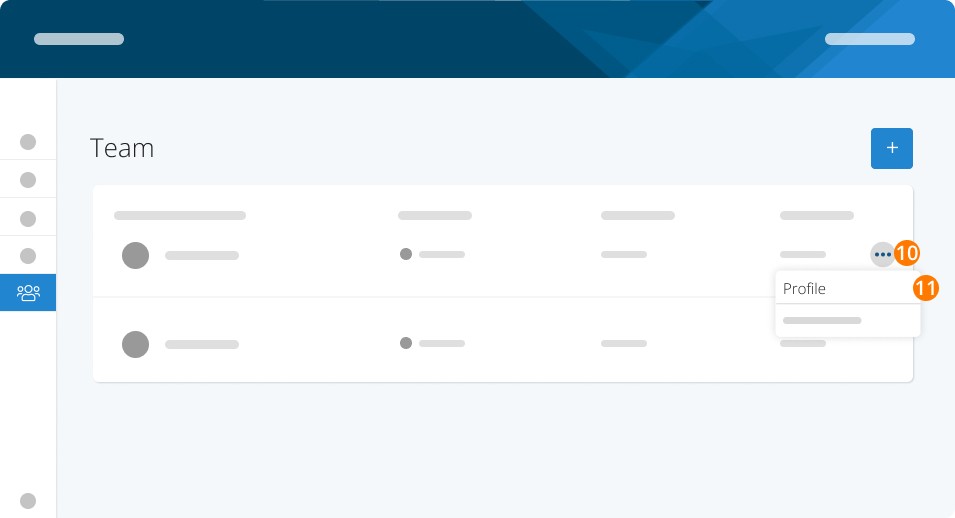
Step 10. Click the three dots.
Step 11. Select Profile.
Step 12. Select Payroll.
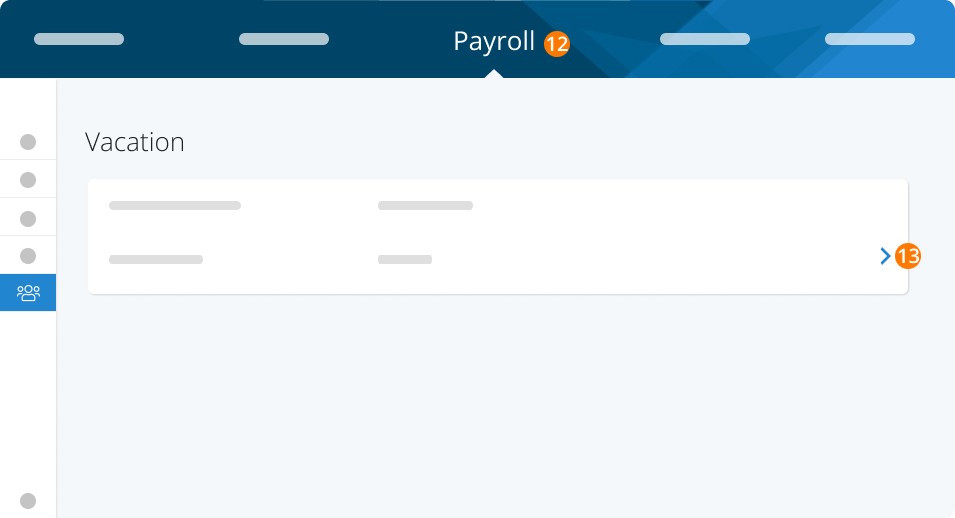
Step 13: Under the Vacation section, Click the > to edit.
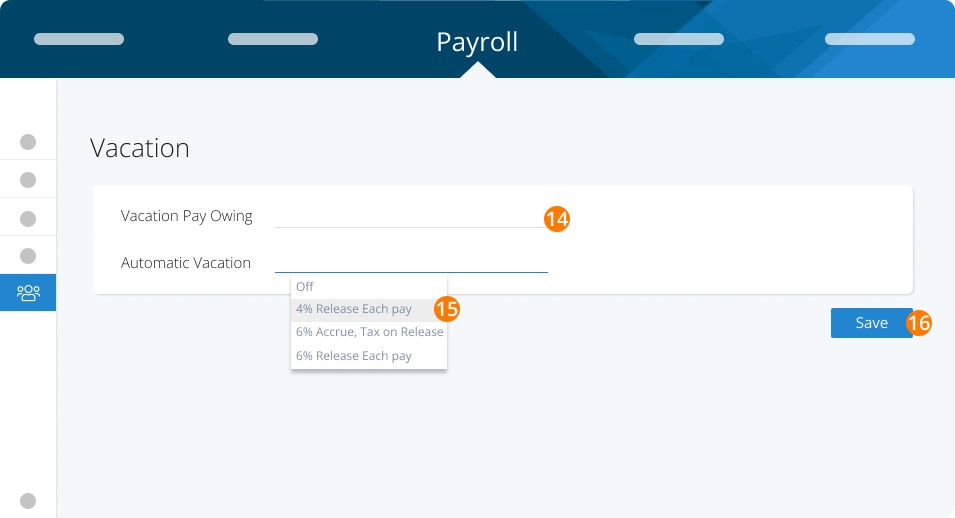
Step 14. Enter the amount in the Vacation Pay Owing Section.
Step 15. Set the rule you created to Automatic Vacation.
Step 16. Click Save.
Paying out Vacation Pay
When it's time to process payroll, you can include vacation pay for employees.
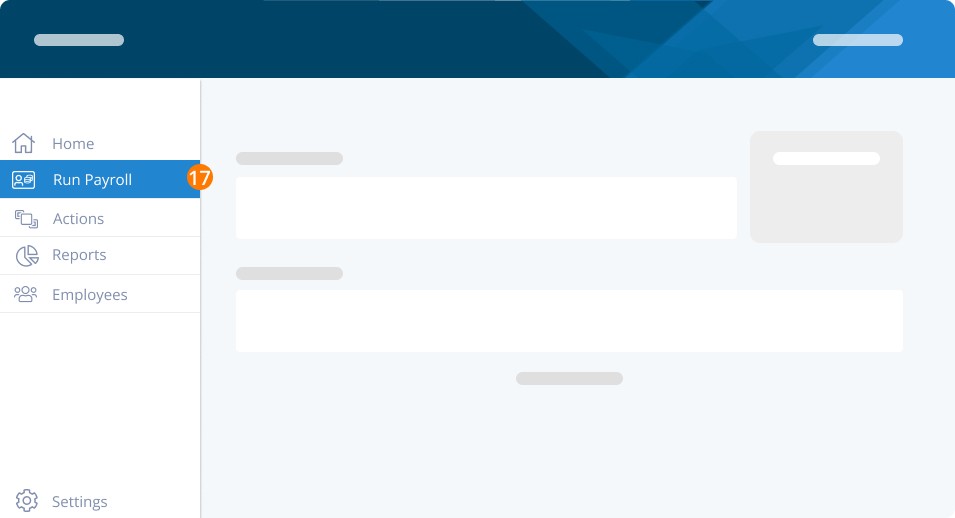
Step 17. Click Run Payroll.
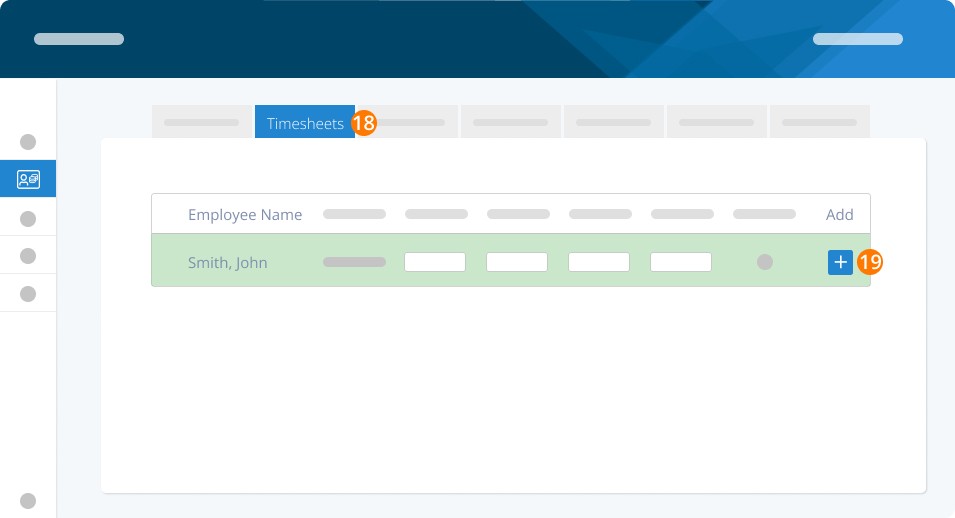
Step 18. Click Timesheets.
Step 19.On the employee’s record, click + to add additional earnings for the employee.
Step 20. Select Vacation or Release vacation owing from the earnings code drop down.
Step 21. Enter the Dates, Rate, Hour, and Total Earnings.
Step 22. Click the Add and Submit button.
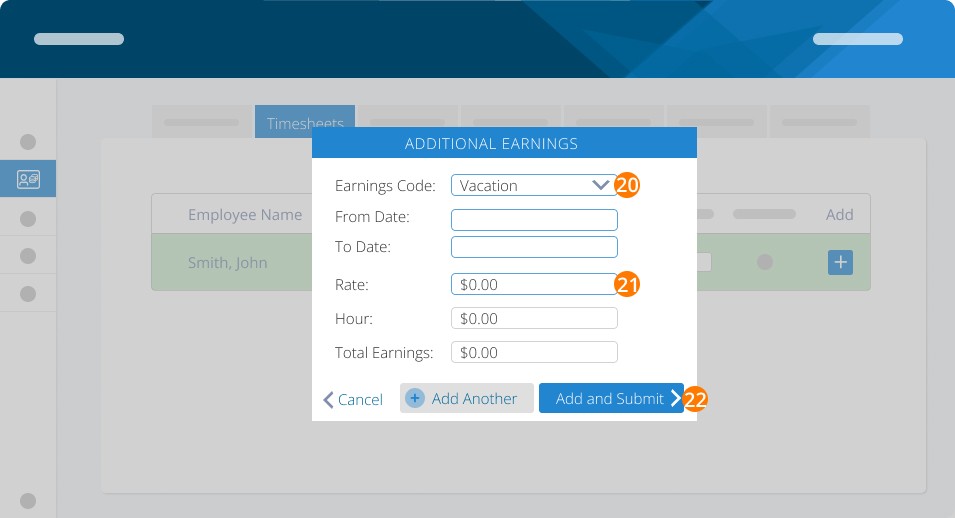
*If the employee took vacation time you can add the hours in as well to have them recorded as insurable hours (you will still need to enter the total manually.
Please Note:
You will have to manually update each employee's vacation balance annually to align with your company policy.
Ensure you are providing the minimum vacation amounts required by your province or territory's employment standards.
The vacation bank can be 'overdrawn' and a negative balance will be shown. This can be useful if you have an employee take more vacation than you've allotted.
Troubleshooting & FAQs
What’s the difference between the ‘Vacation’ and ‘Release Vacation Owing’ earnings codes?
‘Vacation’ appears as an option to payout when you have not enabled automatic vacation in the employee’s profile. ‘Release vacation owing’ will appear when you have enabled vacaiton from within the employee’s profile. When selecting this code, any amount you pay out will be taken out of the employee’s vacation balance.
What happens to the money accrued in the employee’s profile?
Nothing – this is to be considered as a liability to be paid out to the employee at a later date. In calculating vacation pay, PayEvo does NOT deduct any amount unless it is being paid to the employee.
Keywords: Vacation Pay, Vacation Accrual, Vacation Balance, Release Each Pay, Vacation Settings
396
Can't find what you are looking for? We can take a more direct look to help resolve your matter — Create Case or Contact Us