If you are providing a Group RRSP plan for your employees, you can easily set up RRSP contributions using our easy Pay Rules. Group RRSP plans may be mandatory in your province for certain organizations.
First, determine who is contributing: the employee, the employer, or both. Then follow the steps below to set up each scenario:
Employee Contributes
Step 1. Go to Company Settings
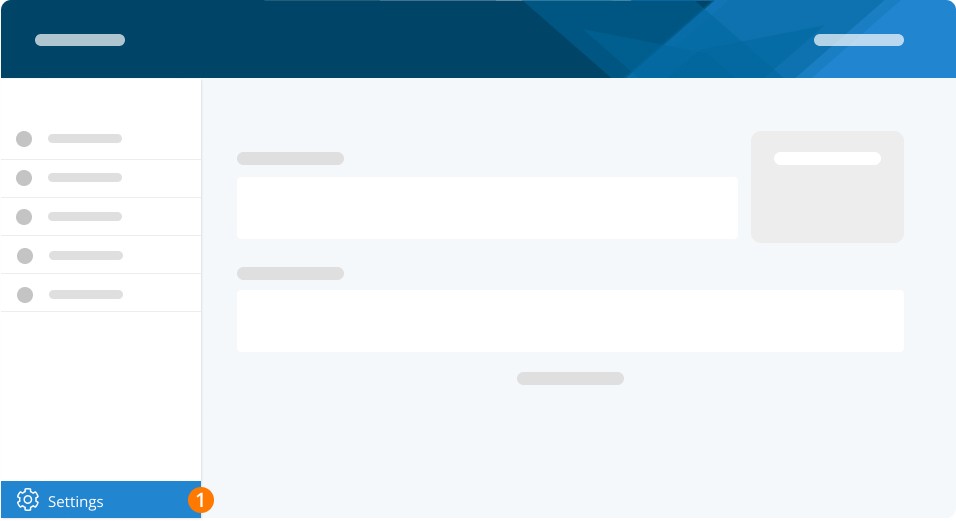
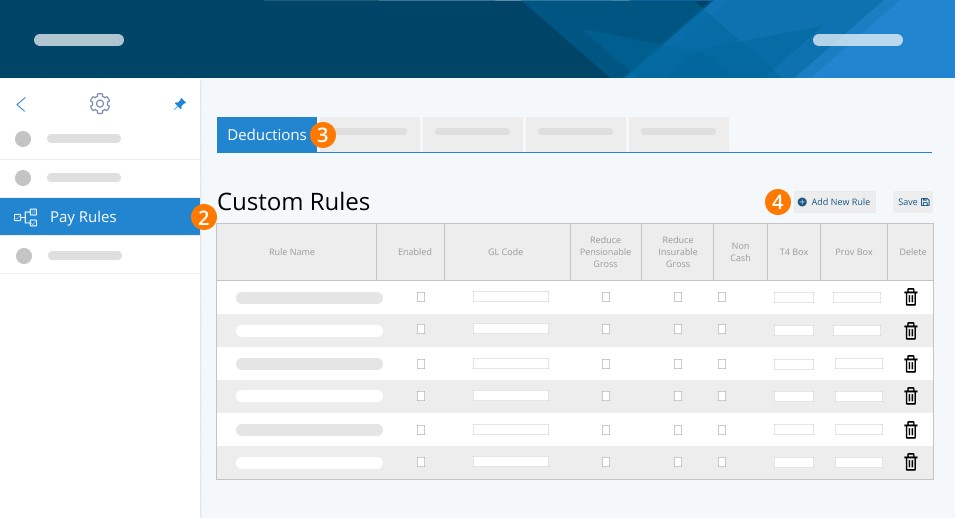
Step 2. Click on Pay Rules
Step 3. Select the Deductions tab
Step 4. Click Add New Rule
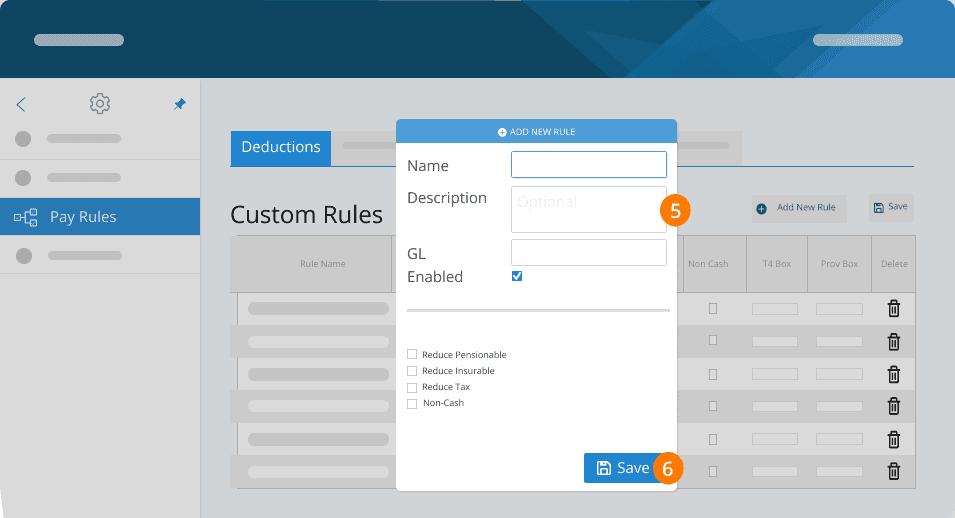
Step 5. Fill the Name, Description, and GL of the New Rule
Step 6. Click on Save
Step 7. Check the boxes for Enabled and Reduce Taxable Gross. This can help reduce the amount of taxable income for the employee.
Step 8. Click on Save
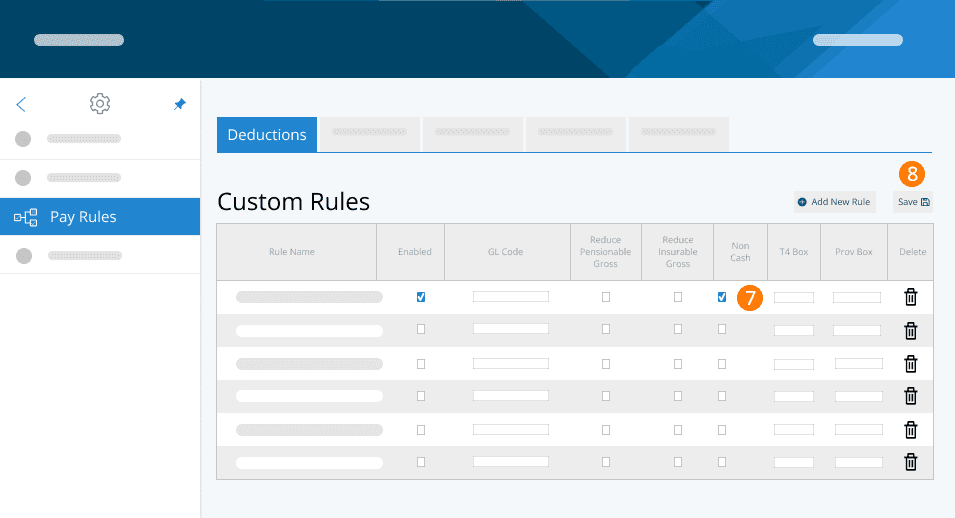
The funds will be deducted from your employee’s pay, and you will need to send them into your Group Plan Administrator.
If you do not have a group RRSP but the employee contributes to their own RRSP, you can also check off Non-Cash in the deduction rule. This will simply reduce taxable income, but the employee will keep the cash. It is your responsibility to ensure at year end that the amounts that were deducted were in fact submitted by the employee to their RRSP. A statement of their contributions to their plan will satisfy this.
To implement the new deduction rules for specific employees, navigate to the Employees section:
Step 9. Go to Employees
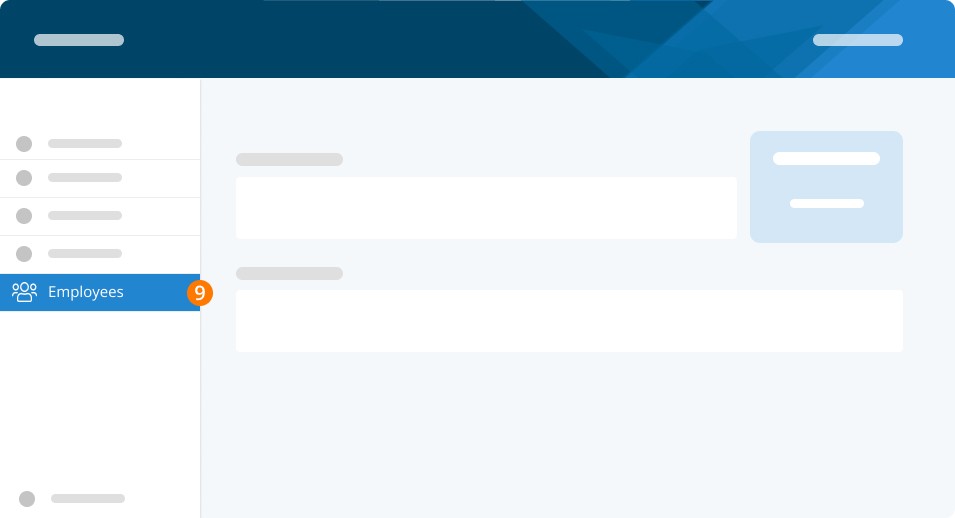
Step 10. Click the three dots
Step 11. Select Profile
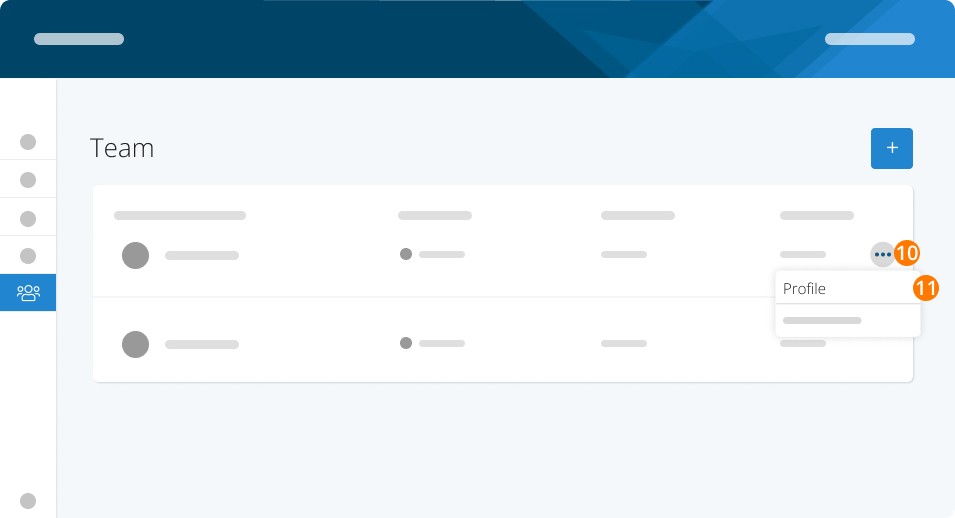
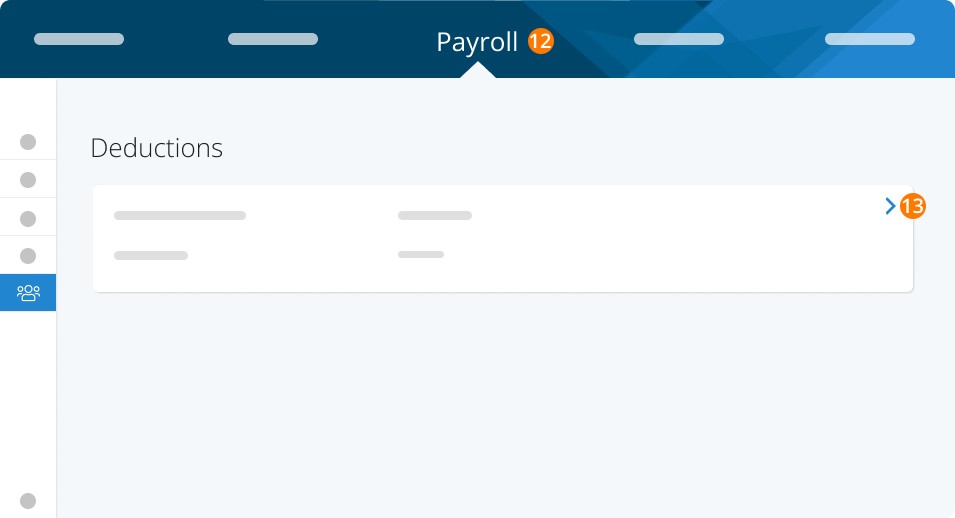
Step 12. Select Payroll
Step 13. Under the Vacation section, Click the > to edit
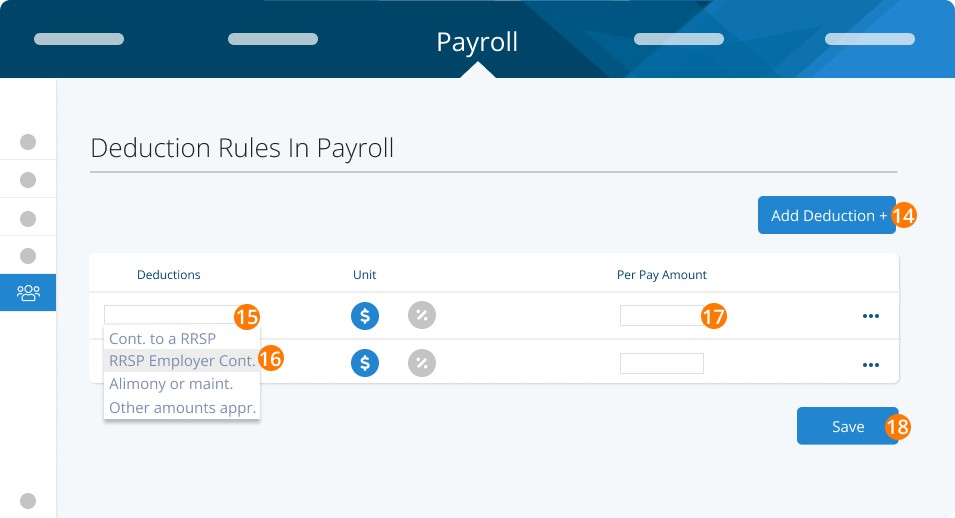
Step 14. Click Add Deduction +
Step 15. Click on the Deductions dropdown.
Step 16. Choose RRSP Employer Cont.
Step 17. Add the $ or % amount for the employee’s contribution per pay.
Step 18. Click on Save
Employer Contributes
For this to work you need a Benefit and Deduction rule combination.
Step 1. Go to Company Settings
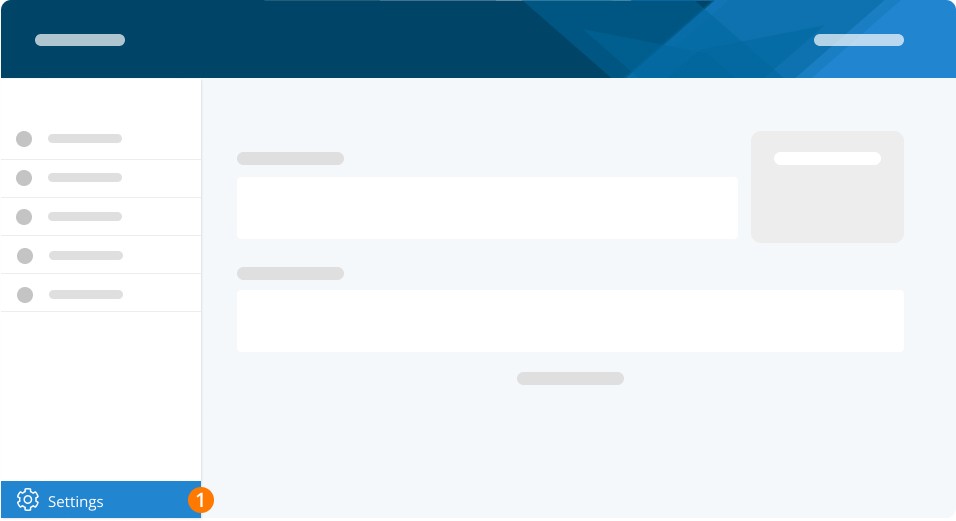
Step 2. Click on Pay Rules
Step 3. Select the Deductions tab
Step 4. Click Add New Rule
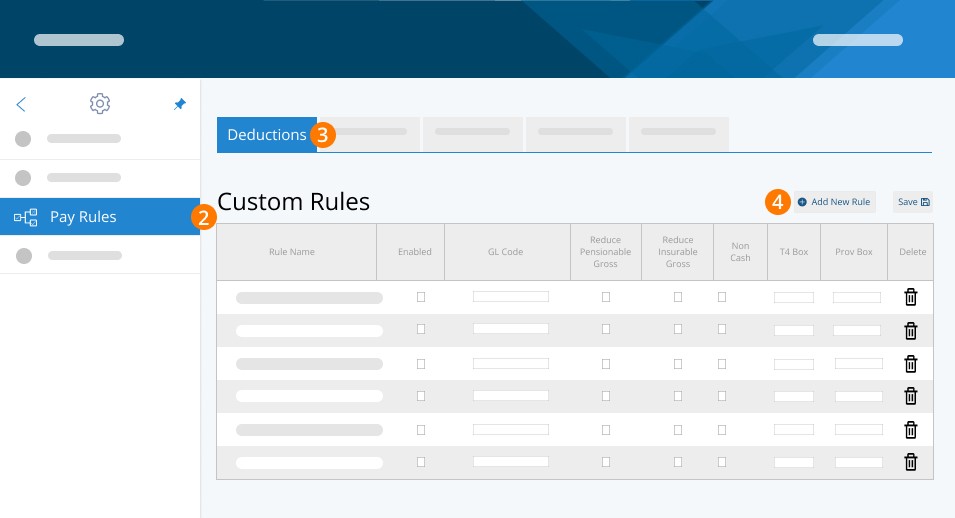
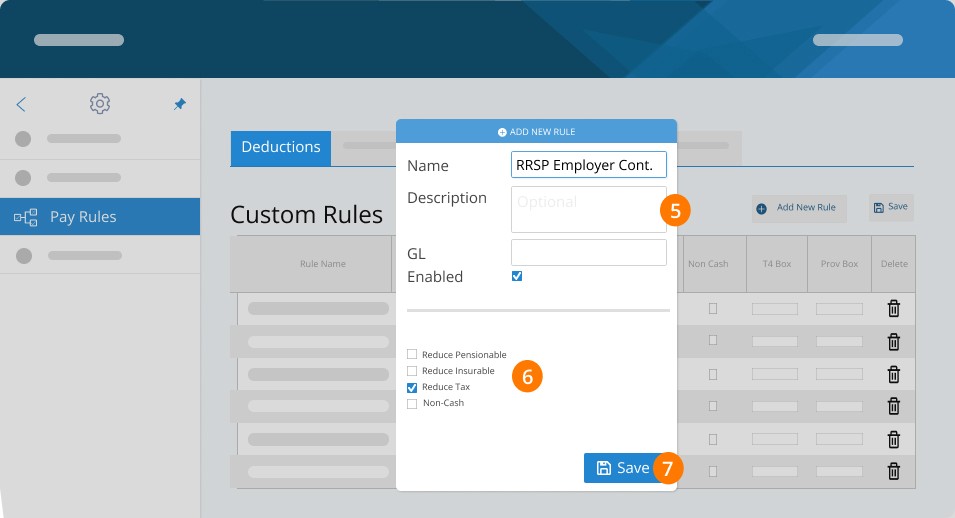
Step 5. Fill the Name, Description, and GL of the New Rule.
Step 6. Check the box for Enabled and Reduce Taxable Gross. This can help reduce the amount of taxable income for the employee.
Step 7. Click on Save
Step 8. Click on Benefits
Step 9. Click on Add New Rule
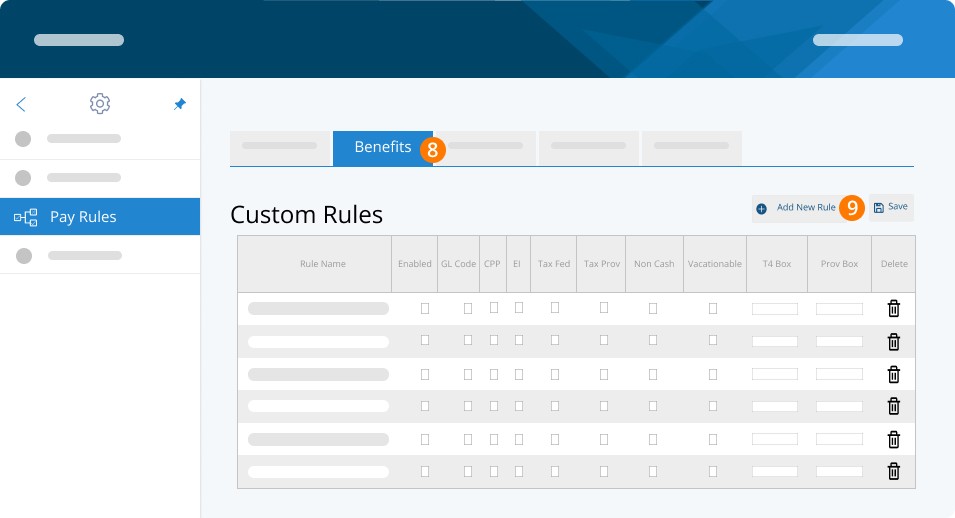
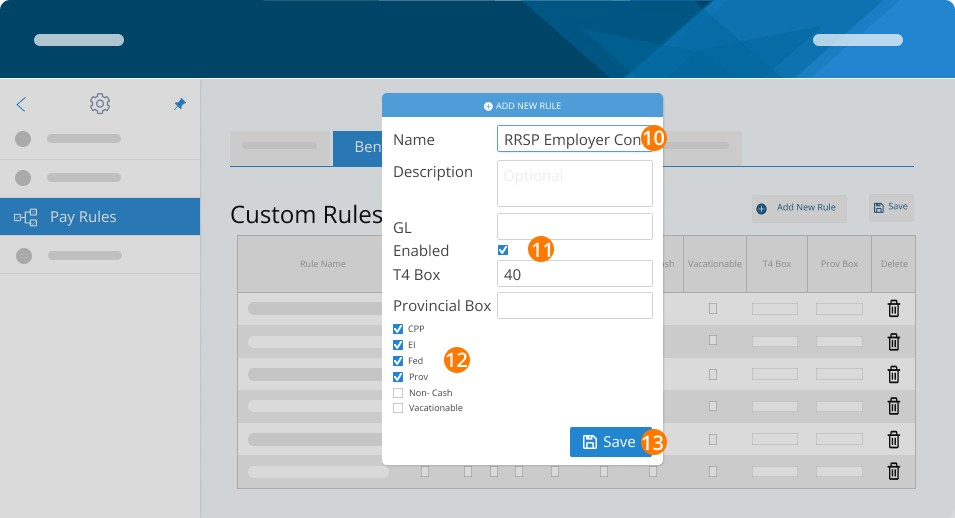
Step 10. Enter New Rule Name, Description, and GL Code
Step 11. Check Enabled to have the rule run in every pay run
Step 12. Select the check boxes for CPP, EI, Federal Tax, and Provincial Tax
Step 13. Click Save
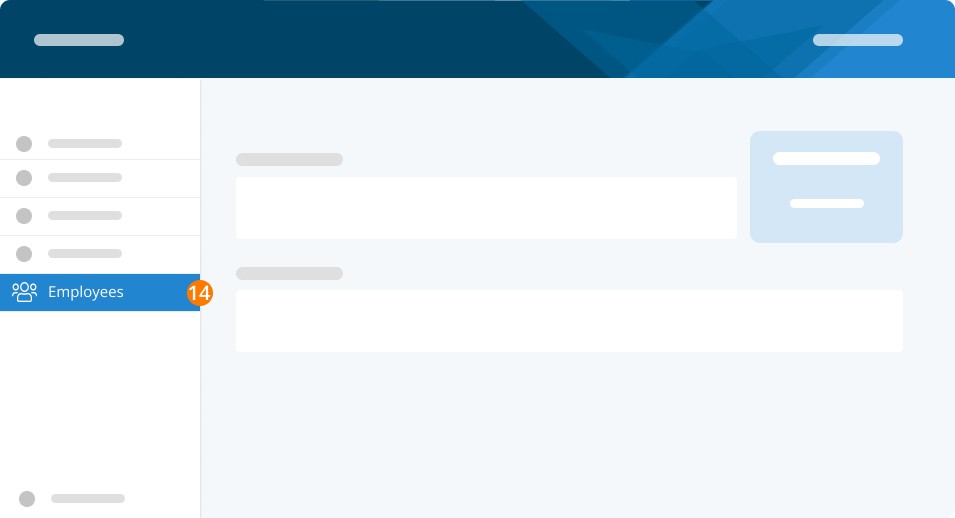
Step 14. Go to Employees
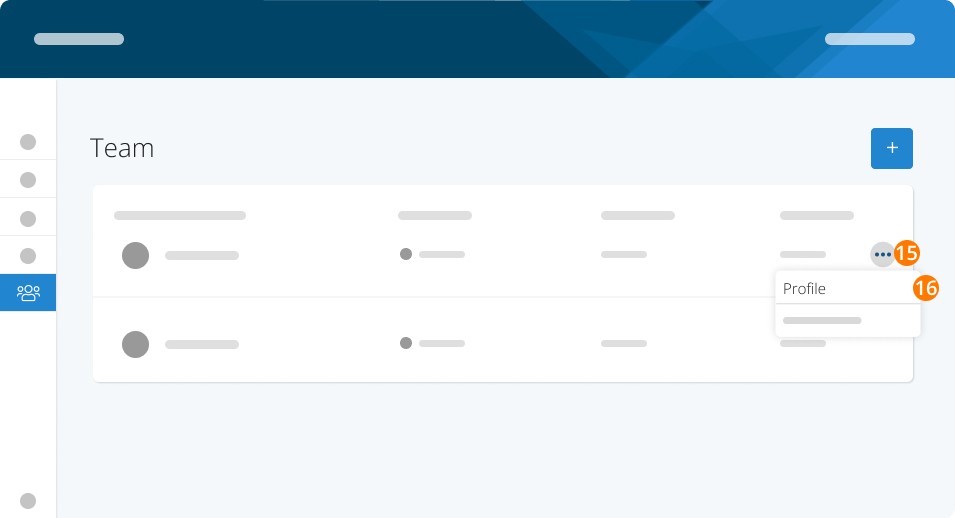
Step 15. Click the three dots
Step 16. Select Profile
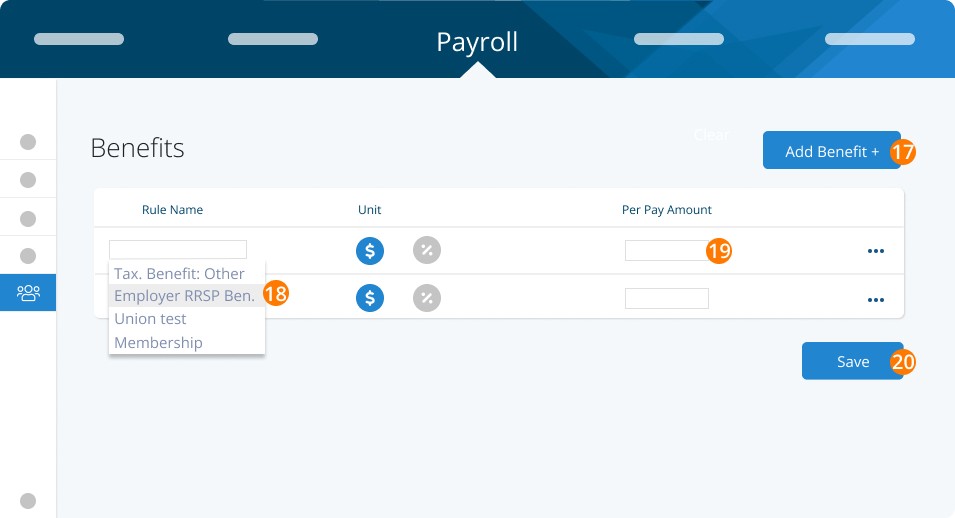
Step 17. Click Add Benefit +
Step 18. Click on the Deductions dropdown and choose RRSP Employer Cont
Step 19. Add the $ or % amount for the employee’s contribution per pay
Step 20. Click on Save
Step 21. Go back to the Payroll section
Step 22. Select Deductions
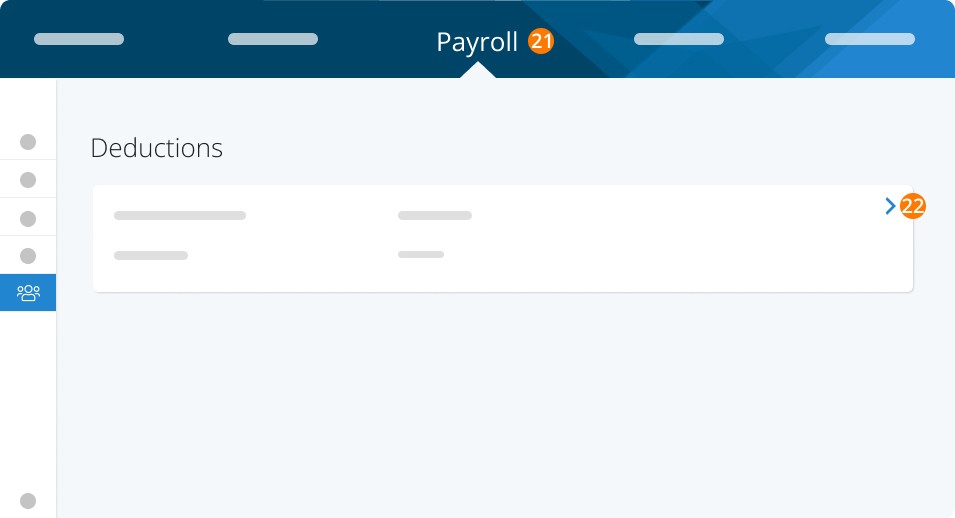
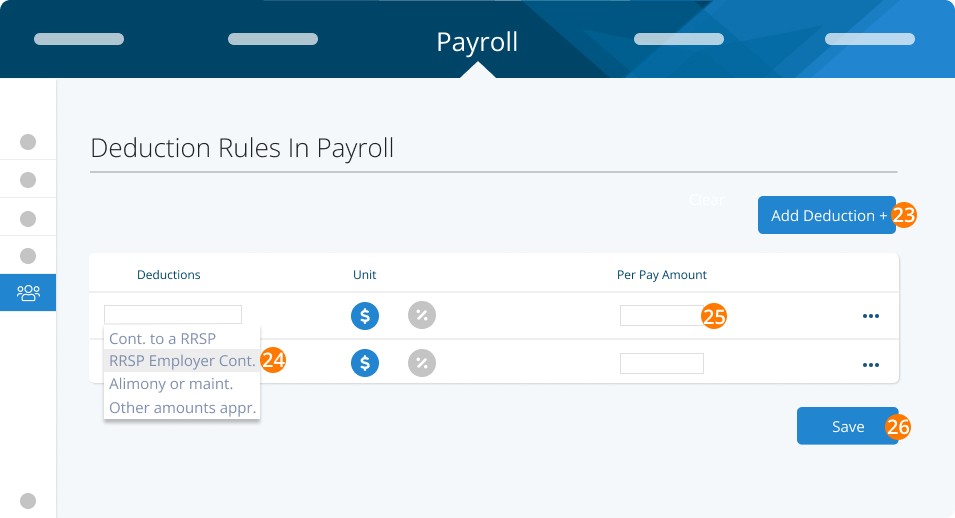
Step 23. Click on Add Deduction +
Step 24. Click on educations dropdown and choose RRSP Employer Cont.
Step 25. Add the $ or % amount.
Step 26. Click on Save
Hint: the benefit amount and deduction amount for the employer portion should be exactly the same.
Both Employee and Employer Contribute
Follow the steps for both instances above to create all 3 rules (employee deduction, employer benefit, and employer deduction).
Use the Pay Explorer Report with Report Type custom to select these rules to run a report to see what you need to contribute to your plan.
Keywords: RRSP, Pay Rules, Deductions, RRSP Deductions
396
Can't find what you are looking for? We can take a more direct look to help resolve your matter — Create Case or Contact Us