Processing Business Payments
Learn how to process business payments in the PayEvo system.
Also known as: Business Payments, B2B Payments.
Applies to: Administrator, Canada (en-CA)
Video loading, just a moment.
Processing Business Payments
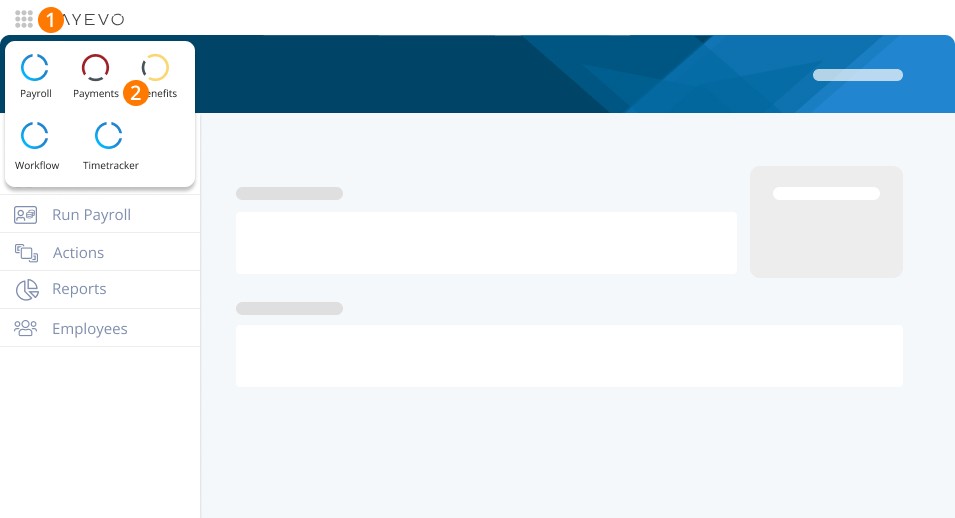
Step 1. Click the Menu icon on the top left
Step 2. Select Payments
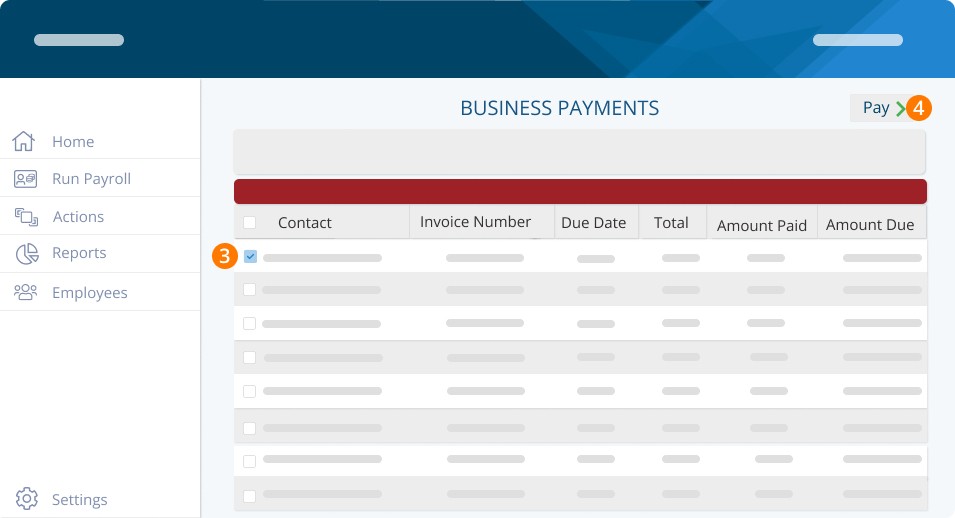
Step 3. Select the bill you would like to pay by clicking on the check box.
Step 4. Click on Pay
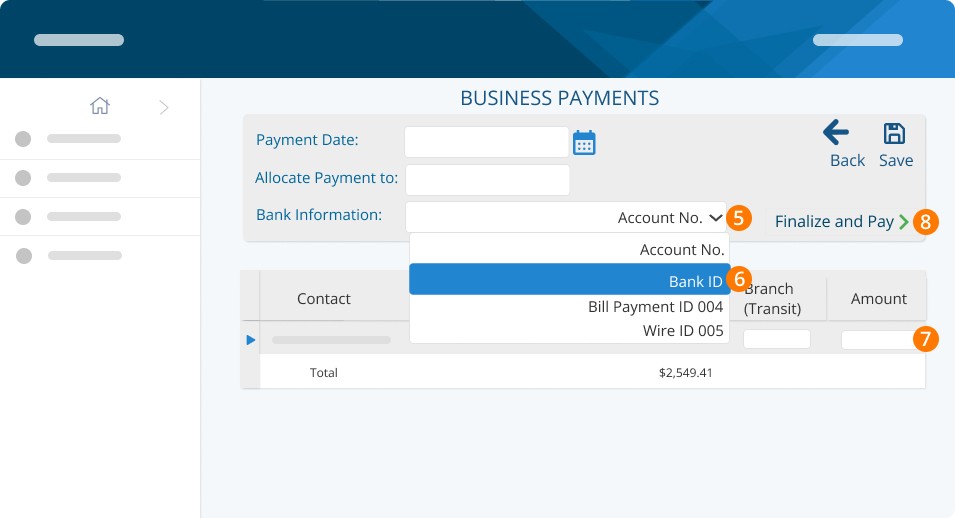
Step 5. Click the arrow
Step 6. Select the account you want for the payment to come from
Step 7. Verify the recipient’s bank details
Step 8. Click Finalize and Pay
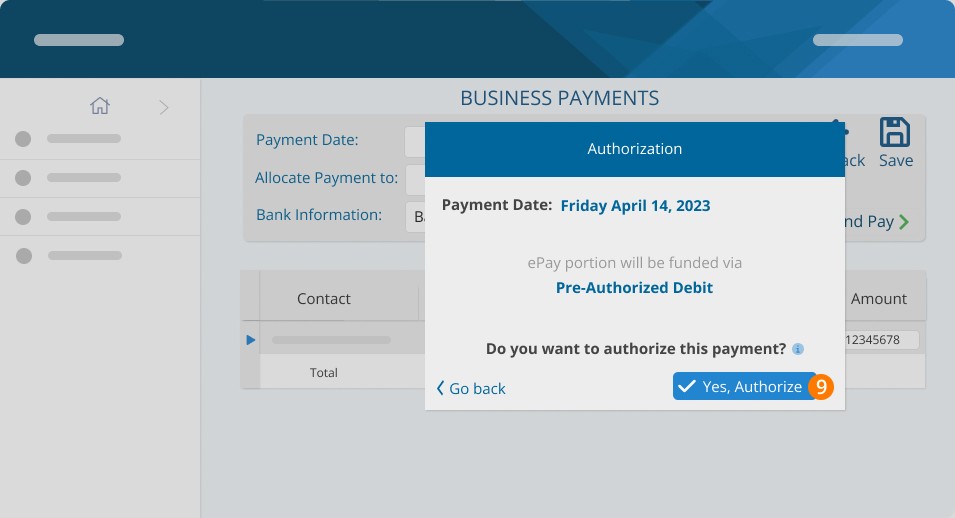
Step 9. Click on Yes, Authorize.
Troubleshooting & FAQs
What are the prerequisites?
The Business Payments service is available with any PaymentEvolution plan
ePay needs to be activated for your profile
You need to have one of the following accounting add-ons activated: Kashoo, QuickBooks Online or Xero.
Who can I pay?
You can pay any open invoice electronically through supported accounting systems to any chequing account in Canada. Certain accounts like credit cards or investment accounts may not accept these payments.
I don't have the bank information of the recipient
To transfer payments, the full bank number of the recipient is required. Institution number (3 digits), Branch number (5 digits) and Account number. All of this information is available on a current cheque.
If bank information is not available, can you send a cheque?
The Business Payments service is for electronic payments. Cheque payments are not supported and will need to be done outside the service.
How long does it take for funds to be received?
Processing time is 4 business days and will be clearly shown when you process a specific payment. If you are in the cannabis industry or banking with ATB your lead time is 5 business days.
What if I don't have sufficient funds in my account for the payment?
Your payment will be rejected, and no funds will be sent to the recipient. You will be notified and will have the option of retrying the payment. Note: a rejection fee will apply.
What if the recipient says they did not receive the funds?
In the unlikely event the recipient says they did not receive their funds, please contact us. We will help you trace the payment. Please note that tracing a payment may incur additional fees.
How do you notify the payee of my payment?
An email is sent to the payee when you finalize the payment notifying them of:
Payment Amount
Invoice numbers related to the payment
Date payment is expected to be received
Redacted account number for payment
Financial institution that they will receive payment in
Keywords: Business Payments, B2B Payments
396
Can't find what you are looking for? We can take a more direct look to help resolve your matter — Create Case or Contact Us