Lump Sum Retiring Allowance NOT going into an RRSP/RPP
An employee is retiring and as part of the package you are offering them a lump sum retiring allowance payout. Retiring Allowances paid as a lump sum can be subject to special tax rates. Learn more about Lump Payments or Lump Sum Withholding Rates from CRA.
If this is going into an RRSP or RPP then you might not need to deduct income taxes at all. This article will describe how to accomplish the payment ONLY if the amount is NOT going into an RRSP/RPP.
This article covers the general rules based on the CRA descriptions. Your company/employee may have special circumstances which make these rules not apply. Please always discuss your situation with your accountant or CRA first to confirm if these rules apply.
Setting up the Retiring Allowance
Step 1. Go to SETTINGS>PAY RULES>EARNINGS

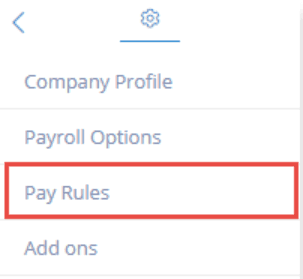

Step 2. Select +Add New Rule and give it a name such as: Retiring Allowance (the employee will see this on their payslip)
Step 3. Enable the rule and make it subject to FED/PROV tax but not CPP or EI
check with CRA or your accountant to see if it is subject to vacation and if it is check that box
Step 4. The T4 box is either 66 or 67 depending on your situation. Please check with CRA or your accountant for which applies. Prov. box is O (note you will need to add the source of this income by entering code RJ in the box marked “Code (case O)” of the RL-1 slip at year end)

Paying out the Retiring Allowance
Step 1. Manually calculate the TAX. Use the link above for Lump Sum withholding rates to get the rate to use (varies by amount you are paying)
Step 2. Write these numbers for tax down
Step 3. Run this pay by itself as a Special run. If there are any regular earnings to payout, do that as part of a normal payroll separately.
Step 4. In the special run, change regular hours to the Retiring Allowance earnings rule you created and enter the total amount.
Step 5. On the calculate page, you may need to use custom calculations if there are any benefits/deductions applied to this employee that you need to turn off.
Step 6. On the REVIEW step click the employee's name and on the taxes portion please modify the "federal tax" amount to be the amount you calculated based on the lump sum tax rates from step 1 above. Remove any amount from Provincial tax box, unless you are in QC. If you are in QC you can add in any provincial tax rate amount applied to this. Click Save.
Step 7. Finalize as normal
Pay the employee and wish them well!
Keywords: Retirement, Lump Sum Payment, Lump Sum, Retire
396
Can't find what you are looking for? We can take a more direct look to help resolve your matter — Create Case or Contact Us