Special runs are a great feature available in the system to allow for off-cycle runs. They are available on any of our paid plans, and you can select it by following the steps below:
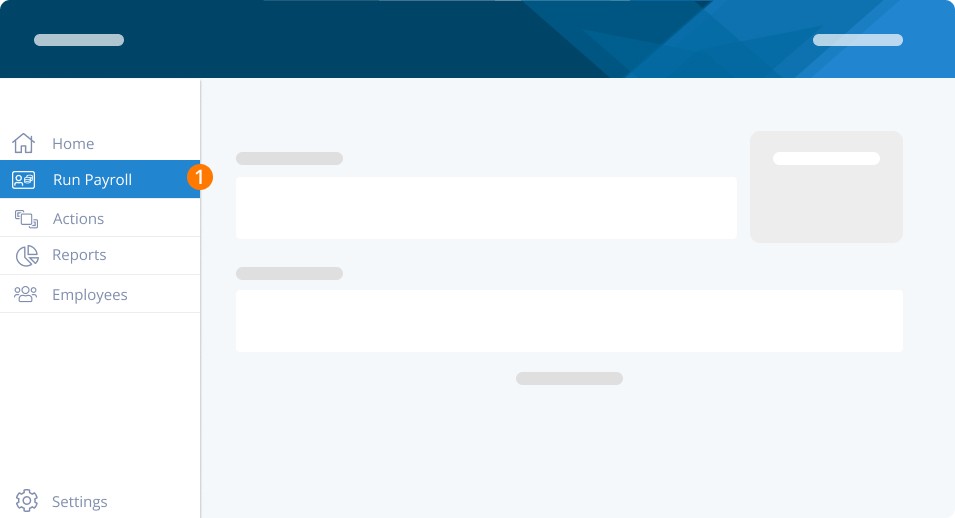
Step 1. Login to your account and click on Run Payroll to start your pay run.
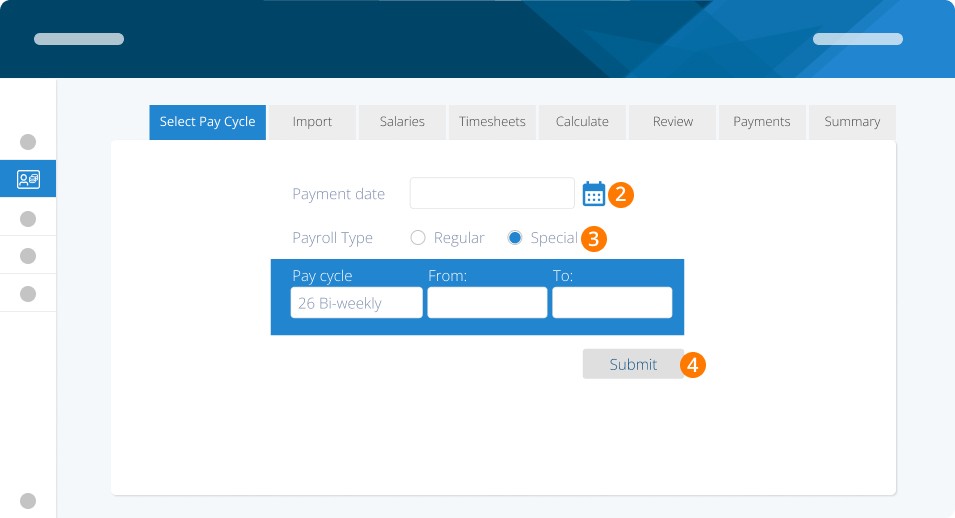
Step 2. Choose the payment date and pay cycle types
Step 3. Select Special Payroll Type.
Step 4. Click on Submit
Hint: Use the same dates as the regular run to ensure reporting accuracy.
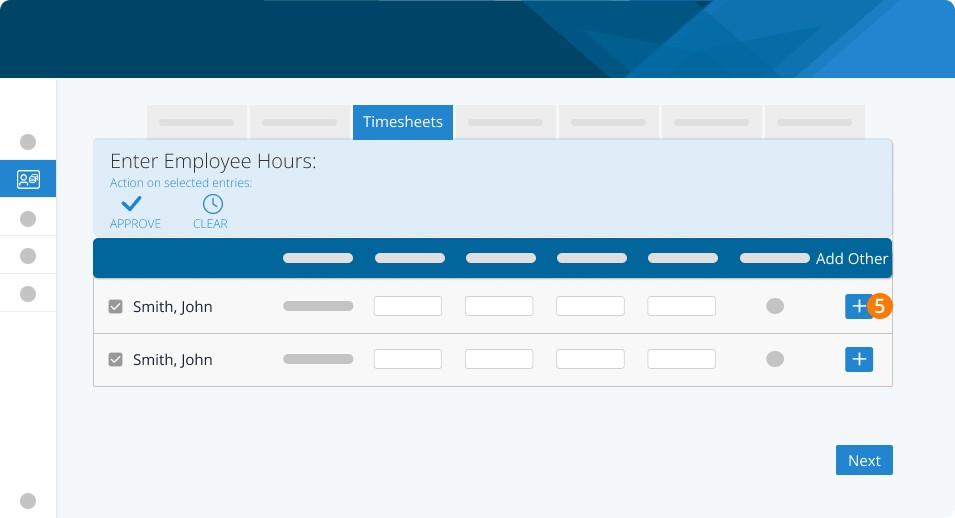
Step 5. If you need to add additional earnings to a specific employee, click on the “+” to add additional earnings.
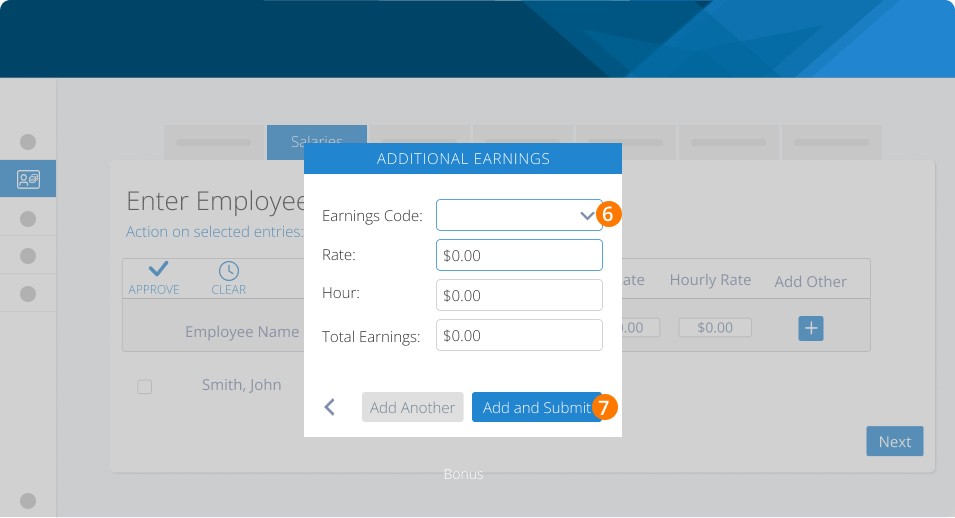
Step 6. Choose the earnings code. Then enter the rate, hour, and total earnings amount
Step 7. Click on Add and Submit
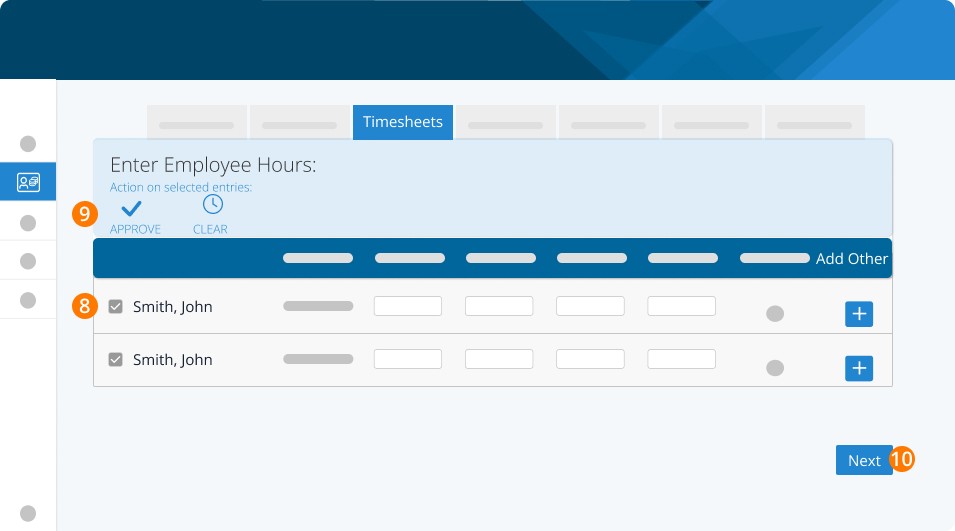
Step 8. Select the checkbox to choose specific employees whose work hours you want to approve.
Step 9. Click on Approve.
Step 10. Click on Next to continue the payrun.
Special Pay Runs Features
Does not affect any employees who are not part of the special run
Does not take CPP/QPP exemptions into account
Special Pay Run Uses
Use the special run to perform another run within the same period as a regular pay run. For example, if you need to add some additional hours or earnings to an employee that you already processed in your regular run, the special run allows you to add them in for the same pay cycle.
In the Special Run just include the MISSING amount/hours, the regular run will remain with the previous payment amounts.
Special off-cycle payment outside of your regular pay run.
Important
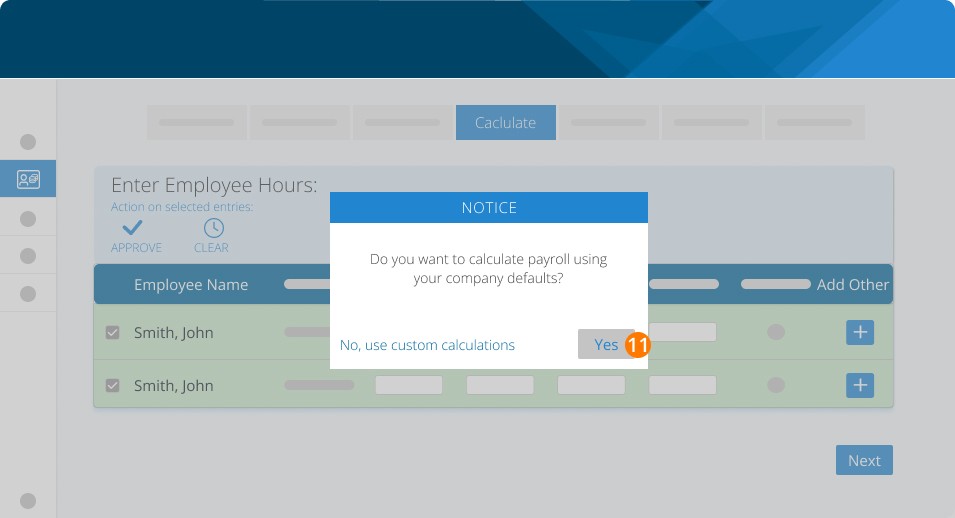
Step 11. When you use a special pay run to add extra earnings to an already completed regular run when you reach the calculate step of the pay run it is recommended you choose "No, use custom calculations," and then turn off any benefits/deductions the employee should be subject to again.
Keywords: Pay Run, Special, Off-Cycle Pay Run, Off-Cycle
396
Can't find what you are looking for? We can take a more direct look to help resolve your matter — Create Case or Contact Us