Locking Your Tablet for Chequer Onsite (Kiosk Mode)
Chequer Onsite is designed to run on shared employee tablets. To ensure reliability, prevent accidental exits, and protect your workplace workflow, we strongly recommend locking the tablet into kiosk mode, so Chequer Onsite is the only app employees can access.
This article explains why kiosk mode matters, and how to set it up on iOS/iPad and Android devices.
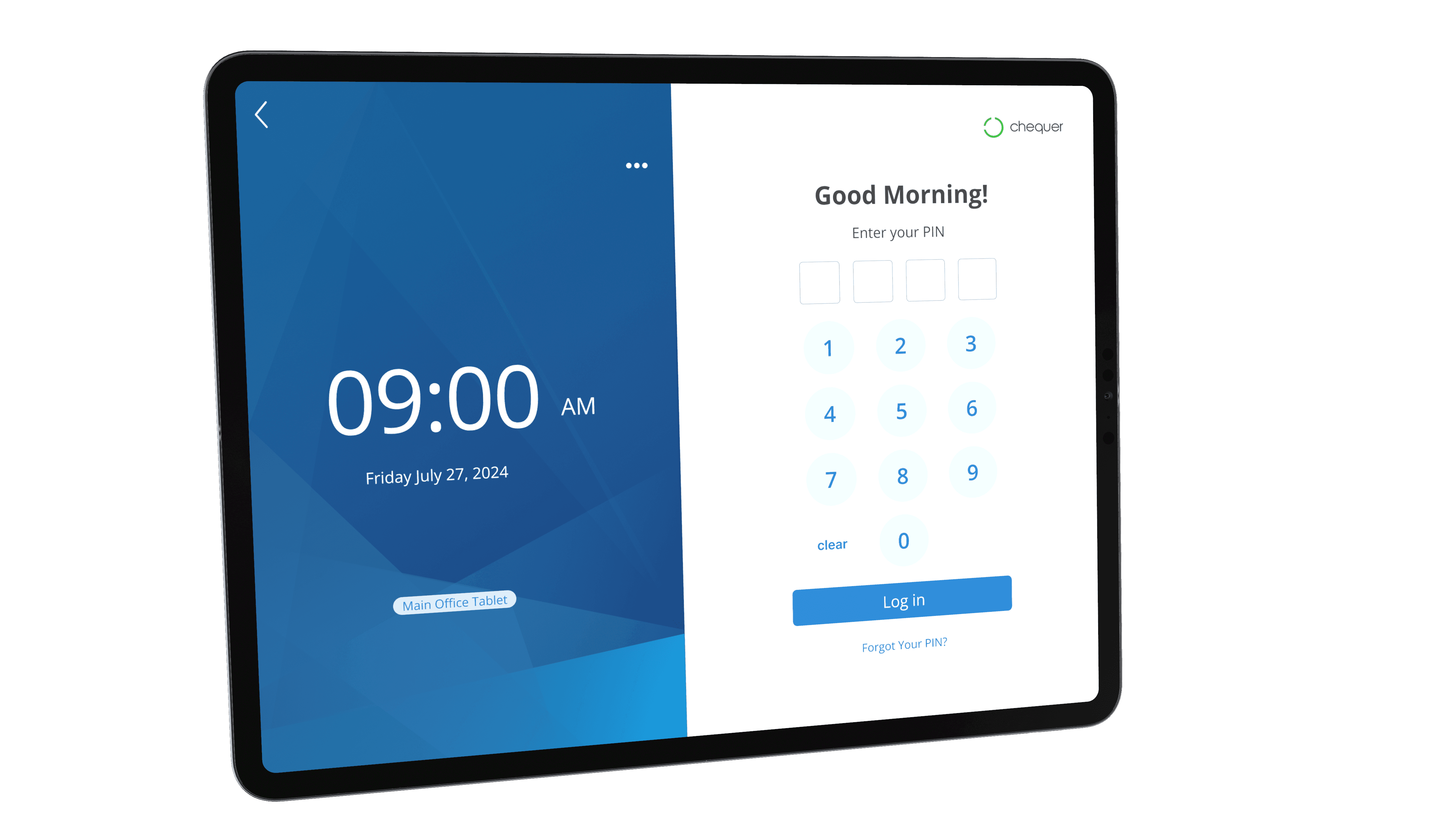
Why kiosk mode is important
When a tablet is used by multiple employees, kiosk mode helps ensure that:
Employees cannot accidentally exit Chequer Onsite
Other apps, settings, or browsers cannot be opened
The tablet always stays ready for the next employee
Time punches and on-site workflows are not disrupted
Without kiosk mode, employees may unintentionally (or intentionally) leave the app, change settings, or render the tablet unusable until a manager intervenes.
iOS / iPad (Apple devices)
Recommended approach: Guided Access
Apple provides a built-in kiosk feature called Guided Access. It's free, very secure and reliable for 'locking' a tablet for single-app use
Included with iOS/iPadOS at no additional cost
No third-party software required
Designed specifically for shared or employee-facing devices
Once enabled, Guided Access:
Prevents unauthorized users from leaving the Chequer Onsite app
Disables the Home gesture and app switching controls
Requires a passcode (or Face ID / Touch ID) to exit
How to enable Guided Access
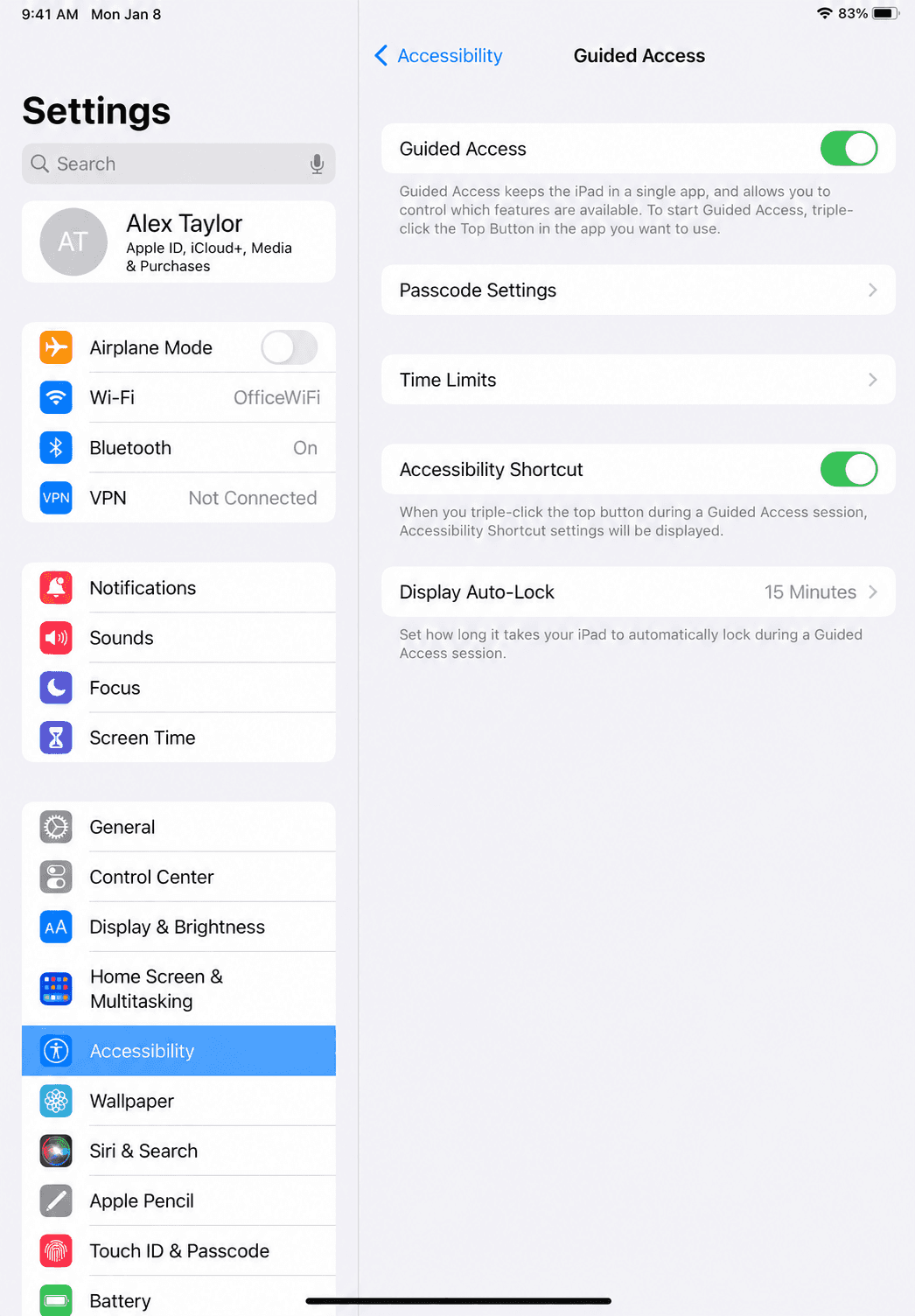
Open Settings
Go to Accessibility
Select Guided Access
Turn Guided Access ON
Set a passcode (or enable Face ID / Touch ID)
How to start Guided Access
Open Chequer Onsite
Triple-click the Side button (or Home button on older iPads)
Adjust any optional restrictions
Tap Start
To exit Guided Access, triple-click the button again and enter the passcode.
For a video overview of enabling kiosk mode using Guided Access, click here. https://youtu.be/74-dSttn1sk
Android devices
Android offers two different approaches, depending on your security needs.
Option 1: Screen Pinning (Free, but less secure)
Screen pinning is available on most Android tablets at no cost and can be enabled through system settings.
When screen pinning may be acceptable
Screen pinning may work for your business if all of the following are true:
The tablet has no other sensitive apps, accounts, or saved passwords on it (ideally, the tablet is new or has been factory reset)
You have a small number of employees
You do not expect anyone to deliberately try to disable Chequer Onsite
Important limitations!
On Android, screen pinning is a convenience feature, not a security feature.
Chequer Onsite/Kiosk mode can be exited by someone who knows how
A deliberate tablet restart can break kiosk mode
System gestures and buttons are not fully locked
It is not designed to stop a determined user
Because of this, screen pinning should be considered best-effort only.
Enabling screen pinning (general steps)
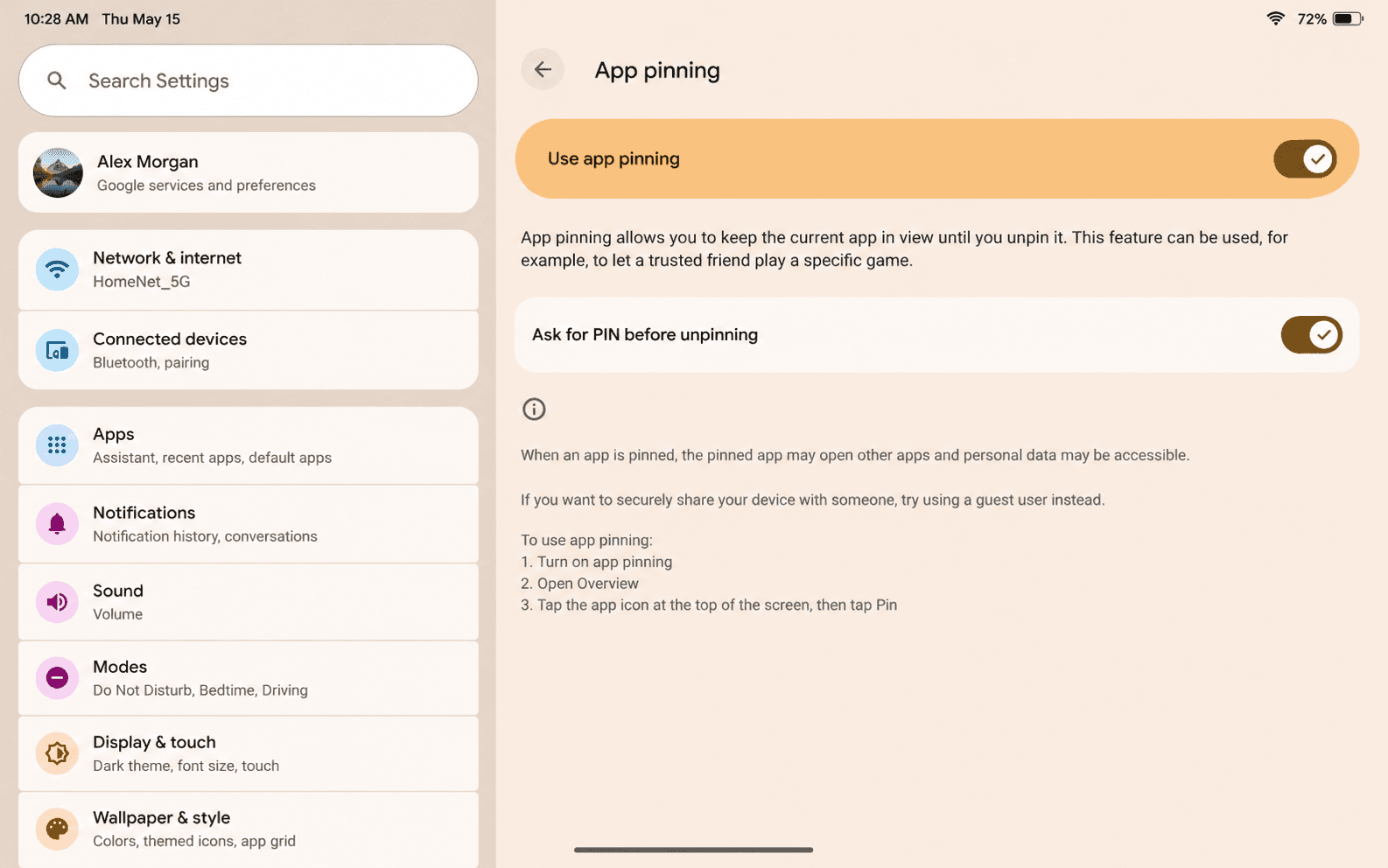
Open Settings
Go to Security or Privacy
Enable Screen pinning (sometimes called App pinning)
If this setting is not on the main settings page, look under "More security and privacy" settings
Enable Ask for PIN before unpinning (strongly recommended)
Open Chequer Onsite
Open the recent apps screen and select Pin
Option 2: Mobile Device Management (MDM) — Recommended for higher security ($$)
If you require a higher level of security—for example, to ensure that unauthorized employees cannot disable Chequer Onsite or force the tablet out of kiosk mode—you will need to use a Mobile Device Management (MDM) solution.
An MDM allows the tablet to be configured as a fully managed device, where:
Chequer Onsite is the only app available
System buttons, gestures, and settings are disabled
The tablet cannot exit kiosk mode, even after a restart
Changes require administrator access
Cost and options
MDM software is an additional cost and is purchased directly by the client.
Well-known options include:
Scalefusion (lowest-cost, well-rated option)
Approximately USD $2 per device per month (at the time of writing)
Miradore
Microsoft Intune
VMware Workspace ONE
Among these, Scalefusion is typically the most affordable and easiest option for single-app Android kiosks.
Keywords: Chequer Onsite, PayEvo, Business
396
Can't find what you are looking for? We can take a more direct look to help resolve your matter — Create Case or Contact Us