Accessing HR events
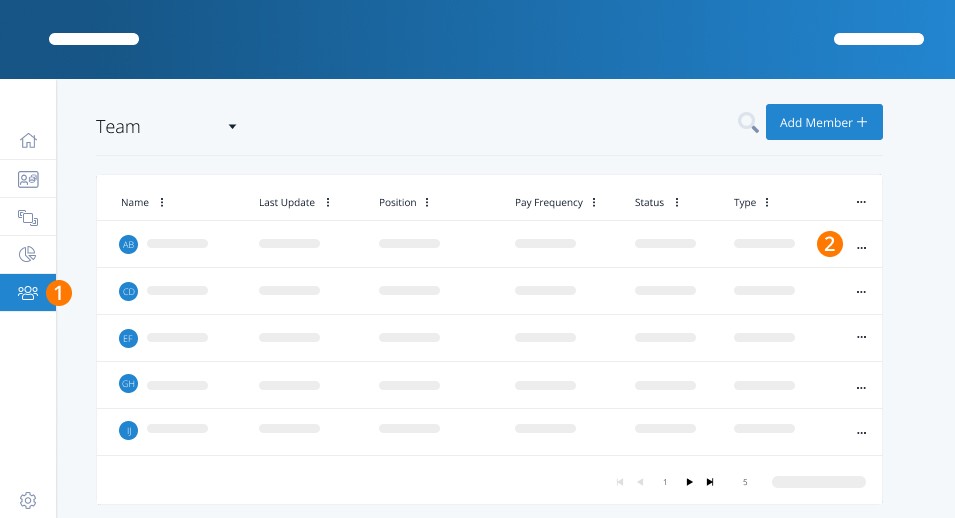
Step 1. To access it, navigate to Employees.
Step 2. Open an employee's profile.
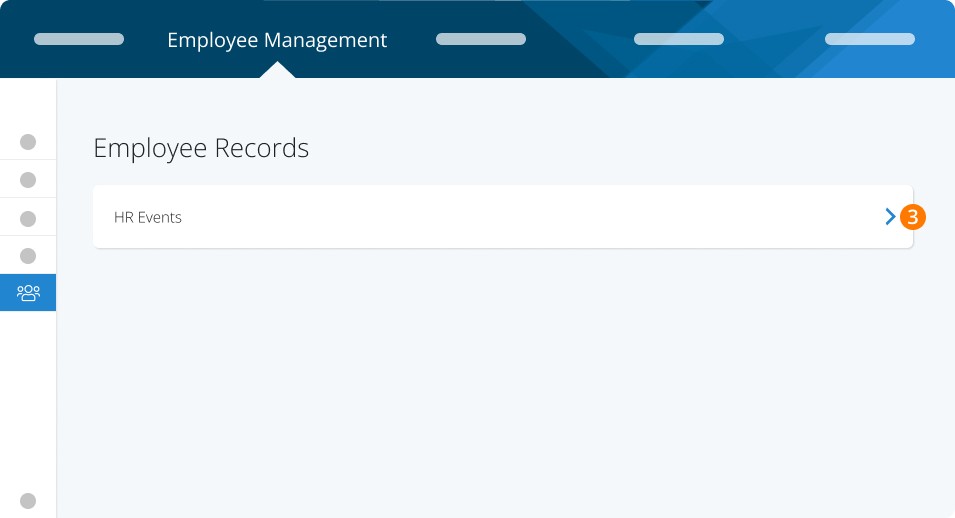
Step 3. Under the Employee Management tab, click the option for HR Events.
Tracked Changes
The HR Events feature will display every change that has been made to the employee's profile, including:
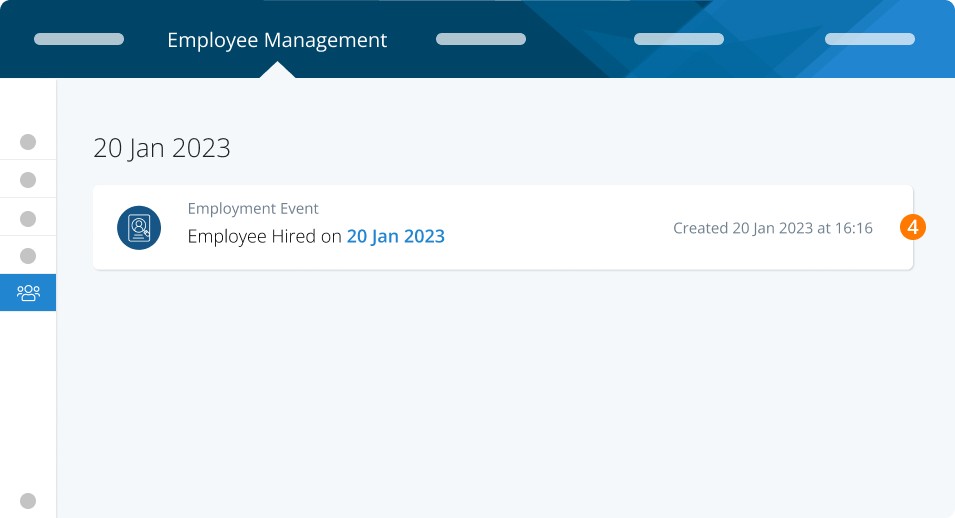
Employment Event
Step 4. Employment Events include any changes related to their employment status, such as hiring and termination dates. The employee's original hire date will also be retained. It will also show when an ROE is created, submitted to Service Canada, and when the employee has been re-hired.
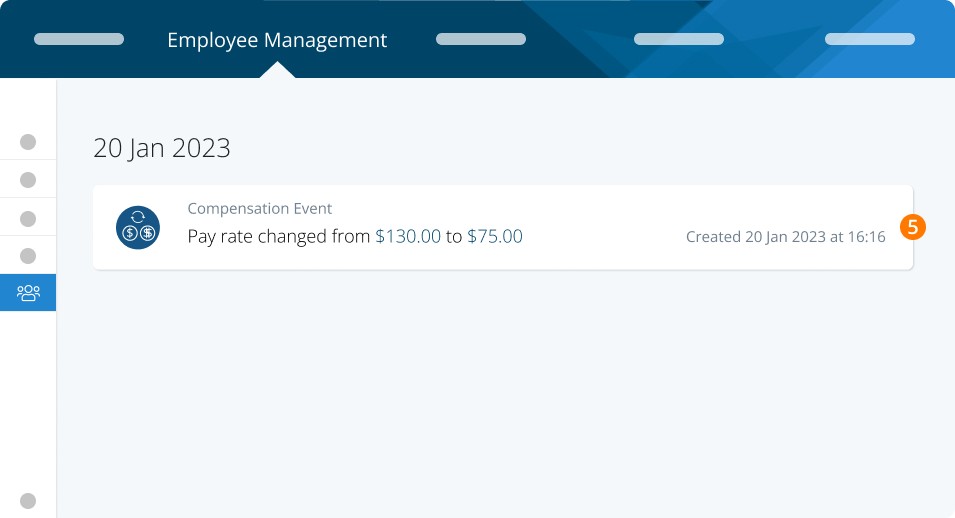
Compensation Event
Step 5. The Compensation Event category will show all changes made to the pay rate or pay rate unit, along with the pay frequency and hours per week.
Role Event
Step 6. Role Events include any modifications to the employee's position, employment type, and vacation setting.
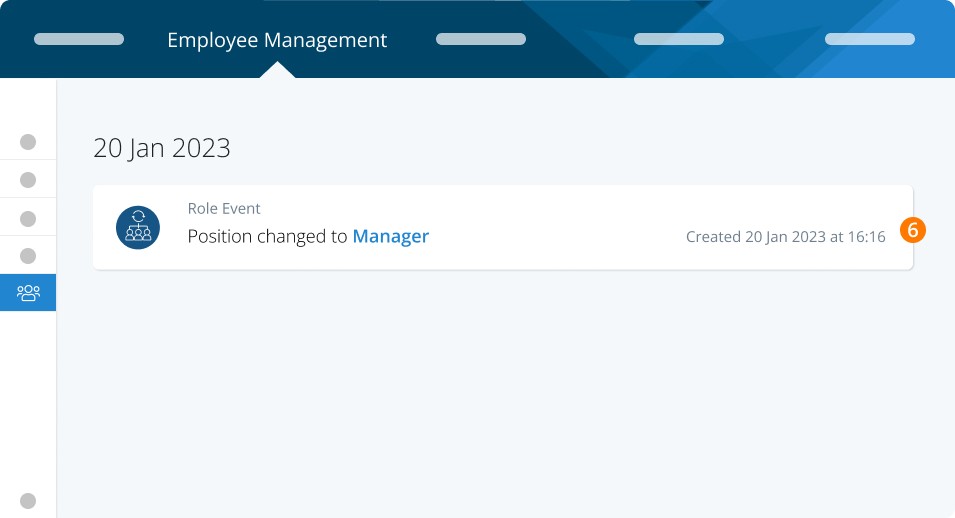
For all changes, the date, time, and user responsible for the changes will be marked.
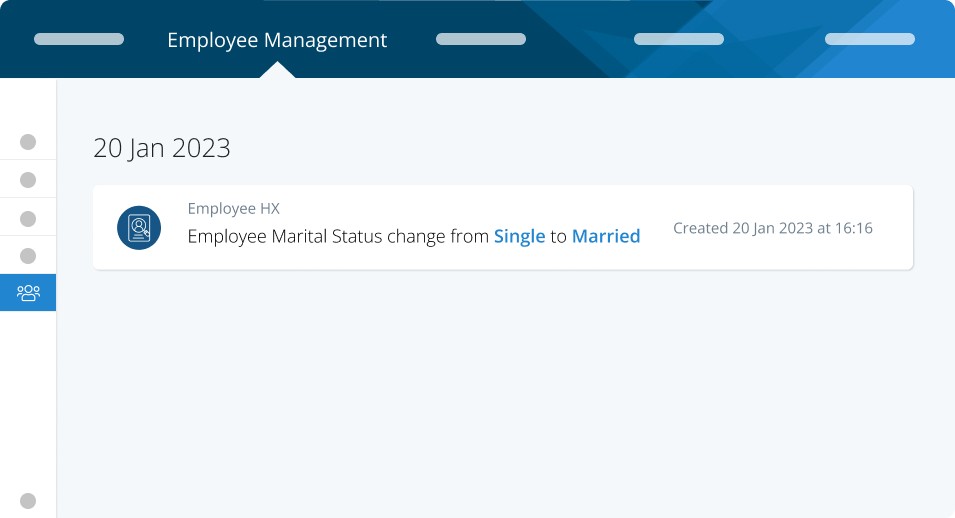
Employee HX
Employee HX includes all marital and gender status changes.
Adding a Manual Event
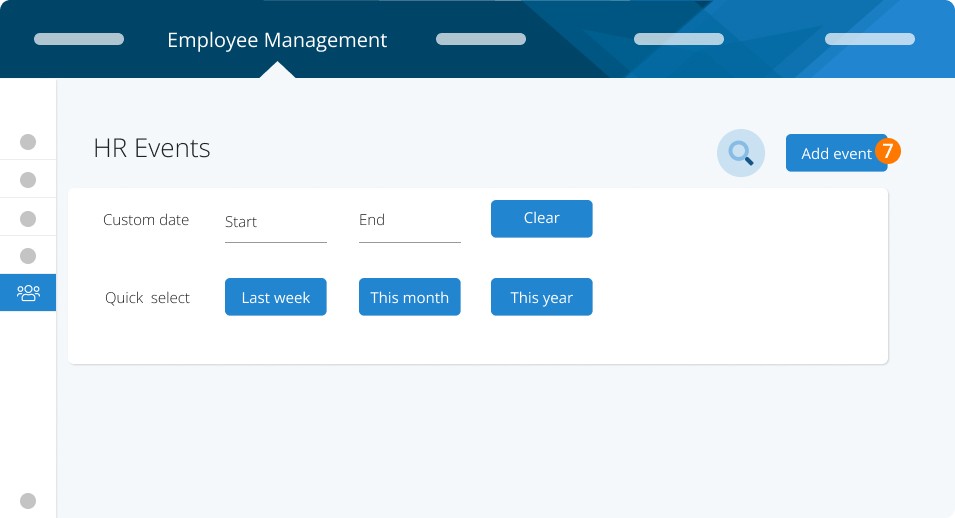
Step 7. Although the majority of changes to the employee's profile will be tracked automatically here, you can also manually add a custom event. Once added, it cannot be removed or changed.
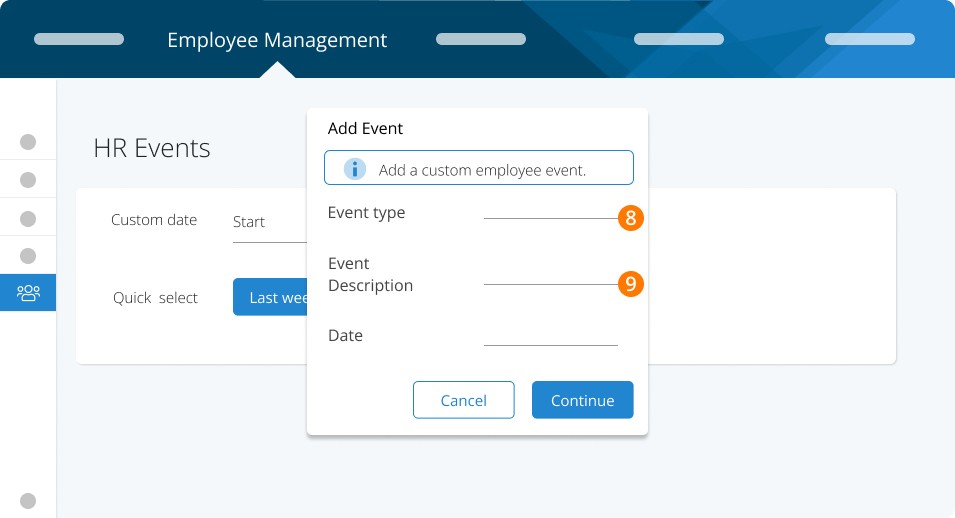
Step 8. The Add Event window will open where you can select the Event Type, the Event Description, and the Date. You can select from an employment change, payment structure change, or organizational change.
Step 9. Enter the description of the event
Searching for Events
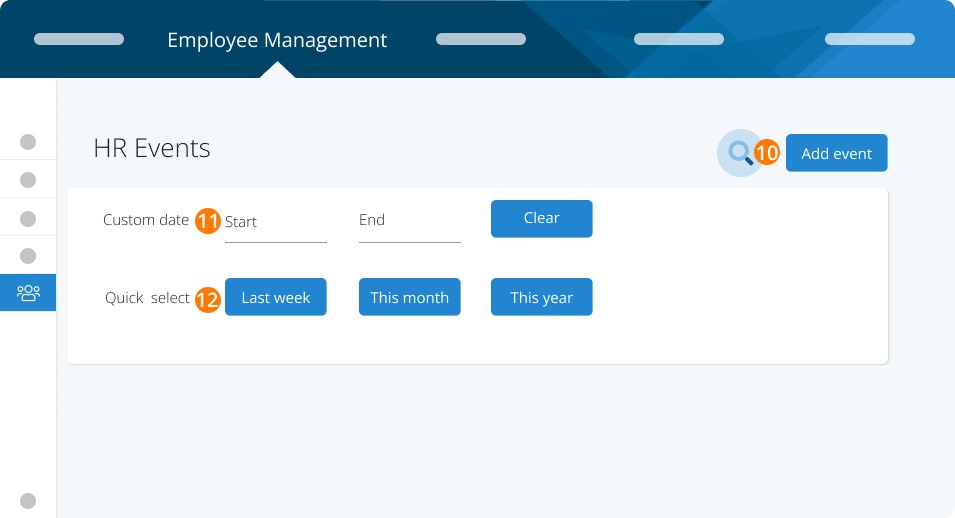
You can use the top portion of HR Events to search for something specific in the employee's history.
Step 10. Enter a keyword for an event to search.
Step 11. Enter a custom date range to see all events that occurred within that timeframe.
Step 12. A quick look at all events that occurred in the past week, month, or current year.
Keywords: HR Events, Historical Records, Organizational Changes, Employee, Salary Changes, Pay Frequency, Employee management, employee management tab
396
Can't find what you are looking for? We can take a more direct look to help resolve your matter — Create Case or Contact Us