Running Termination Payments in Payroll
After you've set up the pay rules, it's time to apply those earning rules in the pay run to pay out the termination payments.
Vacation Pay
If the vacation rule is set as "release at each pay," vacation is paid out with the regular earnings. This means that no action is required.
When vacation rule is set as "accrue, tax on release," accrued vacation should be paid/released along with the last pay run before terminating. We recommend releasing accrued vacation with the last regular pay run, or with your termination pay run. Please follow the instructions to release accrued vacation.
If your employee does not have a vacation setting in their profile, add the vacation earnings rule as an additional earning in your regular or termination pay run.
Paying Vacation as a Special Run
If you missed releasing vacation in the last regular pay run, please run a special run to release the vacation for the specific employee.
Please note that the start and end date of the pay cycle should match the start and end date of the last regular run.
If you're unsure of the pay cycle dates of the last regular run:
Step 1: Employees
Step 2. Profile
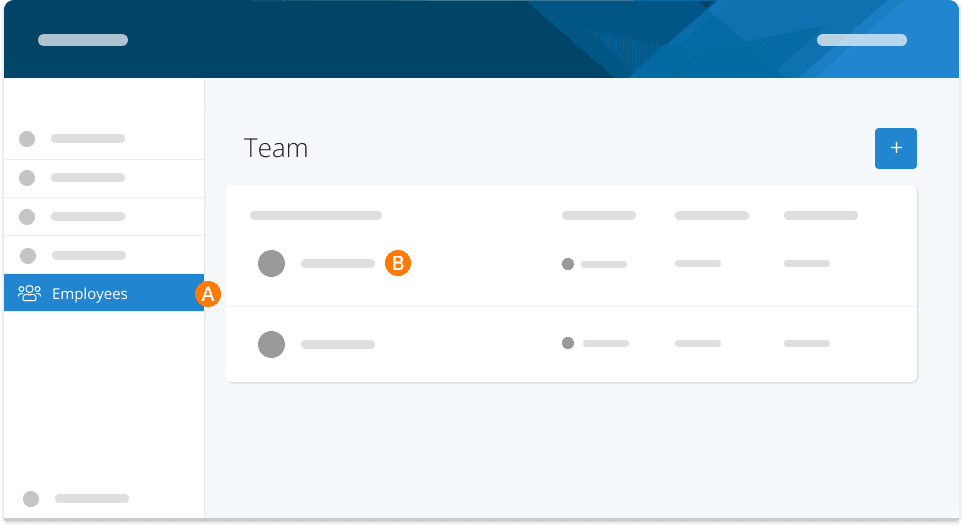
Step 3. Payroll Tab
Step 4. Pay Runs
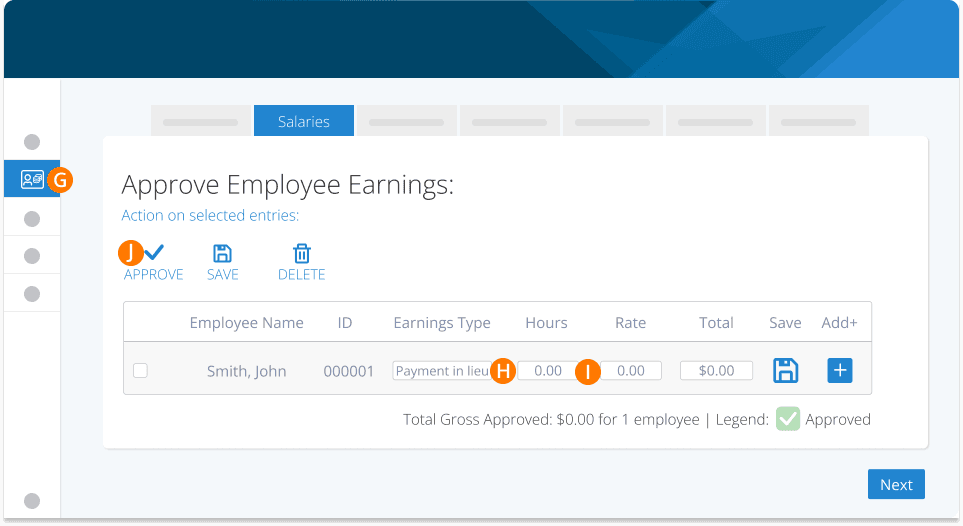
Payment in Lieu of Notice
Payment in lieu should cover the days that the employee would have otherwise worked. If the pay period for payment in lieu falls in a new pay cycle, please run it as a special pay run with the start and end date the same as the last pay period worked. While approving hours, approve only the hours associated with payment in lieu. Then finish as normal. If the lieu period falls within your next normal pay cycle, include the appropriate earnings for the employee within that pay run.
For example, let's assume an employee's regular pay run is from Sept. 1 to Sept. 14. They have been let go on Sept. 7. You have determined you owe them payment in lieu from Sept. 8 to Sept. 21. You can run one regular pay run for this employee, or if you already completed the regular run do one regular plus one special (using the same work dates).
Step 1. Run Regular Payroll from Sept. 1 -14
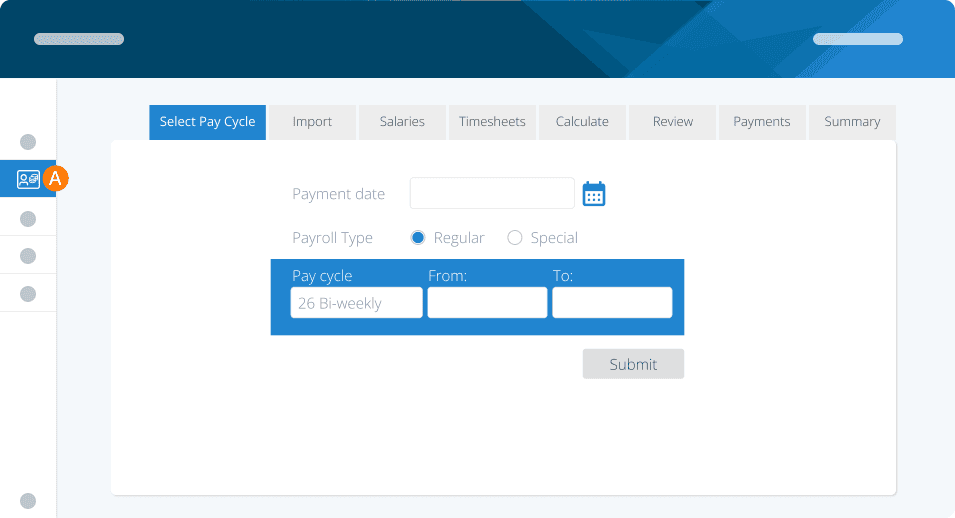
Step 2. Approve Regular Hours for Sept. 1 - 7

Step 3. Add an additional earning
Step 4. Select PAYMENT IN LIEU
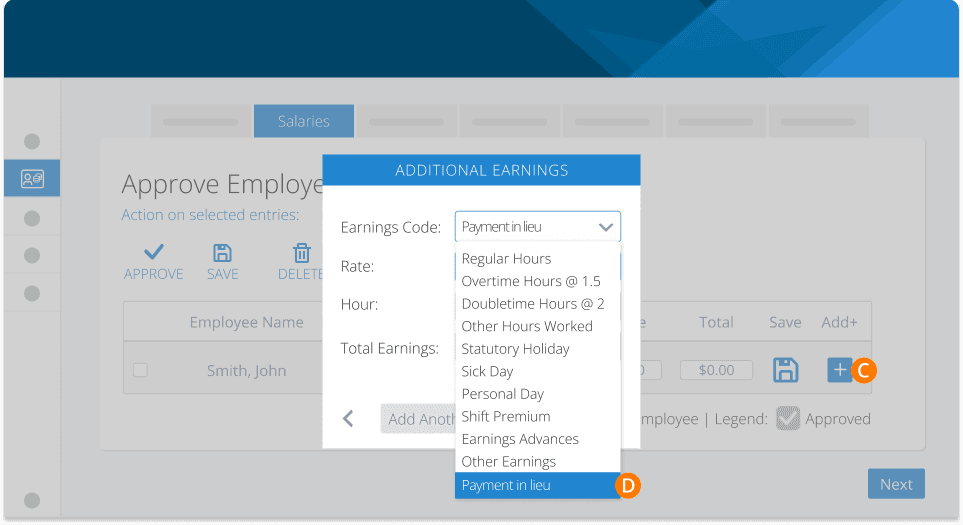
Step 5. Enter the amount only from Sept. 8 - 21 (if you are doing 1 run).
Step 6. Next
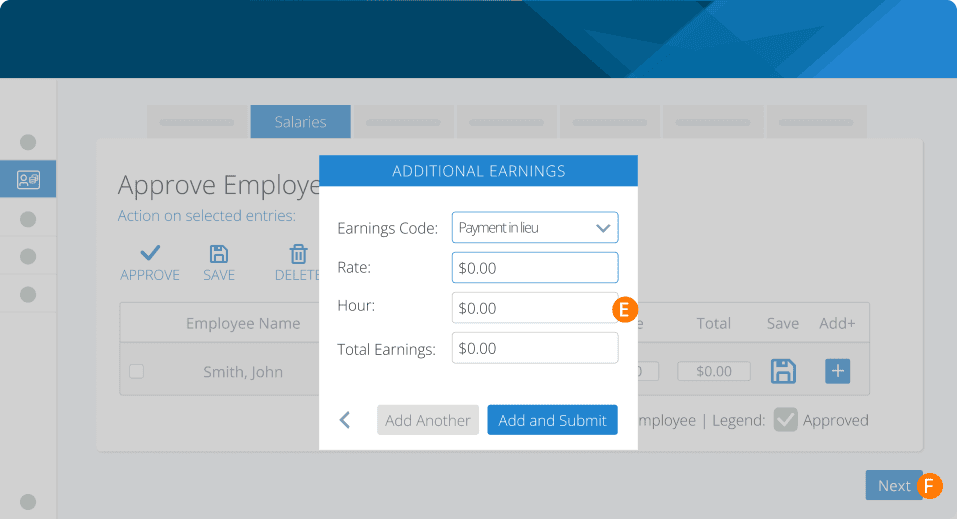
Step 7. Finish as normal
Step 8. If you have already completed your regular run, start a new special run with the same work dates of Sept 1-14.
Step 9. DO NOT APPROVE REGULAR HOURS; SELECT PAYMENT IN LIEU
Step 10. Enter amount from Sept. 15 - 21 and approve only payment in lieu.
Step 11. Finish as normal
Salary Continuance
When an employee continues to be on payroll even after stopping work, employers provide what is called a Salary Continuance.
These payments are paid the same as if the employee were still working.
Step 1. Run Payroll
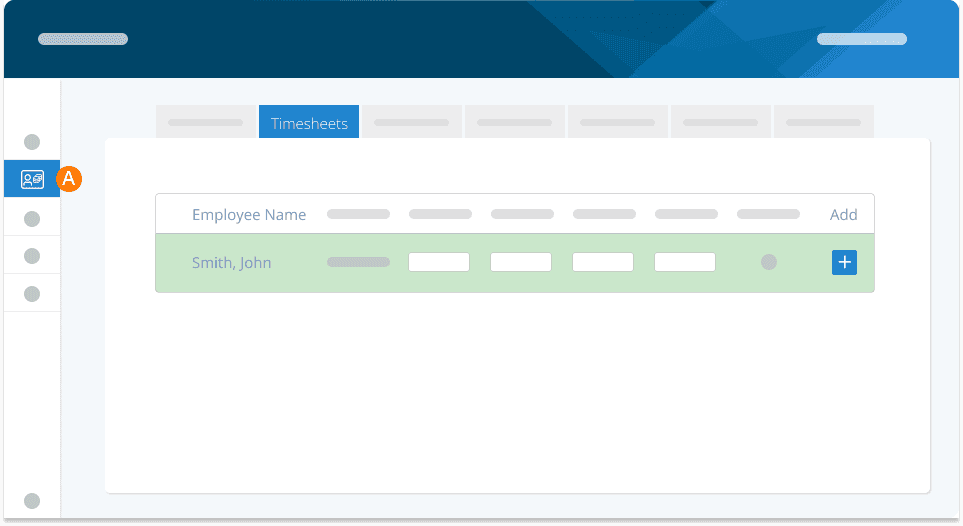
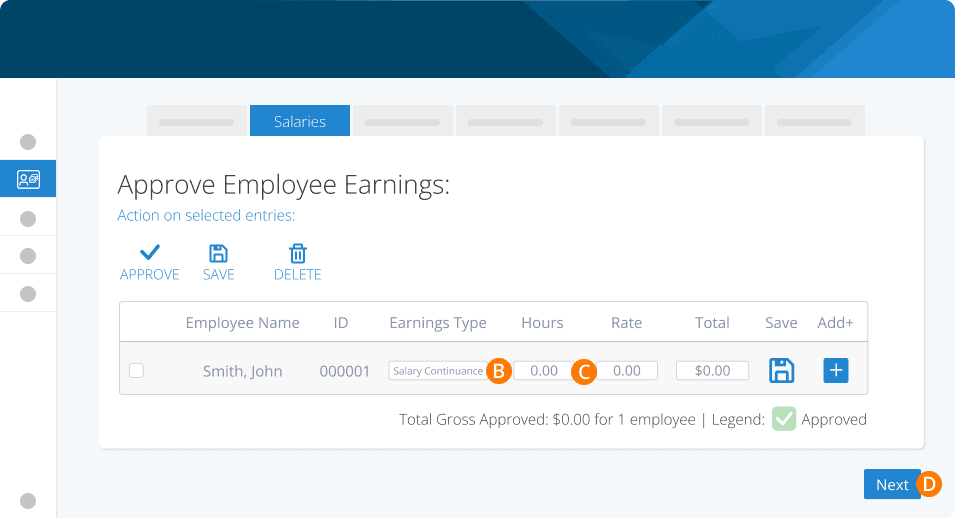
Step 2. Select SALARY CONTINUANCE as the earnings type.
Step 3. Enter regular hours and rate.
Step 4. Next
Severance Pay (Applicable to CLC and Ontario Employers)
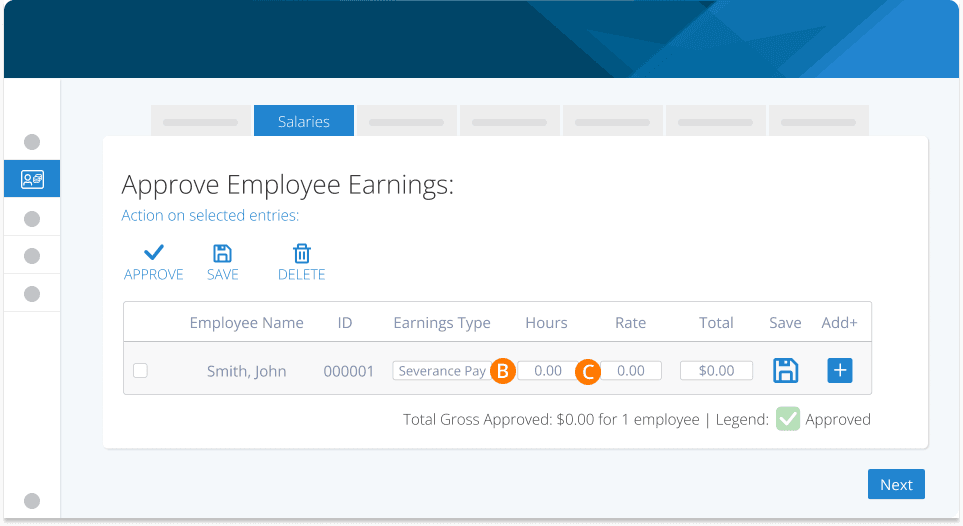
Step 1. RUN PAYROLL WITH THE SAME DATES AS THE LAST REGULAR PAY RUN (this can be a Regular or Special run depending on when you're running it).
Step 2. Select SEVERANCE as the earnings type
Step 3. Enter Severance Amount
Step 4. During review, click the employee's name
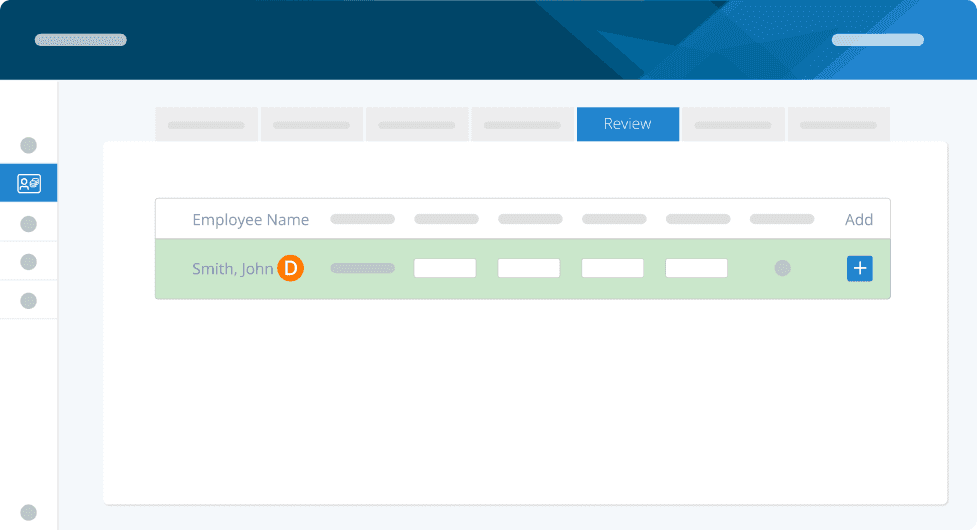
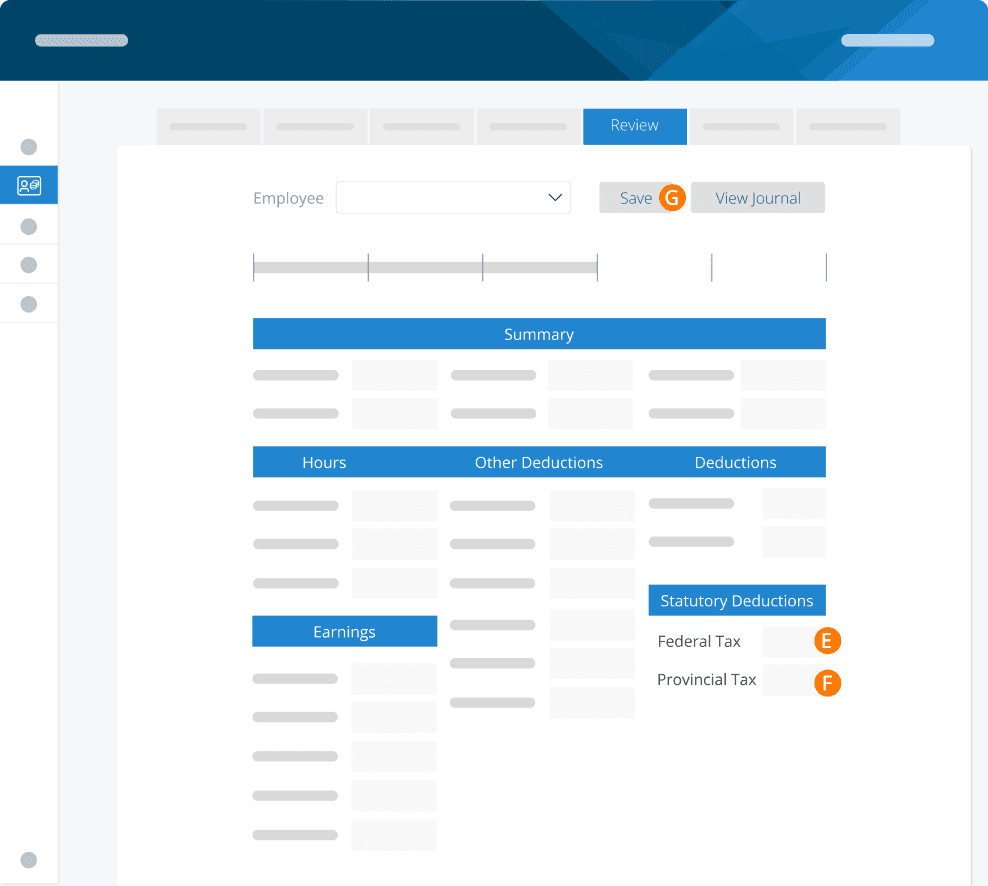
Step 5. UNDER FEDERAL TAX, ENTER THE INCOME TAX BASED ON THE RATES SHOWN HERE.
Step 6. REMOVE PROVINCIAL TAX
Step 7. Save
Retiring Allowance or Lump Sum Payments (Informally Known as Severance)
For non-Quebec employees:
Step 1. RUN PAYROLL WITH THE SAME DATES AS THE LAST REGULAR PAY RUN (this can be a Regular or Special run depending on when you're running it).
Step 2. Select RETIRING ALLOWANCE as the earnings type
Step 3. Enter amount
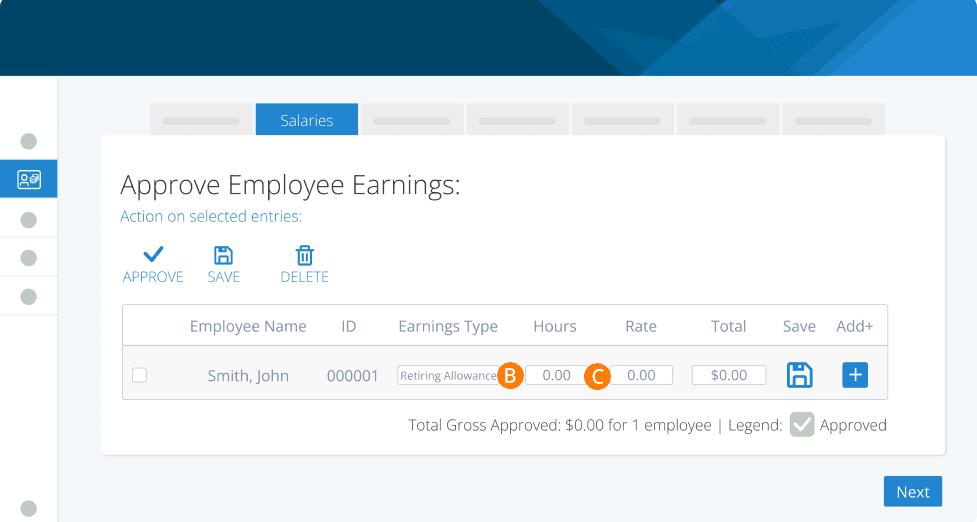
Step 4. During review, click the employee's name
Step 5. UNDER FEDERAL TAX, ENTER THE INCOME TAX BASED ON THE RATES SHOWN HERE (Retiring Allowance) or HERE (Lump Sum Payments).
Step 6. REMOVE PROVINCIAL TAX AMOUNTS
Step 7. Save
For Quebec employees:
Step 1. RUN PAYROLL WITH THE SAME DATES AS THE LAST REGULAR PAY RUN
Step 2. Select RETIRING ALLOWANCE as the earnings type
Step 3. Enter amount
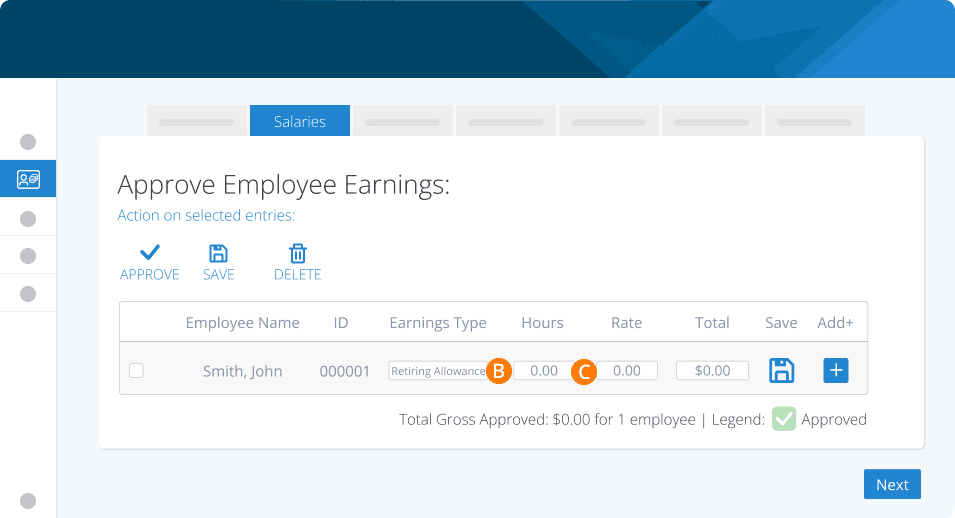
Step 4. During review, click the employee's name
Step 5. UNDER FEDERAL TAX, ENTER THE INCOME TAX BASED ON THE RATES SHOWN HERE (Retiring Allowance) or HERE (Lump Sum Payments).
Step 6. UNDER PROVINCIAL TAX, ENTER THE INCOME BASED ON THE RATES SHOWN HERE.
Step 7. Save
Statutory Holiday Pay
Pay out any stat holiday pay that will be owing prior to completing your ROE for easier terminations.
Step 1. RUN PAYROLL WITH THE SAME DATES AS THE LAST REGULAR PAY RUN
Step 2. Select STATUTORY HOLIDAY as the earnings type
Step 3. Enter Total Gross Pay
Step 4. Approve
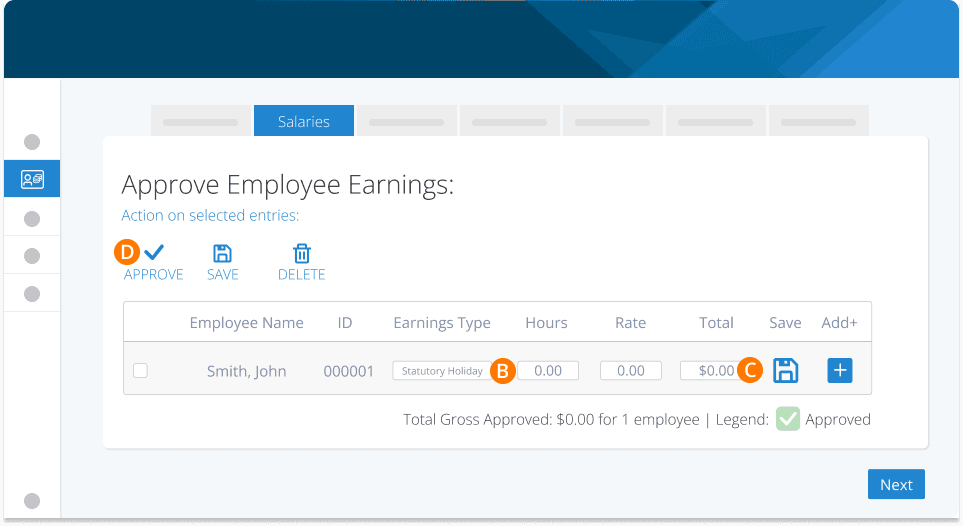
We recommend paying out any statutory holiday that occurs after the last day for which paid before you offboard the employee in the system.
If a statutory holiday occurs after the last date for which an employee is paid and is paid out after processing ROE, please amend the ROE to include the amount in Box 17 of ROE. See How to Amend ROE.
Now that you have run your final pay runs for your employee, you are ready to terminate them and issue an ROE. Follow the steps in Part 3 to make any adjustments necessary for the ROE to reflect your termination payments properly.
A further note from one of our accountant partners on how to confirm this difference, "The CRA tool uses claim codes rather than dollar values. I worked out to get the same result as the CRA tool you need to take the midpoint of the code range. This now made the PE calculation the same as the CRA calculation." If you are running payroll using the "Special" pay run the CPP exemption will not be taken into consideration and some earnings might be taxed at a slightly different rate than with a regular payroll. For more information on when to use the SPECIAL run, see this article HERE.
CPP and EI both have a yearly max, so if your employee has reached those it will no longer calculate them, which could account for a different net pay amount. CPP Rates as per CRA
Check to see that your employee payments aren't below the TD1 exemption amounts provided by the Canada Revenue Agency and their province / territory of employment. Typically, the system will annualize the earnings for an employee and if the total amount is under the exemption limit for the year, then no taxes will be deducted.
Is your employee exempt from certain government programs? For example, if they are under 18 or over 70 they may not need to contribute to CPP. The system will apply this automatically based on their Date of Birth.
If you are comparing numbers to other payroll calculators (like the CRA website), please keep in mind:
The CRA calculator will not have historical CPP/EI information to use when applying its calculations (unless you have explicitly entered them)
The values used by the CRA calculator uses ranges rather than the exact figures used in your payroll profile. This may account for an up to $5 differential between the CRA and your account. The exact figure method is more accurate, the range method can be slightly off.
The system will estimate the annual income of an employee and apply the correct tax calculations based on any income to date. If a $50k/year employee is hired and paid in Dec - the taxes deducted will correctly reflect earnings for Dec only. If the $50k/year employee is hired in Jan, the system will estimate the annual income and apply the correct tax calculations. The CRA calculator will not have this history and can only provide an estimate of the taxes.
The CRA calculator will not take into consideration any custom pay rules you may have created - many of these rules have tax implications which the service will correctly adjust for.
Related Tasks
Keywords: Termination, Offboarding, Dismissal, Termination Pay, ROE
396
Can't find what you are looking for? We can take a more direct look to help resolve your matter — Create Case or Contact Us