Now that you've created pay rules, and paid out your termination payments, your last step is to issue an ROE. If you need help terminating the employee and issuing an ROE.
Adjustments to an ROE for Termination Payments
When completing your ROE, you will reach a step called "Additional Amounts." This is where you will enter any adjustments based on your termination payments.
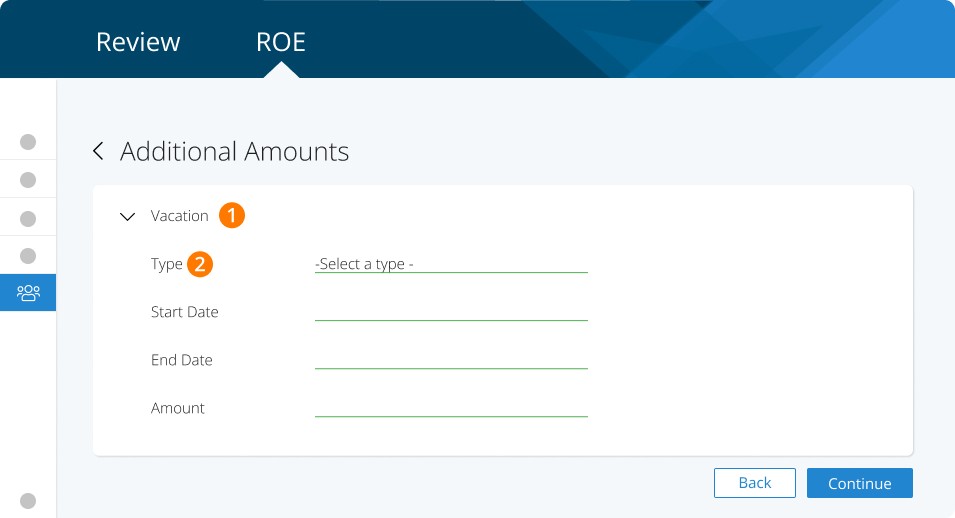
Vacation Pay
Step 1. Select VACATION
Step 2. Select EITHER INCLUDED WITH EACH PAY OR PAID BECAUSE NO LONGER WORKING
Use 'included with each pay' if the employee had vacation included with each payroll.
Use 'paid because no longer working' if you accrued vacation for this employee. Enter the total amount of Vacation paid in your termination pay run under the 'Amount' field. Vacation amount will be included in PP1 with regular earnings.
Payment in Lieu of Notice
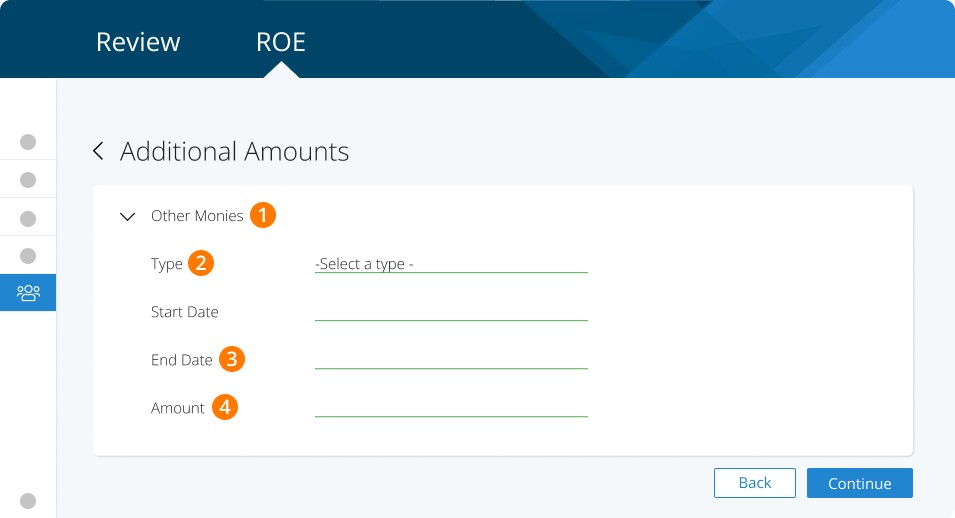
Step 1. Select OTHER MONIES
Step 2. Select PAY IN LIEU OF NOTICE (Y00)
Step 3. DO NOT ENTER START / END DATES
Step 4. Enter The Gross Pay In Lieu Amount
Salary Continuance
Be sure to issue your ROE only after you've paid out any salary continuance. This way, you don't need to make any adjustments to the ROE after it's submitted.
Severance Pay (Applicable to CLC and Ontario employers)
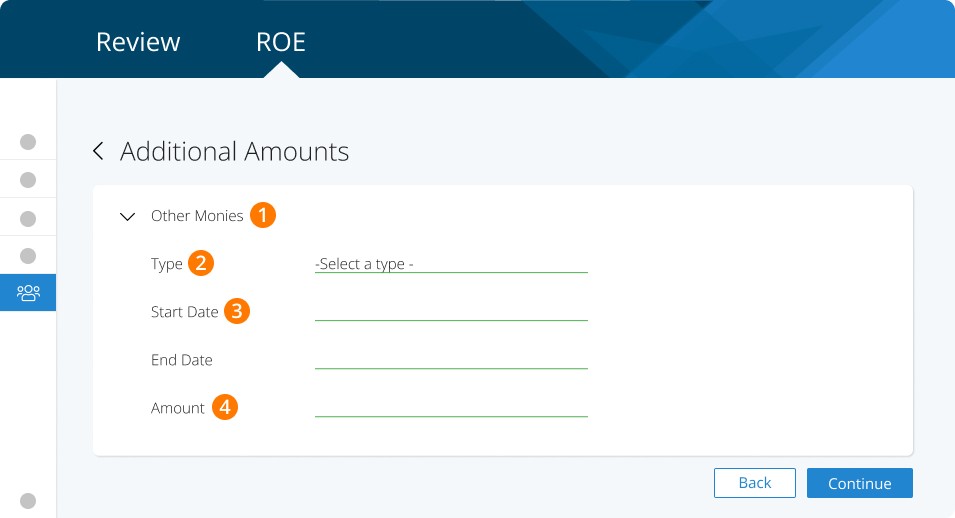
Step 1. Select OTHER MONIES
Step 2. Select SEVERANCE (E000)
Step 3. DO NOT ENTER START / END DATES
Step 4. Enter Gross Severance Amount
Retiring or Lump Sum Payments (informally known as severance)
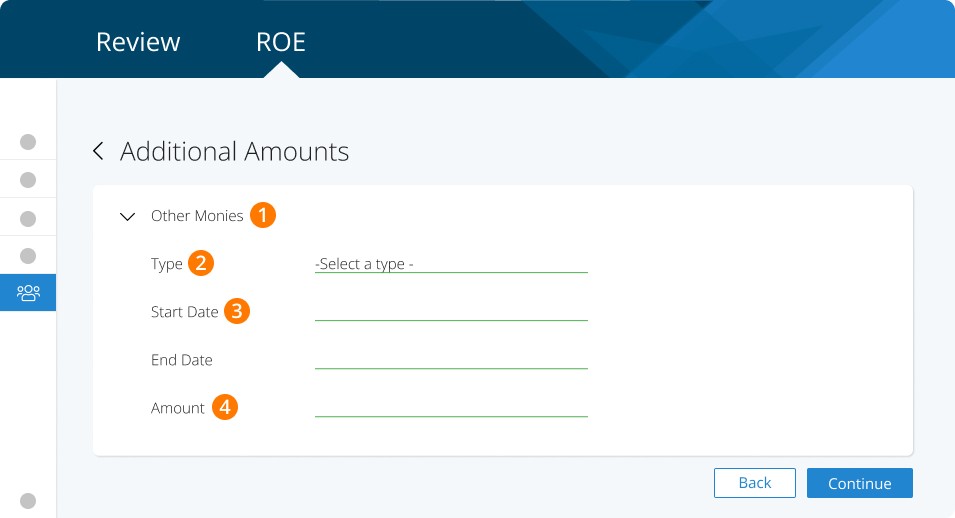
Step 1. Select OTHER MONIES
Step 2. Select RETIRING ALLOWANCE / RETIREMENT LEAVE CREDIT (R00)
Step 3. DO NOT ENTER START / END DATES
Step 4. Enter Gross Severance Amount
Statutory Holiday Pay
Step 1. Select STATUTORY HOLIDAY
Step 2. Enter The Statutory Holiday Date*
Step 3. Enter the Gross Statutory Holiday Pay Amount
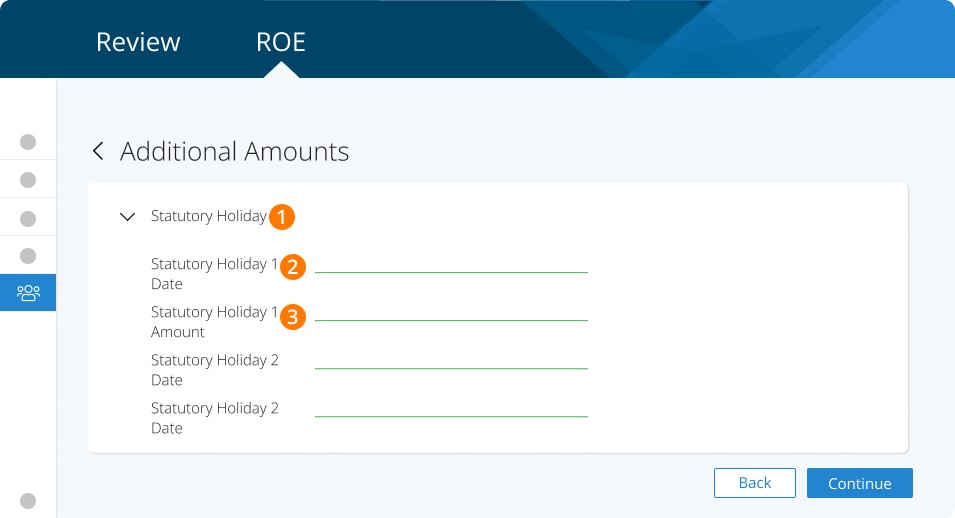
IMPORTANT - the date for this field should only be entered if the holiday you paid for/will pay for is after the last day worked.
Before submitting the ROE, please click on 'view draft' and verify these amounts are reflected under Block 17 on the draft ROE.
We recommend paying out any statutory holiday that occurs after the last day for which paid before you offboard the employee in the system.
If a statutory holiday occurs after the last date for which an employee is paid and is paid out after processing ROE, please amend the ROE to include the amount in Box 17 of ROE. See How to Amend your ROE.
Related Tasks
Keywords: Termination, Offboarding, Dismissal, Termination Pay, ROE
396
Can't find what you are looking for? We can take a more direct look to help resolve your matter — Create Case or Contact Us