Creating a Record of Employment (ROE)
This will walk you through how to create a Record of Employment (ROE) on the PaymentEvolution system.
Also known as: ROE creation.
Applies to: Administrators, Canada (en-CA)
Before you start
Before you terminate an employee, you should pay out any accrued vacation amounts- if you are unsure how to do that, please review the article here.
Video loading, just a moment.
Employees on leave can keep their accrued vacation in their bank. It is ok to terminate with accrued vacation.
Begin Off-Boarding
Step 1. Navigate to Employees.
Step 2. Click the three dots beside the employee for whom you wish to generate the ROE.
Step 3. Select Start Off-Boarding.
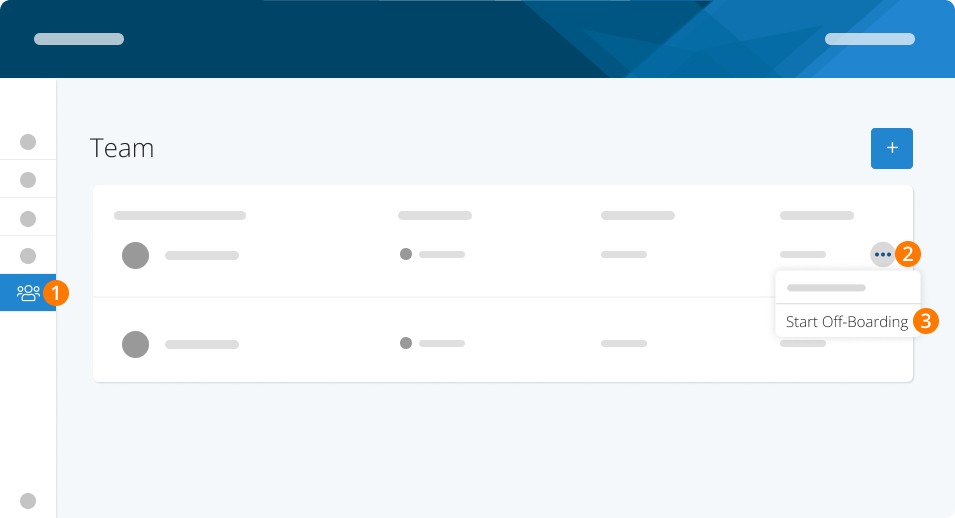
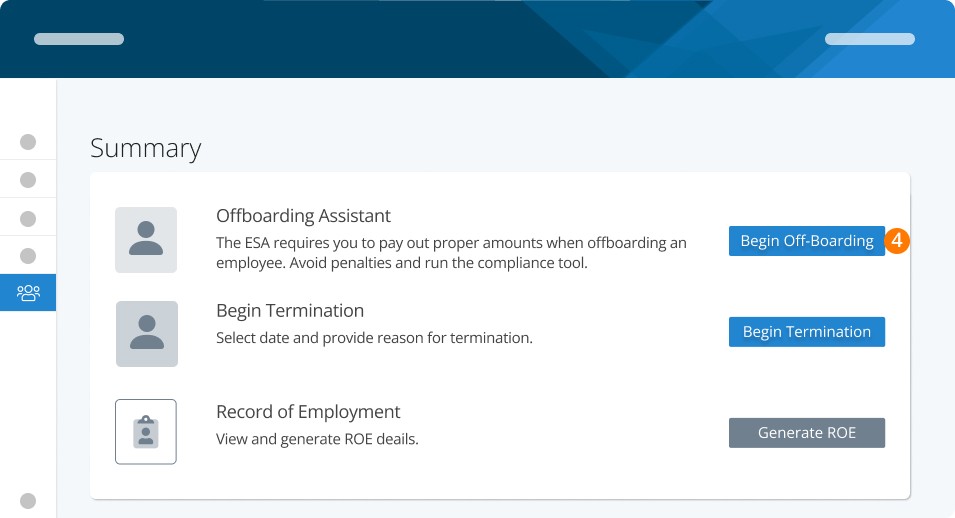
Step 4. Start by choosing Begin Off-Boarding.
You may receive notification of a pay run in the process. This employee will not be included in that pay run.
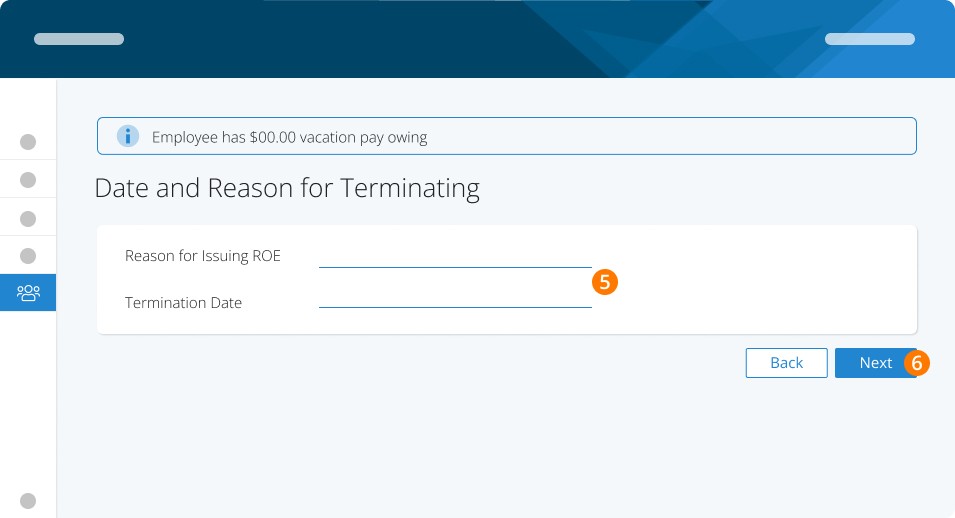
Step 5. Select the reason for issuing ROE and the Termination Date.
Step 6. Continue
Depending on the reason you’ve selected, we may recommend the Offboarding Assistant. This tool ensures you remain compliant and pay out any separation payments that may be required of you. If you see this recommendation, learn more the Offboarding Assistant.
Step 7. Click Terminate
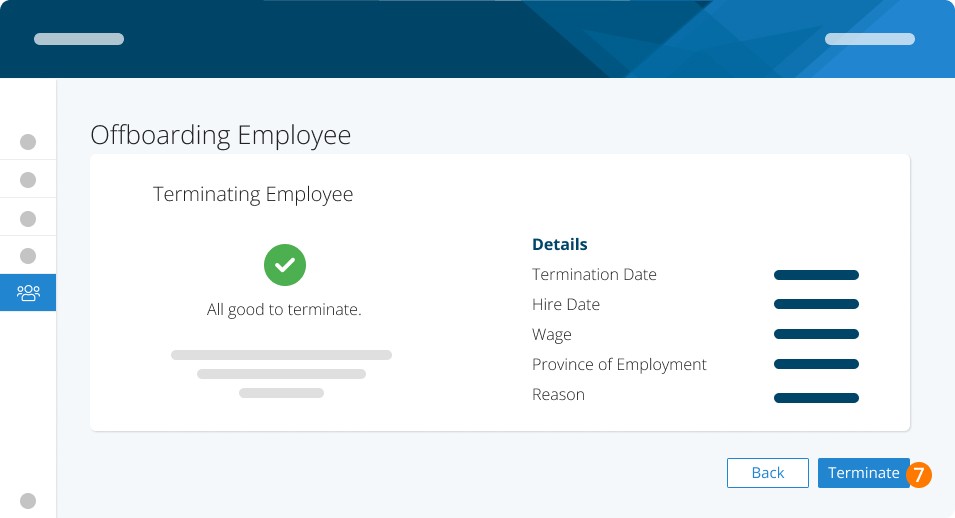
Step 8. Click Generate ROE
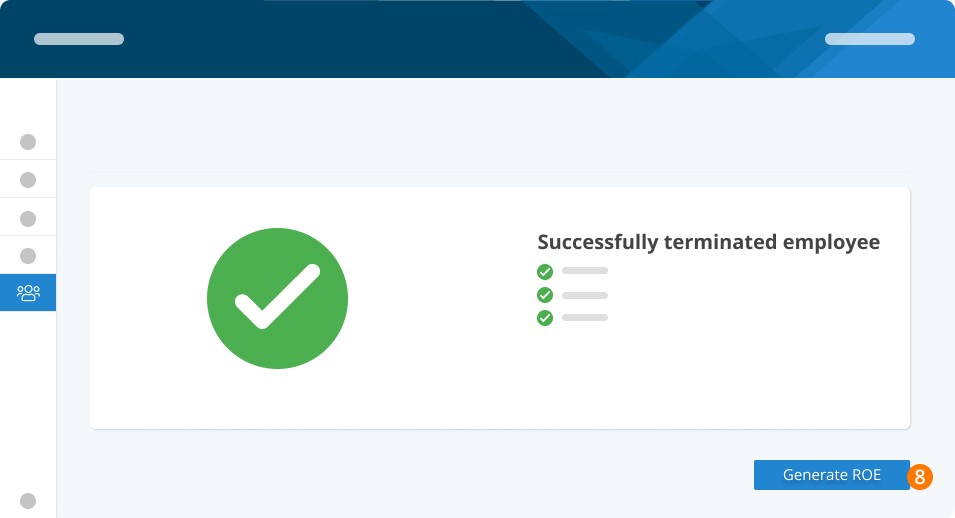
Step 9. Fill in your employee's information. Then, click Continue.
Step 10. The ROE fields have been pre-filled for you, please review and update if needed. Then, click Continue.
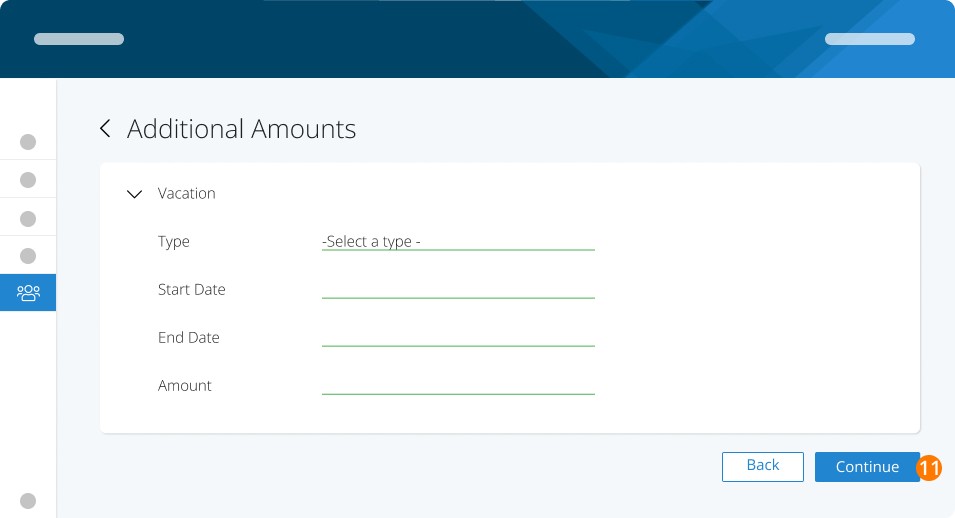
Step 11. Input any additional amounts paid on the final payment or due after issuing the ROE. Then, click continue.
Step 12. Your employee's insurable totals will be shown on screen. Click on the Advanced button to get a breakdown by pay period.
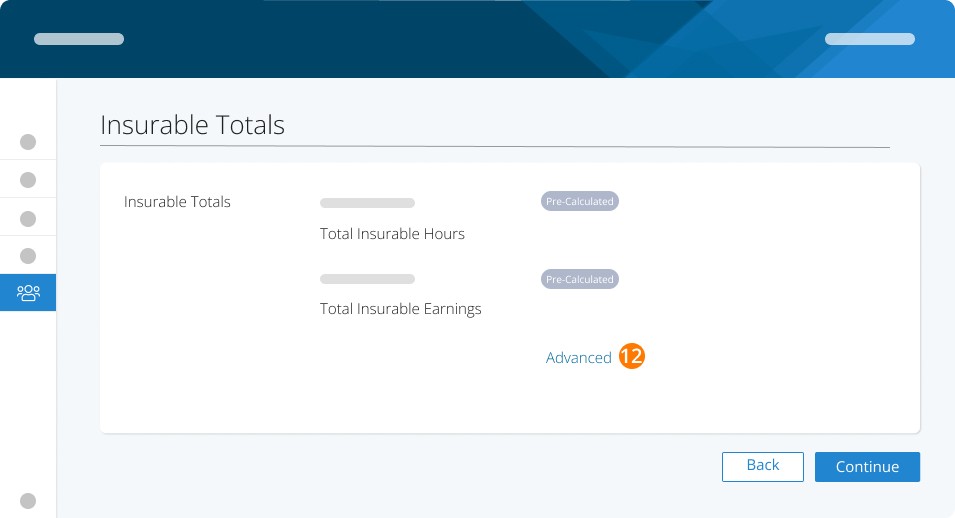
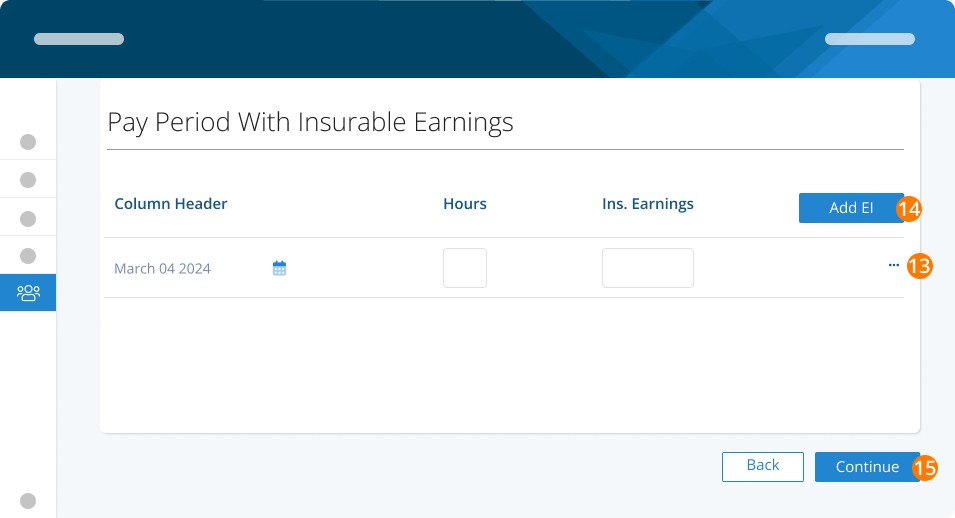
Step 13. Use the three dots to remove a line.
Step 14. Or use the Add EI+ button to add a pay period.
Step 15. Click Continue
Pro-Tip: If you need to make any adjustments, make sure you follow the Service Canada guide on manipulating the individual fields.
Step 16. Add any additional comments or contact information.
Step 17. Click Continue.
Step 18. Choose how you will submit to Service Canada: Automatic or Manual.
Step 19. Click Continue.
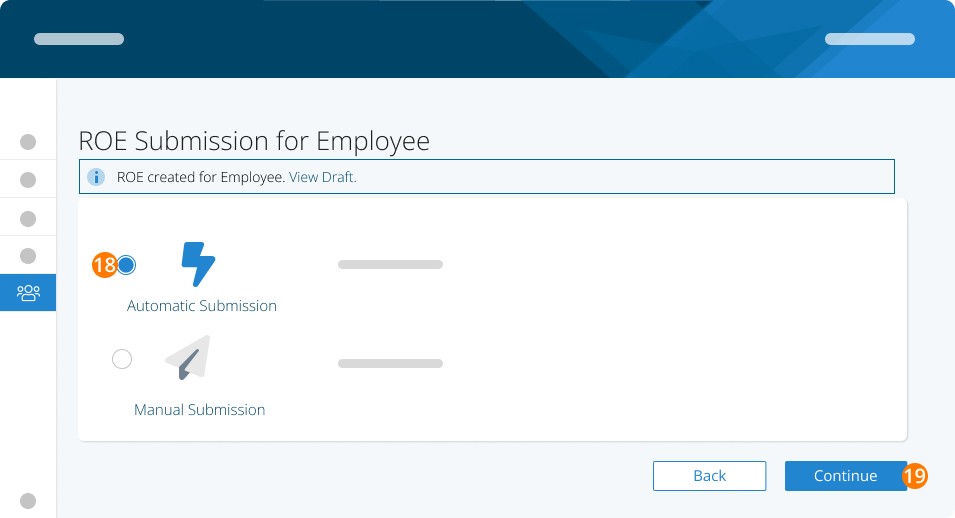
Automatic Submission
When you select Automatic Submission, you will be prompted to agree to the Terms of Use document. You will only need to do this once.
Step 20. Sign
Step 21. Click Authorize.
Step 22. Once agreed, Click Send to send your data to Service Canada.
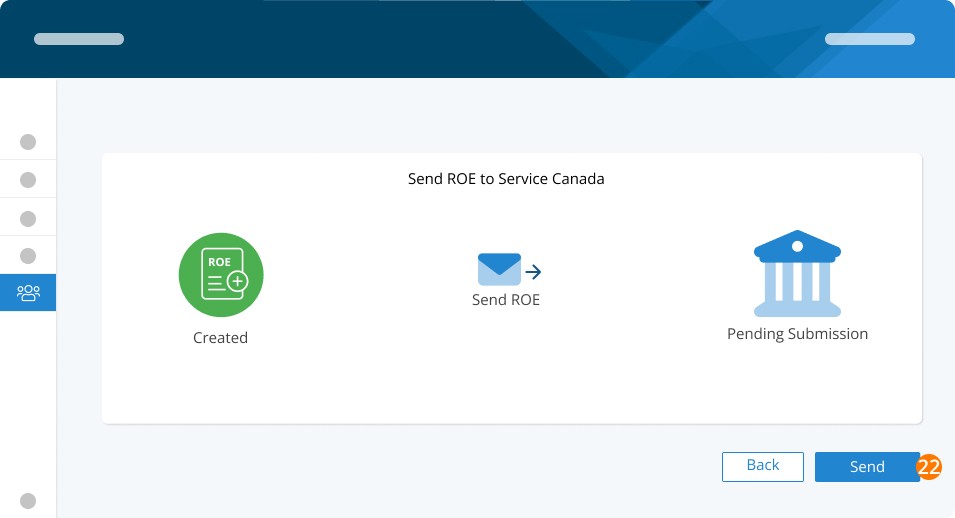
Your dashboard will show the status of your submission.
Manual Submission
When you choose manual submission, you must log in to Service Canada to upload the .BLK file.
Start by downloading the electronic file.
You will come back here later to add a confirmation number.
You can now follow the instructions on the Service Canada website to securely submit the Record of Employment, here is a detailed walk-through from Service Canada.
NOTE:
The file extension should be .BLK only - certain browsers may add .XML and this will need to be removed before you can upload to the Service Canada website.
Service Canada will assign a serial number to the file upon upload, we are not able to do this for you.
PRINT will allow you to print a local copy (but remember this print out is only for your own use and cannot be used for submission to Service Canada)
Submitting the ROE online to Service Canada
To submit your file to Service Canada, go to their ROE website and sign in to ROE Web with your Service Canada credentials. If you do not have them, you can apply to receive them for your business.
At the main menu for ROE Web, select ROE Payroll Extract File:
Follow the onscreen instructions to upload and make your declaration. Your file will now be transferred and processed. You can check the status of your file by selecting VIEW.
Once accepted, you'll be able to see the submission online and your former employee will be able to apply for Service Canada programs.
Once you have completed the upload, please enter the confirmation number/serial number to finish your off-boarding progress. This number is for your reference.
If you have navigated away from this screen, go to Employees>Off-Boarding>...>ROE and select Manual Submission again.
Related Tasks
Keywords: Record of Employment, ROE, Termination, Offboarding, Employment Record, Dismissal
396
Can't find what you are looking for? We can take a more direct look to help resolve your matter — Create Case or Contact Us