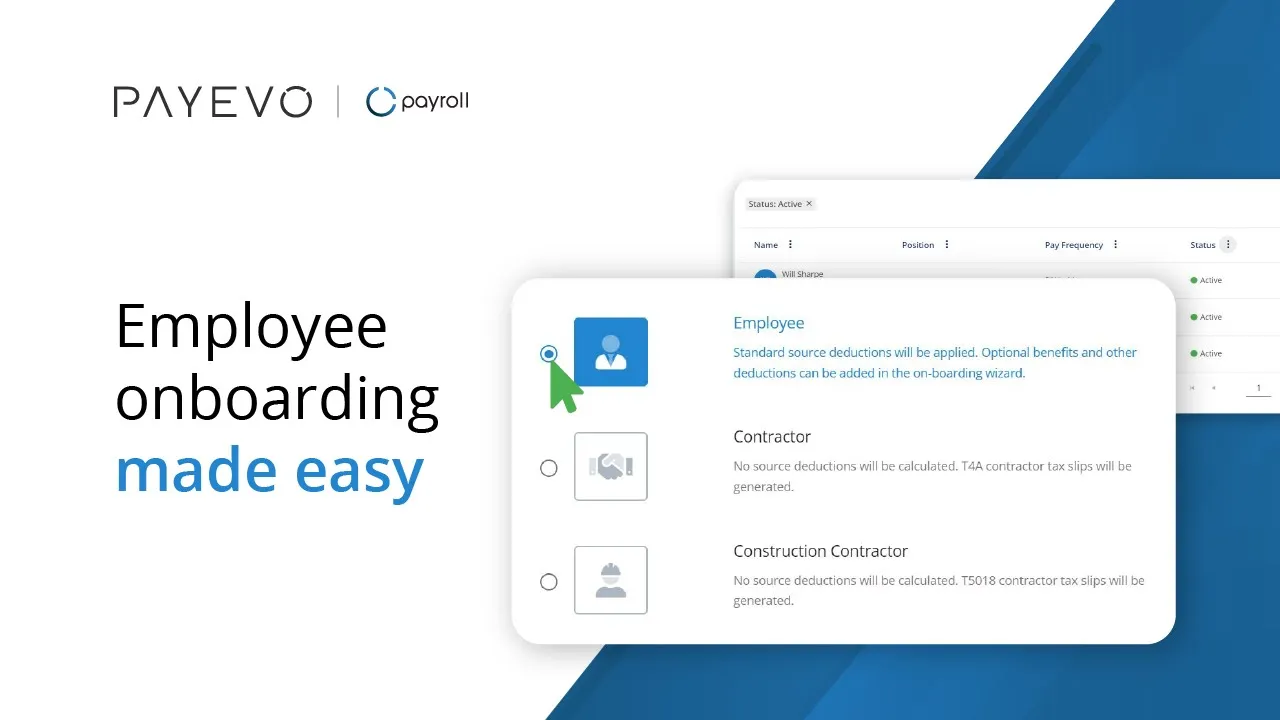
Adding/Onboarding a Team Member
How to add/onboard new team members to the PaymentEvolution system.
Also known as: New Employees.
Applies to: Administrators, Canada (en-CA)
Before you start
You will need to be the Administrator account
You will want the employee's information (bank account, SIN, DOB, etc.)
Video loading, just a moment.
After completing your company settings, you can add team members to your organization.
Note: Team members can be added individually or in bulk via CSV file import.
To Add Team Members Individually
Step 1. To add a team member, select Employees from the left-side menu.

Step 2. Click Add Member to add an individual team member.

Step 3. Select Team Member Type. Follow the Canada Revenue Agency guidelines to determine the type of your team member.
Step 4. Click Continue to set up employee information.

Step 5. Enter the Employee information - Name, Email and Mobile Phone Number.
Step 6. Click Continue.

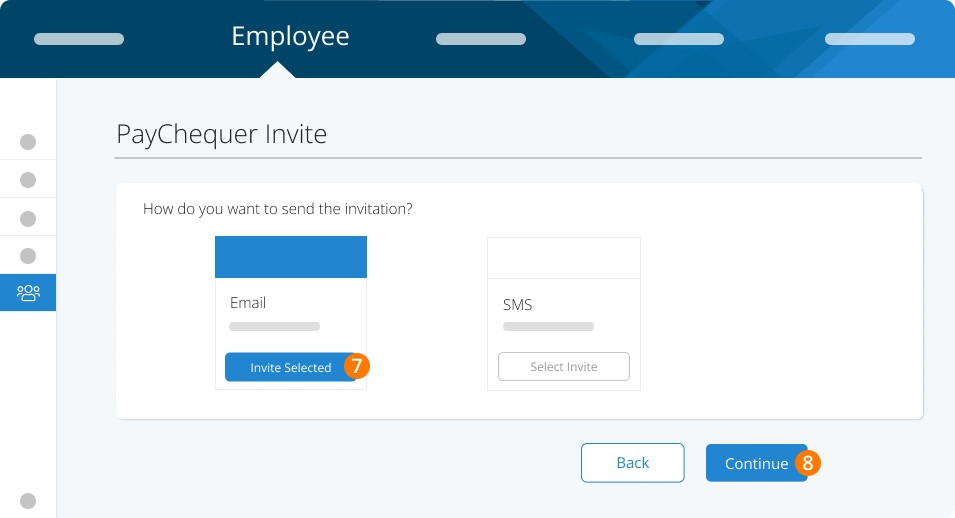
Step 7. Invite employees to PayChequer via email or SMS.
Step 8. Click Continue.
Step 9. Enter Personal Details.
Step 10. Click Continue.

Step 11. Fill in the employees' payroll details.
Step 12. Click Continue.

Step 13. If you've already processed payments for this employee this year using another payroll service, please select 'Yes' to include their year-to-date information. Otherwise, choose 'No'.
Step 14. Click Continue.

Step 15. Click Add Benefits to set the benefit rules.
Step 16. Select the pay rule from the Rule Name field. Choose whether you want the amount per pay to be a fixed ($) amount or a percentage (%) of the gross pay. Enter the amount per pay period.
Step 17. Click Continue.

Step 18. A checklist of the on-boarding steps will be shown. Review to ensure you've completed all the steps. Click Continue.

You can continue to edit the team member as needed from your team dashboard to add direct deposit or other details.
Tip: If you have started onboarding a team member but did not complete the steps, the individual will be shown in your Onboarding View. Select the Team dropdown to see your Team Dashboard options.
To Upload Multiple Team Members
You can check out this help desk article for more in-depth instructions: Importing Employees via CSV
Step 19. Click Employees to go back to the employee list.
Step 20. Upload your completed CSV file first by selecting the ellipses on the top menu bar of the Team or On-Boarding dashboard.
Step 21. Click Import Employees.

Step 22. Click Select Files to upload your team member list or update your team members list.
Step 23. Click Continue once your file has been imported.

You will get a notification of a successful upload or if there are any problems.
After you upload your new team members, remember to edit team members to add their benefits, deductions, and vacation settings.
Keywords: Employee, Contractor, Worker, Hire, Add Employee, Onboarding
396
Can't find what you are looking for? We can take a more direct look to help resolve your matter — Create Case or Contact Us