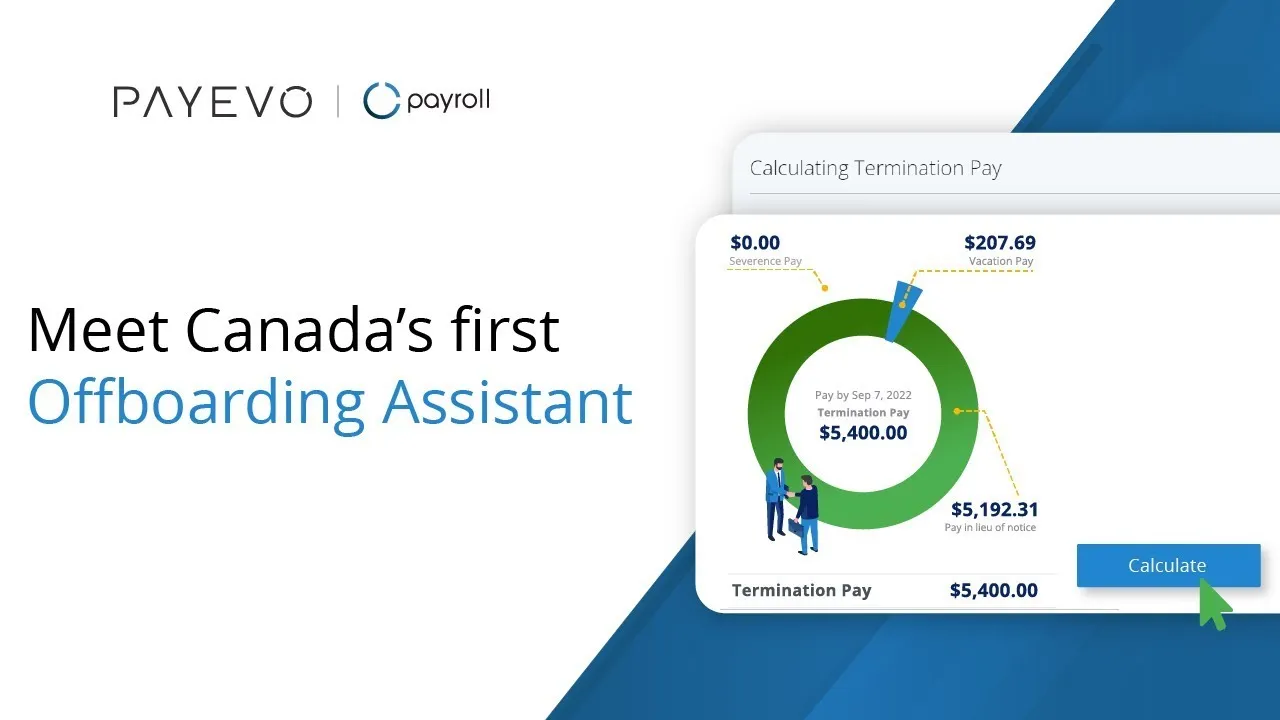
Offboarding Assistant
This article explains how to use the Offboarding Assistant to manage employee exits smoothly.
Also known as: Employee Offboarding.
Applies to: Adminstrators, Canada (en-CA)
Before you start
You must be the administrator
Utilizing the Offboarding Assistant has a cost of $250 + tax per person offboarded
If you are on a partner plan, please contact your Account Manager
Video loading, just a moment.
Severing employee relationships can be tough on you and your business. Make sure you’re doing the right thing. Calculate legislated employee separation payments right in your PayEvo account.
When to use the Offboarding Assistant
We will recommend when to use the Offboarding Assistant tool based on the ‘Reason for Termination’ that you select in the offboarding process. The Assistant tool is designed to keep you compliant by recommending when you may need to use it. For example, the tool would be recommended when selecting 'Shortage of Work' but will not be recommended when the reason, ‘Quit’ is selected, since the Assistant would not apply in that situation.
How to use the Offboarding Assistant
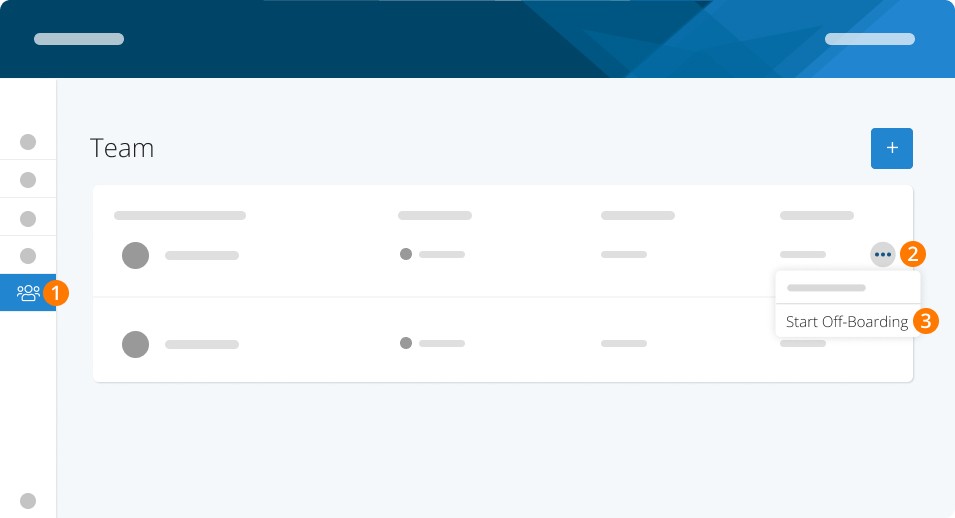
Step 1. Navigate to Employees.
Step 2. Click the ellipses and select Start Offboarding.
Step 3. Select Begin Off-Boarding.
You will first be prompted to answer a series of questions based on the provincial standards of the chosen employee.
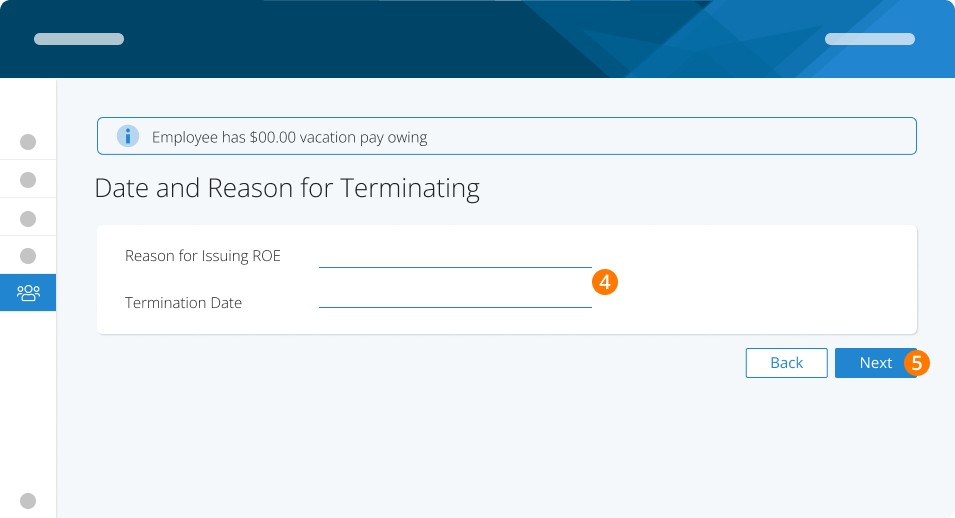
Step 4. Select the reason for issuing the ROE and the termination date. Depending on your selection, we may recommend using the Offboarding Assistant.
Step 5. Click Next
Step 6. Click Run Offboarding Assistant
Note: Although it’s not recommended, if you want to skip the Offboarding Assistant, you can click the down arrow in the lower right corner, and then ‘Skip Offboarding Assistant’. The only time that we recommend skipping the Assistant is if you have already confirmed compliance with a qualified professional and have paid out the appropriate separation payments.
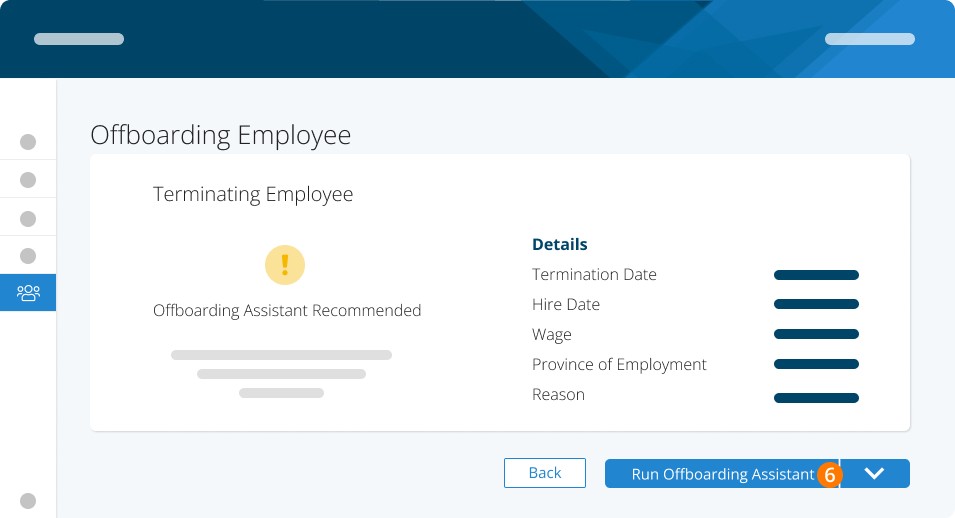
Please keep in mind that if the Assistant is recommended, then it’s highly likely that you will owe an amount to the employee. We recommend running the Offboarding Assistant whenever it’s recommended to ensure you remain compliant.
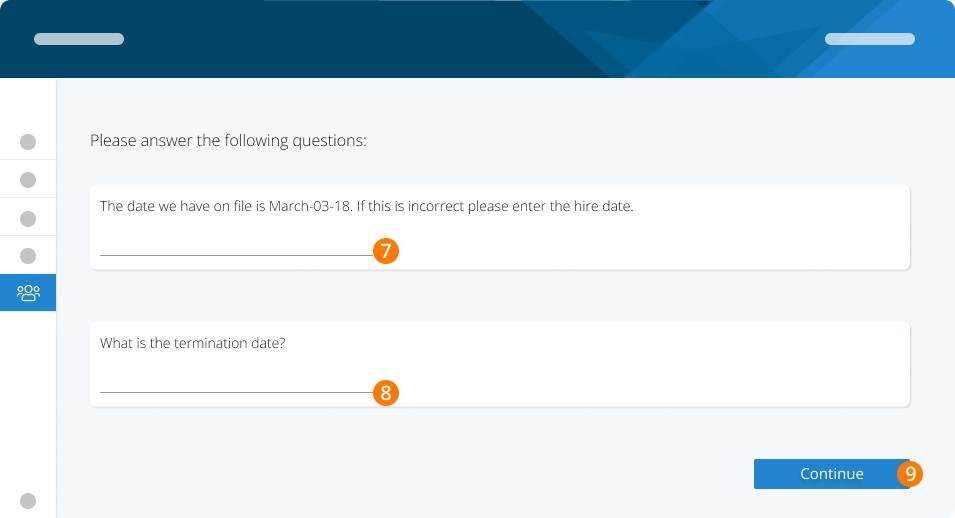
Step 7. Enter the employee's original hire date if it differs from what the account shows.
Step 8. Answer any other questions shown.
Step 9. Click Continue.
If it’s your first time using the tool, then you will be prompted to accept our terms and conditions.
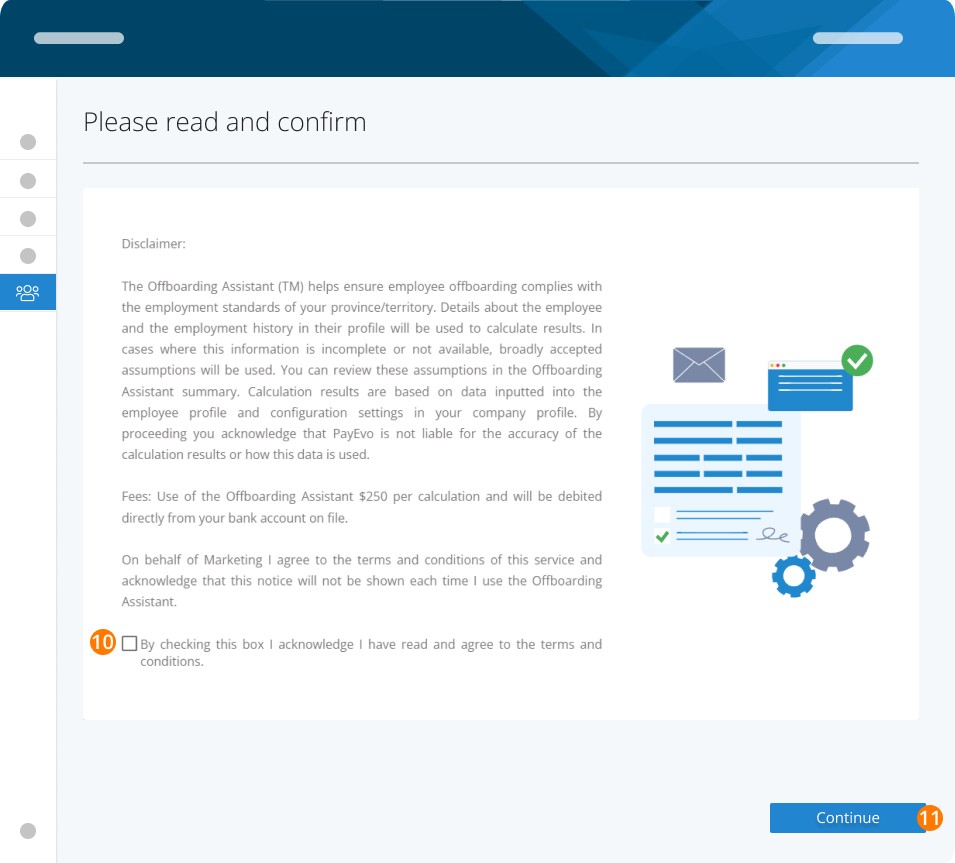
Please ensure that you read the disclaimer below prior to proceeding. It will only appear when you use the tool for the first time or when there is a change to the Terms and Conditions.
Step 10. Accept the Terms and Conditions. The Terms will appear on your first use of the tool. After agreeing, you will receive a confirmation email to the email address on file.
Step 11. Click Continue.
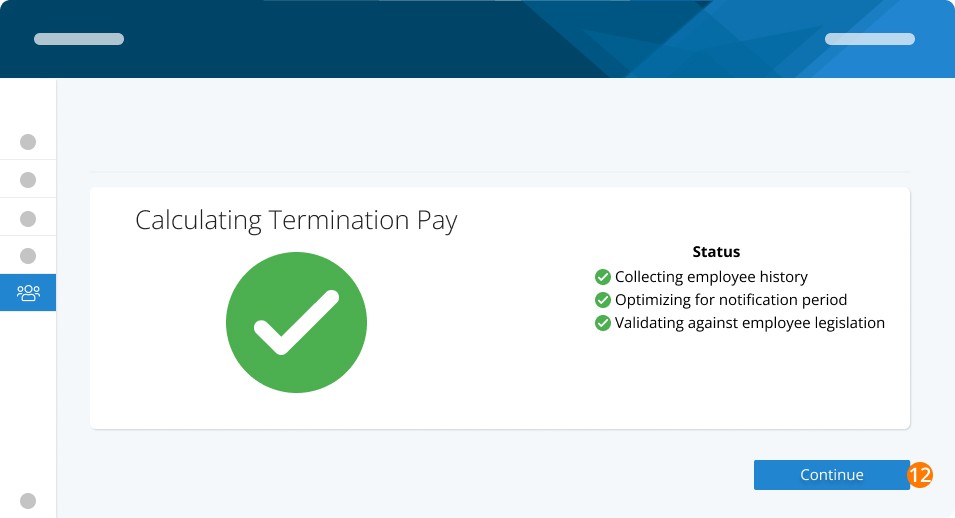
Step 12. Click Continue to calculate your separation payment amount. The applicable fees will be charged at this stage.
You will now receive a summary of the calculation along with an exportable PDF to explain how the amount was calculated.
Note: the vacation amount that may appear on this screen does NOT include any outstanding vacation already in the employee’s profile. Before terminating the employee, be sure to pay out both the termination payments AND any accrued vacation.
Next Steps
For questions on the calculation, use the HX Specialist button to schedule a consultation with one of our HX representatives (additional fees apply).
We highly recommend that you consult our HX Specialist, your own HR team or your lawyer for your best next steps if you are unsure. When you’re ready to pay out the separation amounts, advance to the steps in this article on Termination Pay Part 1 - Rule Creation.
This article is the first of a 4-part series. See the next articles below:
Related Tasks
Keywords: Offboarding, Termination, Severance, Compliance
396
Can't find what you are looking for? We can take a more direct look to help resolve your matter — Create Case or Contact Us