If you've accidentally terminated an employee before processing their final pay run, or if you need an ROE for some purpose other than submitting to Service Canada, here's how:
Step 1. From your dashboard, open the left-hand menu and select Employees.
Step 2. Click on the Team dropdown.
Step 3. Select Off-Boarding.
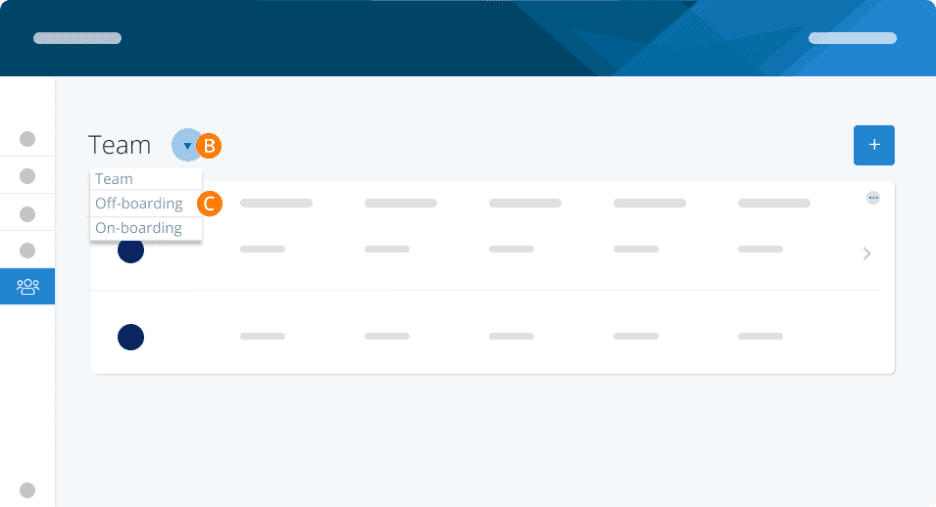
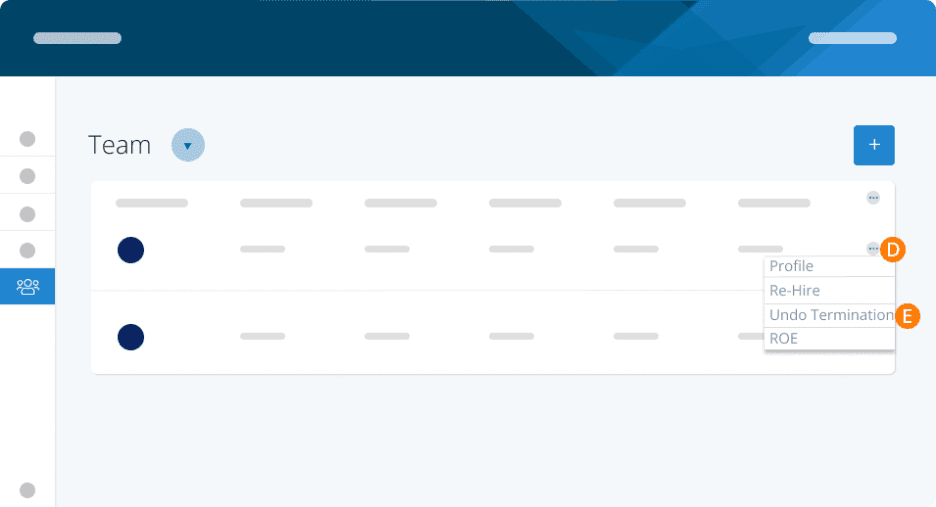
Step 4. Click on the three dots beside the employee you wish to reinstate.
Step 5. Select Undo Termination.
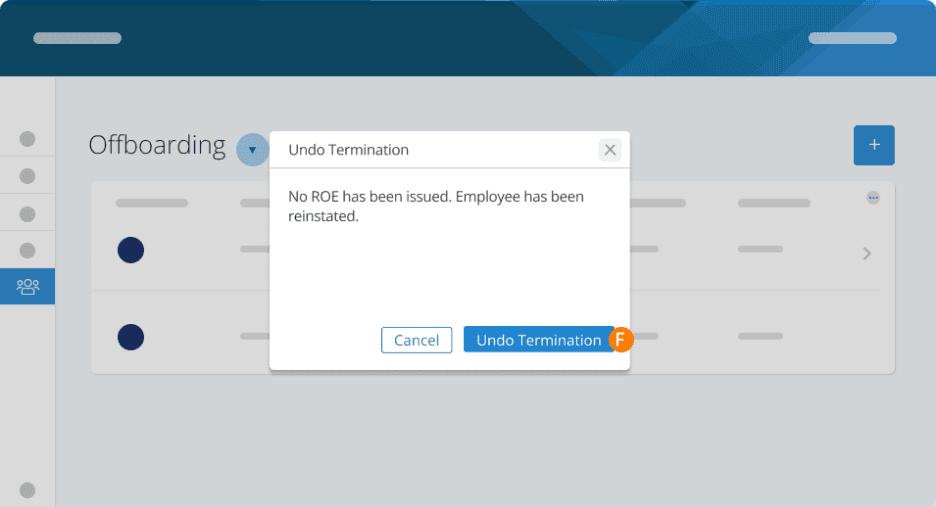
Step 6. You'll be prompted to verify that you have not issued a record of employment. Click Undo Termination.
NOTE: If you have already issued a Record of Employment for this employee and submitted it to Service Canada, you should RE-HIRE the employee instead. This will clear the EI history and set their re-hire date accordingly. To understand the difference between Undo Termination and Re-hire.
Keywords: Undo Termination, Reinstate Employee, Accidental Termination
396
Can't find what you are looking for? We can take a more direct look to help resolve your matter — Create Case or Contact Us