Whether you have used our Offboarding Assistant or gotten the advice of an HR/legal professional, you may owe termination payments to your employee prior to parting ways with them.
You should pay out legislated amounts right away and not wait for an agreement with the employee.
If you are terminating an employee, make sure to run a termination pay before you issue an ROE.
This guide gives you instructions on:
How to set up pay rules for different kinds of termination payments
Parts 2 and 3 of this guide will give you instructions on:
How to run a termination pay run in the program
How to make changes to the ROE based on the termination payments
Setting up pay rules for different Termination Payments
Before you run a termination pay run, it is important that you set up the pay rules correctly. Here are the pay rules settings required for most termination pays:
There are times when your situation may be different than the standard. If you are unsure whether this guide is right for you, please contact one of our HX Specialists, PayEvo Payroll Specialists, your accountant or CRA for advice.
Vacation Pay
If you are required to pay vacation pay, no special rule creation is required. Vacation rules are already present in the system.
Payment in Lieu of Notice
Employers may make a payment in Lieu of Notice if the employee to compensate for the period of time the employee would have otherwise worked. This amount is based on the employee's tenure with the organization.
For non-Quebec employees:
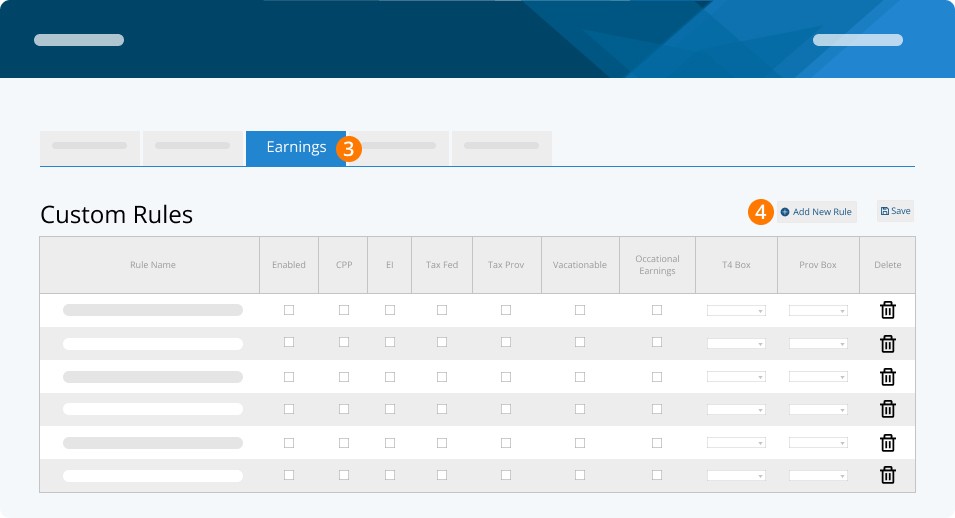
Step 1. Settings

Step 2. Pay Rules

Step 3. Earnings
Step 4. Add New Rule
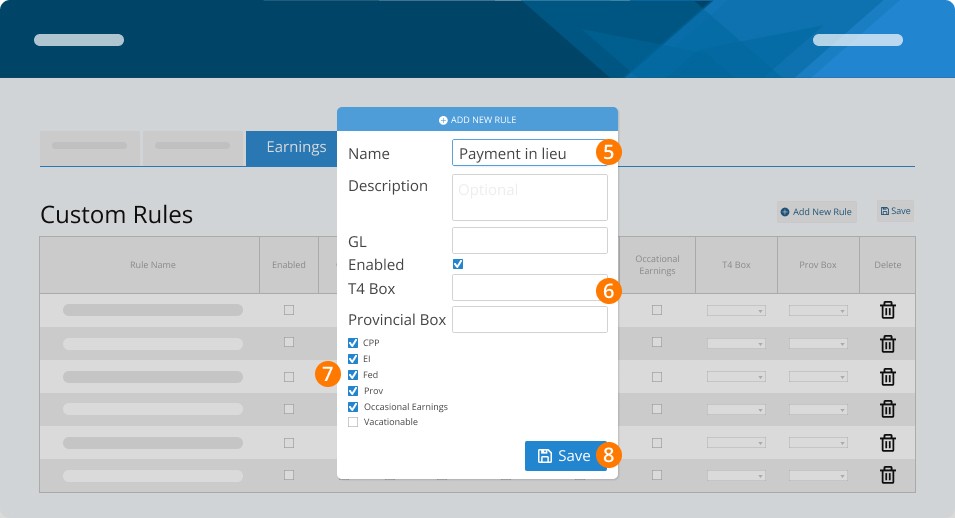
Step 5. Name it 'PAYMENT IN LIEU'
Step 6. LEAVE T4 BOX BLANK
Step 7. CHECK CPP, EI, FEDERAL TAX, PROVINCIAL TAX, OCCASIONAL EARNINGS, and VACATIONABLE (this rule is subject to vacation pay in all Provinces and Territories aside from Newfoundland and Labrador and Alberta).
Step 8. Save
For Quebec employees:
Step 1. Settings
Step 2. Pay Rules
Step 3. Earnings
Step 4. Add New Rule
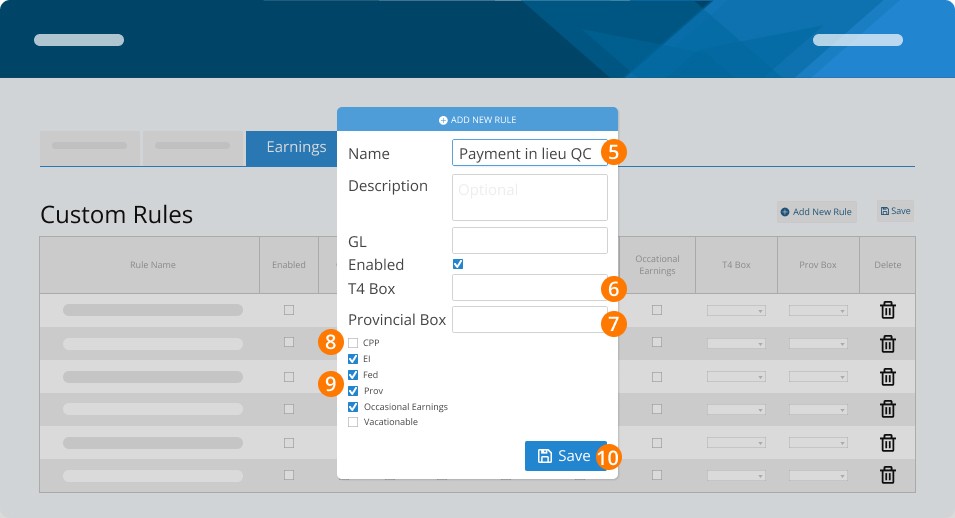
Step 5. Name it 'PAYMENT IN LIEU QC'
Step 6. LEAVE T4 BOX BLANK
Step 7. FOR 'PROVINCIAL BOX', ENTER RJ*
Step 8. DO NOT CHECK CPP
Step 9. CHECK EI, FEDERAL TAX, PROVINCIAL TAX, OCCASIONAL EARNINGS
Step 10. Save
*When completing the RL-1 slip for employees you will need to manually add the Code RJ in reference to box O.
Salary Continuance
When an employee continues to be on the payroll even after being terminated, employers provide what is known as a Salary Continuance. Sometimes a severance payment can be paid as a Salary Continuance rather than a lump sum.
Step 1. Settings
Step 2. Pay Rules
Step 3. Earnings
Step 4. Add New Rule
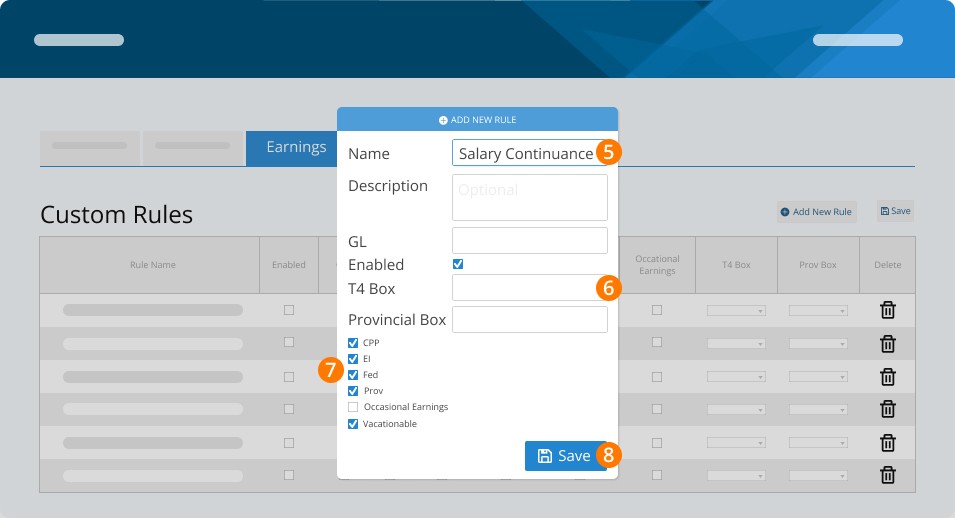
Step 5. Name it 'SALARY CONTINUANCE'
Step 6. LEAVE T4 BOX BLANK
Step 7. CHECK CPP, EI, FEDERAL TAX, PROVINCIAL TAX, VACATIONABLE
Step 8. Save
Entering this rule is not required; you can continue to pay the employee "Regular Earnings" instead.
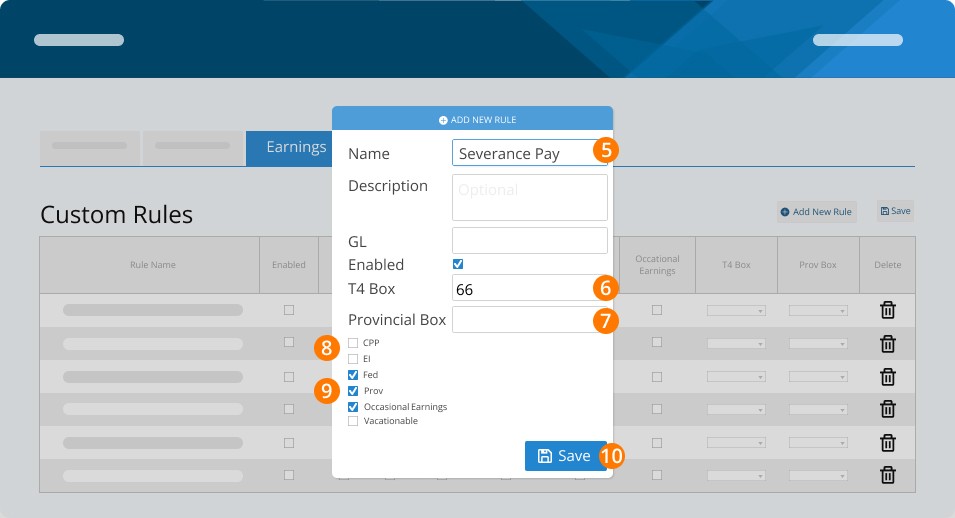
Severance Pay
Severance pay is only required for employees governed by CLC (federally regulated workplaces) and Ontario employers, based on employees' years of service and the employer's global annual payroll.
Severance payment for Ontario employees: Severance pay | Your guide to the Employment Standards Act | Ontario.ca
Severance payment for CLC employees: Canada Labour Code | justice.gc.ca
Step 1. Settings
Step 2. Pay Rules
Step 3. Earnings
Step 4. Add New Rule
Step 5. Name it 'SEVERANCE PAY'
Step 6. LEAVE T4 BOX BLANK OR ENTER 66/67*
Step 7. FOR 'PROVINCIAL BOX', ENTER 0**
Step 8. DO NOT CHECK CPP, EI, VACATIONABLE
Step 9. CHECK FEDERAL TAX, PROVINCIAL TAX, OCCASIONAL EARNINGS
Step 10. Save
To calculate if a part of severance pay is eligible to be transferred to the employee's RPP or RRSP click here: Transferring the eligible part of a retiring allowance | Canada.ca
When completing the RL-1 slip for employees you will need to manually add the Code RJ in reference to box O.
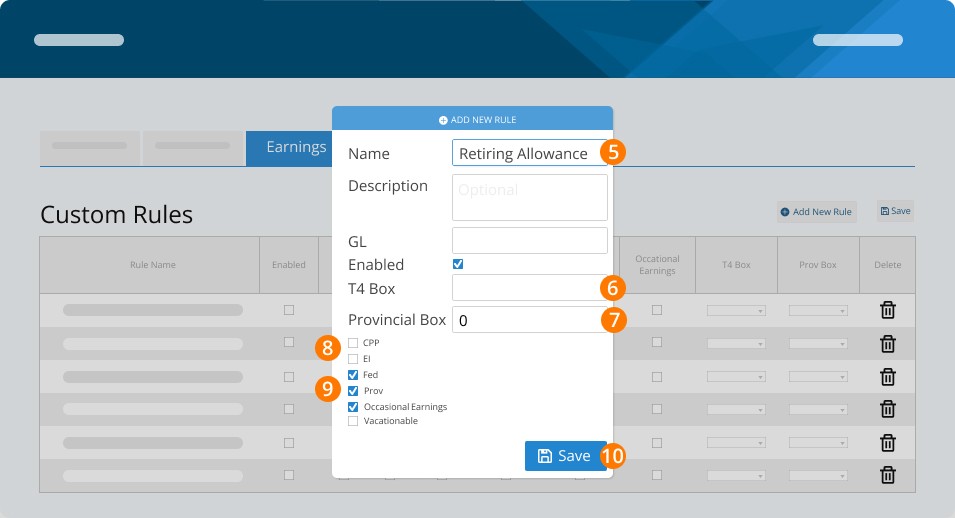
Retiring allowance or lump-sum payments (informally known as Severance)
Retiring allowances are paid to the employee as a separation payment in recognition of long service or loss of office/seniority (informally known as severance payment, where severance is not mandated)
Step 1. Settings
Step 2. Pay Rules
Step 3. Earnings
Step 4. Add New Rule
Step 5. Name it 'RETIRING ALLOWANCE'
Step 6. LEAVE T4 BOX BLANK OR ENTER 66/67*
Step 7. FOR 'PROVINCIAL BOX', ENTER 0**
Step 8. DO NOT CHECK CPP, EI, VACATIONABLE
Step 9. CHECK FEDERAL TAX, PROVINCIAL TAX, OCCASIONAL EARNINGS
Step 10. Save
To calculate if a part of severance pay is eligible to be transferred to employee’s RPP, SPP, RRSP or PRPP, click here: Transferring the eligible part of a retiring allowance - Canada.ca
When completing the RL-1 slip for employees you will need to manually add the Code RJ in reference to box O.
Statutory Holiday Pay
If you owe the employee for a stat holiday in the future, we recommend you pay this prior to terminating the employee to avoid amending the ROE.
Pay rule set up: No special rule required. You can use our default Statutory Holiday Rule.
Next Steps
Now that your pay rules are all set up, go to Part 2 to pay out your termination payments in a pay run.
Related Tasks
Keywords: Termination, Offboarding, Dismissal, Termination Pay, ROE
396
Can't find what you are looking for? We can take a more direct look to help resolve your matter — Create Case or Contact Us