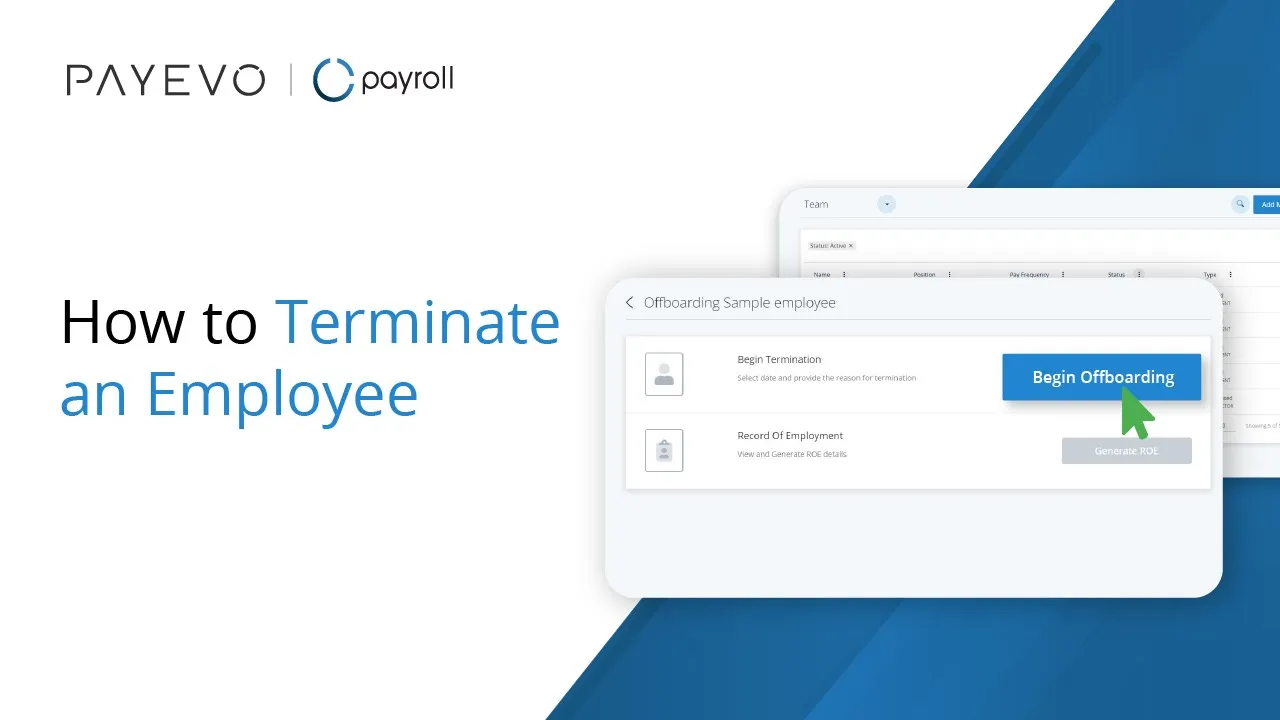
Terminating An Employee
This article explains how to terminate an employee in PayEvo
Also known as: Dismiss Team Member.
Applies to: Adminstrators, Payroll Manager, Canada (en-CA)
Before you start
You must be the account administrator or Payroll Manager
Video loading, just a moment.
If an employee leaves your payroll, you can use the system to "terminate" their employment. You'll use this if an employee stops working with you, goes on maternity leave or requires you to generate a Record of Employment for them.
Don't forget - you should always pay out any outstanding payroll, vacation, or any other amounts owed before terminating! For more info, follow our guide on paying out vacation pay. If you're unsure about severance and termination pay, check out our Offboarding Assistant! We're here to keep you compliant.
Terminating the Employee
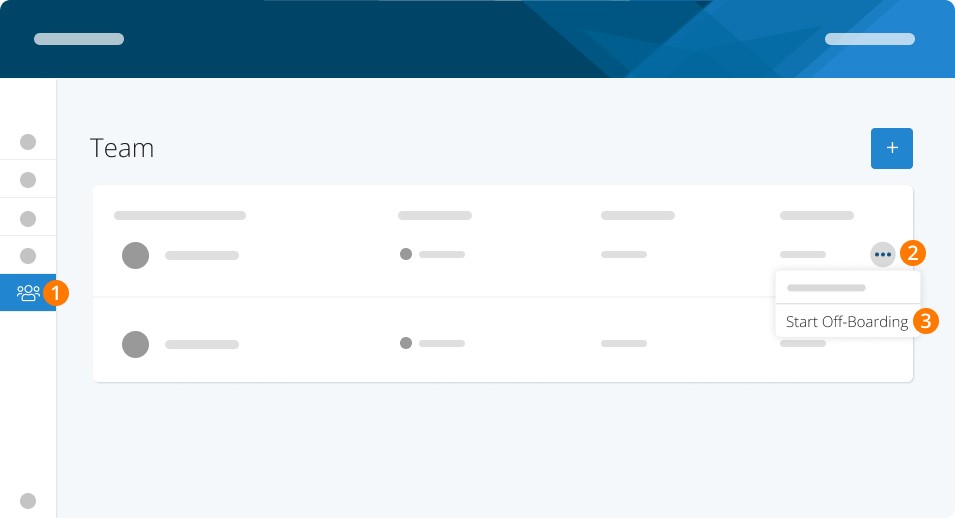
Step 1. Open the left-hand menu and click Employees.
Step 2. Click the 3 dots.
Step 3. Click Start Offboarding.
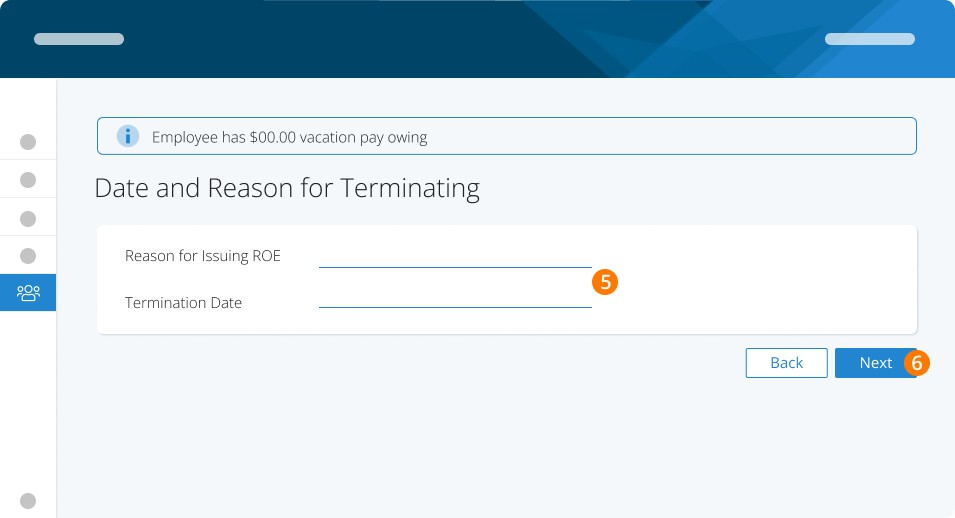
Note: You'll see a warning message if this employee has any outstanding accrued vacation. Again, follow our easy guide on paying out vacation pay! It only takes a few minutes.
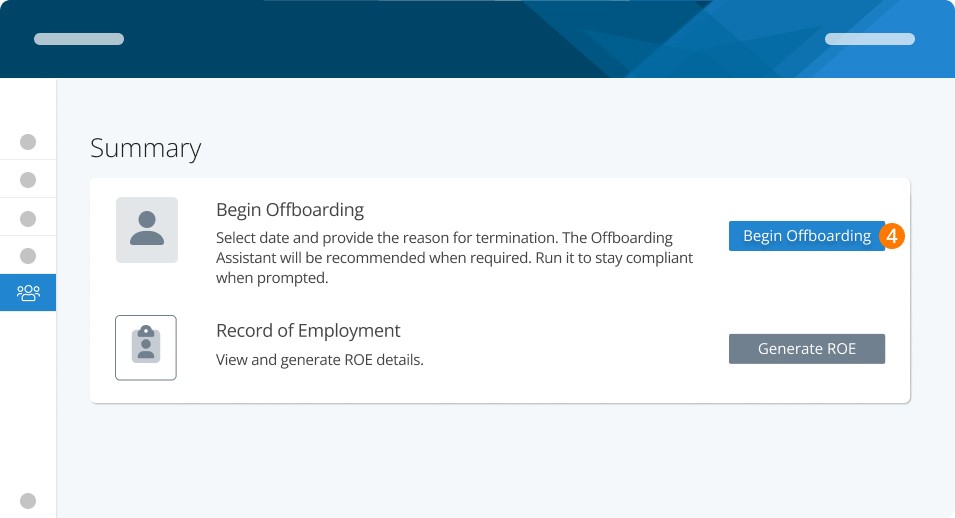
Step 4. Click Begin Offboarding
Step 5. Fill in the termination date and reason for issuing the ROE.
Step 6. Click Next.
Note: Depending on your answer, you may be prompted to run Canada's first Offboarding Assistant. This tool will keep you compliant when offboarding. You can learn more here!
Step 7. Click Terminate
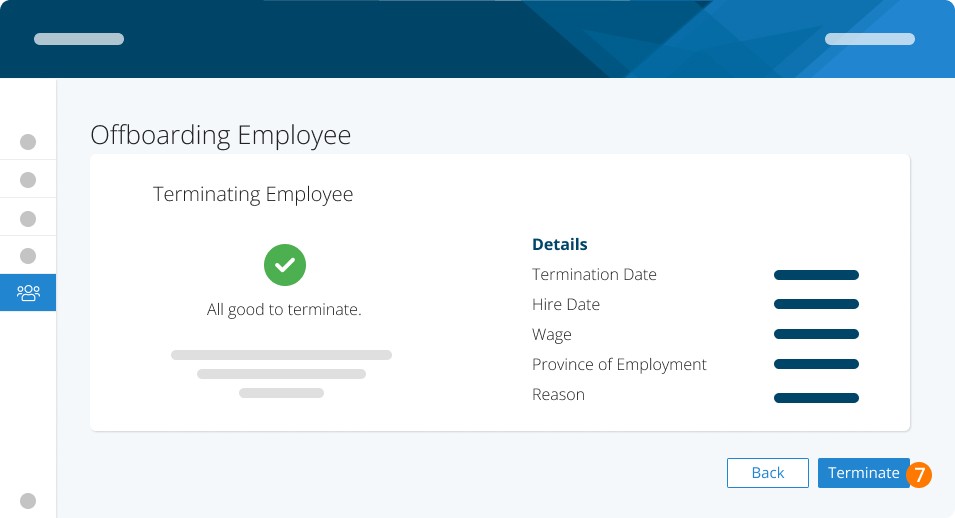
With that, you've terminated your employee. Don't forget - you now have to generate and submit your ROE to the CRA. Don't worry, we've got you covered with our easy guide.
Related Tasks
Keywords: Termination, Terminating, Dismissal, ROE, Employee
396
Can't find what you are looking for? We can take a more direct look to help resolve your matter — Create Case or Contact Us