Client Dashboard Overview
Your Client Dashboard is the landing page for each client in your Client List. From the dashboard, you can easily access various sections of their payroll account, view recent activity, and the account-specific audit log.
EVOLV Client View
By selecting a client from your Client List, it will open the Client View. You will see all the details from your dashboard specifically as they relate to this client. Review your support tickets, usage reports, audit logs, or choose a quick action item. Drag any item to customize your view.
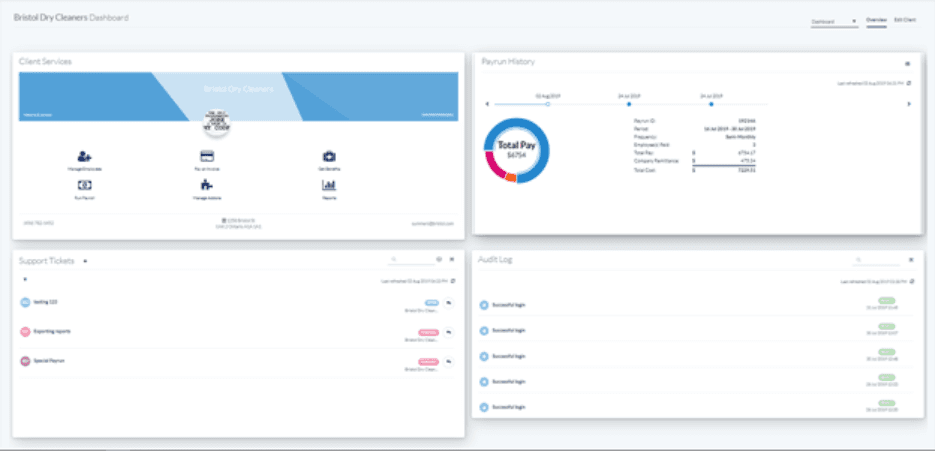
Use the menu options at top right to select the view or edit the client.

EVOLV Client Services Card
On the Client Services Card you can manage employees, pay invoices, run payroll or reports, and more.
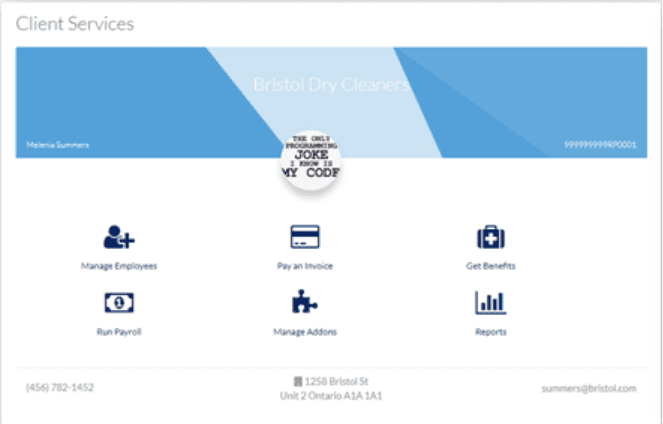
When you select an action item (e.g. Run Payroll or Manage Employees) you will be taken to this client’s Payroll account.
To navigate back to EVOLV, click on the waffle icon on the top left of your screen and select EVOLV.

EVOLV Client Pay Run History Tile
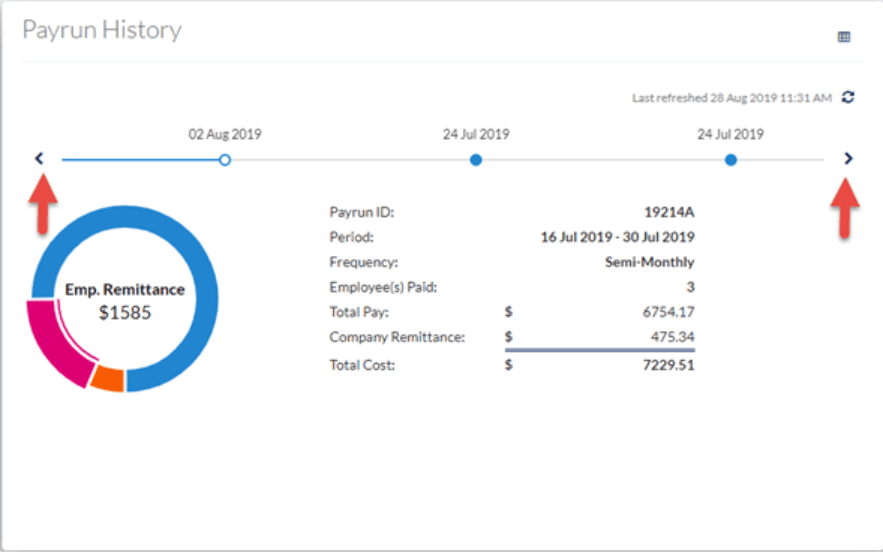
The Payrun History box shows the most recent payrun. Use the arrows (timeline view) to scroll through previous pays.
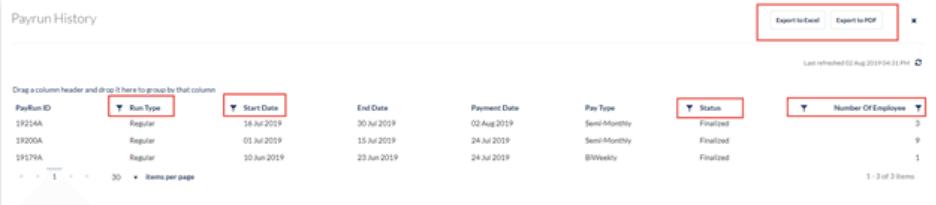
Use the Grid View to see a list that is exportable to XLS or PDF or use any of the filter icons to filter by that field. You can also drag a column into the title bar to sort by that header.
EVOLV Client Usage Report Card
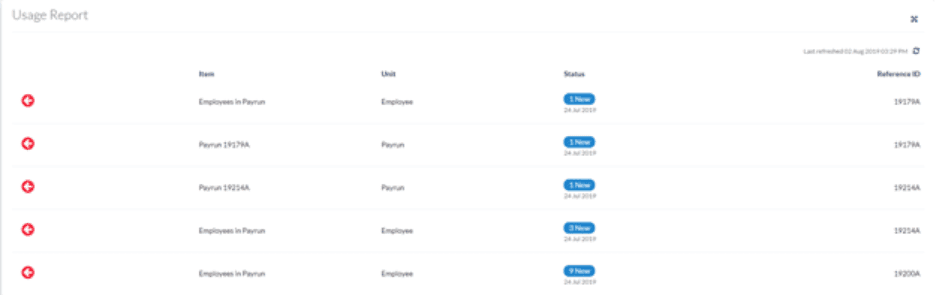
Usage Report Card displays the 6 most recent transactions or use the full screen mode to show the last 2 months of records
EVOLV Client Audit Log Card
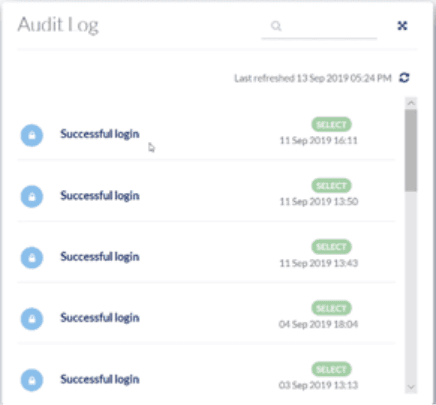
The Audit Log Card shows a history of login attempts, password changes, or changes to an employee profile.
EVOLV Client Support Ticket Card
The Support Ticket Card allows you to review any support requests for this client. The list shows you all requests, and you can click to see the details. You can reply to a request, see the status of all requests, and start a new request by clicking on the + icon.
Related Tasks
Keywords: EVOLV, EVOLV Client Profile, Business Dashboard, Client Dashboard, EVOLV Client Dashboard
396
Can't find what you are looking for? We can take a more direct look to help resolve your matter — Create Case or Contact Us