The top ribbon shows your EVOLV Home button, notifications, your profile, Billing and User Management.
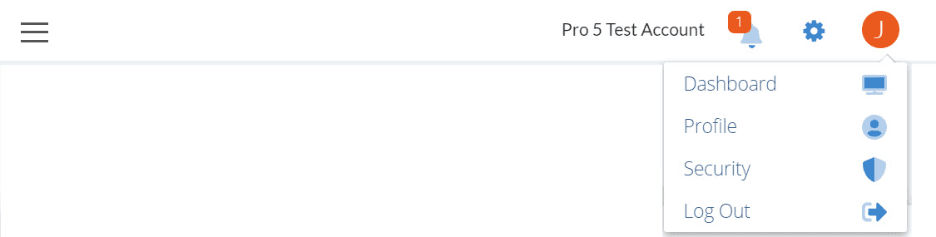
The left-hand menu provides quick client access. These are the small icons that represent your active clients. You can search or simply select any client from the list to open their EVOLV profile.
Features
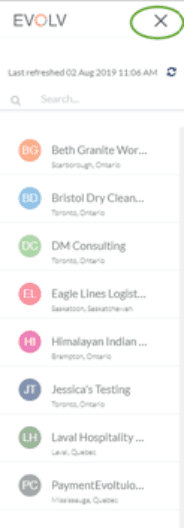
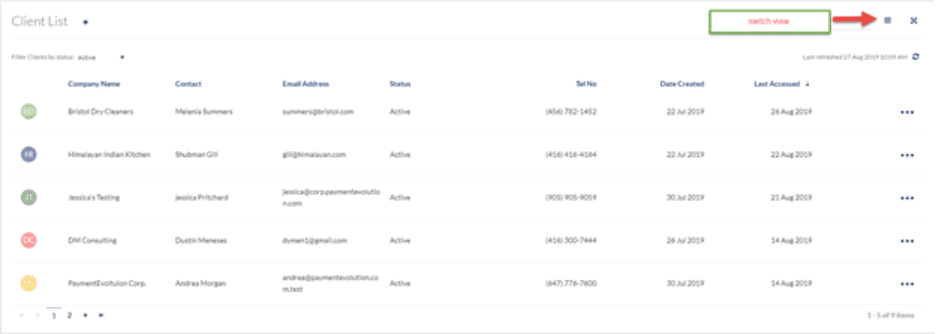
The EVOLV Client Dashboard gives you a list of all your clients. You can filter active or inactive clients and search for individuals. You can view this dashboard in both Grid and List views.
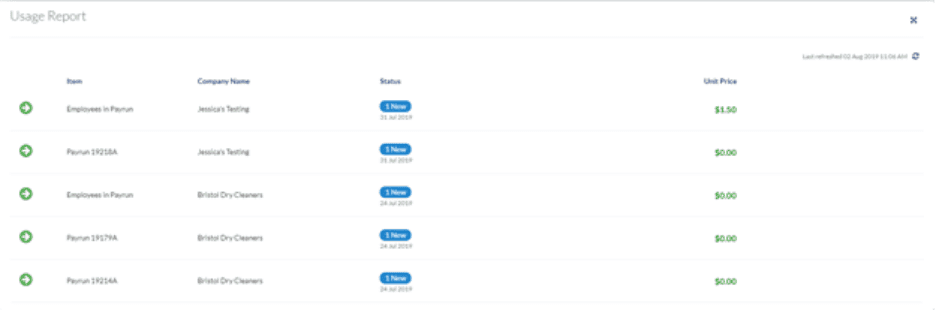
The EVOLV Usage Report shows your most recent billing activity broken down by client. This section displays the records of bills like ePay billing, amounts charged to run payroll or remittances, and more.
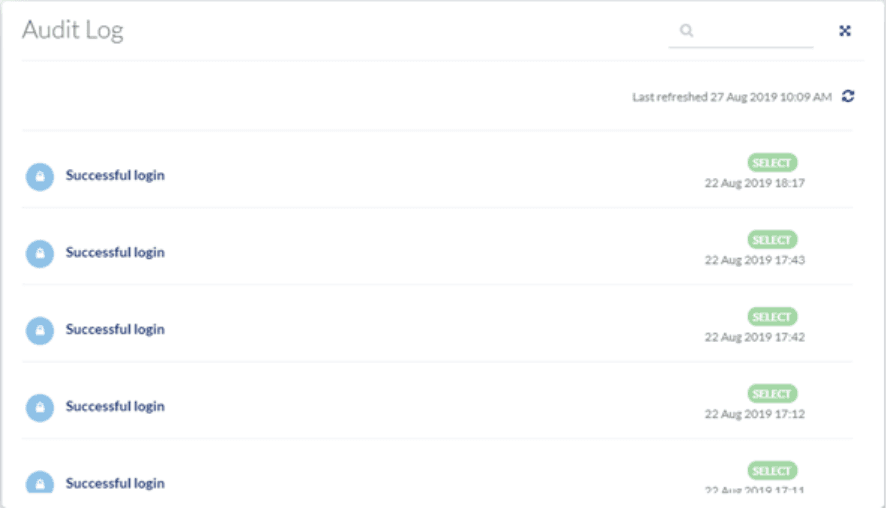
With the EVOLV Audit Log, you can see a history of successful/unsuccessful logins, employee changes, password changes and added or changed bank details, along with the user who performed the actions.
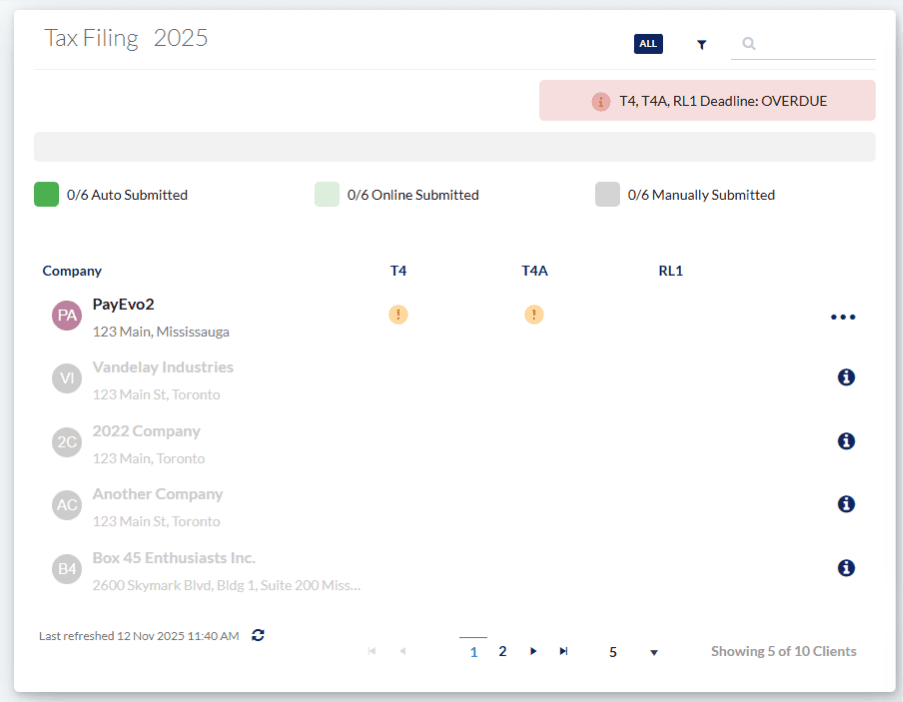
Track your year-end tax submission progress with the EVOLV Tax Filing tile. For each company, you can see if your submissions have been completed, along with exactly which documents you’ll need to submit.
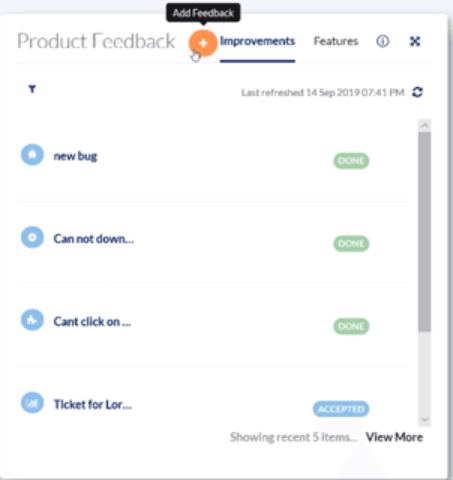
Submit feedback directly to our team with the EVOLV Product Feedback tile. Add new product features or enhancements and track their status.
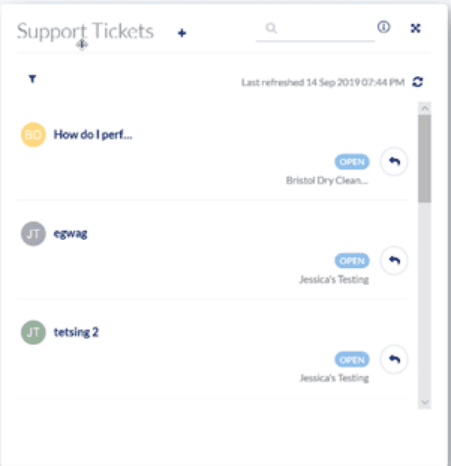
Submit support requests securely with the EVOLV Support Tickets tile. You can update a ticket, see the status, read the ticket history, and even add a new ticket. Filter options allow you to sort by status which will help you stay on top of what is waiting for your response and PaymentEvolution’s.
Customizing your EVOLV Dashboard
To move or re-order a tile in our dashboard, simply click and drag it to the desired location. Once done, the new view will be saved.
Troubleshooting & FAQs
How do I reactivate an inactive client?
To reactivate a client, follow these simple steps:
Step 1. Navigate to your Client List
Step 2. Click the Filter icon
Step 3. Select Inactive clients
Step 4. Click the three dots for the client you wish to reactivate (search if required)
Step 5. Click Reactivate and Confirm
Related Tasks
Keywords: EVOLV Features, EVOLV Dashboard, EVOLV Client List, Accountant Plan, Partner Plan, Usage Report, EVOLV Audit Log, Feature Requests
396
Can't find what you are looking for? We can take a more direct look to help resolve your matter — Create Case or Contact Us