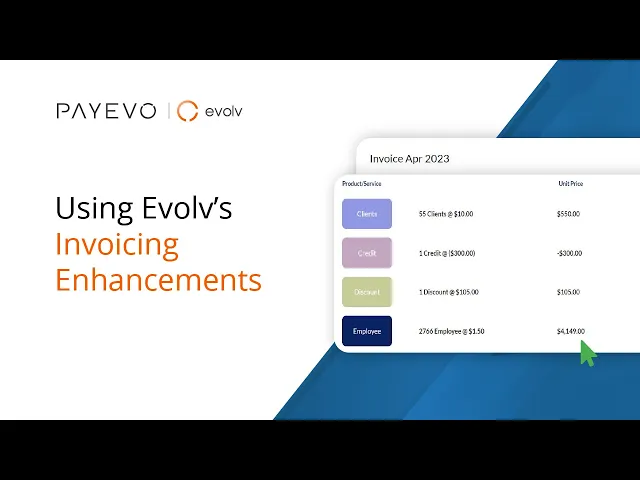
Evolv Invoicing Enhancements
Learn about the invoicing enhancements within the EVOLV platform.
Also known as: Evolv, Invoicing, Billing, Clients, Accountant.
Applies to: EVOLV, Canada (en-CA)
Video loading, just a moment.
Evolv’s new invoicing feature provides an onscreen report that you filter, sort, and search – on an aggregate or per-client basis – and even export to XLS for further analysis.
Now you can quickly see transactional charges for each client and see historical charges from the Evolv dashboard.
Please note: Invoices displayed are for April 2023 and onwards. If you need to see previous bills, you can request one manually from our team.
Also, for accountants on our Accountant Advanced plan, your invoices will be visible to anyone in your firm sharing your access. To manage your permissions and authorize access to team members, please upgrade to Evolv.
Using Invoicing Enhancements
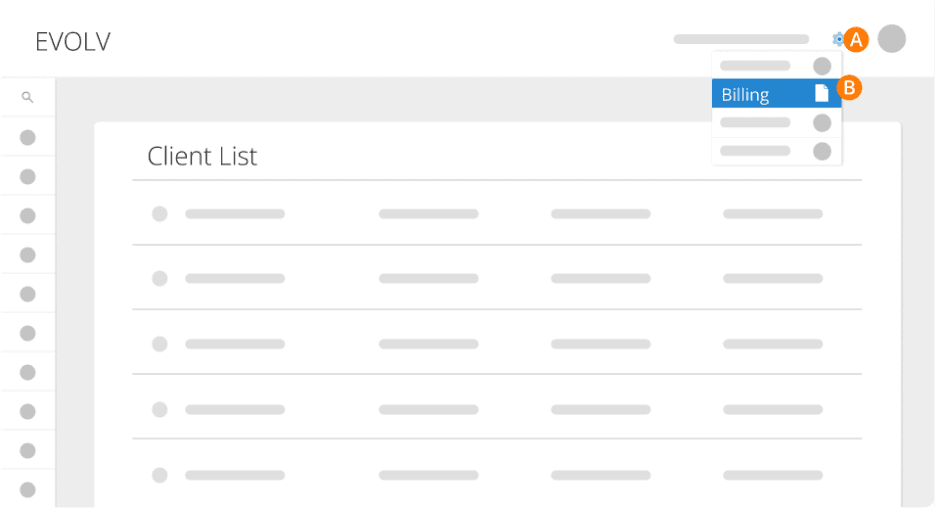
Step 1. Navigate to Settings
Step 2. Click Billing
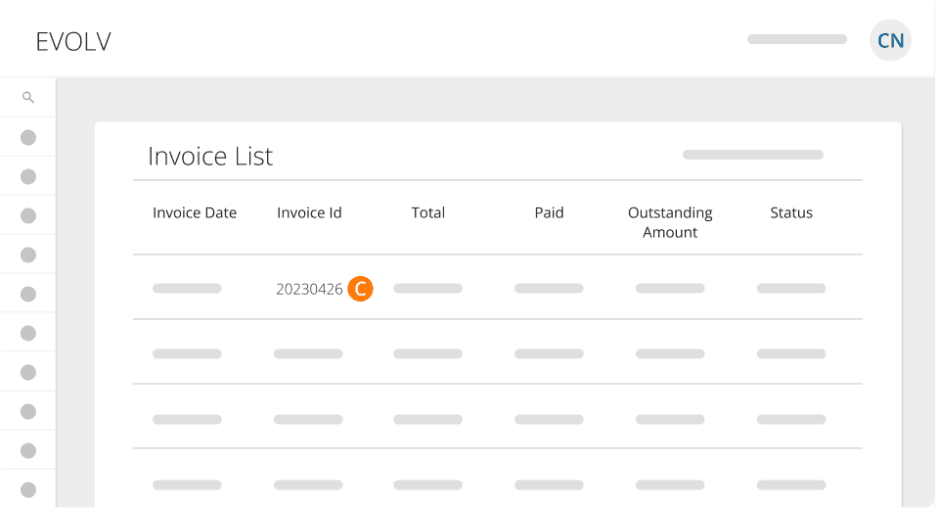
Step 3. Next, you’ll see a list of all your invoices with the statuses and amounts. To see the details of a particular invoice, click that invoice’s ID number.
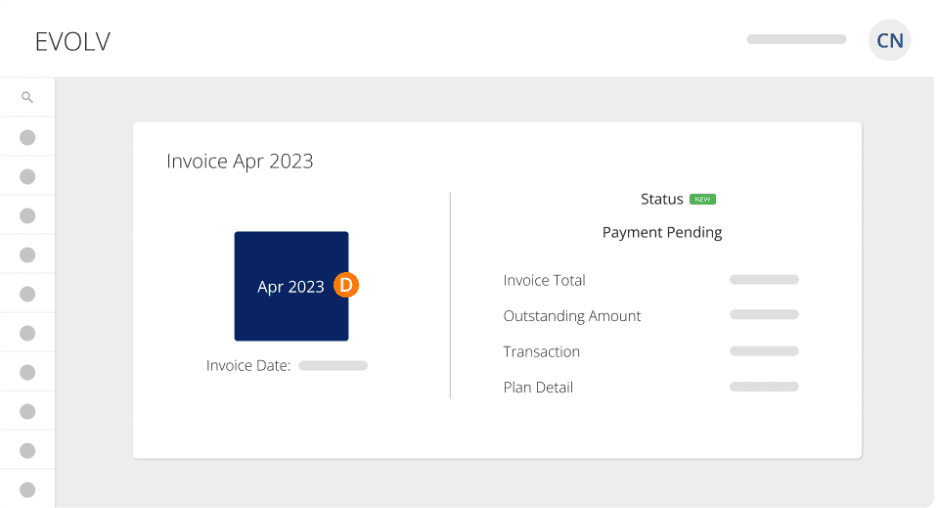
Step 4.This section indicates the billing period. Here you will see a summary of the invoice, along with the tax breakdown (GST, PST/RST, etc.) and any outstanding amounts.
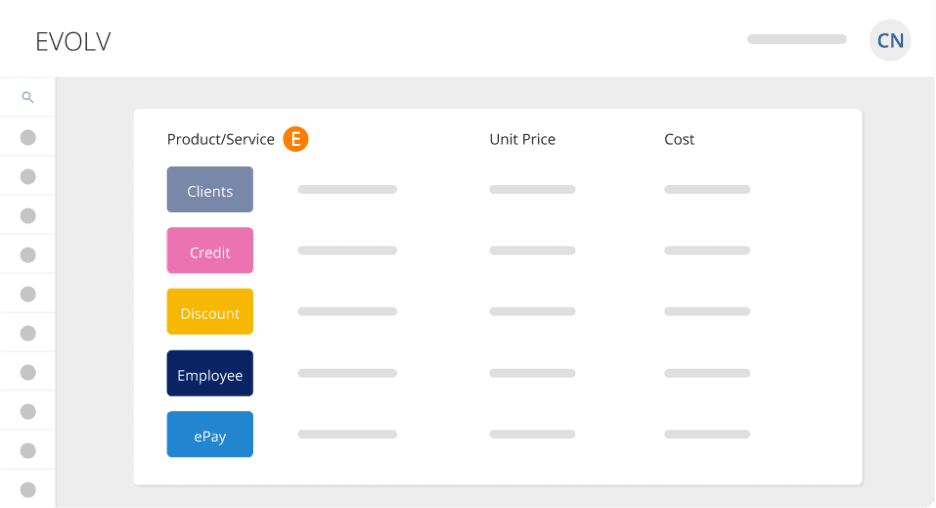
Step 5.These are the services for which you’re being billed.
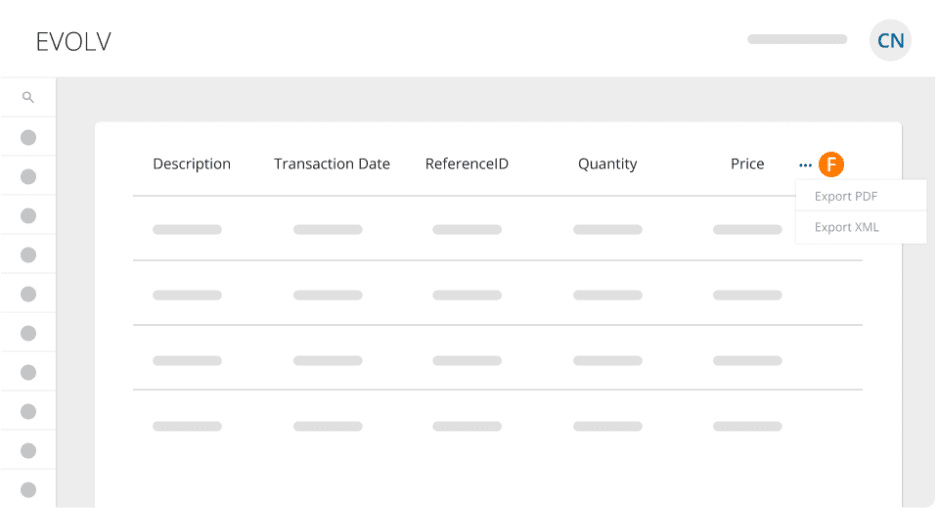
Step 6.To download or print the invoice, scroll to the bottom and click the three dots. You can export it as a PDF or XLS.
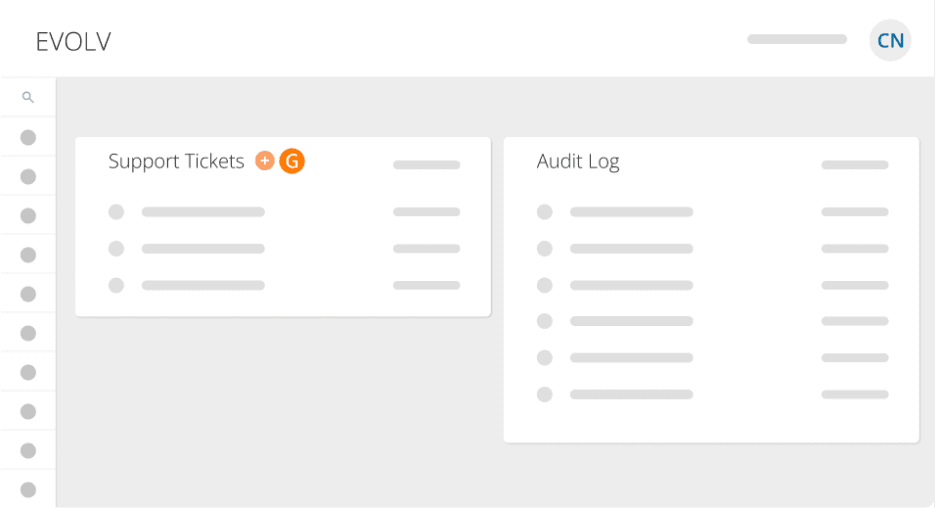
Step 7.If you have questions or issues with my invoices, you can contact the customer support team directly from the application. From your dashboard, locate the Support Tickets tile and click on the plus to add a ticket.
Viewing charges for a specific company
Step 8. From your Dashboard, locate and double-click the Usage Report tile.
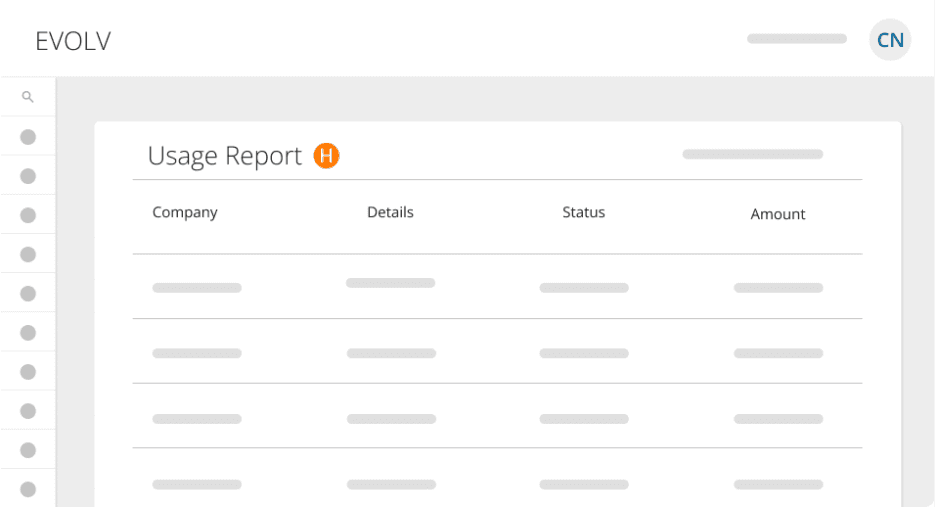
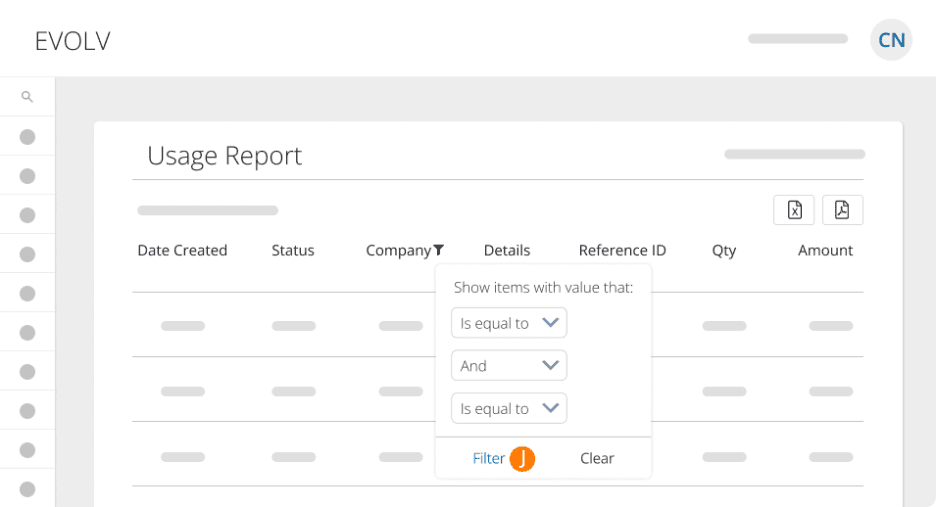
Step 9.Click the filter icon next to Company.
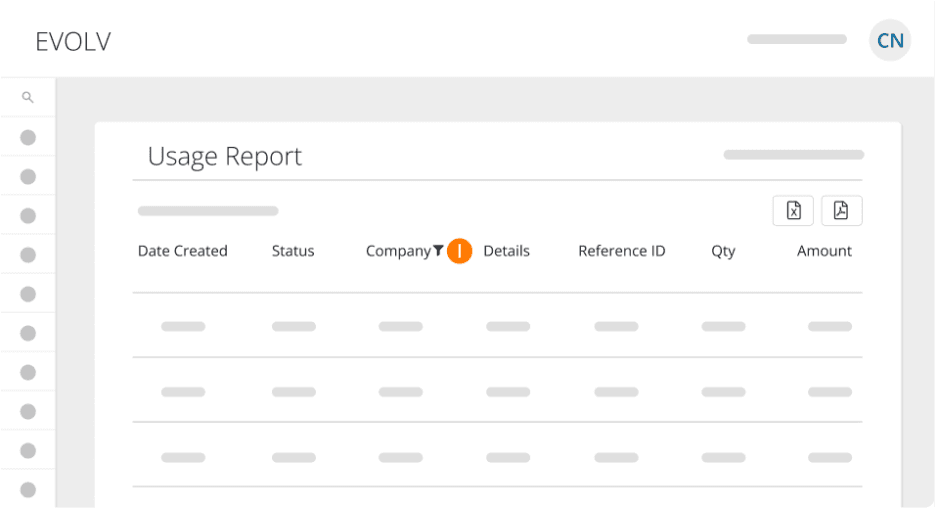
Step 10. Search for the company you’d like to view.
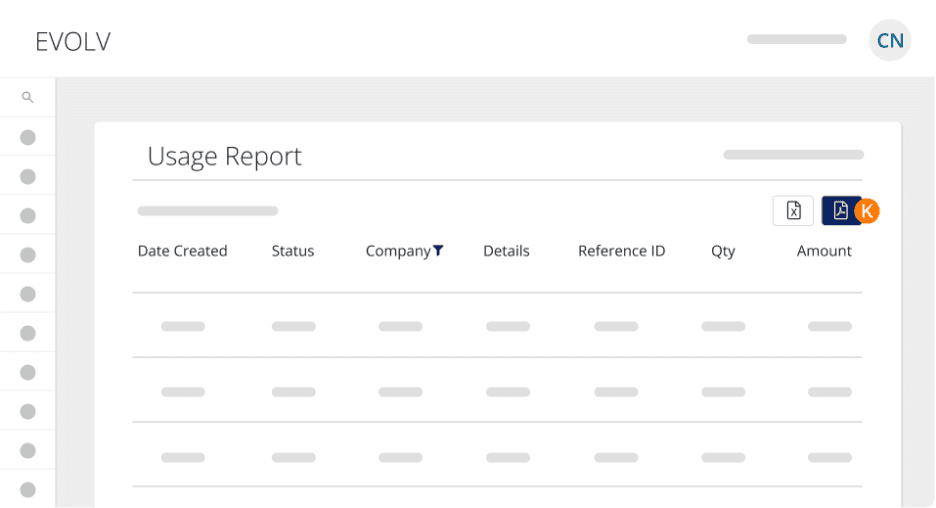
Step 11.To export this report, click the XLS or PDF icons.
Keywords: Evolv, Invoicing, Billing, Clients, Accountant
396
Can't find what you are looking for? We can take a more direct look to help resolve your matter — Create Case or Contact Us