User Management in EVOLV
The EVOLV Client Management studio provides robust management tools for setting up shared access to your client roster. You can invite colleagues to manage clients of your firm, assign certain clients to certain colleagues, and even stipulate the level of access each team member has to each client account.
A team member is a member of your firm that requires access to a client's profile. Typical use cases include viewing client pay runs, exporting ledgers to connected accounting systems, and completing year-end tasks like T4/RL-1 creation and submission.
An account is typically a client profile where your firm manages the payroll, business payments and benefits for another organization.
An EVOLV administrator is the EVOLV user with team member and permission for assignment capability. Most tasks described in this article must be performed by the EVOLV administrator.
EVOLV User Roles
A team member can be assigned a role within your firm. The role dictates their own capabilities within the EVOLV Client Management studio.
Firm Employee: access to the EVOLV Client Management studio is limited to managing the client accounts assigned to the team member. The team member will only see the client accounts which they have been granted permission and have payroll manager access to clients. This means they can add/edit employees, run payroll and view some reports. They can view support tickets, view Feature Requests and a limited Usage log for those permitted accounts.
Firm Manager: Has full master access to each assigned client (select plans). They can view/edit Support tickets, view Usage logs with dollar values, view Audit Log
Admin: The EVOLV administrator (select plans) can invite team members, assign permissions and accounts, revoke access and view all details within the EVOLV environment. They are the only access that can create client accounts.
EVOLV Permission Levels
Once a role has been assigned, you can then assign the user to a permission level for individual clients. The following roles are available based on plan type:
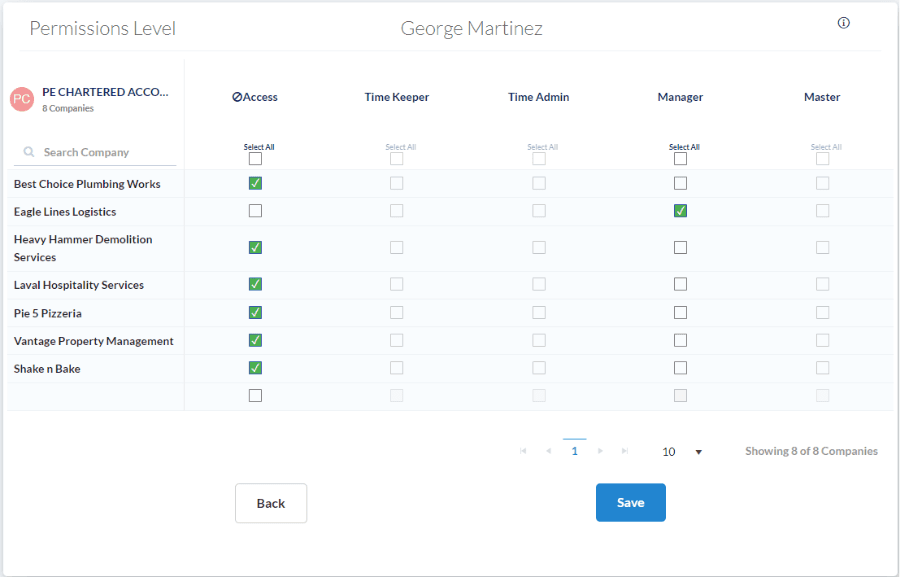
TimeKeeper: the team member will have the ability to enter time records for employees of the client, but not complete pay runs or export data.
TimeAdmin: the team member will be able to enter a pay run on behalf of the client's time-based employees (but not salaried employees)
Manager: the team member will be able to process pay runs for time-based and salaried employees. The team member will also be able to view reports but will not be able to change company details.
Master: the team member will have full privileges and access to the client profile. This includes modifying company details, bank accounts, connecting third party systems, etc.
EVOLV Permission & User Features by Plan Type
The EVOLV Client Management studio has different plan levels, and features will vary by plan type. Certain capabilities - like client and permission assignment - are available on select plans. Refer to the chart below for details.
| E1 | E3 | E5 |
Invite team member | Yes | Yes | Yes |
Select client account | No | Yes | Yes |
Manage permissions | No | No | Yes |
EVOLV Role | No | Yes | Yes |
EVOLV Role change | No | Yes | Yes |
EVOLV default role | Manager | User selects from Manager, Employee | User selects from Manager, Employee and Admin |
Revoke access | Yes | Yes | Yes |
Walkthrough – Managing Access
Inviting a Team Member to EVOLV
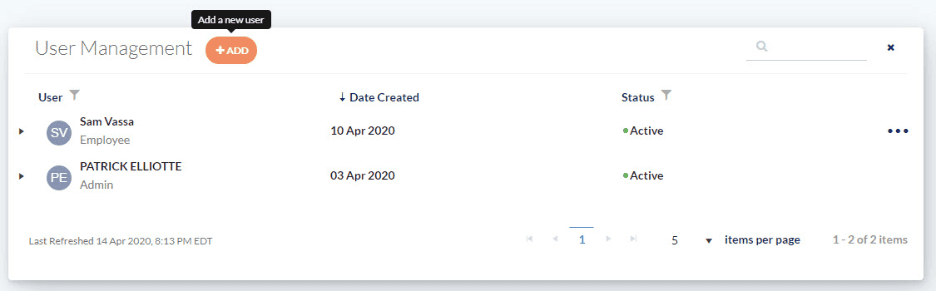
Step 1. Click the Settings icon in the upper right, followed by Invite User.
Step 2. Enter the user's email address and full name.
Step 3. Set the permission level you want the user to have for each client account. Levels of access vary based on plan type.
Step 4. Click Save and your invite will be sent to the user.
Editing EVOLV User Permissions
At any time after inviting the user, you can edit their client permissions. This is required at any time you create a new client and wish to give your users access to them. To do this:
Step 1. Click the Settings icon in the upper right corner
Step 2. Click the Ellipses for the user
Step 3. Click Manage Permissions
Step 4. Make the required changes
Revoking access and removing a user
To revoke an EVOLV user’s access to all clients, follow these steps:
Step 1. Click the Settings icon in the upper right corner
Step 2. Click the Ellipses for the user
Step 3. Select Revoke Access
Step 4. Confirm the change
Step 5. You will then see the user’s status change to Revoked and they will no longer be able to login under their email address.
To revoke an EVOLV user’s access to individual clients, follow these steps:
Step 1. Click the Settings icon in the upper right corner
Step 2. Click the Ellipses for the user
Step 3. Click Manage Permissions
Step 4. Select the left-most option box for No Access for the client that you want to revoke the user from.
Related Tasks
Keywords: User Management, User Security, EVOLV User
396
Can't find what you are looking for? We can take a more direct look to help resolve your matter — Create Case or Contact Us