Payroll supports Software4Nonprofits ACCOUNTS (desktop) integration for payroll transactions.
Integration with third-party accounting software like ACCOUNTS is available for subscribers on a paid plan. This service allows you to post payroll transactions into ACCOUNTS as general journal entries for bookkeeping purposes.
If you are not familiar with charts of accounts or general ledger codes
Step 1. To get started, login to your PaymentEvolution account and go to SETTINGS -> ADD-ONS
Step 2. Enable integration with Software4Nonprofits ACCOUNTS
Step 3. Now go to SETTINGS -> PAYROLL OPTIONS -> GL tab
From here we'll import your Software4Nonprofits "chart of accounts" so we can match pay run data to the right accounts in ACCOUNTS. Click "import from other service" and select Software4Nonprofits as the source.
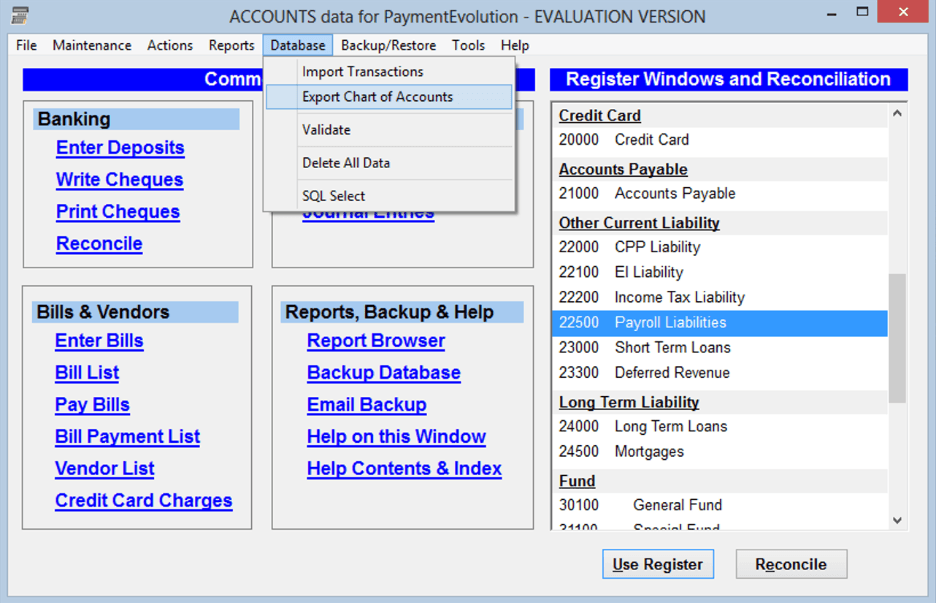
Step 4. You'll be prompted to upload your Software4Nonprofits "chart of accounts" file. Make sure the file you are uploading is an S4AIF file (ends with the extension .S4AIF). If you do not have the file, you can create one from Software4Nonprofits ACCOUNTS:
Launch ACCOUNTS, go to DATABASE -> EXPORT CHART OF ACCOUNTS and save the S4AIF file locally (remember the name and location - we'll need it shortly).
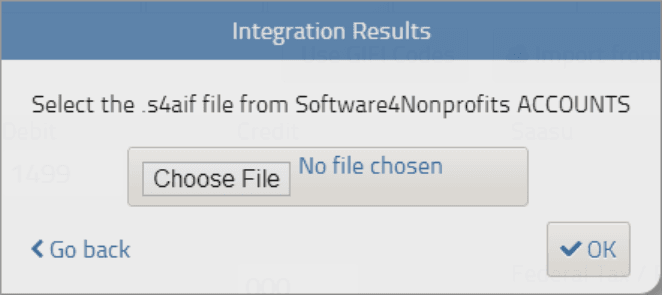
Step 5. Now go back to Payroll and upload your "chart of accounts" file we just saved. Go to SETTINGS -> PAYROLL OPTIONS and click the G/L tab. You'll see a button to import the general ledger from another service. Click and follow the prompts to upload your Software4Nonprofits chart of accounts file.
Step 6. Match the imported "chart of accounts" with the general ledger in Payroll by using the dropdown boxes to match the existing general ledger codes with the new ones you just imported. You'll only need to do this once (or any time you change your chart of accounts in Software4Nonprofits ACCOUNTS).
Now, when you run payroll and close your payroll period, you'll have the option to export the payrun data to Software4Nonprofits ACCOUNTS. We'll use the import function in ACCOUNTS to bring in this payroll data:
Step 7. Launch ACCOUNTS and navigate to DATABASE -> IMPORT TRANSACTIONS
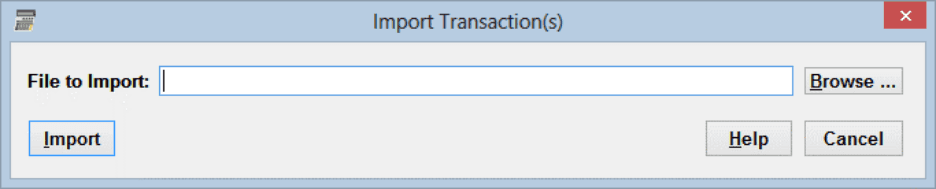
Step 8. Select the file that contains your payroll data and click IMPORT
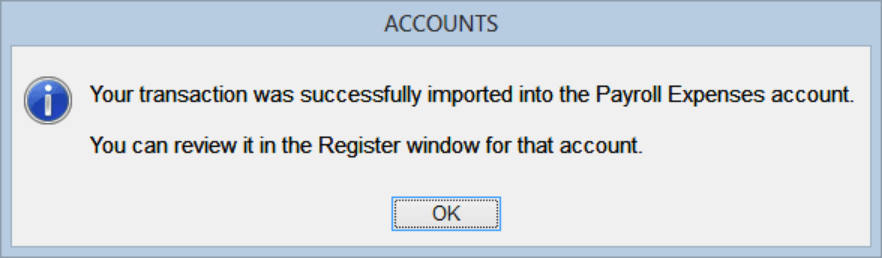
Step 9. You'll now be able to go to the register view for each account and view the imported payroll entries.
Troubleshooting & FAQs
My GL reports aren’t being sent over to my accounting platform.
If you are having issues connecting to your accounting system, your connection might need to be re-established.
Start by logging in to your accounting platform. Then, try searching for PaymentEvolution in your Connected Apps. Enable the connection, and then logout of your accounting platform. Note – if this is not available, skip this step.
Login to PaymentEvolution, go to Settings > Add Ons and delete (trash can icon) the connection with your accounting platform.
Re-enable the add-on and follow the steps above to ensure your chart of accounts are mapped properly. Ensure ALL accounts are mapped, including those that you won’t use.
Check for special characters while mapping (dashes, accents, etc.) as this can disrupt the connection or prevent the report from being imported. If you need to remove the characters, do so from within your Chart of Accounts in your accounting platform.
Keywords: Integration, Add-On, Accounting Software
396
Can't find what you are looking for? We can take a more direct look to help resolve your matter — Create Case or Contact Us