Integrating your Account with Sage
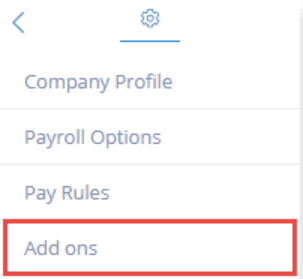
Step 1. Login to your PaymentEvolution account and Navigate to Settings > Add Ons.
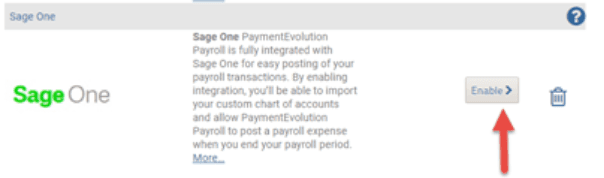
Step 2. Enable Sage One (previous name, same app)
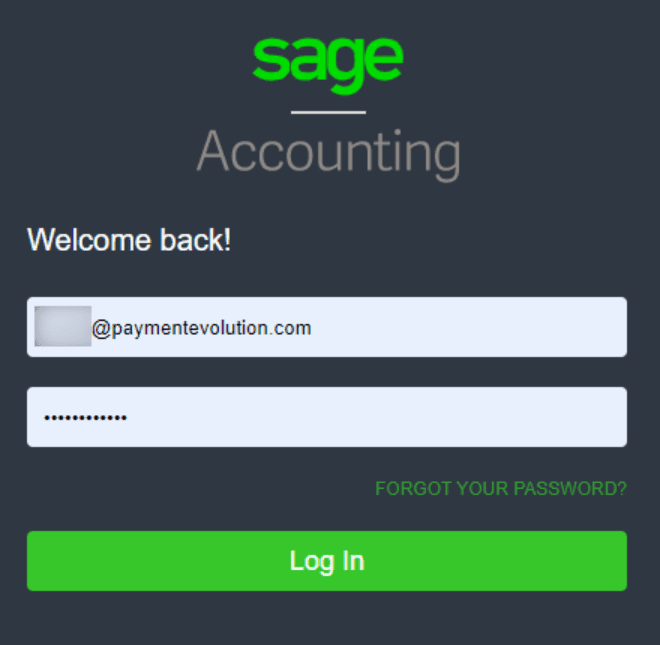
Step 3. Follow the prompts to login to your Sage account.
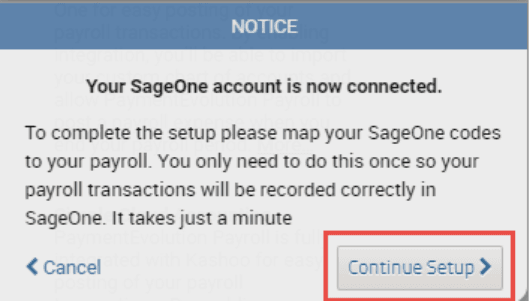
Step 4.You will receive notice that your account is now connected. Click Continue Setup.
Your Chart of Accounts from Sage will be pulled in.
Step 5. Use the dropdown to map EVERY field (regardless of whether you plan to use it or not). Not mapping all fields can result in a failure to send the data properly.
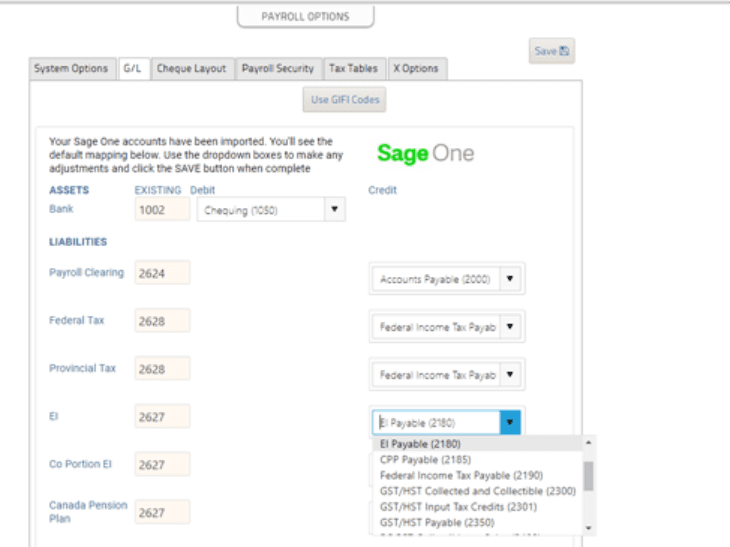
Step 6. Click Save.
Your GL import and synchronization are complete. You can now process a pay run by clicking Run Payroll in your PaymentEvolution account. Run your payroll as you normally would.
Importing GLs into Sage Cloud Accounting
When you are ready to import your transactions into Sage:
Step 1. Click Actions > End of Period or start a new pay run. The system will prompt you to send your recent transactions to Sage One. Click Next.
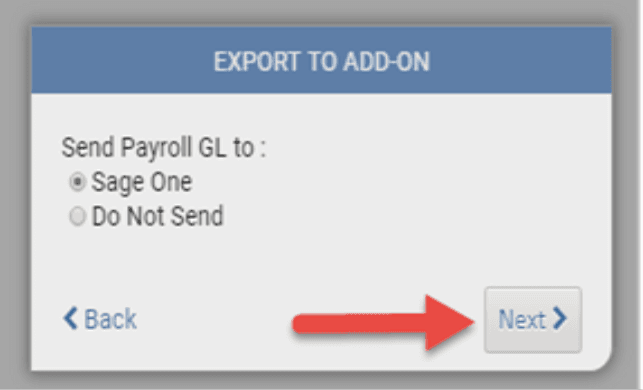
Payroll will send Sage One any transactions you've done since you've last closed your period.
Older transactions in periods that you've already closed can be imported via REPORTS -> GL REPORTS. Just click the export button beside the report you wish to export into Sage One.
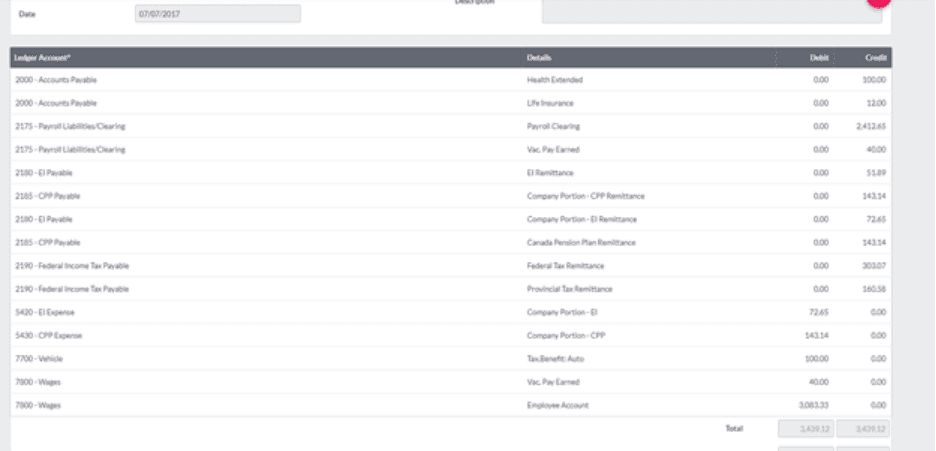
Step 2. Login to your Sage account and view your reports and work with them as needed. You can find them under your Journals.

Step 3. Click the line to get a full breakdown of what was imported, like the below:
Troubleshooting & FAQs
My GL reports aren’t being sent over to my accounting platform.
If you are having issues connecting to your accounting system, your connection might need to be re-established.
Start by logging in to your accounting platform. Then, try searching for PaymentEvolution in your Connected Apps. Enable the connection, and then logout of your accounting platform. Note – if this is not available, skip this step.
Login to PaymentEvolution, go to Settings > Add Ons and delete (trash can icon) the connection with your accounting platform..
Re-enable the add-on and follow the steps above to ensure your chart of accounts are mapped properly. Ensure ALL accounts are mapped, including those that you won’t use.
Check for special characters while mapping (dashes, accents, etc.) as this can disrupt the connection or prevent the report from being imported. If you need to remove the characters, do so from within your Chart of Accounts in your accounting platform.
Keywords: Sage Integration, Accounting Integration, Chart Of Accounts, Sage One, Sage Cloud
396
Can't find what you are looking for? We can take a more direct look to help resolve your matter — Create Case or Contact Us