Kashoo and Payroll now provide you with an easy, integrated way to manage your company’s finances and payroll. Kashoo provides essential bookkeeping, invoicing and financial records for your business. Payroll provides robust payroll and payment processing. Together, you can pay your employees, remit the right payroll taxes and manage your company’s finances.
To get started, either watch the video below or follow these steps:
EMBED KASHOO VIDEO FROM VIMEO
Enabling the Integration with Kashoo
Step 1. Go to the Settings > Add Ons.
Step 2. Click Enable for Kashoo.
Step 3. You will be prompted to login to Kashoo using your Kashoo credentials (username and password). Click "Allow" to confirm you want to integrate. You will then be re-directed back to Payroll to continue the setup process.
Step 4. Next we need to synchronize your chart of accounts between Kashoo and Payroll. Go to Settings > Payroll Options and navigate to the GL tab.
Step 5.Click Import from Other Service.
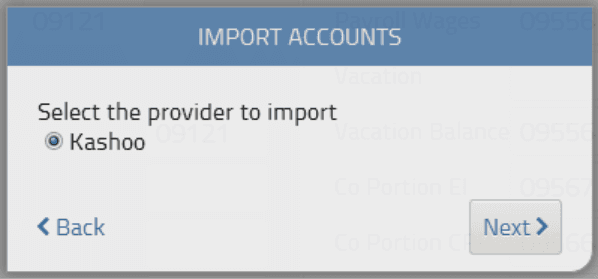
Step 6. Next, the system will start the integration process with Kashoo by asking you to confirm your provider.
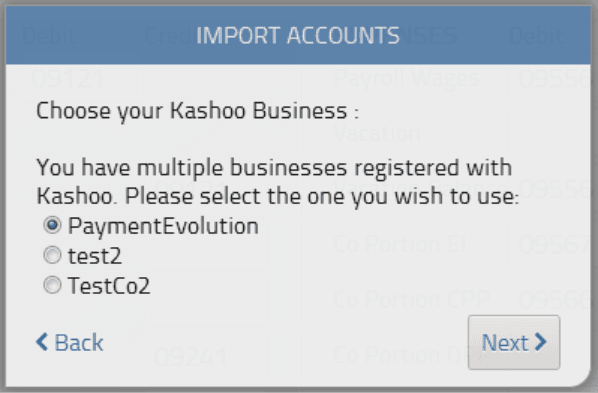
Step 7. If you have multiple businesses registered in Kashoo, you will be asked to select the business to connect to Payroll.
Step 8. Now you can synchronize your Kashoo chart of accounts with the Payroll General Ledger (GL). Use the drop down lists to match the fields to the appropriate accounts imported from Kashoo.
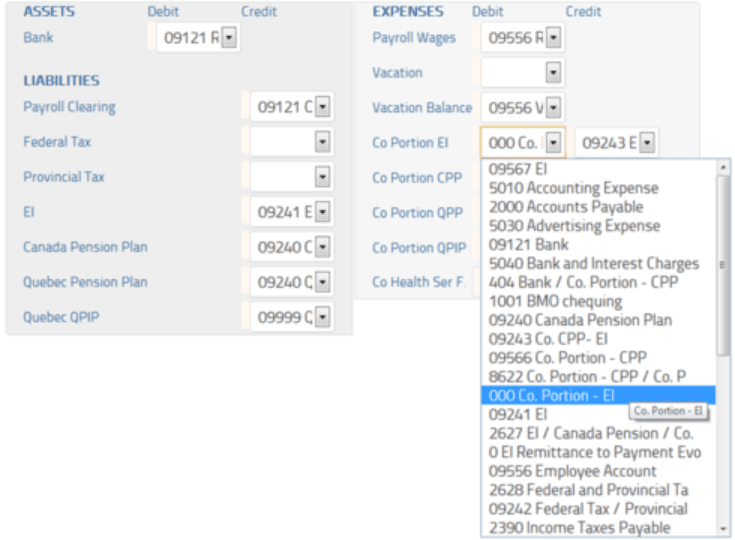
Step 9. Your GL import and synchronization is now complete once you Save.
You can now process a pay run.
Sending Transactions to Kashoo
To start using the integration, follow these steps:
Step 1. Click Run Payroll and finish your payroll as you normally would.
Step 2. When you are ready to import your transactions into Kashoo, either click Actions > End of Period or start a new pay run. The system will prompt you to send your recent transactions into Kashoo.
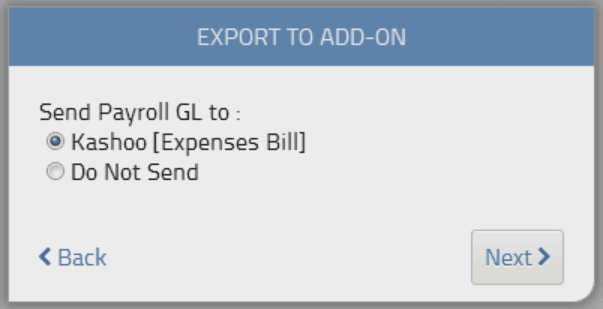
Step 3. Payroll will send Kashoo any transactions you’ve done since you’ve last closed your payroll period. Older transactions in periods that you’ve already closed can be imported via Reports > Accounting > General Ledger. Just click the export button beside the report you wish to export to Kashoo.
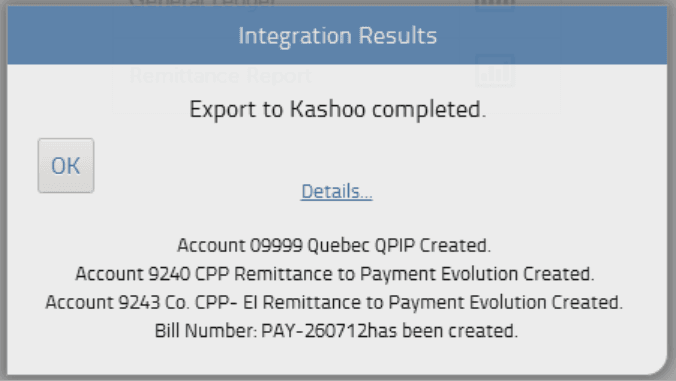
Step 4. Now the next time you log into Kashoo, navigate to Expenses. You’ll see a draft expense which you can view. This contains your payroll transactions. Ensure all the line items are correctly matched to the accounts in Kashoo and approve your invoice.
Step 5. The next steps require you to know if you will be using a payroll clearing account to reconcile your payroll transactions. You may want to consult your bookkeeper or accountant to determine if you should use one in your business.
Step 6. If you are using a payroll clearing _account, your expense in Kashoo will be a zero-balance expense. Specifically, you'll see two line items, "Payroll Clearing" and "Remittance to Payroll" as negative amounts - allocate these to the appropriate accounts in Kashoo (ie your payroll clearing account).
Step 7. If you prefer not to use payroll clearing and will be reconciling these transactions directly with your bank statements then you'll need to remove two line items: "Payroll Clearing" and "Remittance to Payroll". Adjust the quantity to zero "0" and save the expense as shown below. This method works well if you are enrolled in the Payroll ePay service and are reconciling the transactions against the bank account you use to fund payroll.
Now, when you next import your bank statement, you can reconcile this expense against the payroll debits in that statement.
That’s it! You've successfully imported your payroll transactions into Kashoo Online Accounting.
Using the Kashoo iPad App
If you’re using the Kashoo iPad App, here's how to view your payroll transactions and reconcile:
Step 1. Sync your profile (go to the gear icon / settings area in the app and tap 'sync now').
Step 2. Go to the expenses section and you'll see the latest payroll expense from Payroll listed.
Step 3. Approve the invoice as is, or, if you are not using the payroll clearing account method, modify the expense.
Step 4.Remove the items Payroll Clearing _and _Remittance to Payroll.
Step 5. Your expense will now be payable (have a non-zero balance) which you can use to match against the bank transactions in your account.
Note: Transactions can only be posted to Kashoo after you close your payroll remittance period. Authorization to post transactions to your Kashoo account must be done with credentials of an “Admin” in the Kashoo system. Read-only users cannot authorize Payroll data to be sent to Kashoo.
Troubleshooting & FAQs
My GL reports aren’t being sent over to my accounting platform.
If you are having issues connecting to your accounting system, your connection might need to be re-established.
Start by logging in to your accounting platform. Then, try searching for PaymentEvolution in your Connected Apps. Enable the connection, and then logout of your accounting platform. Note – if this is not available, skip this step.
Login to PaymentEvolution, go to Settings > Add Ons and delete (trash can icon) the connection with your accounting platform.
Re-enable the add-on and follow the steps above to ensure your chart of accounts are mapped properly. Ensure ALL accounts are mapped, including those that you won’t use.
Check for special characters while mapping (dashes, accents, etc.) as this can disrupt the connection or prevent the report from being imported. If you need to remove the characters, do so from within your Chart of Accounts in your accounting platform.
Keywords: Kashoo Integration, Send GL To Kashoo
396
Can't find what you are looking for? We can take a more direct look to help resolve your matter — Create Case or Contact Us