Integration with third-party systems like QuickBooks Online is available for subscribers on all plans. This service allows you to post payroll transactions into QuickBooks Online for bookkeeping purposes. You can also schedule and pay open invoices in QBO electronically using PaymentEvolution Business Payments.
If you are not familiar with charts of accounts or general ledger codes
Setup QuickBooks Online integration
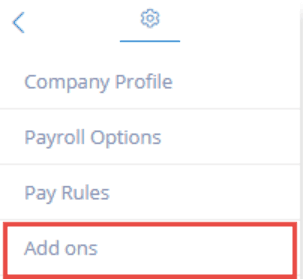
To get started, login to your PaymentEvolution account and go to Settings -> Add-Ons
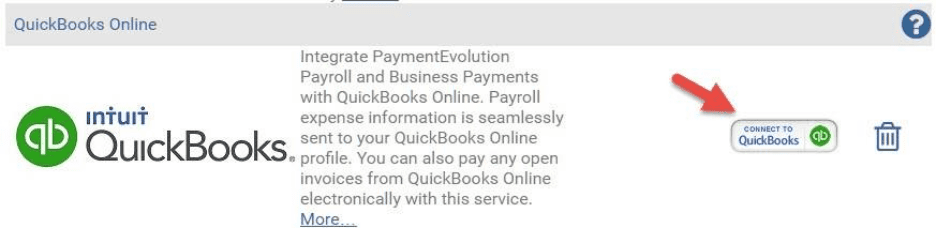
Connect to QuickBooks Online
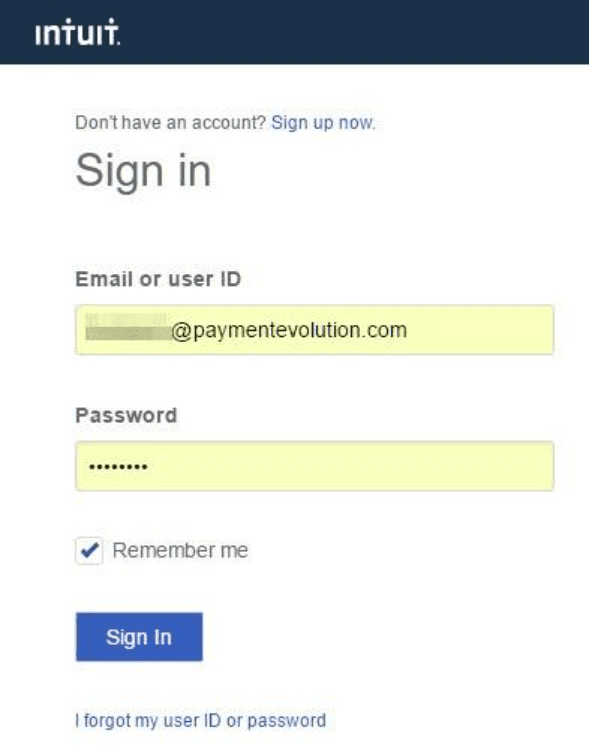
You will be prompted to sign into your QBO profile
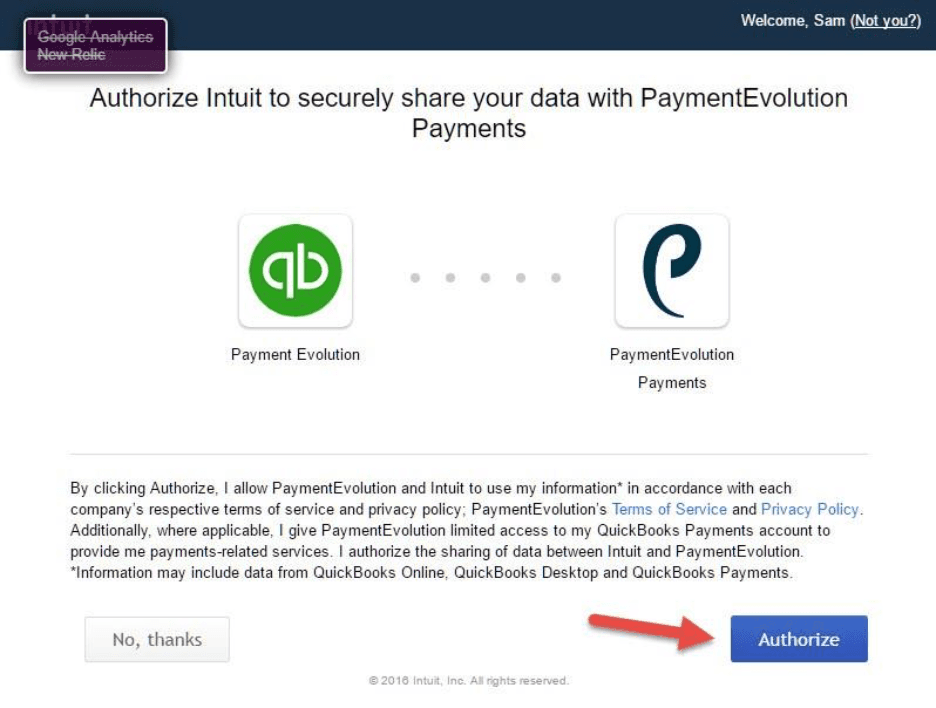
Now authorize and connect PaymentEvolution to QuickBooks
QBO integration is now enabled but you MUST follow the next steps to Continue Setup (you only need to do this once)
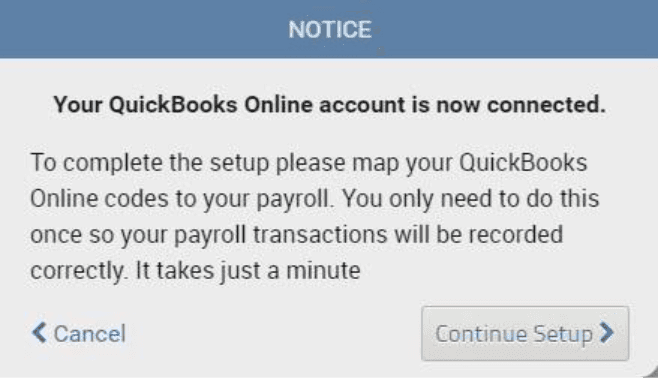
Mapping
Match your payroll chart of accounts to the accounts in your QBO profile
IMPORTANT: You MUST map ALL accounts, even if you are not using them. If there is no data to post, there will be no entry, but failure to map ALL accounts will lead to failure when attempting to send the file.
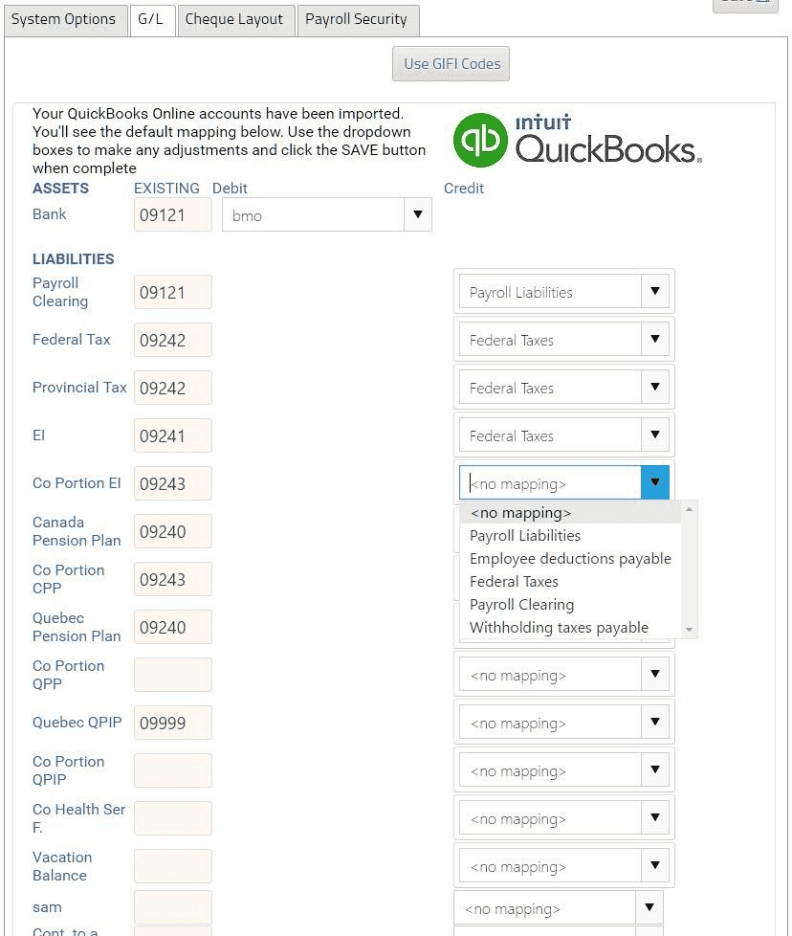
Click Save
Your GL import and synchronization are now complete. You can now process a pay run on the PaymentEvolution site. To do so, click on RUN PAYROLL. Run your payroll as you normally would.
Importing payroll transactions into QBO
After completing your payroll to import your transactions into QBO, click ACTIONS -> END OF PERIOD. The system will prompt you to send your recent transactions to QBO as a journal entry. To find this in your QBO account simply login, go to REPORTS and then Journal. The payroll entry will be there, and you are able to modify it if needed.
Trouble connecting to QuickBooks Online?
If you are having issues connecting to QBO, your connection might need to be re-established. Please log into your account, go to Add-Ons and delete the QBO integration. Re-enable the add-on and follow the steps above to ensure your chart of accounts are mapped properly.
Have an accountant version of QBO?
If you have an accountant version of QBO you will need unique credentials for each QBO client account in order to connect them. To do this, you will need to add another master admin in each QBO client with an email address and password. Then logout of QBO completely. Follow the steps above to connect the accounts. When prompted to Sign in for QBO do not put in your accountant credentials, instead use the master admin credentials for just that client. This will allow your Payroll account to connect to your unique QBO client account.
Keywords: Add-On, QuickBooks, Integrations, QuickBooks Online
396
Can't find what you are looking for? We can take a more direct look to help resolve your matter — Create Case or Contact Us