Enabling the Integration with QuickBooks Time
Follow these steps, or watch the video above to integrate PayEvo with your QuickBooks Time account.
Step 1. To begin the set up please login to your Payroll account and go to Settings > Add Ons.
Step 2. Click on the Time Keeping tab.
Step 3. For TSheets (QuickBooks Time), click Enable.

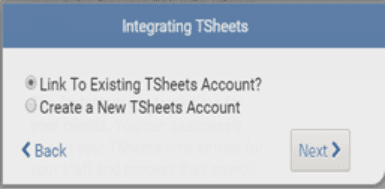
Step 4. Follow prompts to link to your QuickBooks Time account, or create a new one and click Next.
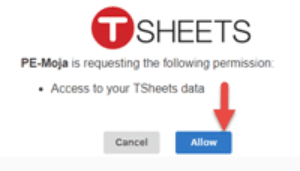
Step 5. Click Allow to let your Payroll account access your QuickBooks Time account.
Note – the integration goes two ways. It will sync your PayEvo employees to QuickBooks Time and your existing QuickBooks Time employees into Payroll (if they don’t already exist)
Step 6. If any employees are in QuickBooks Time but need to be added to Payroll, you will be prompted to add some details for them. Do that and click Next.
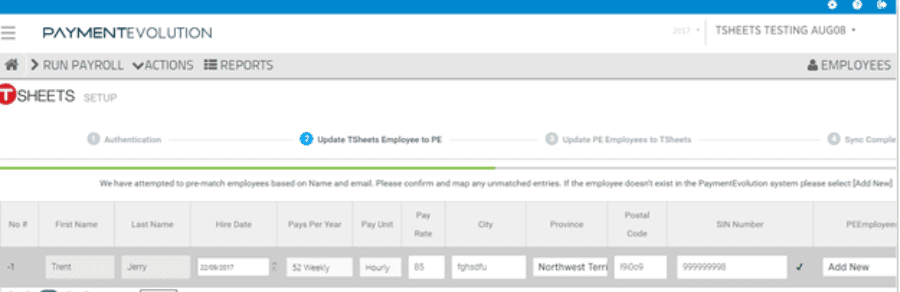
Step 7. Then you’ll be prompted to add any employees from Payroll not listed in QuickBooks Time yet.
Step 8. Click Finish on the QuickBooks Time Setup page.
You are now ready to import your time records.
Importing Timesheets via QuickBooks Time (TSheets)
Now that you have already integrated your TSheets account with your Payroll account here's how to import your time records into your pay run.
Step 1. Click Run Payroll from the left-hand menu.
Step 2. Choose the payment date and pay cycle type.
Step 3. Since this would still be part of your regular cycle, be sure to select Regular Payroll Type.
Step 4. Click Submit.
Step 5. On the Time Sheets tab, click Import.
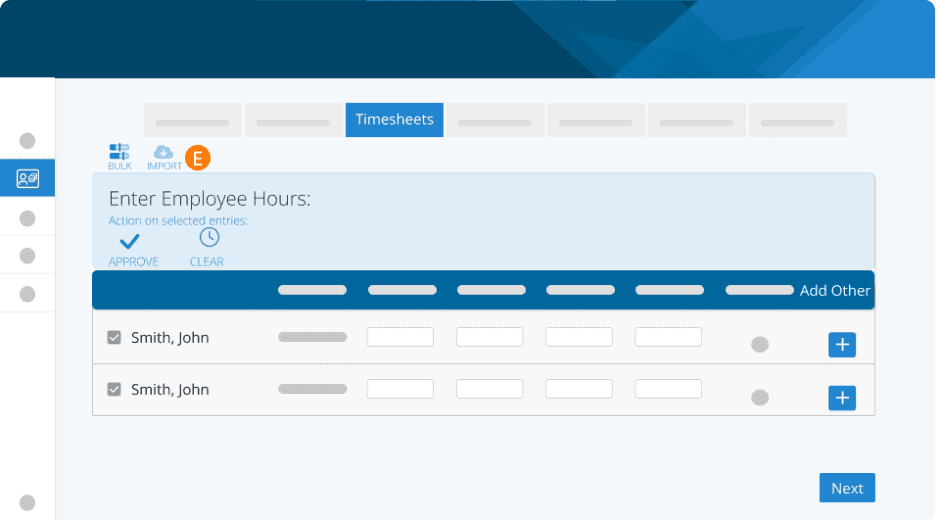
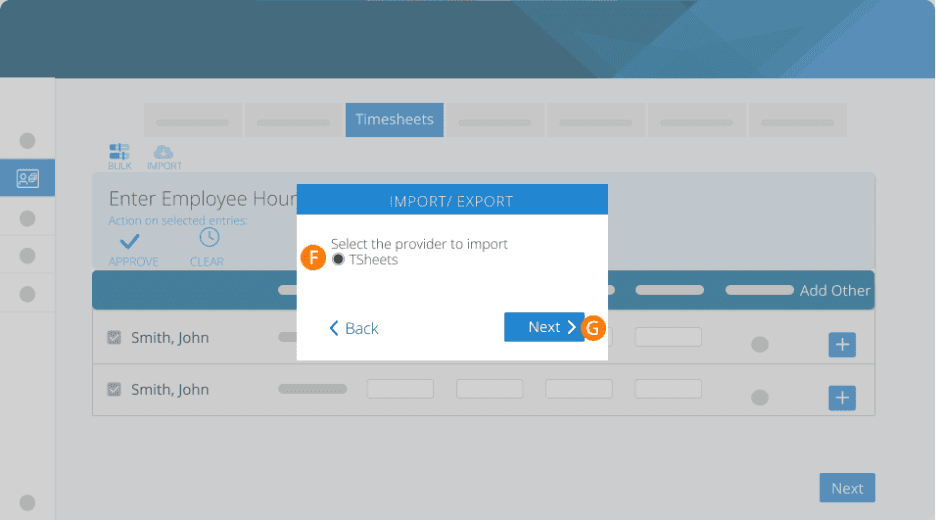
Step 6. Select TSheets (QuickBooks Time).
Step 7. Click Next.
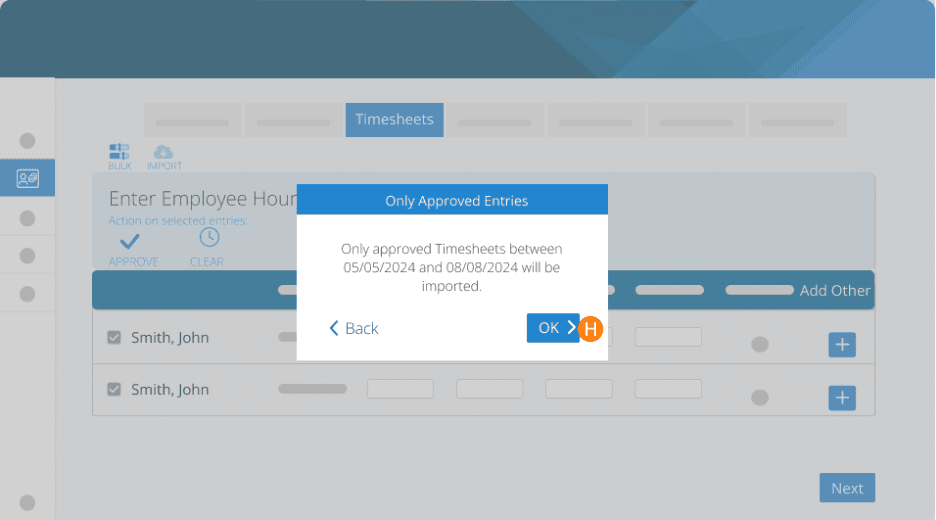
Step 8. Click OK.
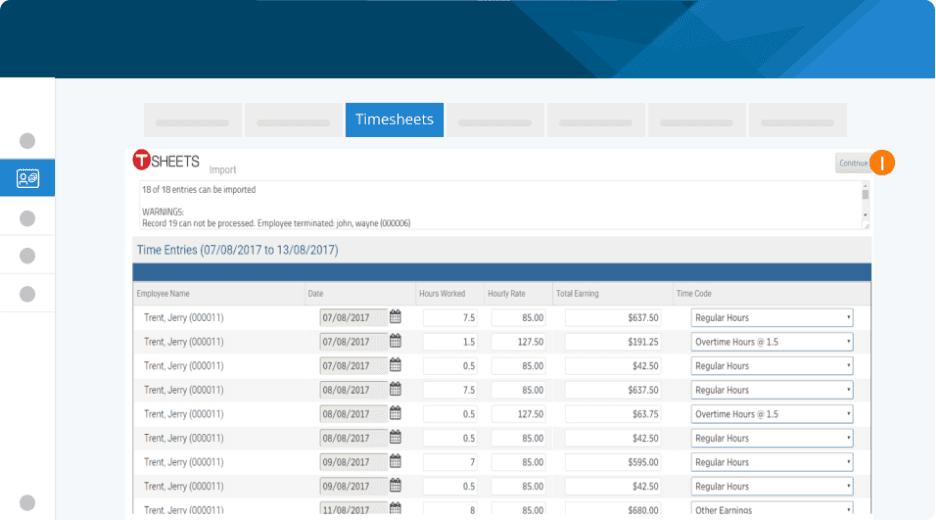
Step 9. All imported Timesheets will be verified at the top. After reviewing them, click Continue to approve them for pay. Any employees that fail to import will give a reason for the failure.
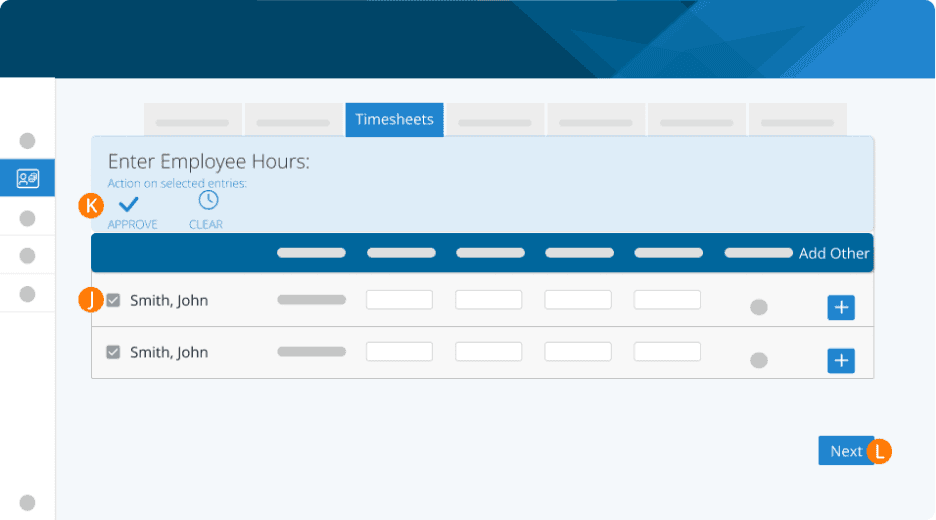
Step 10. Select the checkbox to choose specific employees whose work hours you want to approve.
Step 11. Click Approve.
Step 12. Repeat the steps above for any additional employees if needed. Then click Next to continue the pay run.
If you've already made payments to employees, ensure that the current payment matches the amounts you've paid them exactly.
You can now finish your run as usual with your imported time records.
Troubleshooting & FAQs
Are there fees for the QuickBooks Time/TSheets integration?
Yes, there is a monthly fee of $20/month for integrating with any QuickBooks Online product, including QuickBooks Time.
My GL reports aren’t being sent over to my accounting platform.
If you are having issues connecting to your accounting system, your connection might need to be re-established.
Start by logging in to your accounting platform. Then, try searching for PaymentEvolution in your Connected Apps. Enable the connection, and then logout of your accounting platform. Note – if this is not available, skip this step.
Login to PaymentEvolution, go to Settings > Add Ons and delete (trash can icon) the connection with your accounting platform.
Re-enable the add-on and follow the steps above to ensure your chart of accounts are mapped properly. Ensure ALL accounts are mapped, including those that you won’t use.
Check for special characters while mapping (dashes, accents, etc.) as this can disrupt the connection or prevent the report from being imported. If you need to remove the characters, do so from within your Chart of Accounts in your accounting platform.
Keywords: Import Time Records, Tsheets, Quickbooks Time
396
Can't find what you are looking for? We can take a more direct look to help resolve your matter — Create Case or Contact Us