This feature is available on our Business Plus + Costing Plan!
Do you have employees that work in different jobs for your company? Want to know what each portion of your company is costing you? How much do you pay to your Sales Team? Admin? With our job costing feature you have the ability to assign each earning within your pay run to a GL code (that you have created in your *Chart of Accounts) and then run your GL Transactions report to get all the amounts that went into each account! Wow you say! We agree! Here’s how it works:
Normally your GL report pulls the GL code from the employee profile and reports based on the code assigned to the employee. Now with Job Costing you can report by the Time Record GL code from within the pay run, so one employee can now have different GL codes associated with the different types of work they may do for your company!
Setting up the Chart of Accounts
Once you have the feature enabled, follow these steps:
Step 1. Go to Settings > Payroll Options > Chart of Accounts.
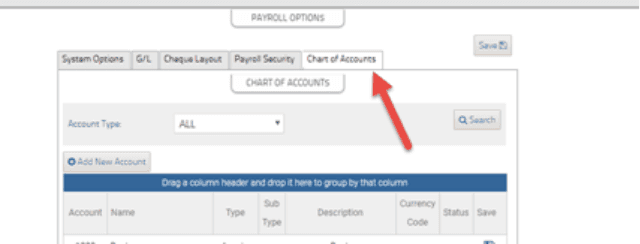
Step 2. Select + Add New Account then select your Account Type (Asset, Liability or Expense) and give it a Name, Description and Account Number (this is the GL code number in your books).
Typically account types are as follows:
Earnings-Expenses
Benefits-Expenses
Deductions-Liabilities
Step 3. Click Save.
Step 4. Once you have added all your cost accounts you can set your employees to a default account. This will apply to regular earnings. You can also leave this blank if you do not want them default to a cost account
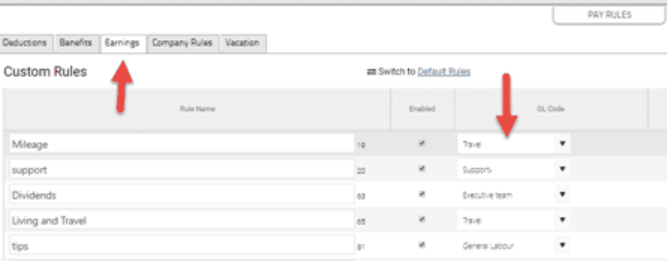
Step 5. Add the cost accounts to your earnings rules under Pay Rules.
Running Payroll with Job Costing
When running payroll the cost account assigned will default in the following order:
Step 1. All Earnings will default to the employee GL code (if one is assigned).
Step 2. The GL code set up in Settings > Pay Rules > Earnings will apply to any earnings paid to an employee that does not have a GL assigned.
Step 3. You can overwrite any of the above by using the drop down on the cost column in the pay run for each item.

Managing Reporting with Job Costing
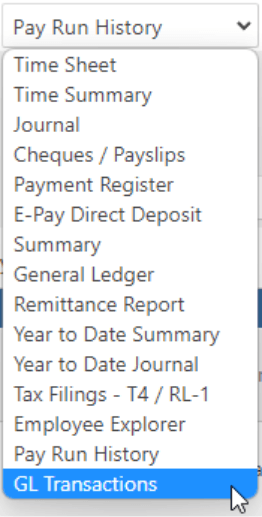
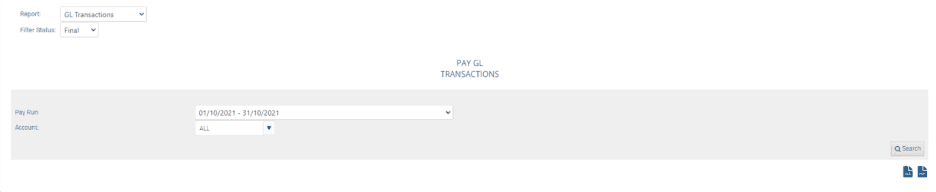
Once you complete your payroll, go to Reports and open any report. Then from the report drop-down menu you can select the GL Transactions Report and use the search options to find what you need. This report can be exported into Excel or PDF.
Keywords: Job Costing, Project Costing, Account Codes
396
Can't find what you are looking for? We can take a more direct look to help resolve your matter — Create Case or Contact Us