Overview of the FreshBooks Cloud Integration
Integration for FreshBooks Cloud Accounting is available from within your FreshBooks app. FreshBooks Classic integration has been replaced by FreshBooks Cloud Accounting. Please update your FreshBooks Classic account to access payroll integration.
How it works:
Payroll: PaymentEvolution Payroll software is fully integrated with FreshBooks for easy posting of your payroll transactions. By connecting PaymentEvolution Payroll and FreshBooks you'll be able to better keep track of payroll payments, remittances and other employee benefit obligations.
Time Keeping: FreshBooks keeps track of your employee working hours. By connecting PaymentEvolution Payroll you'll be able to accurately pay your staff for those hours.
Integrating with FreshBooks Cloud Accounting
To setup your payroll account, watch our video here or follow the steps below:
Step 1. Login to your FreshBooks account and navigate to the Apps & Integrations section (under company settings). Select PaymentEvolution and allow access.
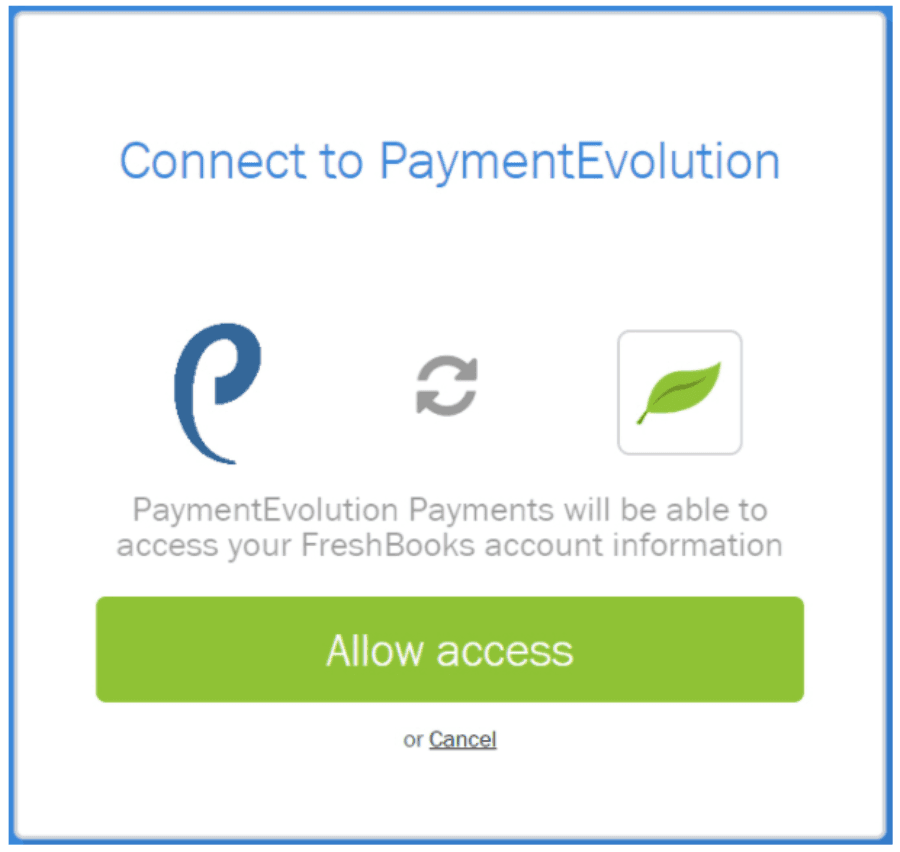
Step 2.Your PaymentEvolution account will be created and connected to your FreshBooks profile. Any time you need to access PaymentEvolution, simply log into your FreshBooks account and go to Integrations > PaymentEvolution.
Step 3. When you first connect your account you will be notified your account is connected. Click Continue Setup to map your FreshBooks chart of accounts to the chart of accounts in PaymentEvolution. This will ensure that any payroll expenses are properly categorized in your FreshBooks profile. Match the PaymentEvolution chart of accounts using the drop down boxes to select the appropriate FreshBooks category for the expense.
Step 4. Once mapped, click Save.
To modify these settings, go to Settings (gear icon) > Payroll Options > G/L and click the Import from Other Service button.
Step 5. Click on the home button to continue setting up your PaymentEvolution account.
Importing Time Records from FreshBooks
Your staff can use FreshBooks time keeping apps (desktop and mobile) to track their working hours. Once they've submitted those time records, you can use them in a pay run.
Step 1. Start a pay run (click Run Payroll) and when you get to the Timesheets step, click the Import icon.

Step 2. Select FreshBooks Cloud Accounting as the time sheet provider.
Time entered in FreshBooks will match against your staff and populate in your pay run where you can approve or modify prior to completion.
If needed, select the employee from the drop-down of imported records.
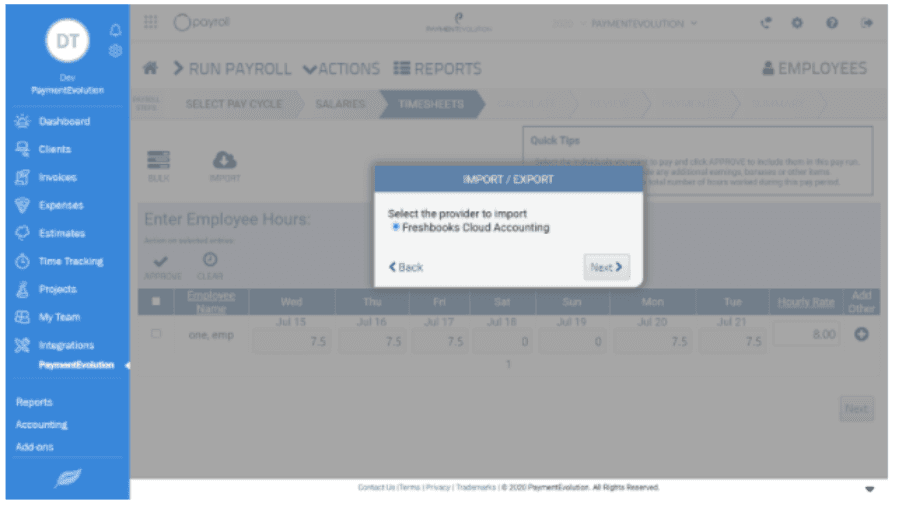
Your Freshbooks time records will now appear on the payroll. You can proceed and finalize as normal.
Sending Expense Records to FreshBooks
Step 1. Once you complete a pay run, go to Actions > End of Period to send the expenses to your FreshBooks profile.
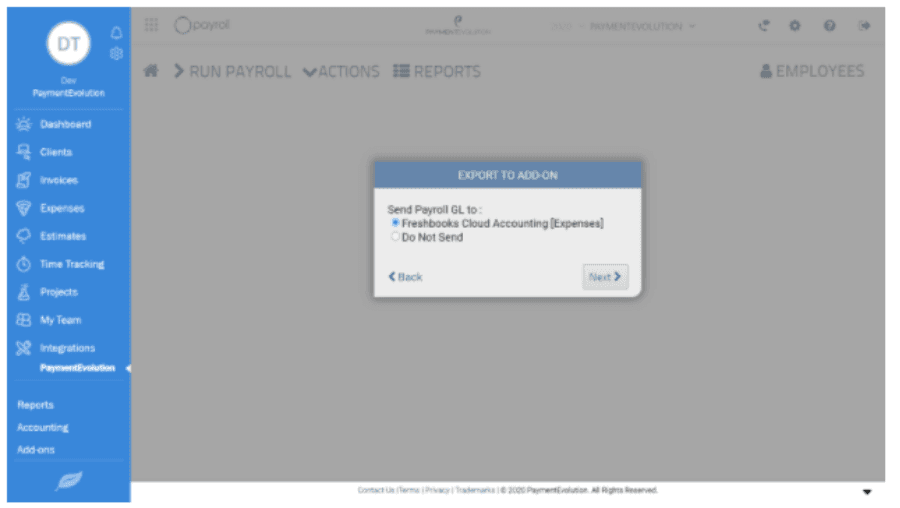
Step 2. Your pay run expenses will be shown in FreshBooks under Expenses
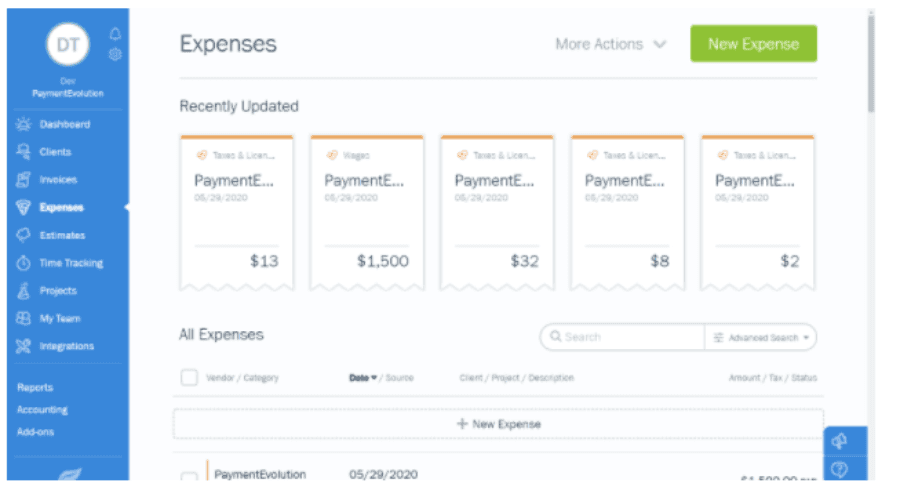
Note: Bank Reconciliation – if you are using ePay services, the data sent to FreshBooks will not include any direct deposit service fees that may have been charged. Please review your ePay direct deposit report for this information and add an additional line in your FreshBooks expenses in order to reconcile with your bank feed.
Troubleshooting & FAQs
Can I use Business Payments with FreshBooks?
No, the Business Payments feature is not currently available with the FreshBooks integration.
My GL reports aren’t being sent over to my accounting platform.
If you are having issues connecting to your accounting system, your connection might need to be re-established.
Start by logging in to your accounting platform. Then, try searching for PaymentEvolution in your Connected Apps. Enable the connection, and then logout of your accounting platform. Note – if this is not available, skip this step.
Login to PaymentEvolution, go to Settings > Add Ons and delete (trash can icon) the connection with your accounting platform.
Re-enable the add-on and follow the steps above to ensure your chart of accounts are mapped properly. Ensure ALL accounts are mapped, including those that you won’t use.
Check for special characters while mapping (dashes, accents, etc.) as this can disrupt the connection or prevent the report from being imported. If you need to remove the characters, do so from within your Chart of Accounts in your accounting platform.
Keywords: Freshbooks, Time Import, GL Import
396
Can't find what you are looking for? We can take a more direct look to help resolve your matter — Create Case or Contact Us