Getting Started
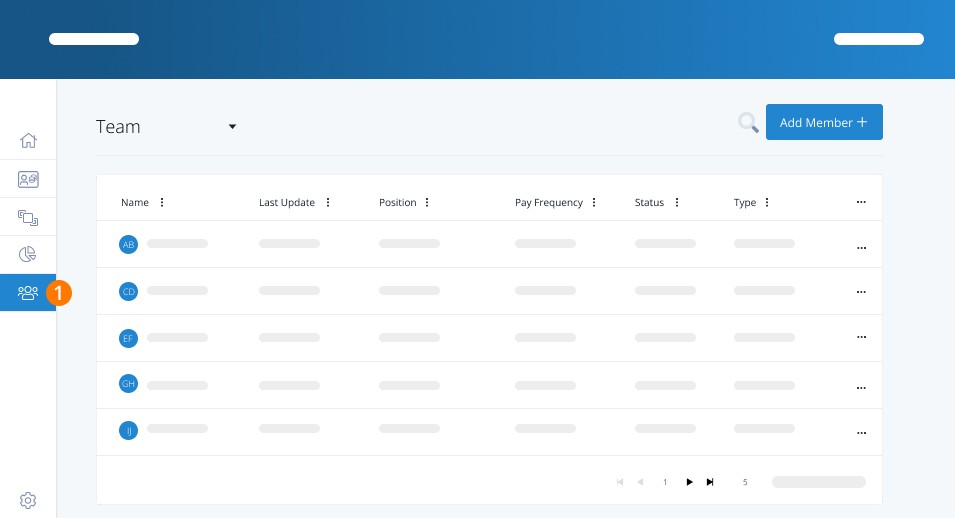
Step 1: Navigate to the Employees Page
Log into your account, then click Employees in the left-hand menu.
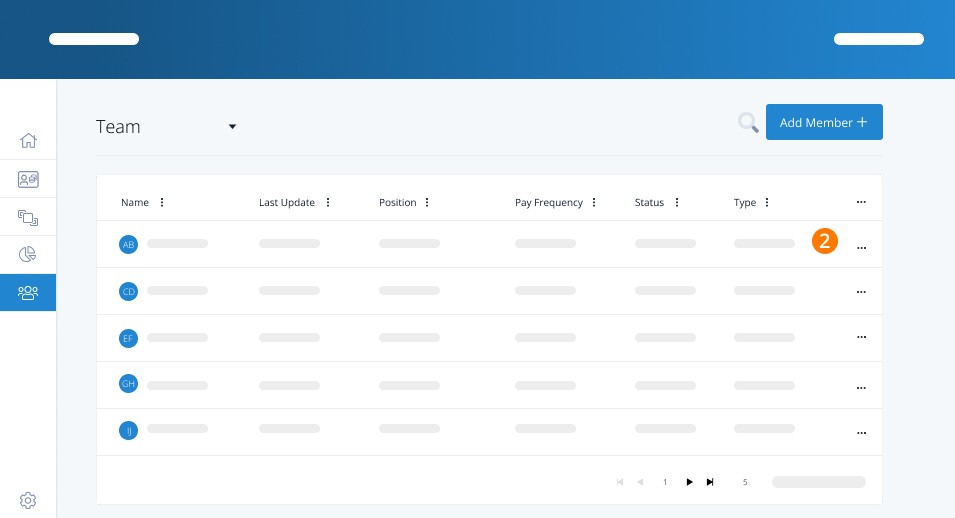
Step 2: Select an Employee
Click on the name of the employee you want to give Time Keeper access to.
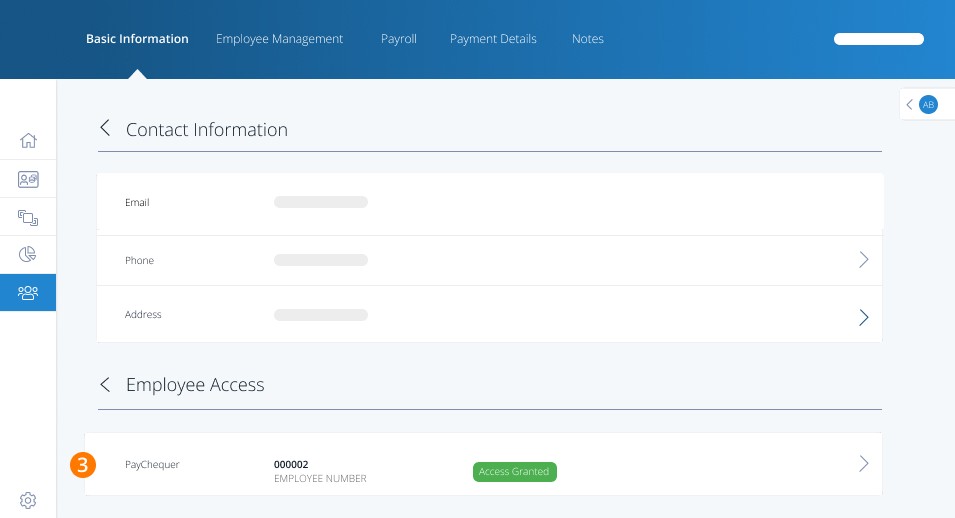
Step 3: Modify Employee Access
Scroll to the bottom of the employee profile and click on the Employee Access bar.
Step 4: Assign the Time Keeper Role
From the dropdown menu, select Time Keeper and click Save.
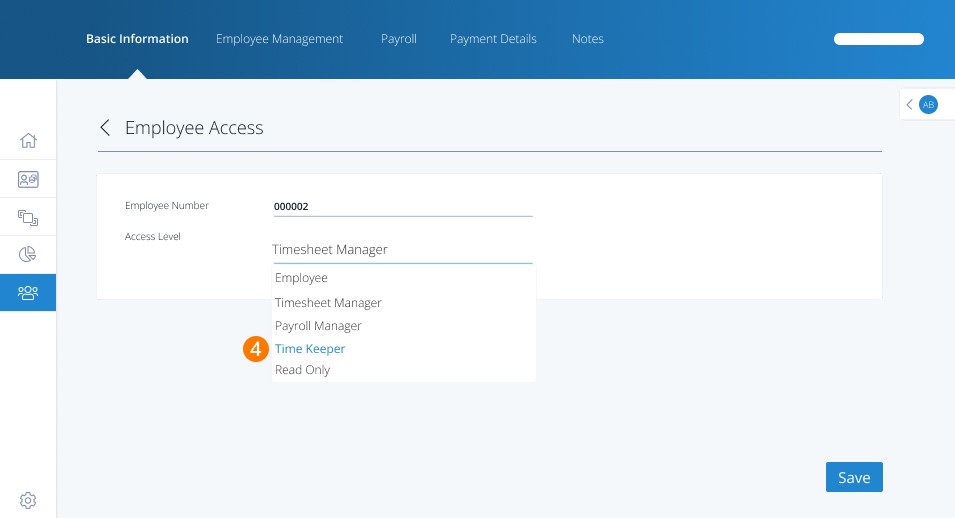
Note: Time Keepers can enter and approve timesheets but cannot run payroll or view sensitive employee data.
What Happens Next?
The employee can now log in at https://login.paymentevolution.com using their existing credentials. They will see:
A green briefcase icon for accessing their personal employee info (Paychequer.com)
A blue briefcase icon that opens the timesheet entry screen for all time-based employees
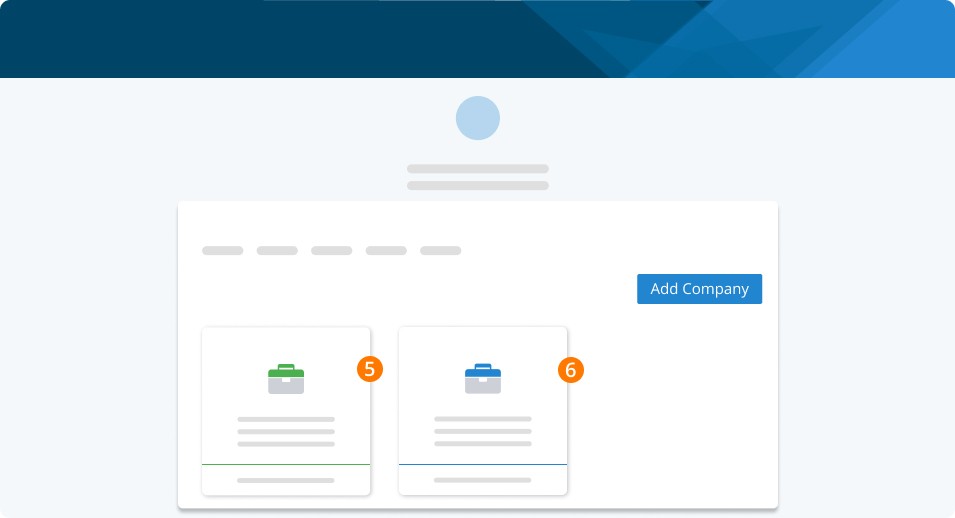
That's it - these individuals will now have Time Keeper access.
Keywords: User Roles, Manager, Time Sheet Manager, Payroll Manager
396
Can't find what you are looking for? We can take a more direct look to help resolve your matter — Create Case or Contact Us