Setting up Multi-Factor Authentication (MFA)
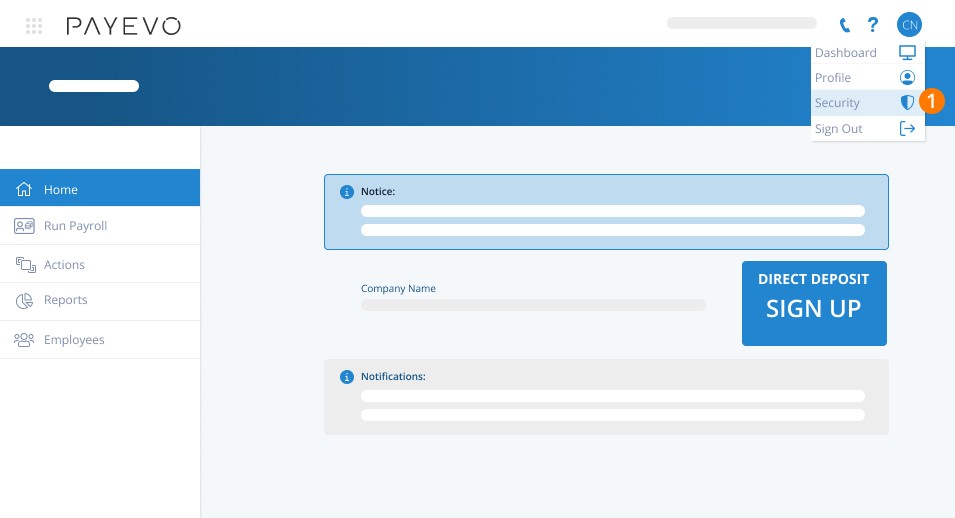
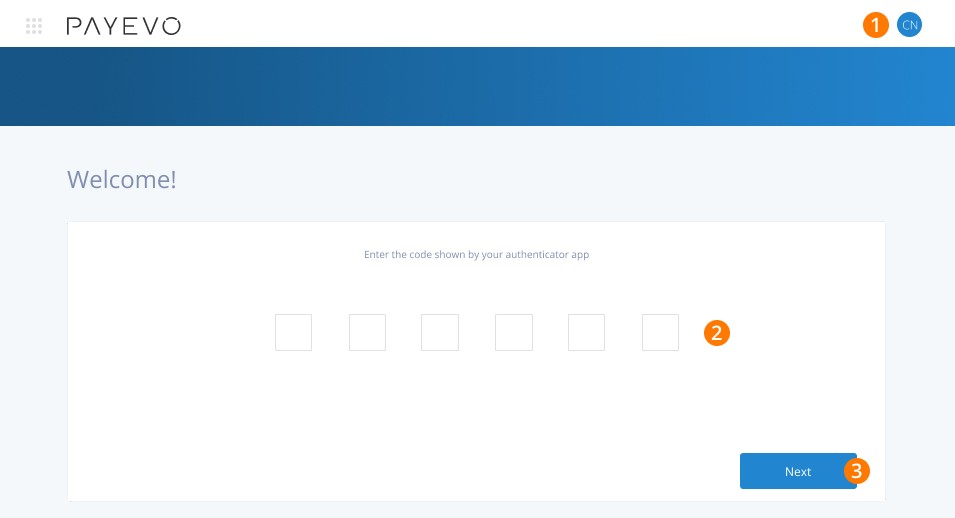
When logged in, click on your initials in the top right corner, followed by Security.
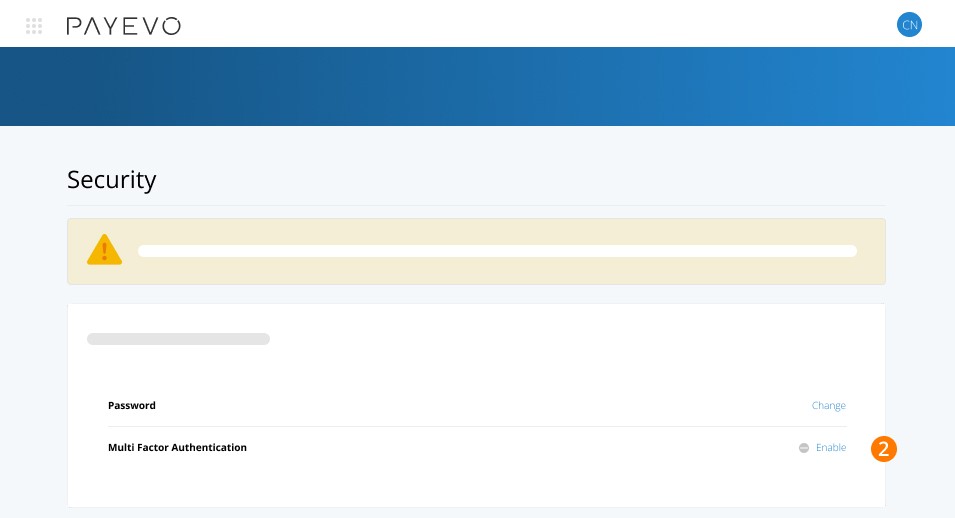
Select Enable for Multi-Factor Authentication.
Use your preferred authenticator app to scan the QR code. If you prefer, you can manually enter the key in your app using the on-screen option.
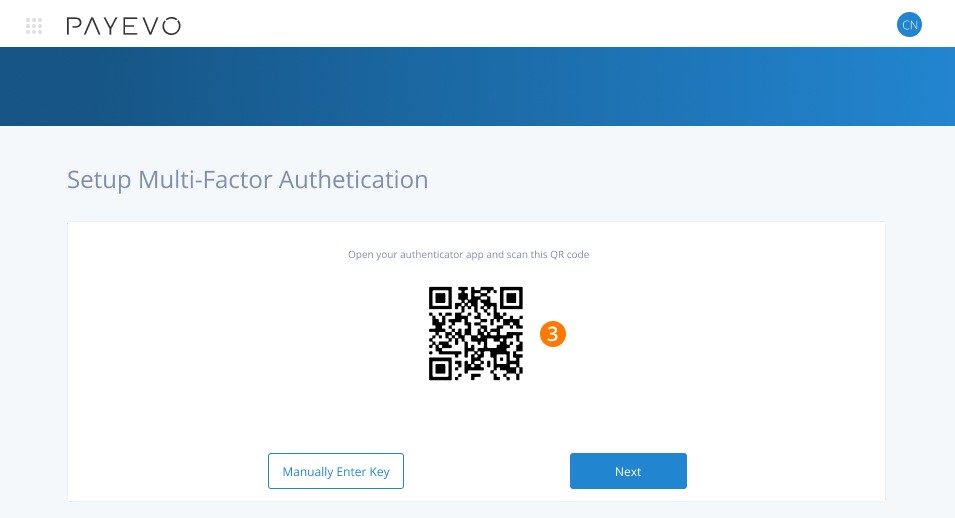
Note: nearly all authenticator apps can be downloaded for free in your Android/Apple app store. Feel free to use your preferred app, such as Google Authenticator or Microsoft Authenticator. In each app, you'll see a + icon to add an account. From there, follow the prompts to scan the QR code as you see below.
On screen, enter the code shown in your authenticator app
Then click Next.
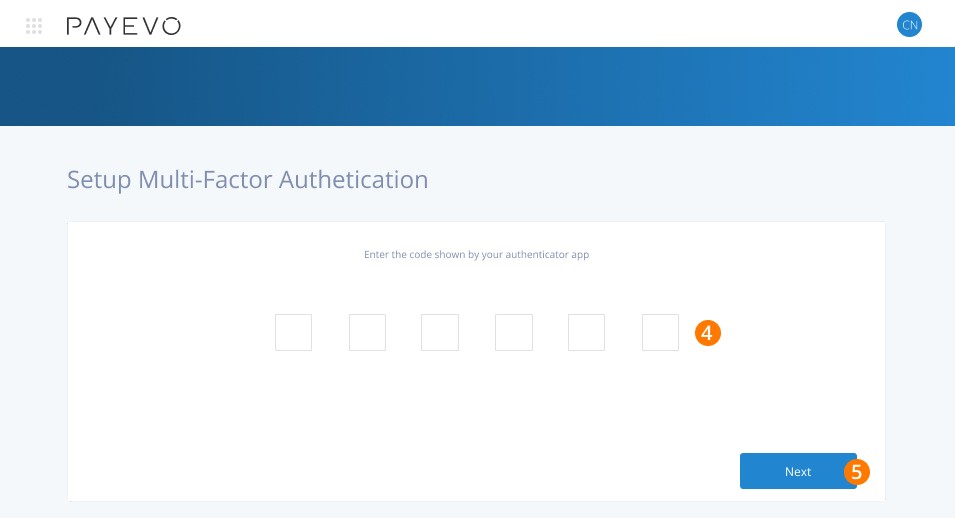
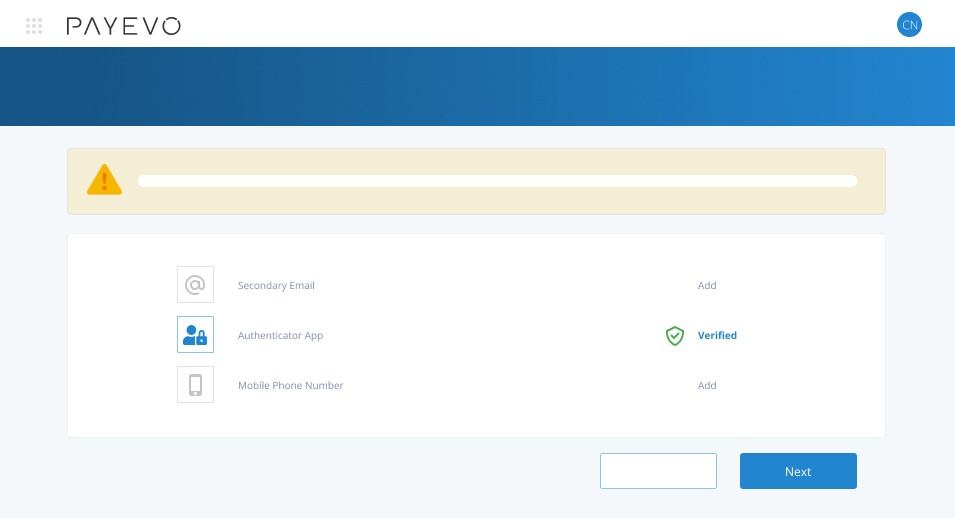
You’ve now added your authenticator app as your primary verification method. As a backup, be sure to add both a secondary email and a mobile phone number.
Logging in Using Multi-Factor Authentication (MFA)
Once you’ve enabled MFA for your login, you will be prompted to enter a 6-digit code each time you login.
When you see the prompt, check your authenticator app and enter the code you see there. If you've entered the incorrect code, you can choose to email or text a code (carrier fees may apply), provided you've enabled a secondary method.
Click Next and you’ll be taken to your dashboard.
TROUBLESHOOTING
Related questions
Keywords: Security, MFA, Authentication, Authenticator App, 2-Factor Authentication, 2FA
396
Can't find what you are looking for? We can take a more direct look to help resolve your matter — Create Case or Contact Us