You can now update your credit card information in your Evolv account!
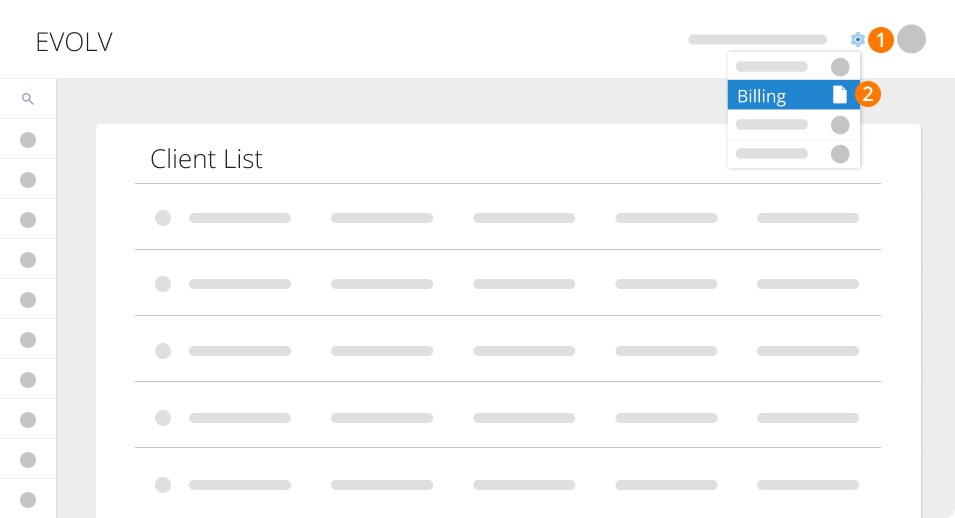
1. To get started, click the gear icon in the top right corner.
2. Select Billing.
Adding a Card
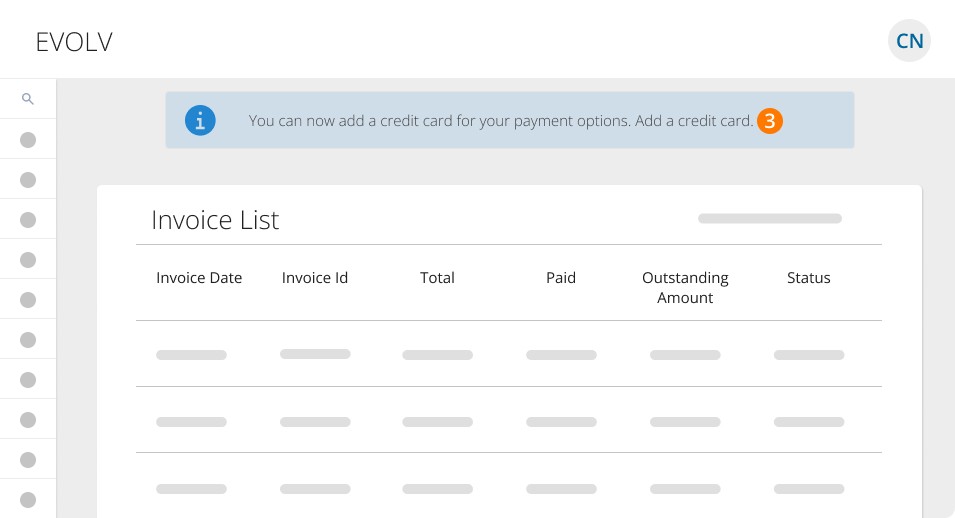
3. If you do not yet have a credit card on file, click Add Credit Card.
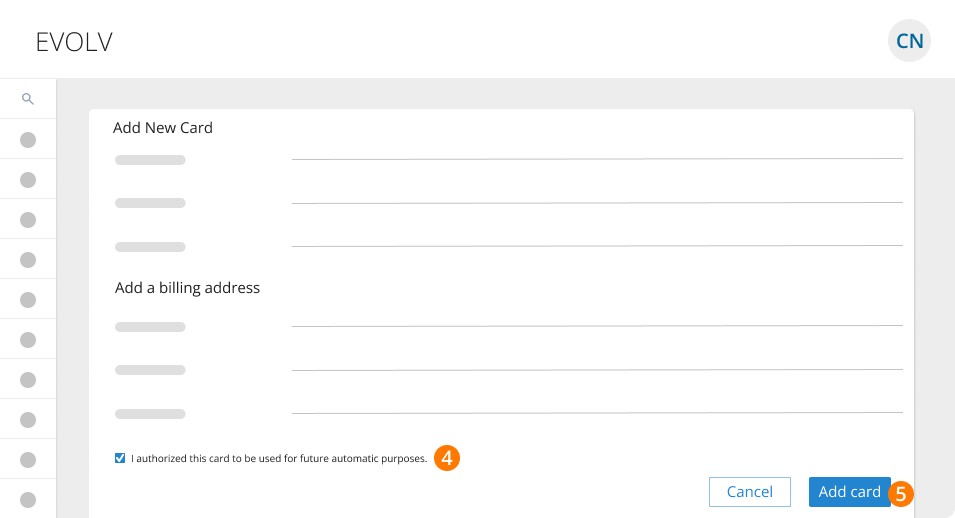
4. Enter your card details and billing information. Then, check the box to authorize automatic payments to be charged to your card for monthly invoices.
5. Click Add card.
Removing or Replacing your Credit Card
6. Once you have added a card, you'll see the Manage Cards option at the top of your Billing menu.
7. You can remove your card.
8. Cycle through your cards if you have multiple.
9. Or add a new card.
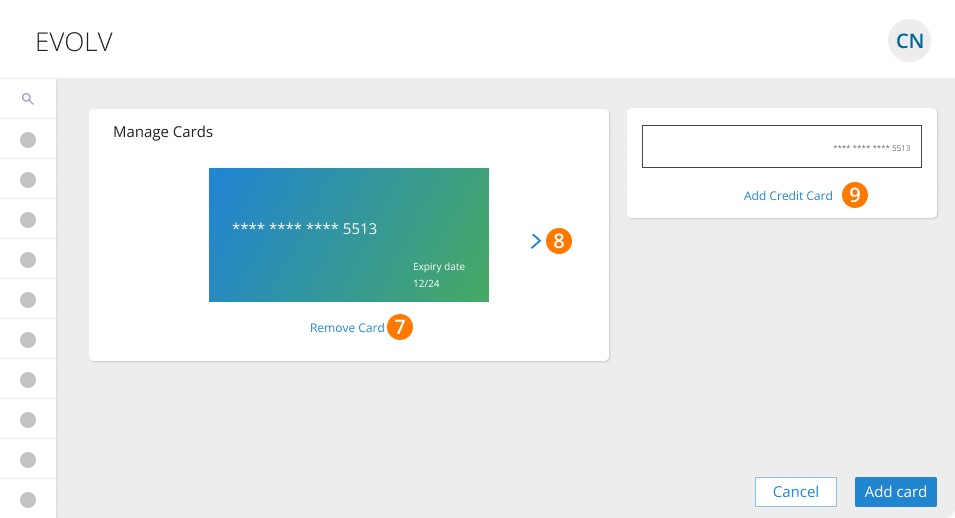
*Note: if you add a new card, it will become your default for future automatic payments.
Keywords: EVOLV, Billing, Invoicing, Credit Card
396
Can't find what you are looking for? We can take a more direct look to help resolve your matter — Create Case or Contact Us