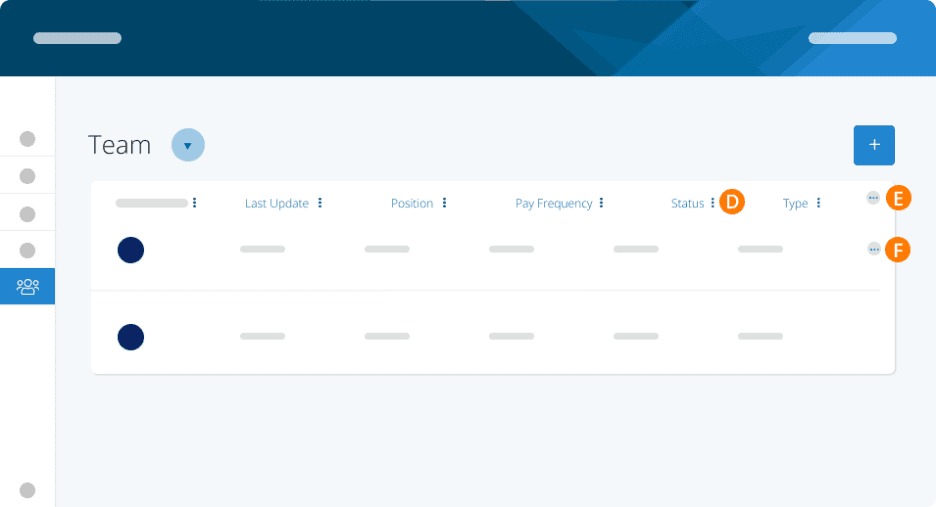
Use your Team Dashboard to see sort your workers by work type, status, and stage (on-boarding/off-boarding/team). Filter, search and sort all from one master grid.
Step 1. To get started, go to Employees on the left menu.
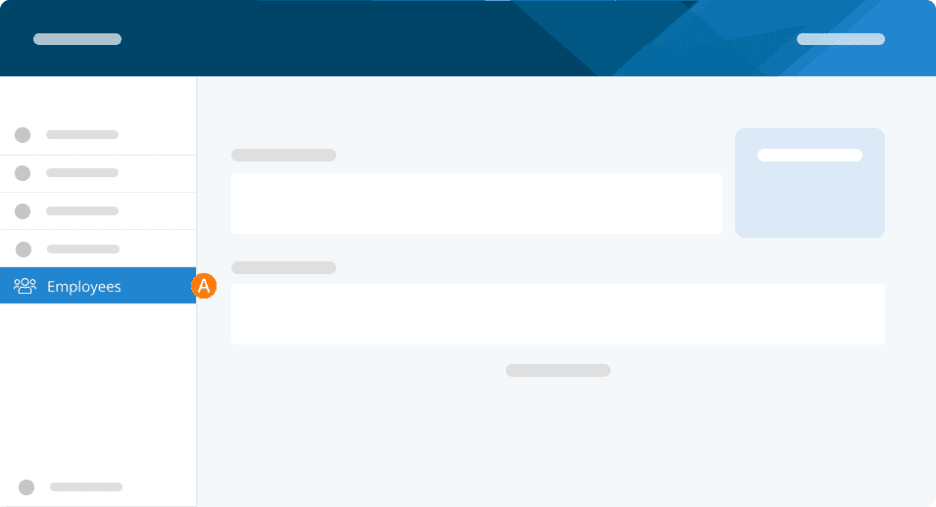
Step 2. To add a person, click Add Member + and follow the steps for Adding/Onboarding a Team Member.
Your Dashboards
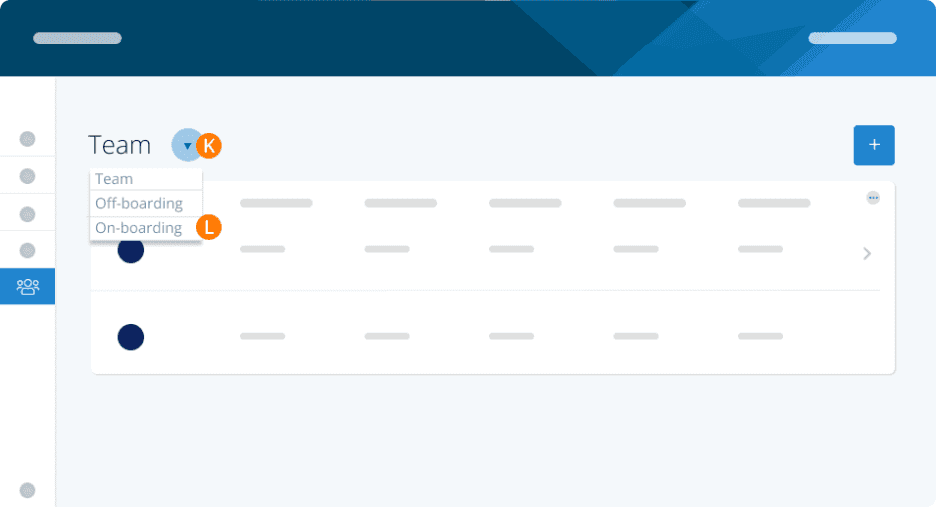
Step 3. Use the Team dropdown to choose which dashboard you want to view. You can pin one if you want it to stay. For instance, if you are doing continuous work on or offboarding for a period of time, you can pin it to make it stay.
Team: These are all your workers.
Off-Boarding: These are terminated workers.
On-Boarding: These are workers who you have not finished adding.
Team
These are your active employees that you can pay now.
Step 4. Use the three dots to sort, search or filter by any fields.
Step 5. Use the three dots in the header to export to XLS or PDF.
Step 6. Use the three dots on the person to view/edit the employee profile or begin offboarding.
Off-Boarding
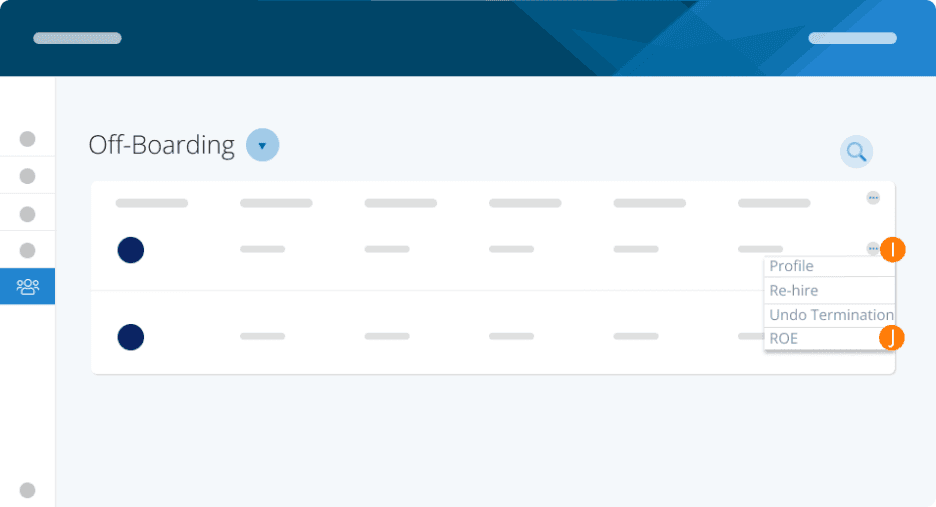
These are your inactive or terminated employees. You can reinstate them, view their ROE or finish their ROE from this screen. Employees are never deleted – when you terminate them, they will stay in this list.
Step 7. Click the Team dropdown.
Step 8. Choose Off-boarding.
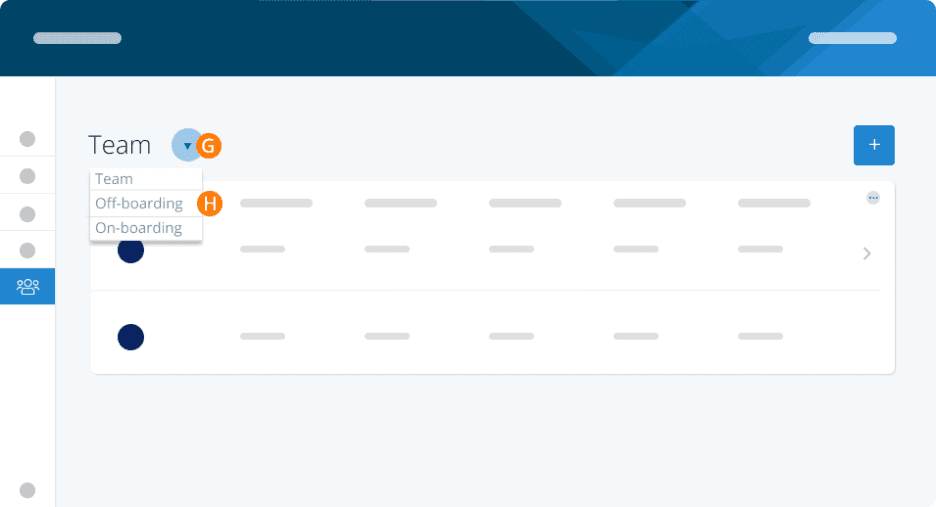
Step 9. Choose the employee you wish to amend. Click the ellipses (3 dots) on the end of the employee line in the Off-Boarding Dashboard.
Step 10. Select ROE.
Onboarding
These are your employees that you have not finished onboarding yet.
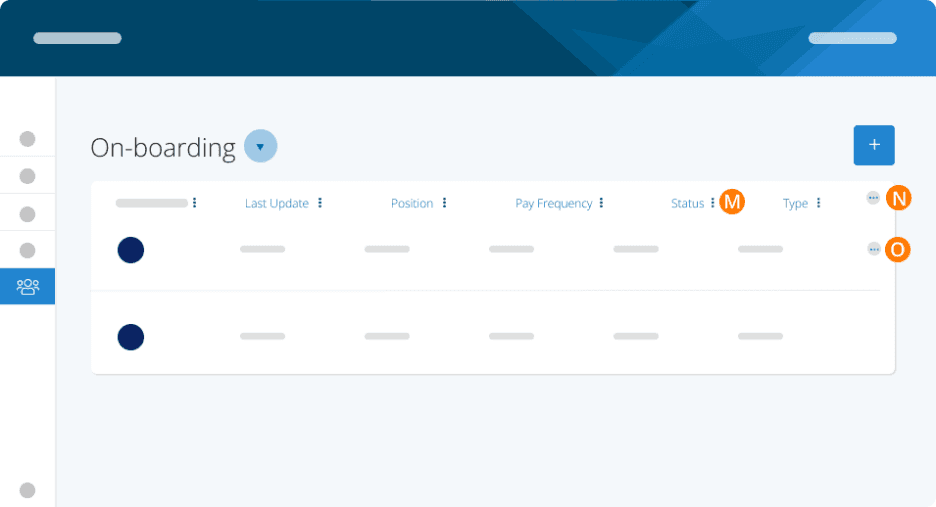
Use the menu to sort, search or filter by any field.
Use the menu on the header to export to XLS or PDF or to import team members via CSV (on Business Plus and Advanced Accountant plans only).
Use the menu on the person to complete onboarding.
Step 11. Click the Team dropdown.
Step 12. Choose Onboarding.
Step 13. Use the three dots to sort, search or filter by any field.
Step 14. Use the three dots in the header to export to XLS or PDF or to import team members via CSV (on Business Plus and Advanced Accountant plans only).
Step 15. Use the three dots on the person to complete on-boarding.
Keywords: Employees, Offboarding, Onboarding, Employee List, Team List, Active Employees, Terminated Employees, Pending Employees
396
Can't find what you are looking for? We can take a more direct look to help resolve your matter — Create Case or Contact Us