Now that you've set up your PaymentEvolution account here are some things that will help you with that.
We've separated this into three categories:
Setting up payroll
Ontario tax settings
Quebec tax setting
Vacation pay
Deductions
Benefits
Adding your employees
Setting up ePay (direct deposit)
Setting up Payroll
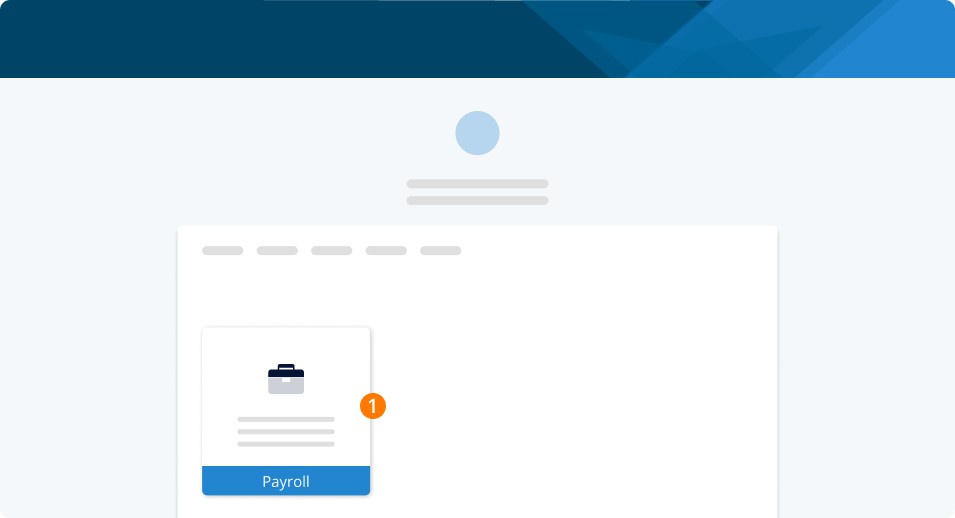
Step 1. First, select the company you'd like to set up from this dashboard. If it's your first time adding a company, you'll likely only have one option here.
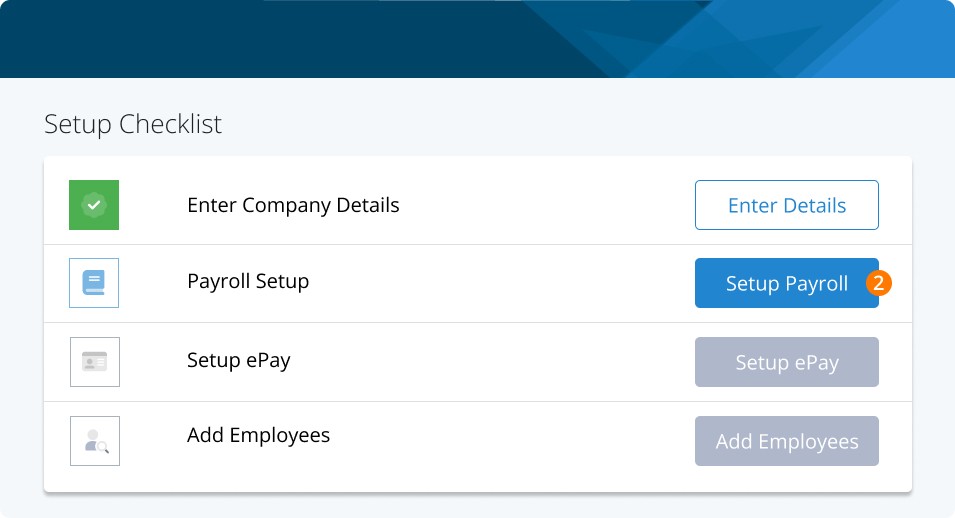
Step 2. Now, you'll see this checklist. It outlines your next steps and shows what you've completed. Click Set Up Payroll.
Ontario Tax Settings
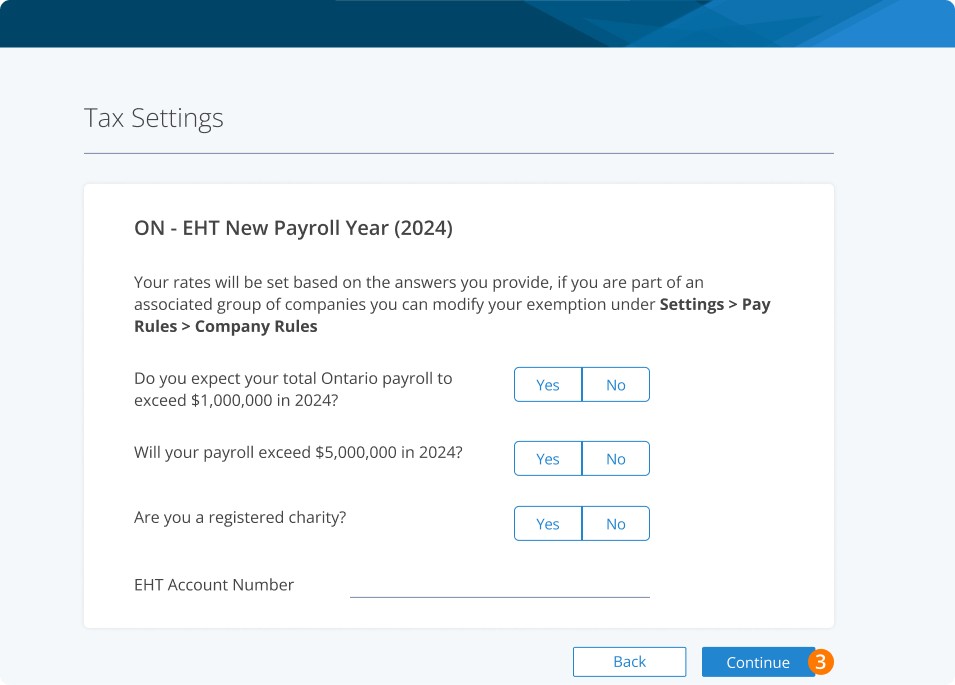
Step 3. Here, you'll set your Ontario employer health tax (EHT) rates. For a full Ontario EHT walkthrough, check out our guide.
Quebec Tax Settings
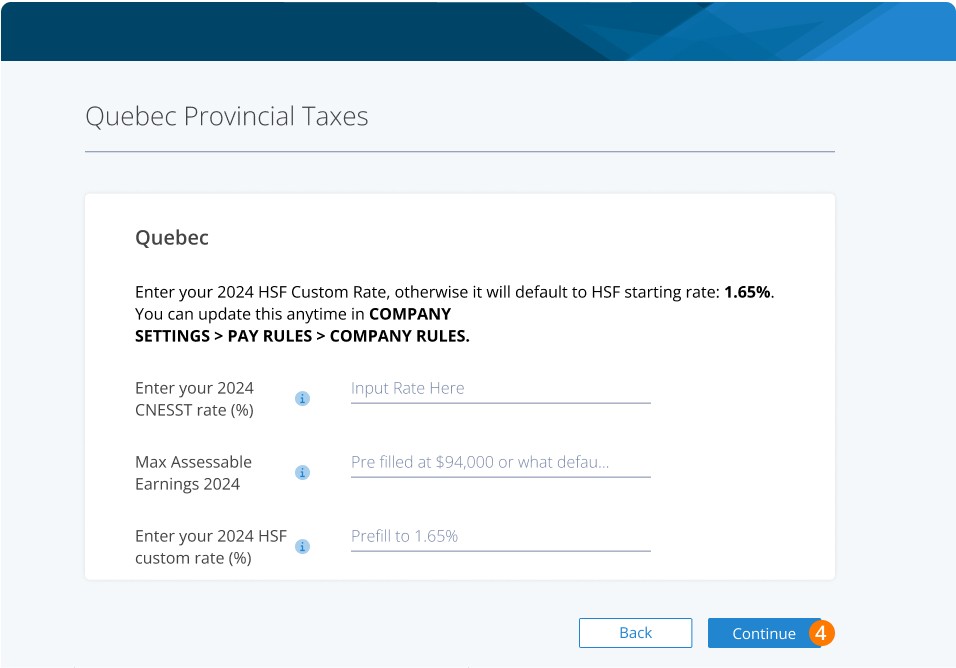
Step 4. Next, you'll set your Quebec tax settings. For a full guide on Quebec payroll taxes, check out our guide here.
Step 5. Now, let's set your vacation policies. You can use the standard policies we've created or add your own.
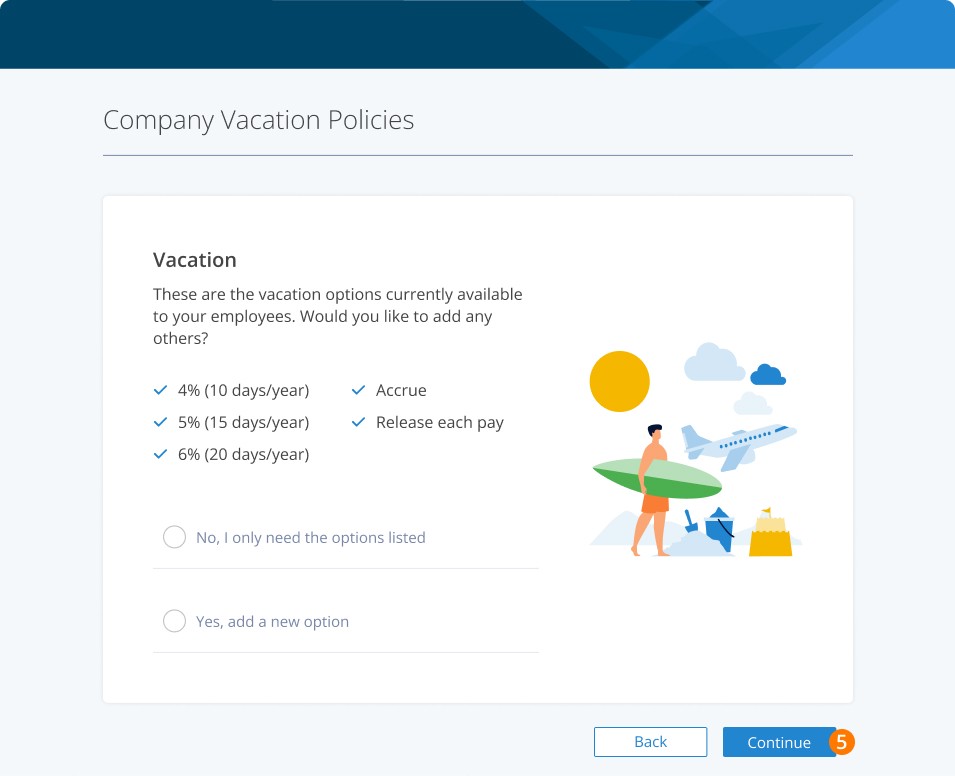
Step 6. You can add custom deductions here. We'll automatically apply the mandatory ones, and you can add any custom deductions.
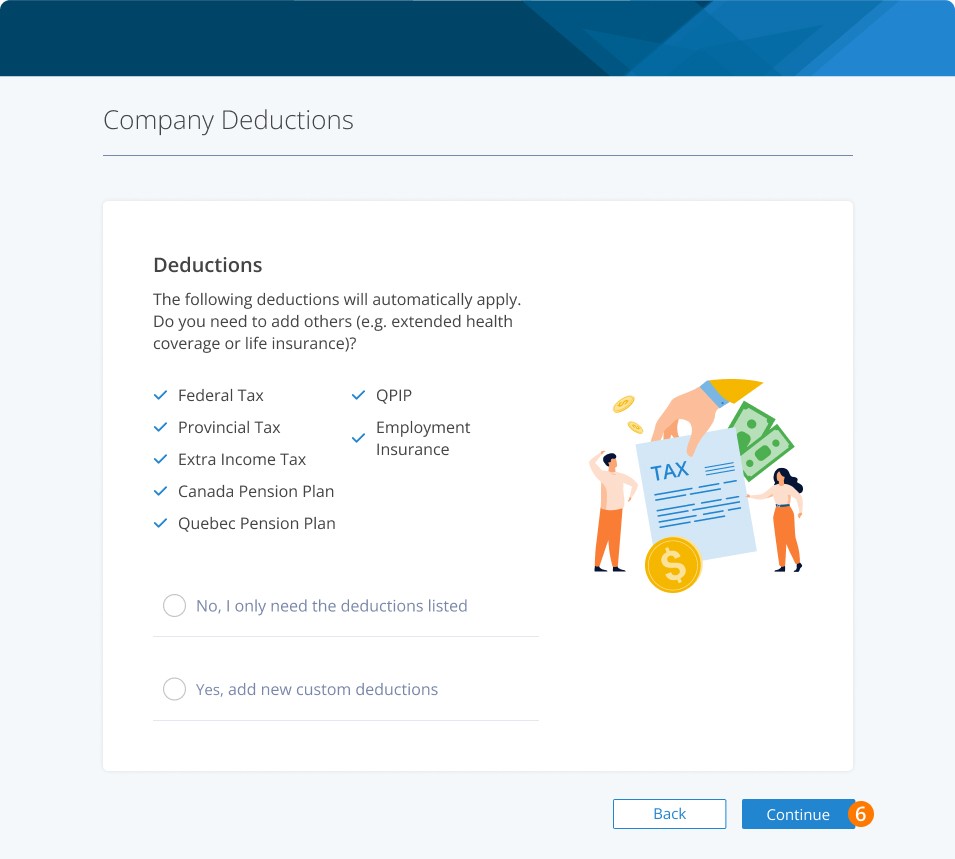
Step 7. And here, you'll add employee benefits. You can use the benefits you see on screen or add your own custom rules.
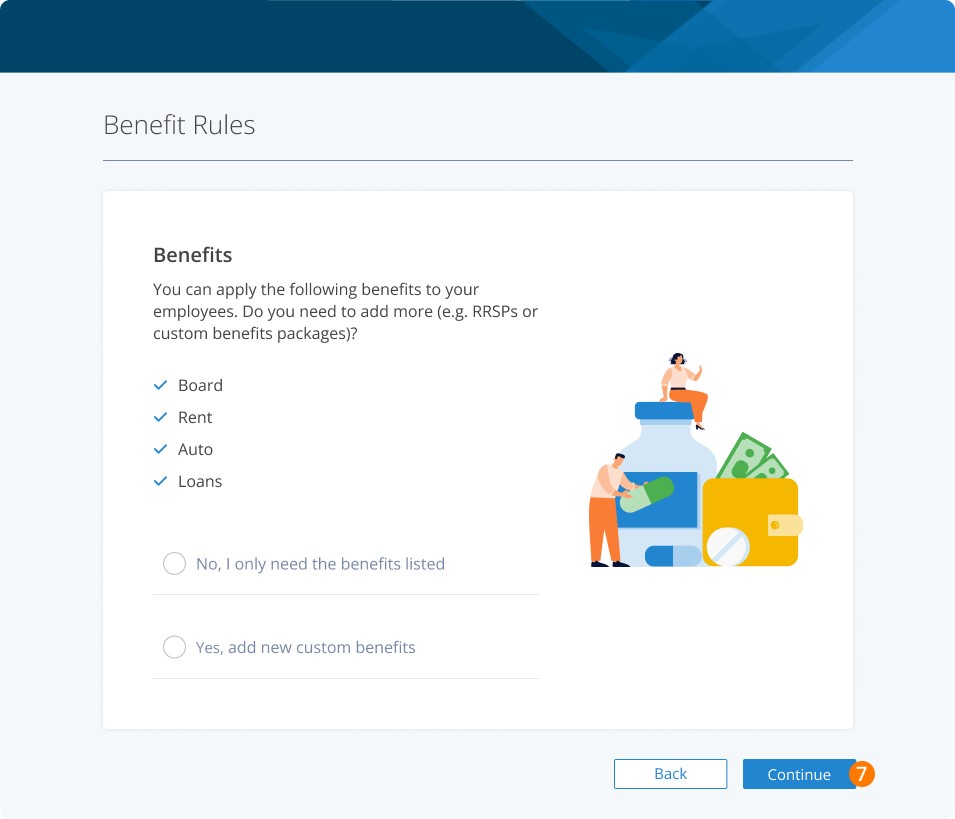
Step 8. Finally, you can set up your employees' earnings. We'll have a list you can automatically apply, and as always, you can create your own.
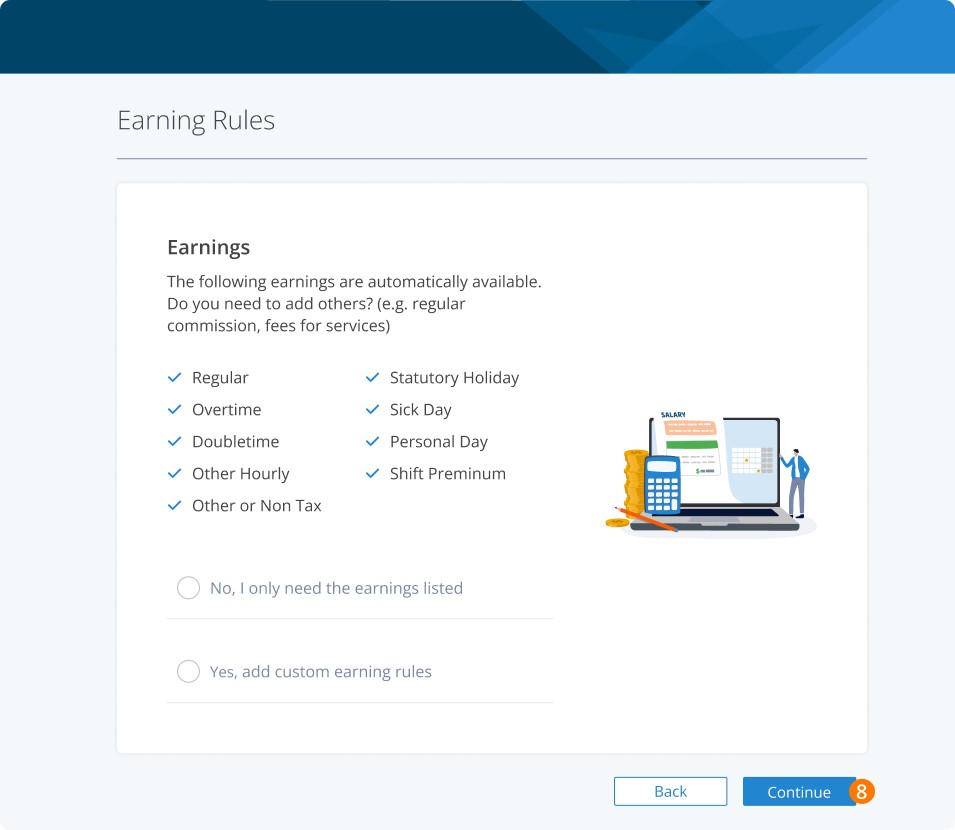
Step 9. And that's your payroll setup!
Add Employees
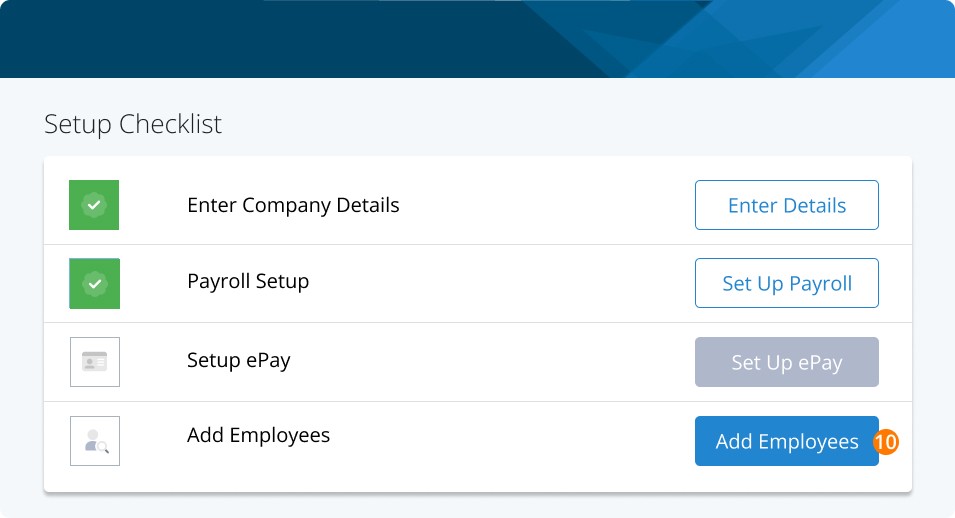
Step 10. Next, we just need to add your team. So, let's return to the checklist and click Add Employees.
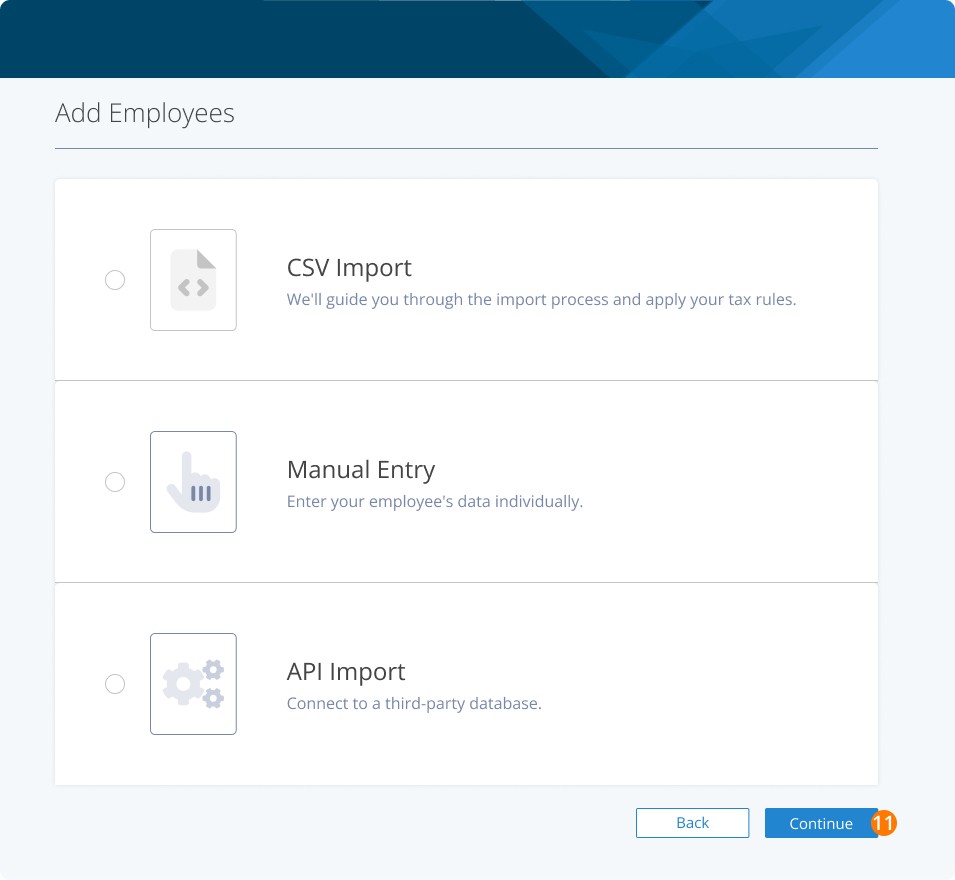
Step 11. You'll have three options to add your team members:
API Import
Setting Up ePay (direct deposit)
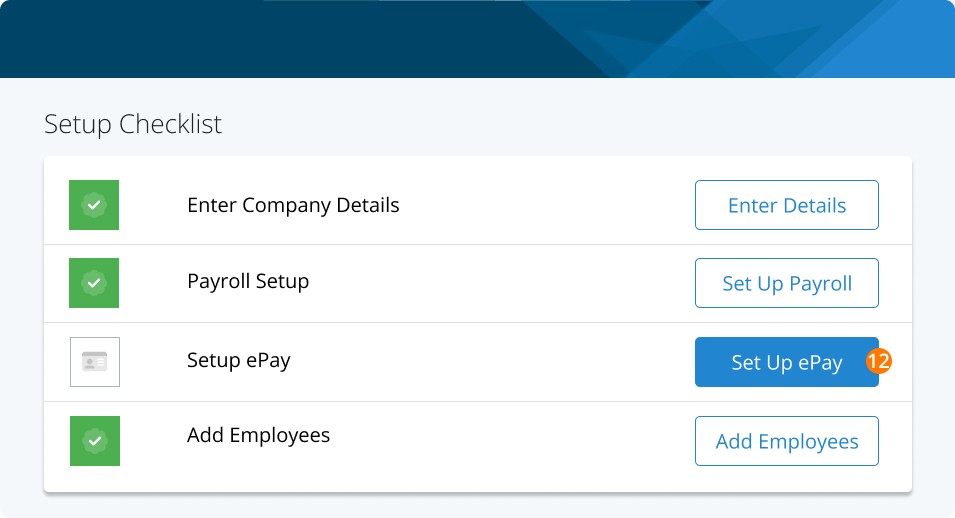
Step 12. Finally, all we need to do is set up direct deposit. It's the easiest, fastest, and most secure way to pay your team. So, let's go back to the checklist and select Set Up ePay.
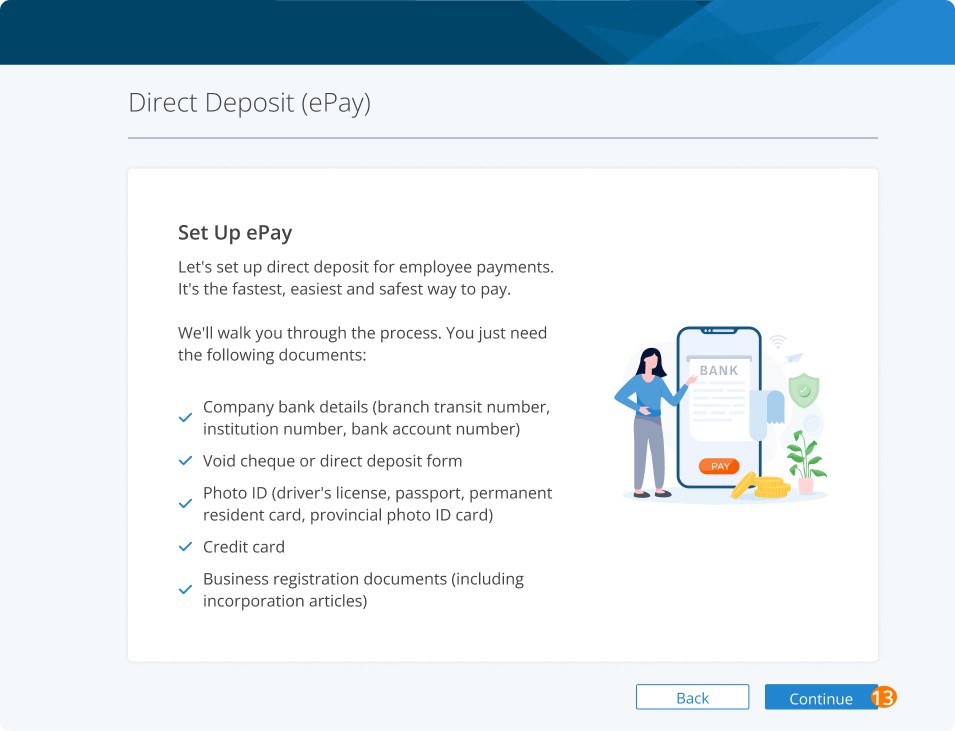
Step 13. Click Continue to begin the ePay process. You can read our full walkthrough.
Keywords: New Customer, Set Up, Setting Up Company, ePay, New Company
396
Can't find what you are looking for? We can take a more direct look to help resolve your matter — Create Case or Contact Us