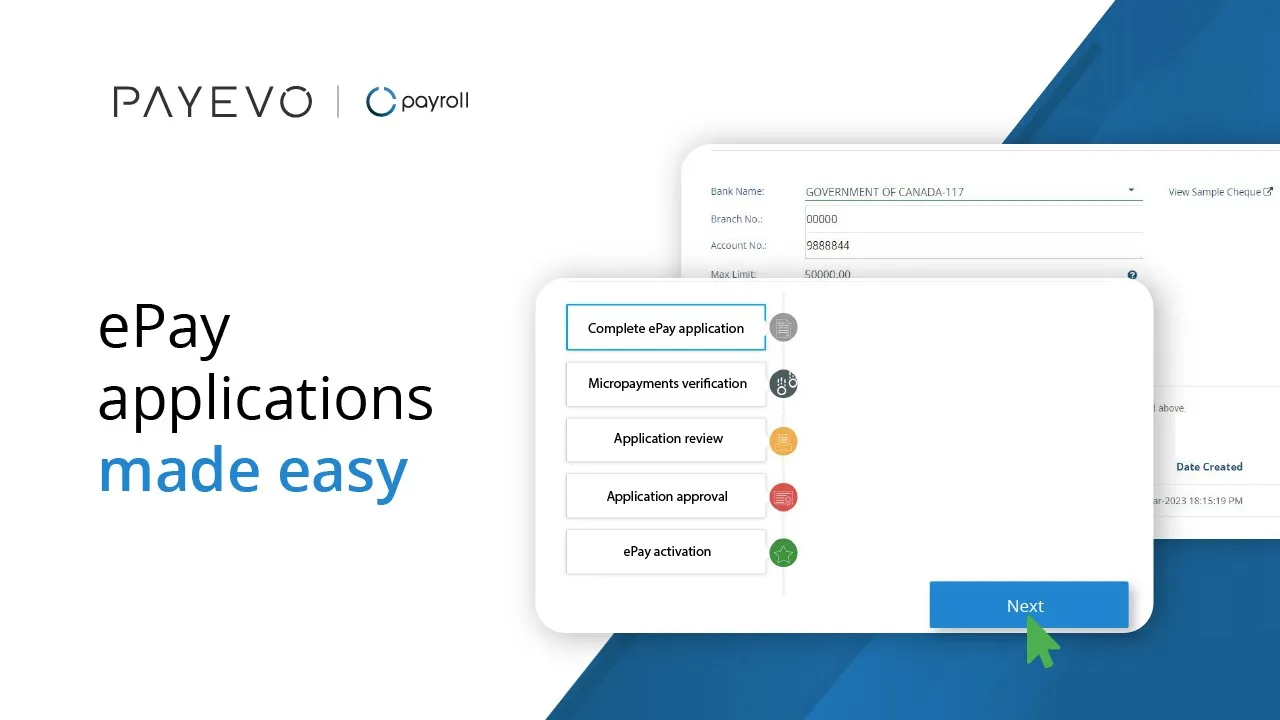
Setup ePay / Direct Deposit
This guide shows administrators how to set up ePay direct deposit in PayEvo.
Also known as: enable direct deposit, set up ePay, set up PAD, update company banking details.
Applies to: Administrator, Payroll (Web), Canada (en-CA)
Before you start
You must be the account administrator
You must have gathered the required documents (see below)
Important Note(s)
At PayEvo, your security is our top priority. Therefore, for pre-authorized debit approval, there a few steps in addition to the requirements below that you will need to follow after submitting your in-app application:
A signed bank letter by your bank representative (includes account number, email, signing officer(s), etc.)
A 2-minute, third party identity verification for added security
Your first pay run funded via wire, bill payment or Interac e-Transfer
Additional checks may be necessary as determined by our compliance and fraud prevention teams
Video loading, just a moment.
What is ePay?
ePay is PaymentEvolution’s direct deposit service. Enabling ePay grants you access to payroll and B2B transactions, along with the ability to perform other actions like reversals and the auto submission of ROEs and tax forms.
Required Documents
In order to activate ePay, you will be required to submit documentation on you and your business. Please gather the following documents before starting the registration process:
Business registration (one of the below):
Incorporation documents
Business registration documents
Bank verification (one of the below):
A void cheque
Image of a processed and cleared cheque
Letter from your branch manager
Identification (two for each required signatory):
Valid Canadian driver's license
Valid Canadian passport
Valid Canadian permanent resident card
Documents must be in the following formats: .jpg, .jpeg, .png, .gif, .tiff, .bmp, .svg, .pdf
Other ePay Documents & Verification Steps
At PayEvo, your security is our top priority. Therefore, for pre-authorized debit approval, there a few steps in addition to the requirements below that you may be asked to follow after submitting your in-app application:
A signed bank letter by your bank representative
A 2-minute, third party identity verification for added security
Our team will send you more information on these steps following your submission. Thank you for helping us keep you secure!
ePay Registration Walkthrough
From your company dashboard, click Direct Deposit Sign Up. Then, click Next to begin the application process.

NOTE: If this is not your first ePay application, you will need to go to Settings > Company Profile > Payments Profile and click 'Add' to start a new ePay application.
Select complete ePay application then click next.

Navigate to company details.
To add your first document for Business Verification, click Add Document in the lower right, and select it from your files. Once selected, provide a brief (1-5 word) description to tell us what the document is. Click Next to proceed.

On the Bank Details step, you’ll first need to enter in your source banking details. This is the account from which PayEvo will withdraw funds for payroll and/or business payments transactions. Once entered, upload your void cheque or direct deposit form along with any other banking verification document you have. To do so, click Add Document, select your file, provide a description, and upload. Repeat this for any other bank verification documents you wish to submit and click Next to proceed.

On the Signer step, confirm the first and last name of the authorized signer for the bank account you’re registering. Then, upload two (2) pieces of ID for the name you’ve entered, and click Next to proceed.
On the Payment step, you’ll be prompted for the $55+tax ePay registration fee. This is charged any time you add a new source bank account for your business. Enter in the payer and credit card details, click Add Card, followed by Pay & Review.
Now on the Review step, you’ll have two options:
(a) If you are the signing officer, select ‘I am an authorized signing officer for this bank account’ and proceed to sign on the screen.
(b) If not you are not the signing officer, then select ‘I need to send this application to the signing officer for this bank account’ and enter their email. They will then receive an email from PayEvo prompting them to sign the application.
Once the application has been signed, a small microdeposit will be sent to the bank account you’ve registered. In addition, you’ll also receive an email from PayEvo to your admin email address with instructions for verifying the microdeposit. Once you’ve received the payment, follow the link in the email and enter the amount.
By verifying the amount, your application will be submitted to our team for verification. Now, keep an eye out for an email from our team with the next steps.
TROUBLESHOOTING
Related questions
Keywords: ePay, Direct Deposit, Wire, Maximum Limit, PAD, Withdrawal, Debit
396
Can't find what you are looking for? We can take a more direct look to help resolve your matter — Create Case or Contact Us