The Billing report will show all the fees charged for all Business plan accounts. This information is also available in the ePay report, but this report can be used to review fees alone.
You can export this report to PDF or XLS by clicking on the 3 dots in the top-right corner of the report. There are also various filtering options for the information displayed on this report, which you can access by clicking the 3 dots beside the column that you want to filter.
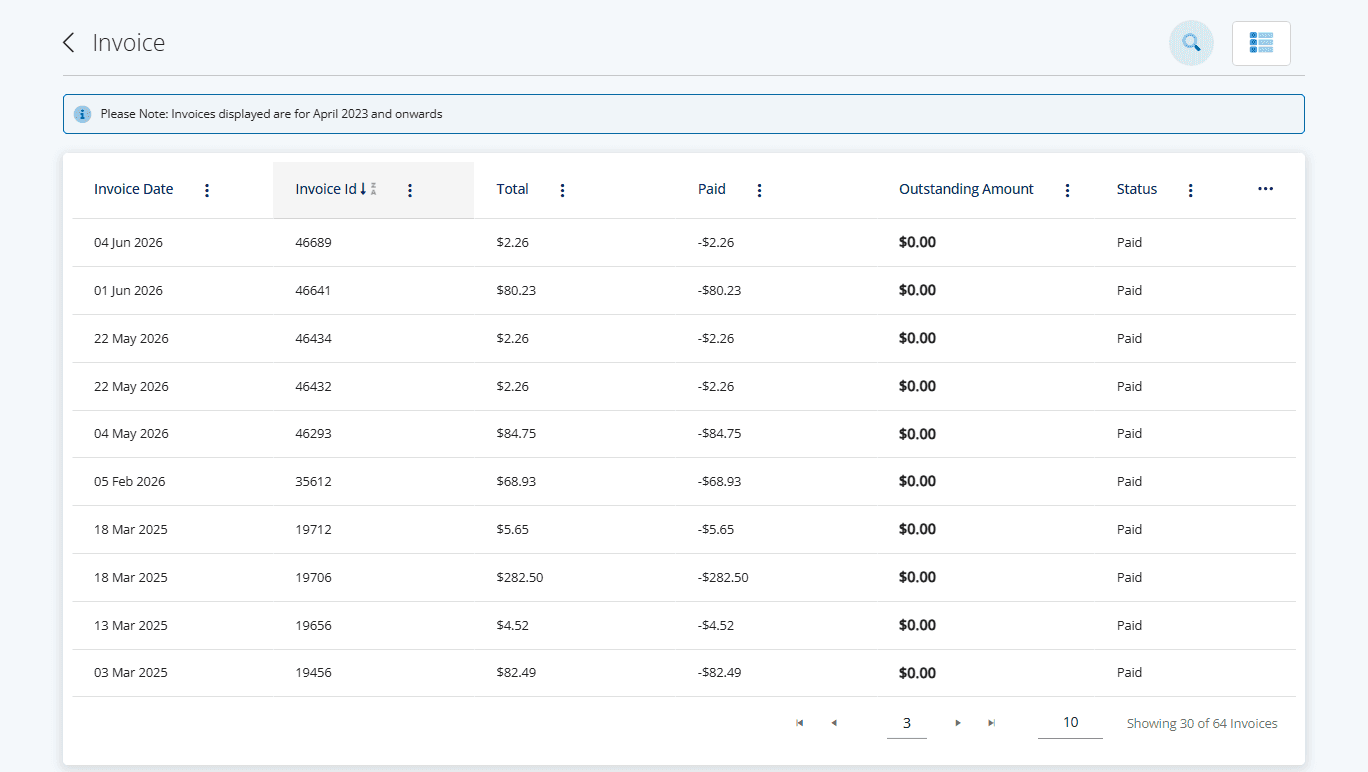
Invoice Date – the date the record was created (when the transaction was finalized).
Invoice ID – the unique ID associated with the invoice record.
Total – the total amount of fees charged for that type of fee.
Paid – the amount that was paid for that particular invoice.
Outstanding Amount – if an invoice was only partially paid, you will see the outstanding amount here.
Status – indicates the status of the transaction. This will indicate whether an invoice has been paid, partially paid, or is awaiting payment.
To view more details about a particular invoice, click on the Invoice ID from the main grid.
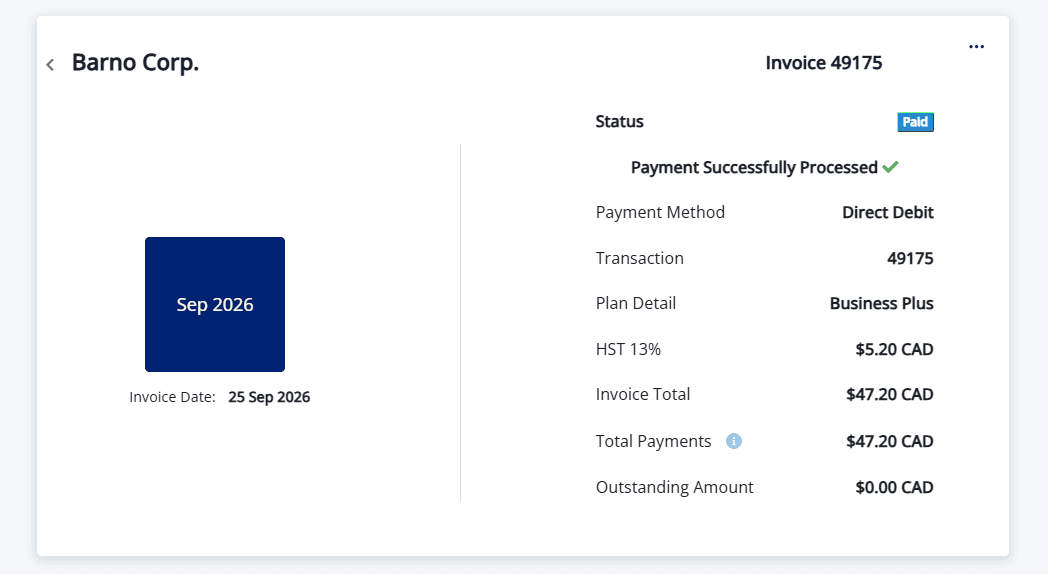
Here you will see a summary of the invoice, along with the tax breakdown (GST, PST/RST, etc.) and any outstanding amounts for the invoice. You can export this section to a PDF by clicking on the 3 dots in the top-right corner.
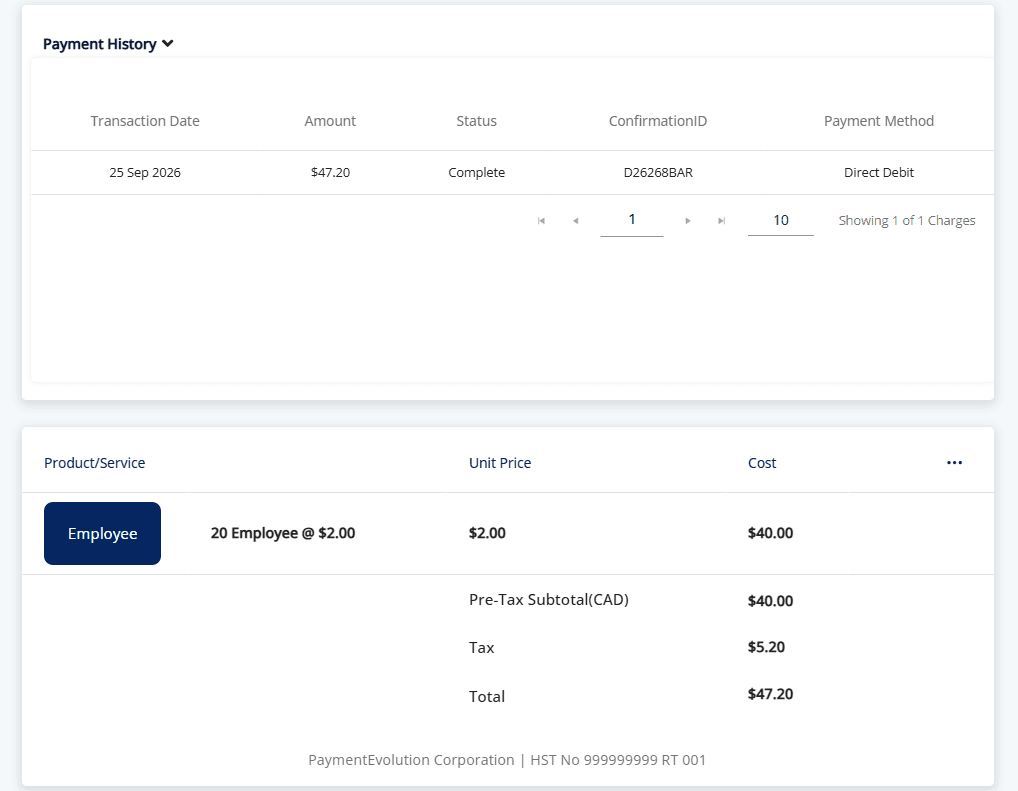
On the same page, you can see your payment history and more specific details for the charges on the invoice. You can export the charges to PDF or XLS by clicking the 3 dots in the top-right corner.
Keywords: Fees, Charges, Fee Debits, Unknown Charges
396
Can't find what you are looking for? We can take a more direct look to help resolve your matter — Create Case or Contact Us