The Year-to-Date Journal report records all pay run data that has been processed through finalized pay runs. As a result, it cannot report any changes made manually to an employee’s YTD information in their profile. This report is very useful when processing T4s as you can use it to compare with the Year-to-Date Summary report to ensure your data is current.
Creating the YTD Journal Report
Step 1. From the left-hand menu, click Reports.
Step 2. Choose Yearly.
Step 3. Select Year-to-Date Journal.
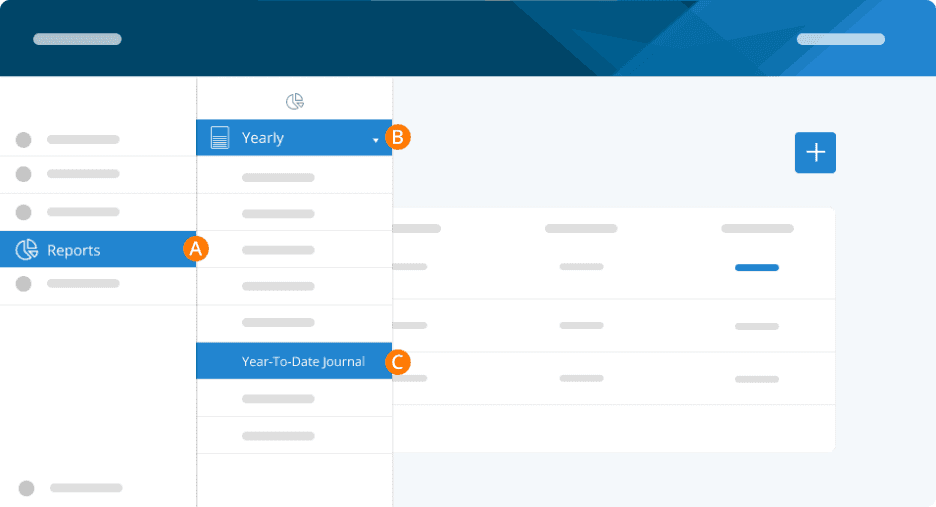
Step 4. Click Create New Report.
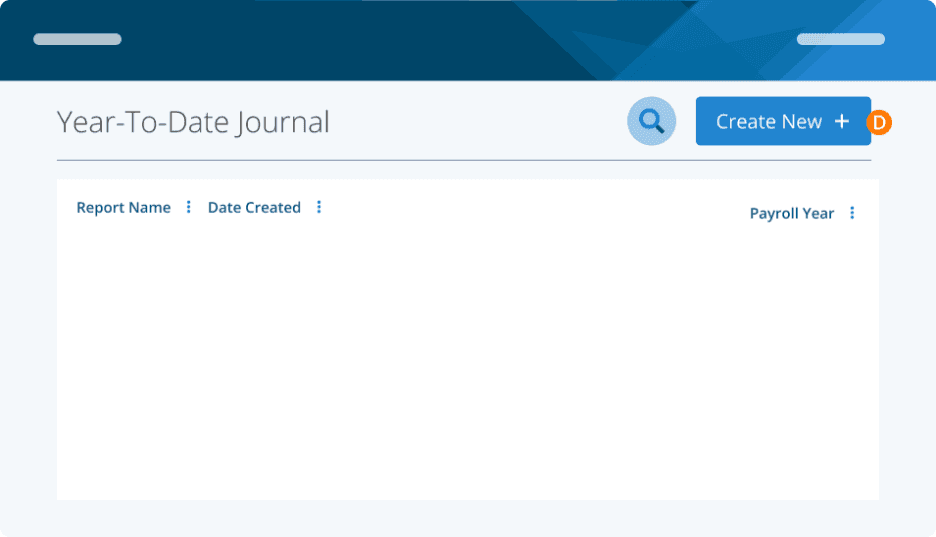
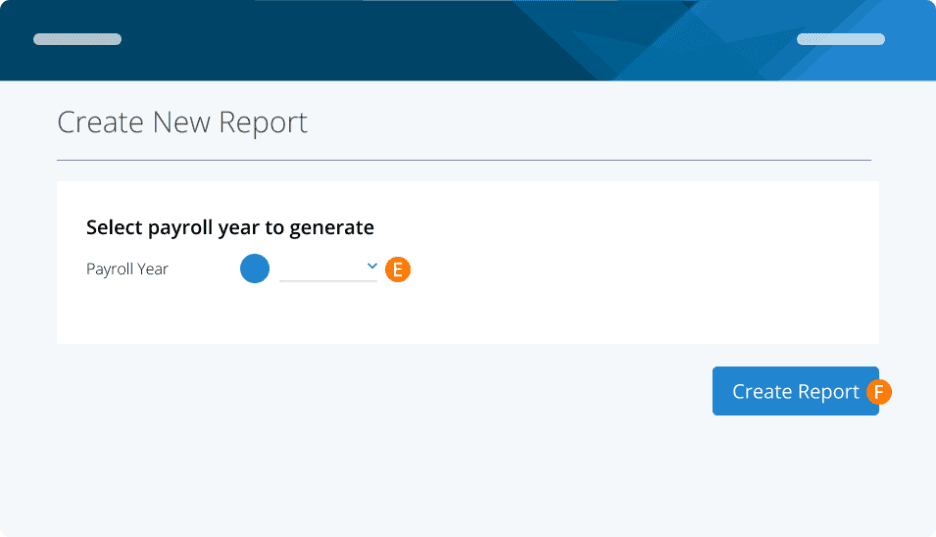
Step 5. Select the year for which you wish to create the report. Any year in which you have payroll information will be shown as an option.
Step 6. Once selected, click Create Report.
Please note: Creating a new report will provide you with the current YTD information. This means that a report created in March will have much less data if created for the current year than one created in December. If you’re using this report to review your T4s, be sure to create a new report at that time to have the most up-to-date information.
Using the YTD Journal Report
Step 7. Created: The date the report was created. Please note that this does not necessarily indicate the year that the report is for.
Step 8. Payroll Year: The year the report represents.
Step 9. Three dots: Click this to download it as a PDF. This report is not available in View mode.
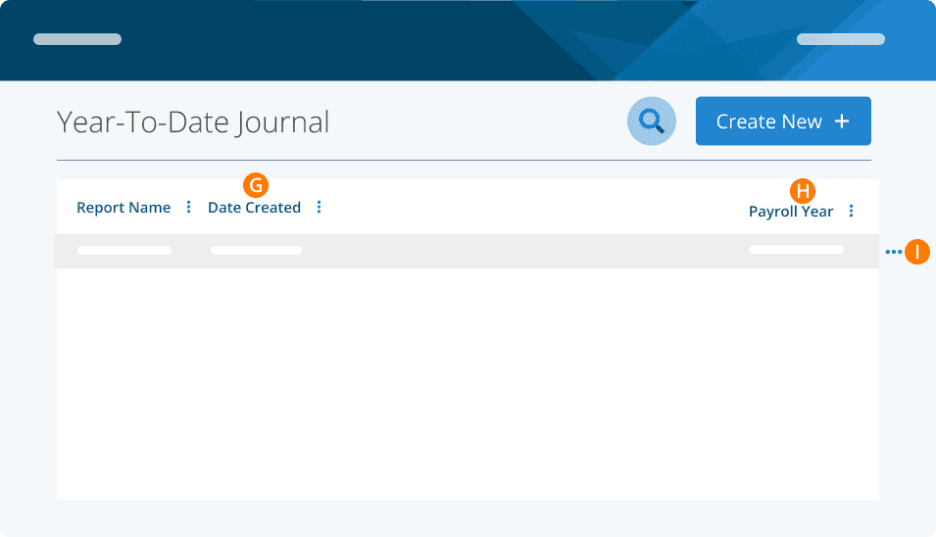
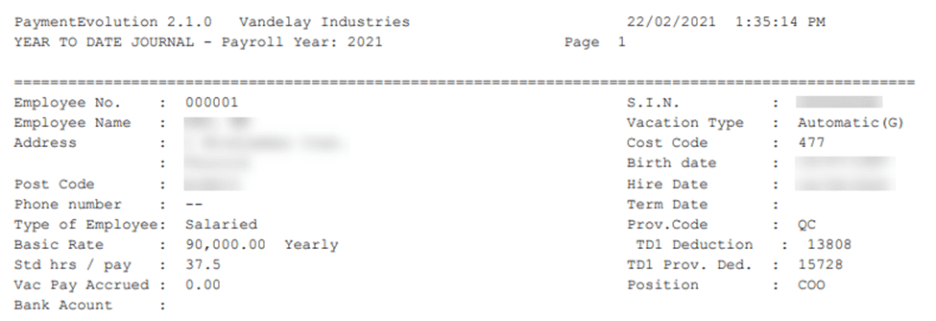
Once you download the report, at the top of the report page it will list the payroll year as well as some general employee information, like their name, pay rate, GL cost account, and more:
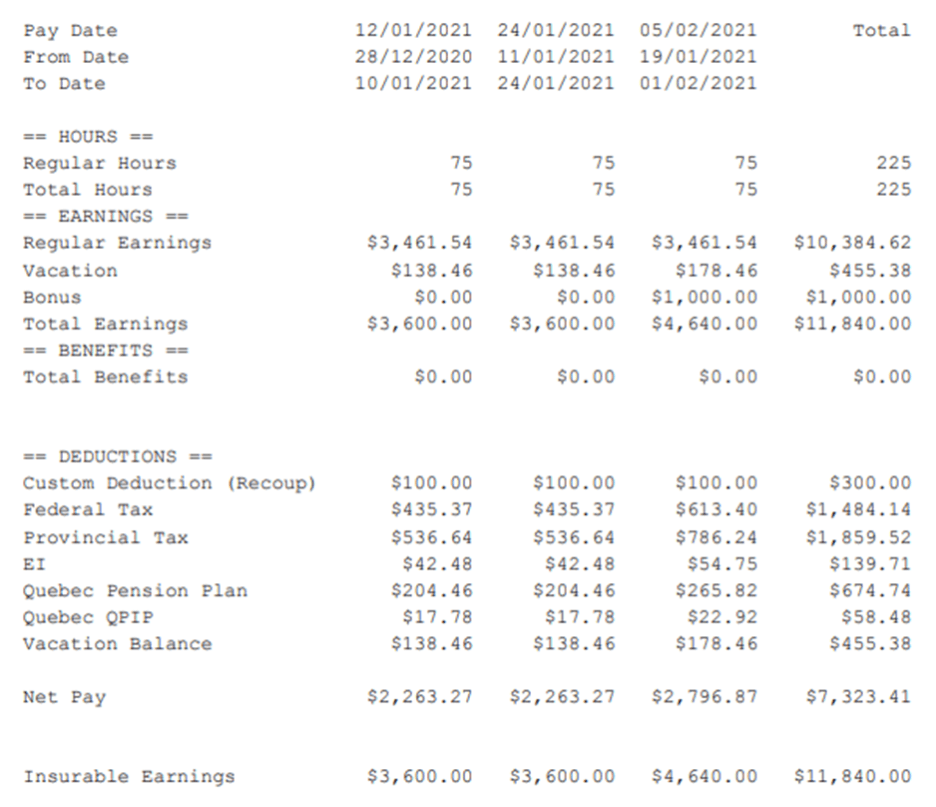
Below the employee’s information, you will see their payroll data such as earnings, hours and deductions. It is broken down into one column per pay run, with a total YTD column at the very end. For employees involved in many pay runs, there may be 2 or more pages worth of information, so be sure to review the entire report.
Troubleshooting & FAQs
Why is my YTD Journal different than my YTD Summary?
The YTD Journal and the YTD Summary get information from different places, so they may be different. If you have been using PayEvo to process your payroll for the entire calendar year, these two reports should match exactly. If they do not, this indicates that you or someone in your organization has made manual changes to the employee(s) YTD.
The YTD Journal gets its data from finalized pay runs only, which are all pay runs completed in the program.
The YTD Summary gets its data from the employee YTD only.
Most common reasons why the YTD Journal and Summary might not match:
You started with PayEvo part way through the year and entered employee YTD on start-up. The YTD Summary will then be a total of the YTD Journal amounts plus what was entered on start-up.
Manual changes to employee YTD.
Keywords: Payroll History, Employee Breakdown, YTD Journal, Yearly Payroll History
396
Can't find what you are looking for? We can take a more direct look to help resolve your matter — Create Case or Contact Us