To set up ePay in the new update, follow these steps:
Click Setup ePay from your Setup Checklist.
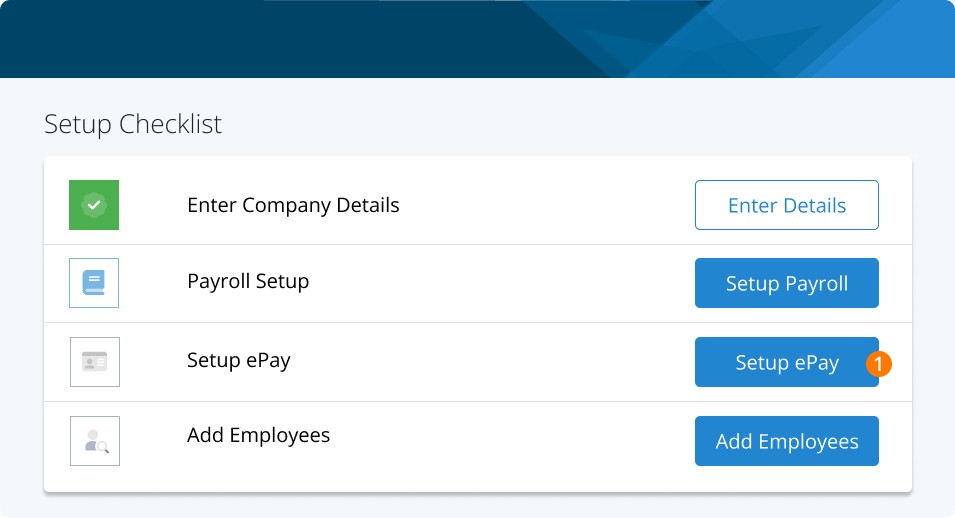
Click Continue.
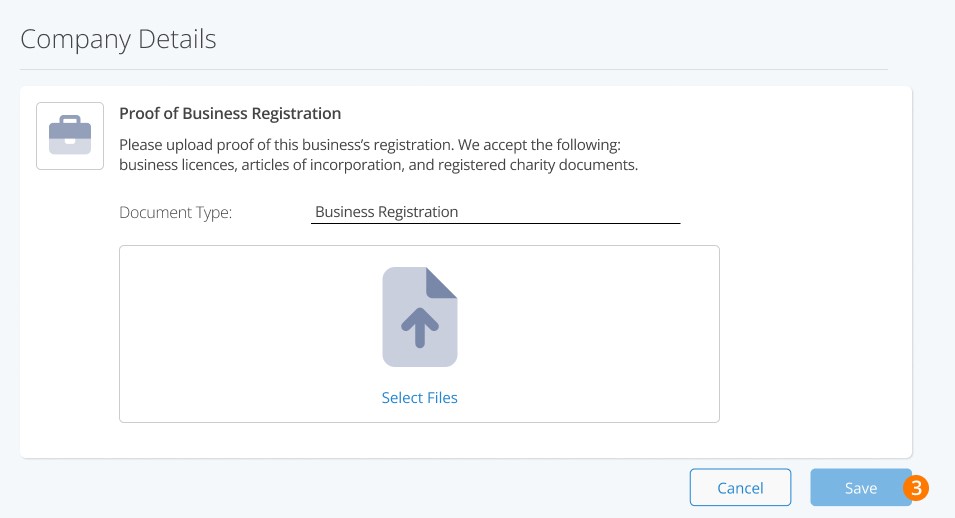
Upload proof of the business’ registration. For example, your articles of incorporation or business registration. For faster processing, the document should include the owners or directors of the business. Once done, click save.
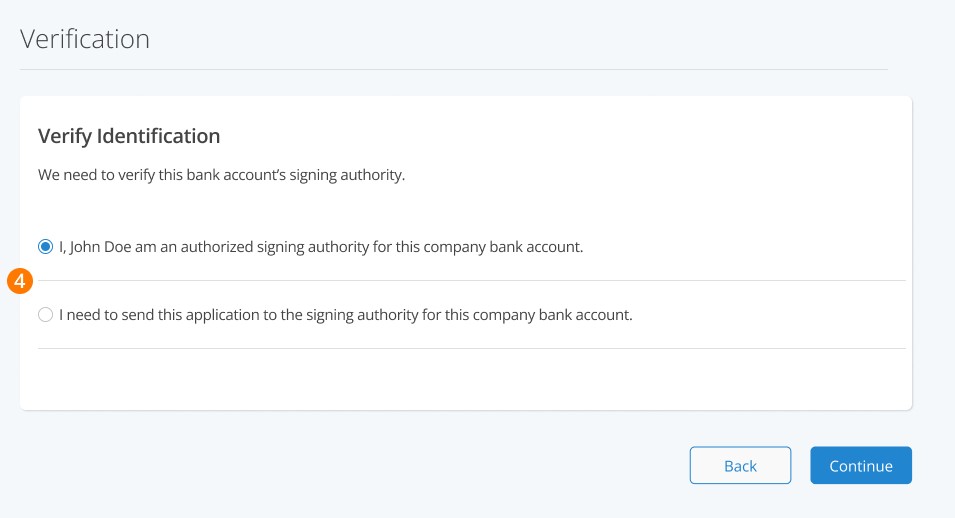
Indicate if you are the signing officer for the business. For example, if you are an owner or director of the company, then you would choose the first option. If you are an employee setting up ePay for your company and you do not have signing authority on the bank account, select the second option. Doing so will allow you to send the verification steps of the application to the authorized person.
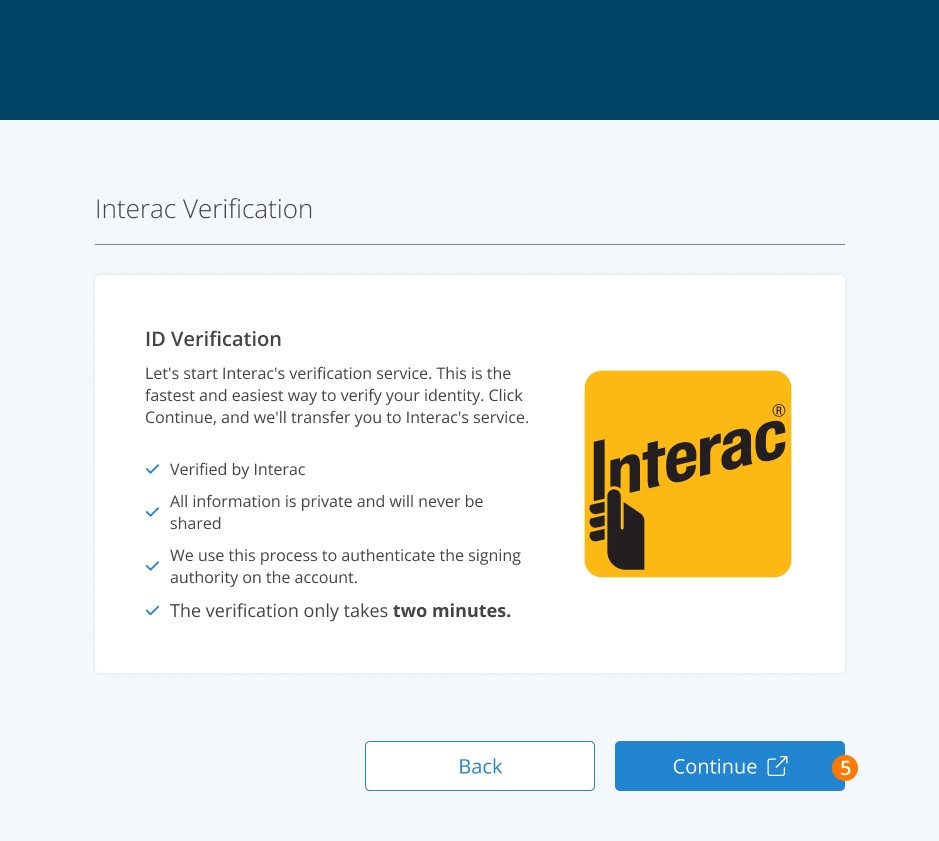
Verify your ID with Interac. Click Continue to be taken to Interac’s verification service. If you wish to proceed with manual verification rather than Interac’s service, you can choose to do so on-screen. Please note that manual verification can cause delays in your application processing.
Enter your company’s source bank details in the appropriate fields. This will be the bank account that payroll funds will be withdrawn from.
Indicate whether or not this account requires single or dual signing authority. By indicating No, you are telling us that have single signing authority for this bank account.
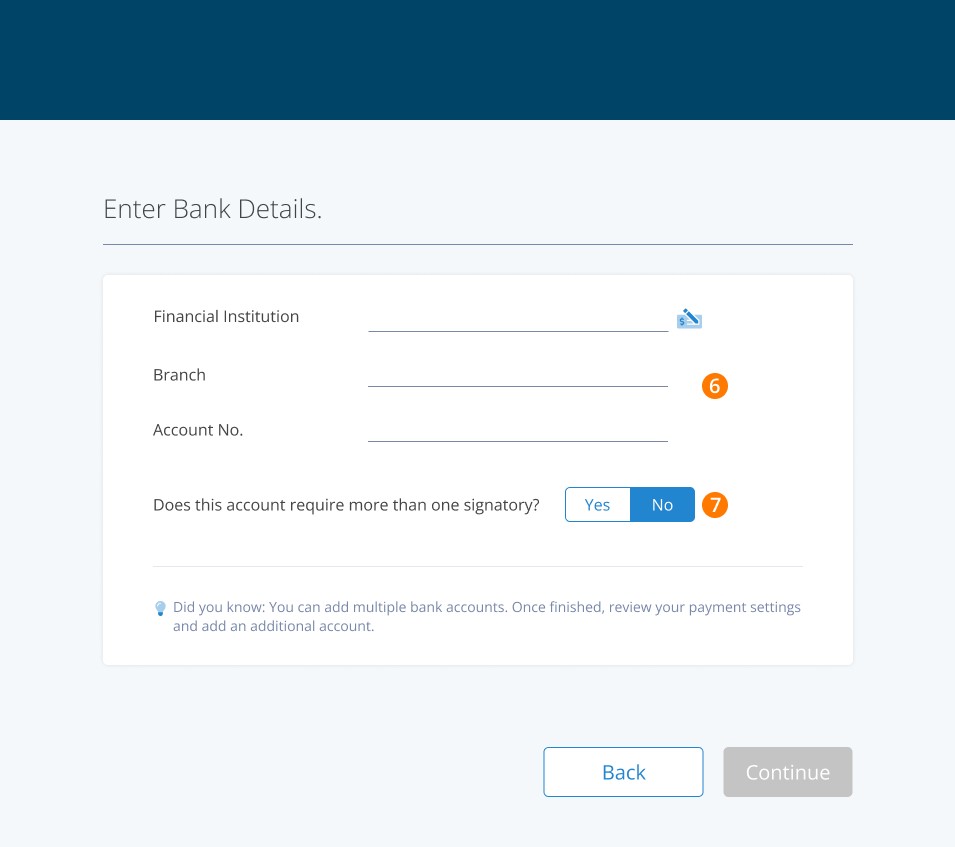
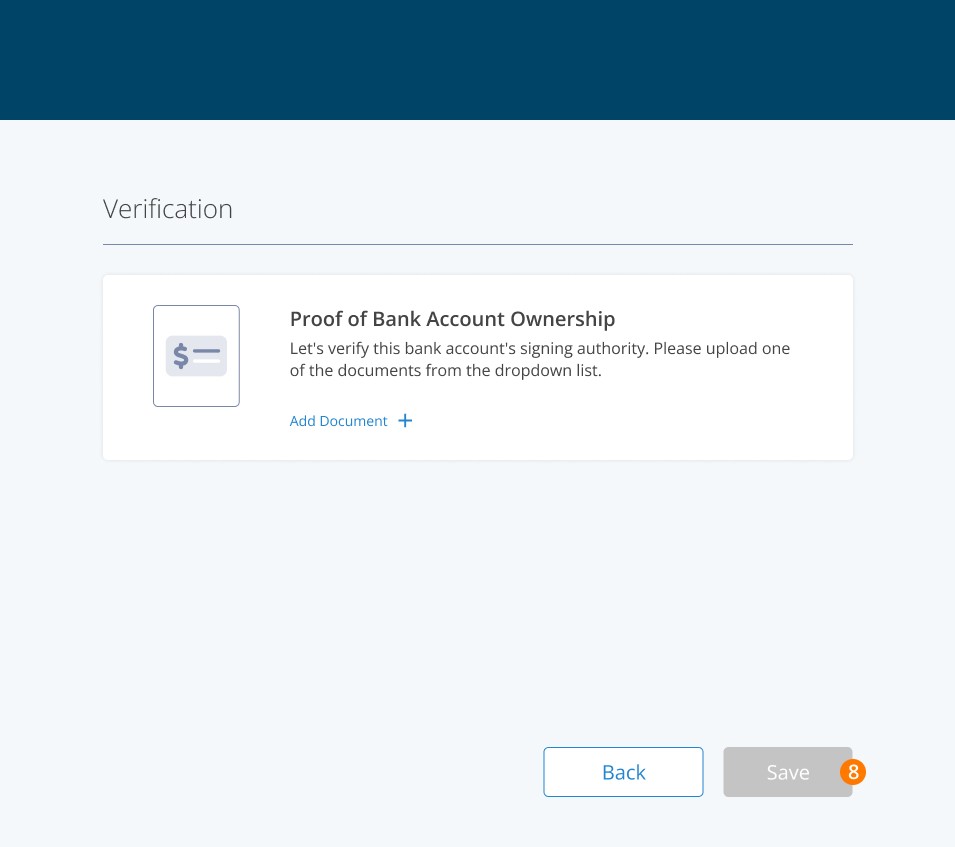
Upload your void cheque, cleared cheque or direct deposit form. This document must include your bank details, and ideally should indicate signing authority on the account. Once uploaded, click Save, followed by Continue.
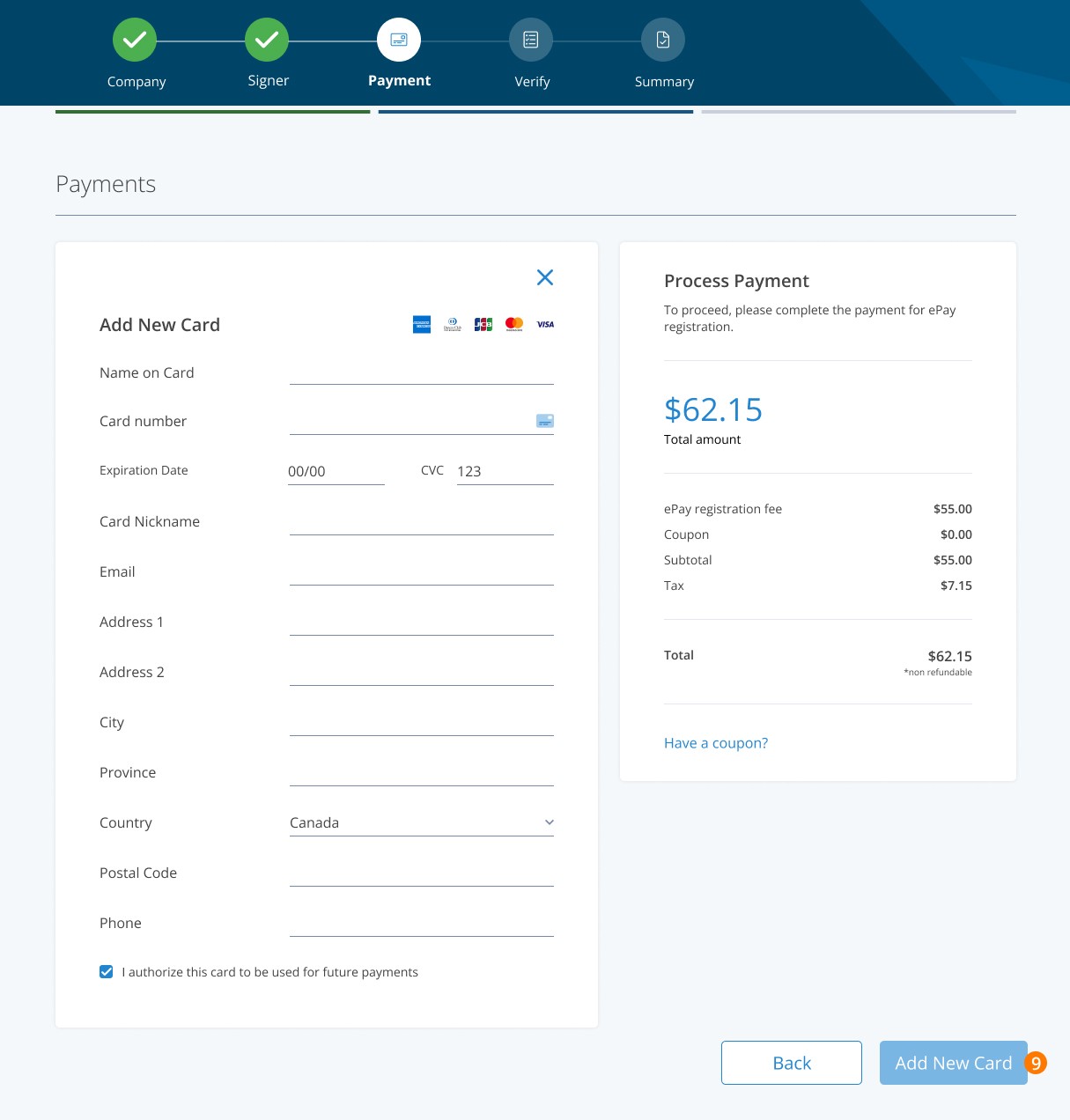
Pay for the ePay set up. Enter your credit card details to complete payment for the $55+tax set up fee. Add your card, click Pay and proceed.
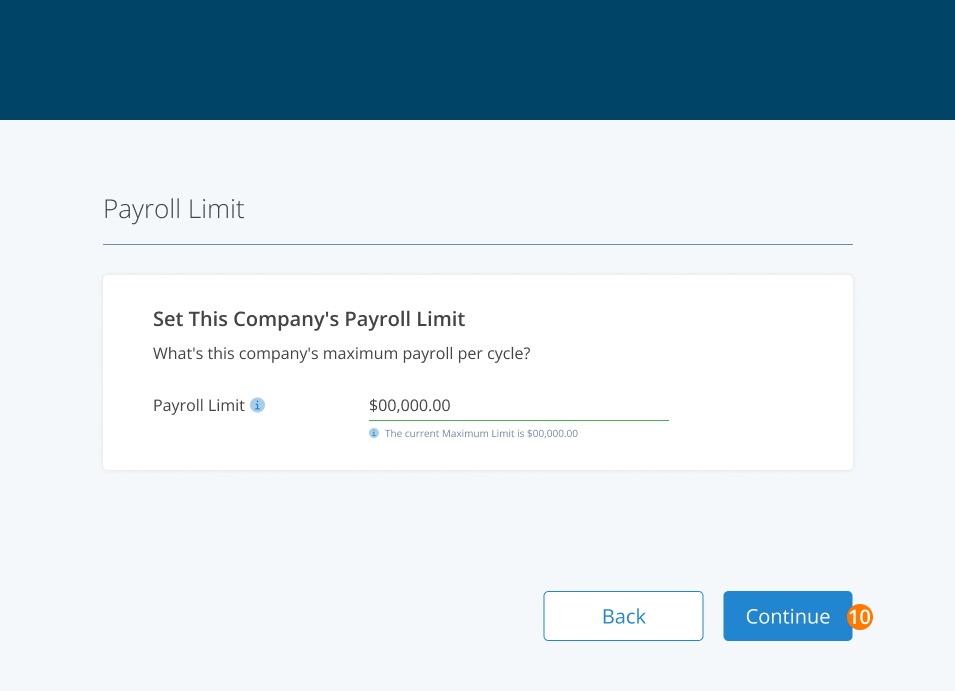
Enter your maximum limit. This is the most PayEvo will withdraw from you for a single transaction. We generally recommend taking your average gross payroll value and adding 30%.
Sign the PAD on-screen. There will be a link to the terms and conditions for you to review before signing as well.
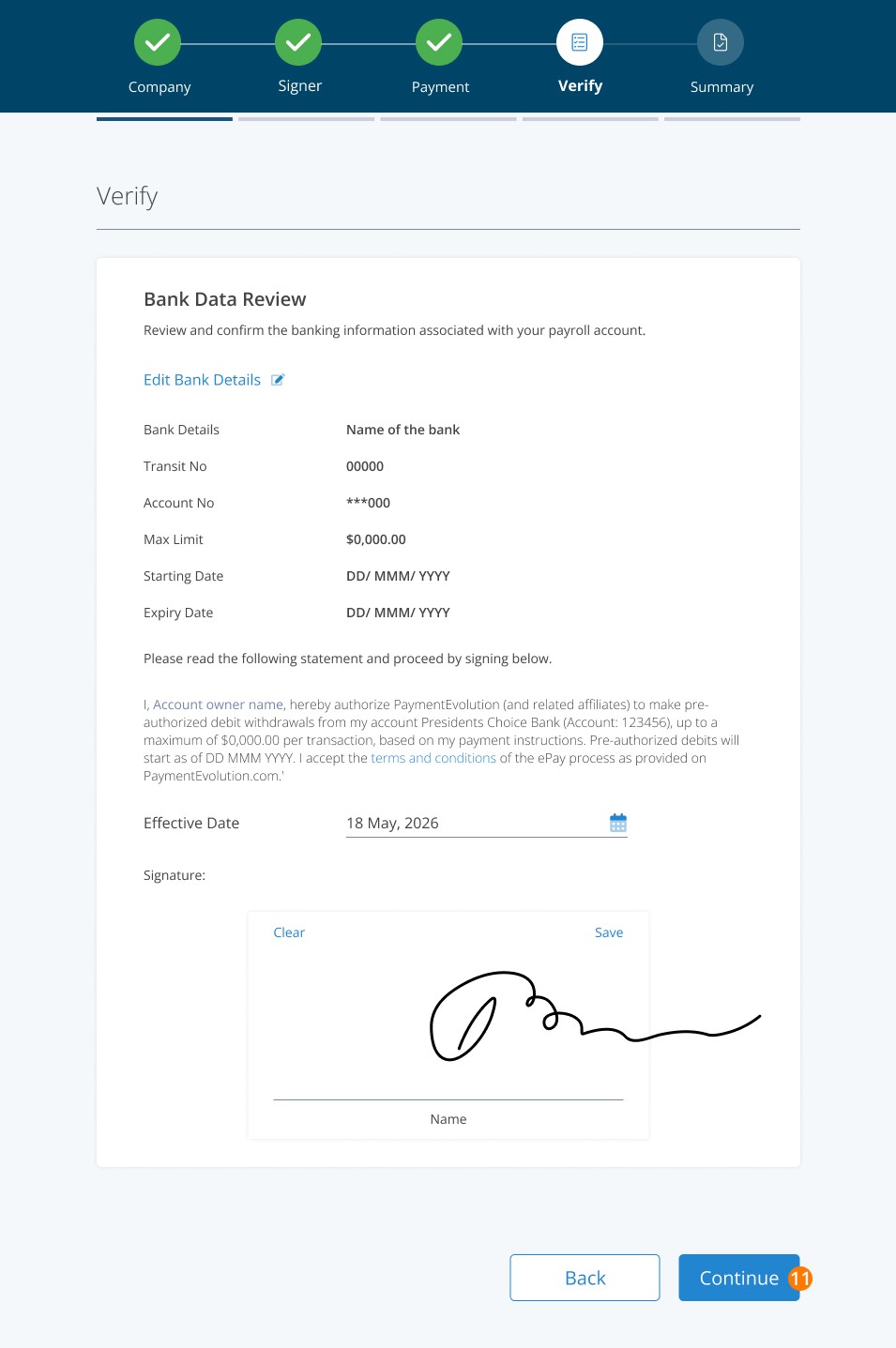
Click Send Micro-Deposit to trigger the payment. This will deposit a small payment of under $1.00 to your account. Once you receive it, follow the link in your email to verify it.
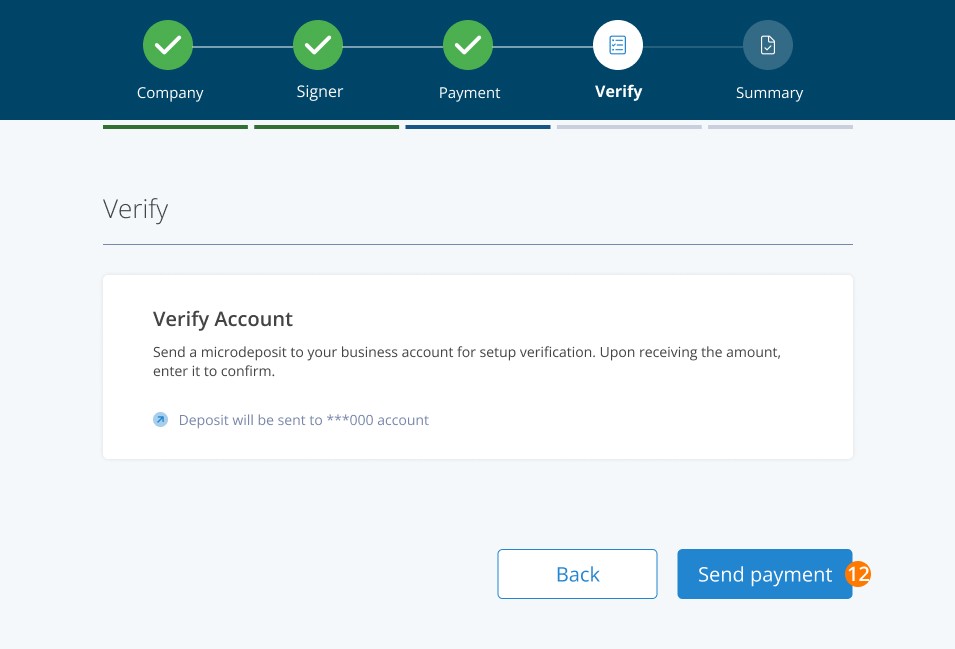
After that, the ePay team will review and reach out to you should you need any further information.
Keywords: ePay, set up ePay, direct deposit, PAD activation
396
Can't find what you are looking for? We can take a more direct look to help resolve your matter — Create Case or Contact Us