When Time Tracking is not enabled
If your employer has not enabled any Chequer apps, such as Time Tracking or Workflow, you will see a message letting you know.
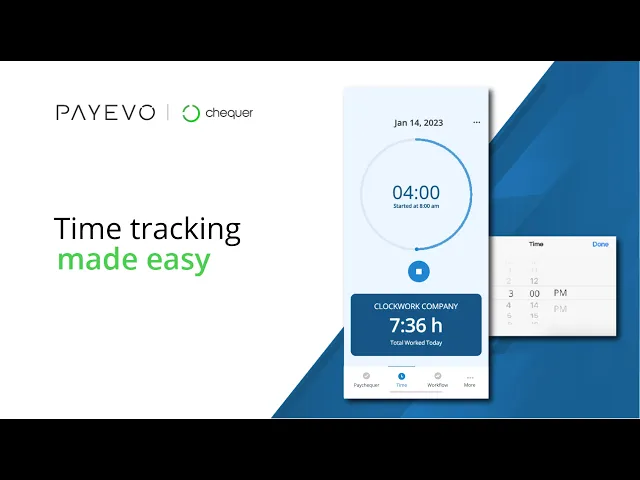
If Time Tracking is enabled, the app opens directly to the Time Tracking home screen.


Open Time Tracker
When you open Time Tracker for the first time each day, you will see:
A. Timer: Shows the time recorded for the current work period.
B. Total worked today: Shows the total time recorded for the day.

Start and stop the timer
C. Start: Select the play button to begin tracking time and create a new time record.
D. Stop: Select the stop button to end the time record.

If the timer runs for less than one minute, a pop-up lets you delete the record or continue the timer.
Tip: You can close the app or turn off your device while the timer runs. Reopen the app when you are ready to stop it.
Use the Timer Menu
Open the Timer Menu using the ellipsis (...) in the top-right corner of the screen.
The screenshot labels identify these options:
E. Timer Menu: Opens the available timer options.
F. Adjust Clock-In Time: Changes the start time of a running timer.
G. Switch Company: Changes the employer you are tracking time for.
H. Quick Start Guide: Opens a guide to using Time Tracker.
I. Time History: Opens your full time history so you can review and adjust past entries.

Additional settings are available in the More Menu at the bottom-right corner of the screen.

Understand the timer displays
J. Current Timer: Shows the time recorded for the current session at the top of the screen.
K. Total Worked Today: Shows the total time recorded for the current day.
If you work for multiple companies, use Switch Company to view time records for each employer.

Adjust the clock-in time for a running timer
If you forgot to start the timer when you began working, start it first. Adjust Clock-In Time is available only while a timer is running.
Follow these steps using the labels shown in the screenshots:
L. Open the Timer Menu (...).
M. Select Adjust Clock-In Time.
N. Use the time picker to set the correct clock-in time.
O. Select Done to save your changes.


The Timer screen updates to show the new start time and accumulated time.
Keywords: time tracking, chequer app, workflow, employer, chequer apps, time tracking or workflow, chequer, paychequer, timetracking
396
Can't find what you are looking for? We can take a more direct look to help resolve your matter — Create Case or Contact Us