Editing time records
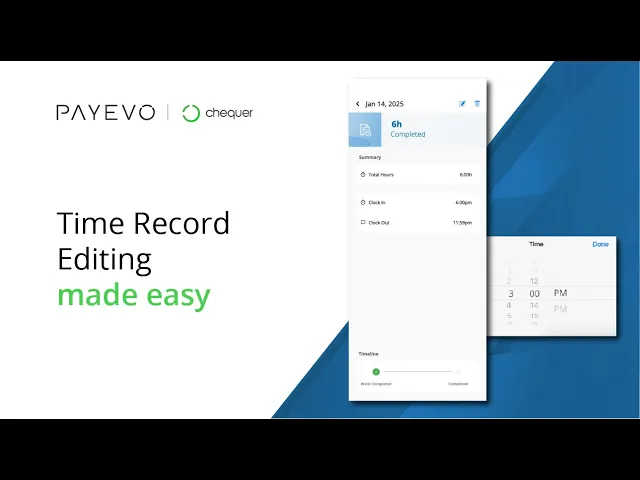
Learn how to access and edit your time records in Chequer Mobile.
Open your time history
A. Tap the More icon in the bottom menu.

B. Select Time History.
You can also access Time History from the ellipsis (...) menu in the top-right corner of the Time screen.

Select a record to edit
Your time history shows your past time records:
Blue background: The record is editable.
Green background: The record can no longer be edited.
After 48 hours, you can no longer edit a record.
C. Tap an editable blue record to open that day's view.

D. Select Edit.

Make your changes
You can now use these controls:
E. Trash icon: Delete an entry.
F. Clock In time: Change the clock-in time.
G. Clock Out time: Change the clock-out time.
H. Plus icon: Add a new entry.

I. Change the time.

J. Continue.

Save and submit your changes
K. Tap Save & Submit.
L. Confirm your submission.

You can now see your updated time record.
Keywords: Chequer, Paychequer, Chequer App
396
Can't find what you are looking for? We can take a more direct look to help resolve your matter — Create Case or Contact Us